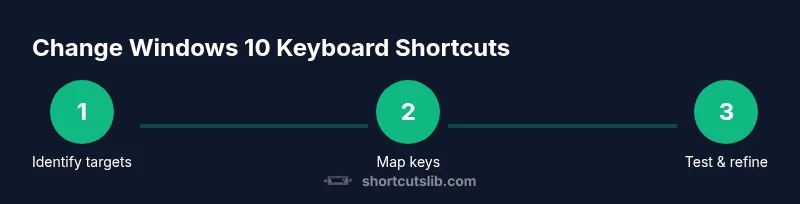
Windows 10 Keyboard Shortcuts: Change & Customize
Learn how to safely change Windows 10 keyboard shortcuts using PowerToys Keyboard Manager and app-specific tweaks. This comprehensive 2026 guide covers global remapping, testing, backup, safety tips, and practical examples to boost productivity without breaking workflows.


You can customize Windows 10 keyboard shortcuts by remapping keys globally with PowerToys Keyboard Manager and by adjusting shortcuts inside individual apps. This guide shows how to enable and map keys, create safer defaults, and test changes. To get started, ensure you have admin rights, back up current mappings, and understand global versus app-specific shortcuts.
Understanding the landscape: global vs app-specific shortcuts
Windows 10 supports two main pathways for shortcut customization: global remapping that affects most programs, and app-specific tweaks that live inside individual apps. Global remapping can streamline daily tasks but may conflict with game shortcuts or specialized software. App-specific tweaks, on the other hand, limit changes to a single environment, reducing risk and helping you retain OS-level shortcuts. In 2026, most power users rely on a combination: using a central tool to manage global mappings for frequent actions, while adjusting in-app shortcuts for studio tools, editors, or browsers. Shortcuts Lib notes that a clear plan saves time and avoids the frustration of hunting down inconsistent shortcuts later. This section explains how to decide between global vs app-specific strategies and how to structure your approach so changes feel predictable rather than surprising as you work across multiple programs.
Global remapping with PowerToys Keyboard Manager
PowerToys Keyboard Manager is the most popular tool for global remapping because it gives you a centralized place to map keys, define custom shortcuts, and apply changes quickly. Before you begin, install PowerToys from the official Microsoft repository and verify you have admin rights. The Keyboard Manager lets you remap one key to another, or create a short sequence that triggers a different action. This means you can convert a rarely used key into a common action, or reassign a modifier key to streamline workflows. In practice, you might remap Caps Lock to Escape for editing tasks or swap Right Ctrl with a move-to-end shortcut for coding sessions. Remember that changes take effect after you save and apply them, and you can disable them to test outcomes.
App-specific shortcuts and in-app customization
Many applications ship with customizable keyboard shortcuts built into their settings. For example, editors, IDEs, and office apps often provide a keybindings section where you can redefine actions without touching the OS. This approach minimizes system-wide side effects and supports a more targeted workflow. Start by identifying the shortcuts you frequently press and search the app's preferences for corresponding actions. If the same key combination exists globally, avoid overlapping mappings that could cause conflicts when switching apps. Shortcuts Lib recommends documenting your changes so you can revert easily if an update alters defaults.
Safety, backup, and rollback planning
Remapping keys can be reversible, but it’s essential to plan for rollback. Create a system restore point or back up the registry before making changes. When you map a critical key, label it clearly and keep a written note with the exact remappings. If something stops working, you can disable PowerToys mappings from the Keyboard Manager or restore the previous registry state. This reduces the risk of losing productivity due to accidental misconfigurations. Shortcuts Lib emphasizes cautious changes and a reversible approach, especially on primary devices used for work.
Authority sources and learning resources
To deepen your understanding, consult official documentation and trusted tutorials. PowerToys Keyboard Manager docs from Microsoft Learn provide authoritative guidance on setup and remappings. For practical how-tos and examples, How-To Geek offers beginner-friendly walkthroughs that complement official docs. Such sources help you stay up-to-date with 2026 tooling and best practices.
Testing, iteration, and optimization
After applying changes, test the shortcuts across several apps and workflows. Look for conflicts with existing shortcuts or unexpected behavior, and be prepared to revert mappings that hinder performance. A rotation schedule—test for a day, then revisit—helps ensure your remappings truly speed up work without introducing friction. Keep a changelog so you can iterate confidently and share effective setups with teammates.
Tools & Materials
- Windows PC with Windows 10(Ensure OS is updated to the latest 2026 build.)
- PowerToys(Install from the official Microsoft repository; includes Keyboard Manager.)
- Admin access(Necessary to install PowerToys and modify system-level mappings.)
- Backup point(Create a system restore point or registry backup before changes.)
- Documentation template(Optional: log mappings and rationale.)
Steps
Estimated time: 45-60 minutes
- 1
Identify target remaps
List the keys you rarely use and the actions you perform most. Decide if you want global changes or app-specific tweaks. This planning minimizes wasted effort and sets clear goals.
Tip: Start with non-destructive remaps (e.g., repurpose a rarely used key). - 2
Install or update PowerToys
Download PowerToys from the official source and install it. Confirm you have admin rights and a recent backup. This foundation is essential for reliable global remapping.
Tip: Verify the Keyboard Manager is enabled in the PowerToys settings. - 3
Open Keyboard Manager and map keys
Launch Keyboard Manager, choose Remap a key or Remap a shortcut, and create the desired mapping. Save the changes and apply; a restart is usually not required but may help.
Tip: Prefer remapping a single key before attempting complex shortcuts. - 4
Test your new mappings
Try the new mappings in multiple applications. Ensure the results are intuitive and not causing conflicts with existing shortcuts.
Tip: Use a text editor and browser to check consistency across contexts. - 5
Refine or rollback
If a mapping doesn’t improve your workflow, adjust or disable it. Use the quick toggle to temporarily disable mappings and document the change.
Tip: Maintain a changelog for quick reference. - 6
Document your setup
Record the final remappings, reasons, and apps affected. This makes future updates easier and helps teammates.
Tip: Save the document in a shared drive for collaboration.
Questions & Answers
Can I remap keys globally on Windows 10?
Yes, you can remap keys globally using PowerToys Keyboard Manager or registry tweaks. Be mindful of potential conflicts and ensure you have a backup before applying changes.
Yes. You can remap keys globally with PowerToys Keyboard Manager, but back up before you start.
Will remapping affect gaming or specialized apps?
Global remaps can affect all applications, including games. Test mappings in a controlled way and consider app-specific tweaks for problematic contexts.
Global remaps can impact games; test cautiously and prefer app-specific tweaks for gaming.
Can I revert to default mappings easily?
Yes. You can disable or delete mappings in PowerToys or restore a system backup. Keeping a changelog makes rollback straightforward.
Yes. Disable the mappings or restore a backup to revert to defaults.
Is remapping allowed on company devices?
Company devices may have policies restricting remapping. Check with IT and use in-house guidelines before changing shortcuts on work machines.
Check your IT policy before remapping on work devices.
What is a best practice for testing remaps?
Test mappings across multiple apps, keep a log, and only apply changes after confirming a measurable productivity gain.
Test across apps, log changes, and confirm productivity gains before finalizing.
Watch Video
Main Points
- Remapping can speed workflow when planned.
- PowerToys Keyboard Manager is a practical global solution.
- App-specific shortcuts reduce risk of conflicts.
- Back up before changes and test thoroughly.
- Document mappings for future updates.