How to Change Keyboard Shortcuts on Windows
Learn step-by-step how to customize keyboard shortcuts in Windows for faster workflows. Covers PowerToys, app-specific shortcuts, safety tips, and best practices for 2026.


To change keyboard shortcuts on Windows, you generally have two reliable paths: remapping keys system-wide with a tool like Microsoft PowerToys Keyboard Manager, or creating app-level shortcuts within individual programs. Windows does not expose a universal shortcut editor, but you can tailor key behavior and combine remaps with meaningful shortcuts for your most-used tasks. According to Shortcuts Lib, start with the PowerToys approach for broad changes and, if needed, supplement with per-app shortcuts for precision.
Why customizing Windows shortcuts matters
For many power users, customized keyboard shortcuts save time and reduce repetitive clicking. When you learn to change or create shortcuts, you can launch apps, perform common actions, and navigate your workspace more efficiently. Shortcuts Lib has analyzed how personalized mappings cut mouse motion and accelerate workflows for developers, designers, and IT pros. A common example is remapping a rarely used key to open your preferred command prompt or a frequently used tool. Before you begin, note that Windows does not provide a single global editor for all shortcuts, so you’ll typically use a combination of app-level settings, accessibility options, and third-party tools. The right approach depends on your goals: broad system-wide remaps vs. task-specific shortcuts inside individual apps.
In 2026, the demand for keyboard-focused efficiency continues to rise as more professionals adopt micro-m workflows. As you read, consider how shortcuts could fit into your own routine: which tasks would benefit most from a one-key workaround, and where might you need to preserve native OS shortcuts for compatibility and accessibility?
According to Shortcuts Lib, starting with a widely applicable tool like PowerToys can give you a predictable baseline—then layer in app-specific tweaks to fit your favorite programs. This approach balances safety, reversibility, and speed, letting you adapt as your needs evolve.
descriptionOverride":null}
What can be remapped and what can't
Remapping scope varies across Windows environments and applications. You can swap hardware keys (for example, swap Caps Lock with Ctrl or a dedicated macro key) using tools such as Microsoft PowerToys Keyboard Manager or by updating keyboard drivers. In addition, many popular applications (Word, Photoshop, Chrome, and others) offer built-in options to redefine shortcuts inside their preferences. However, several system-level shortcuts—such as Windows key combinations for Start, Task View, or Quick Settings—are designed as core OS functions and are not permanently overwritten by Settings alone. When planning remaps, keep separate goals in mind: a broad, OS-wide remap that applies everywhere versus a targeted, app-specific set of shortcuts.
A practical rule of thumb is to avoid remapping keys that are heavily used by the OS or assistive technologies. Instead, consider reassigning less-used keys first, then proceed to create two-key combinations for frequently executed tasks. If a remap conflicts with an existing shortcut, you’ll want to drop one of the conflicting mappings or adjust the order so the most important action remains reachable with a simple, memorable sequence.
From a usability standpoint, you should also consider the hardware you own. Laptops with unusual key layouts, compact keyboards, or keyboards with macro keys benefit most from remapping. Power users often map a single key to launch a favorite tool or to trigger a macro, while keeping the original key behavior intact where possible. This layered approach helps preserve muscle memory and reduces confusion when collaborating with teammates who rely on standard shortcuts.
Finally, remember that remapping is a tool—not a mandate. Start with one or two changes, verify that your workflow remains intuitive, and expand gradually as you gain confidence.
tip":null}
Methods to customize shortcuts
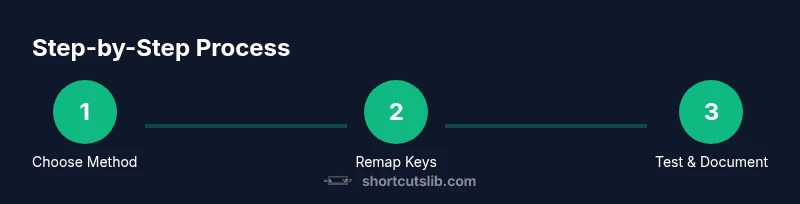
There isn't a universal “one-size-fits-all” control panel for Windows shortcuts. The most reliable path to changing keyboard shortcuts on Windows is to use a two-pronged strategy: system-wide remapping for universal access and app-level remapping for workflow-specific shortcuts. The first option uses Microsoft PowerToys Keyboard Manager to remap keys or create new shortcut pairs that work across most software. The second option involves checking each program’s preferences to see whether you can rebind commands like Save, Close, or custom macros. If you work across multiple devices, export your PowerToys mappings and import them on new machines to keep consistency. Where possible, document changes to avoid surprises during software updates or team handoffs.
PowerToys is a free, supported tool from Microsoft that provides a safe, reversible way to reassign keys and create new shortcuts without touching core system files. In contrast, app-specific shortcuts offer precision but may not apply to other programs. This means you get broad-coverage shortcuts with the first method and granular, context-sensitive shortcuts with the second. For most users, starting with Keyboard Manager, testing one change at a time, then gradually expanding, yields the best balance of reliability and productivity. If you ever hit a snag, revert to the original mapping and re-attempt with a different approach.
If you want to go beyond remapping, you can also use macro-capable apps for complex sequences. However, this adds another layer of software to maintain and can introduce compatibility challenges across updates. The simplest path remains PowerToys for persistent system-wide changes and per-app customization for specialized workflows.
When you map shortcuts, aim for consistency and recallability. Favor mnemonic mappings (for example, remap a rarely used key to open your preferred terminal) and keep your mappings stable for several weeks before reconfiguring again. A carefully planned setup saves time, reduces errors, and supports long-term efficiency gains.
tip":null}
Considerations for safety and accessibility
Before you start, back up your current mappings so you can restore them if needed. An accidental remap can make normal keyboard use frustrating or even lock you out of essential actions. Use descriptive names for custom shortcuts and avoid changing keys used by assistive technologies or by critical OS functions, like Alt-Tab or Windows key shortcuts, unless you have a clear reason. Always test new mappings in a low-stakes environment before applying them to your entire workday. If you rely on screen readers, magnification, or other accessibility tools, verify that remapped keys still trigger the appropriate actions. Consider keeping a changelog that documents what you remapped and why. Finally, share your configuration with teammates if you’re working on a coordinated setup, so others can adapt quickly without confusion.
From Shortcuts Lib’s perspective, the safest and most scalable approach combines a reversible, OS-wide remapping (PowerToys) with thoughtful app-level shortcuts. This gives you broad coverage while preserving the option to tailor your experience within individual programs. As you implement changes, keep user experience and consistency at the forefront to ensure a smoother transition for yourself and any collaborators.
tip":null}
Tools & Materials
- Microsoft PowerToys(Install PowerToys from the official GitHub release; use Keyboard Manager to remap keys and create shortcuts.)
- Windows PC with admin access(Admin rights may be needed to install PowerToys and adjust system-wide mappings.)
- Backup/restore plan(Export mappings before changes; keep a copy of the original configuration.)
- Target apps for testing(Choose apps that you use frequently (e.g., Word, Excel, browser) to validate shortcuts.)
- Internet connection(Needed for initial PowerToys install and updates.)
Steps
Estimated time: 15-25 minutes
- 1
Install PowerToys
Download and install Microsoft PowerToys from the official source. This step ensures you have the Keyboard Manager component available for system-wide remapping. After installation, launch PowerToys and navigate to Keyboard Manager to prepare mappings.
Tip: Choose a safe location for your mapping file and enable Keyboard Manager only after a quick test run. - 2
Open Keyboard Manager
In PowerToys, select Keyboard Manager from the sidebar. This panel is where you can map keys to new outputs and set up custom shortcuts that work across Windows apps.
Tip: If you don’t see Keyboard Manager, ensure you’re running the latest PowerToys version. - 3
Remap a key
Click 'Remap a key' and choose the key you want to replace from the 'Physical Key' column. Then pick the new function or key combination in the 'Mapped To' column.
Tip: Start with a single sensible change (e.g., swap Caps Lock with Ctrl) to gauge impact. - 4
Add a shortcut binding
Use 'Remap a keyboard shortcut' to assign a two-key or multi-key combination to a target action (e.g., Open Terminal, Run Script). Ensure the new shortcut does not conflict with existing OS shortcuts.
Tip: Test the new shortcut in multiple apps to ensure consistency. - 5
Test and adjust
Log off and back on, then test the new mappings in common workflows. If you encounter conflicts, reconfigure or disable the conflicting remap.
Tip: Document observed conflicts to refine later. - 6
Export and document
Export your remapping configuration for reuse on other devices and create a short guide for teammates if applicable.
Tip: Keep a changelog and include rollback steps in case of issues.
Questions & Answers
Can I change Windows shortcuts system-wide?
Windows doesn’t offer a single global editor for all shortcuts. You can remap keys with PowerToys for broad coverage and adjust per-app shortcuts where supported. This approach provides both flexibility and stability.
Yes—PowerToys can remap keys across Windows, and many apps allow their own shortcut customization.
Is PowerToys safe to use for remapping?
PowerToys is an official Microsoft project and generally safe to use if you follow export and rollback practices. Always test changes in a controlled environment before widespread deployment.
PowerToys is trusted and reversible; test changes first.
Will remapping affect accessibility features?
Remapping can affect how assistive technologies function if you rebind keys those tools rely on. Review mappings to ensure screen readers and magnification still trigger correctly.
Be mindful of accessibility tools when remapping keys.
How do I revert changes to the original shortcuts?
Use the PowerToys export file to restore previous mappings, or reset Keyboard Manager to defaults and reapply changes incrementally.
You can revert by restoring the backed-up mapping file or resetting the tool.
Can I share my shortcut mappings between computers?
Yes. Export the mappings from one device and import them on another, then verify that all shortcuts work as expected in your typical apps.
You can move your setup to other machines by exporting and importing mappings.
What should I do if a remap clashes with an existing shortcut?
Disable or modify the conflicting remap, or choose a different two-key combination that avoids overlap with OS shortcuts.
If a clash happens, adjust the mapping to prevent conflict.
Watch Video
Main Points
- Remap keys safely with PowerToys for broad changes
- Use app-level shortcuts for precise workflow boosts
- Back up mappings before applying changes
- Test changes gradually to avoid conflicts with OS shortcuts