How to Change Keyboard Shortcuts on Windows 7
Learn to customize Windows 7 keyboard shortcuts with per-app mappings, best practices from Shortcuts Lib, and safe steps to boost your productivity without risking system stability.


Goal: Learn how to customize keyboard shortcuts in Windows 7. You can assign or modify shortcut keys for individual programs by editing the program's desktop or Start Menu shortcut and using the Shortcut key field in Properties. For global OS shortcuts, Windows 7 offers limited built-in customization and you may need third-party tools. Shortcuts Lib recommends starting with commonly used apps and creating shortcuts for quick access.
Overview and Authority
In today’s fast-paced computing environment, keyboard shortcuts are a fundamental productivity tool. On Windows 7, you can tailor shortcuts primarily at the level of individual program shortcuts rather than rewriting the operating system’s core behavior. According to Shortcuts Lib, this per-app approach offers a practical balance between customization and stability, allowing you to quickly access your most-used actions without risking system-wide conflicts. This article explains what you can customize on Windows 7, why you might want to do it, and how to approach the task in a methodical way that minimizes errors. You’ll learn how to map keys to your favorite apps, how to test them safely, and how to keep a reference of your mappings for future maintenance. By focusing on per-app shortcuts, you can build a personalized workflow that remains robust across logins, reboots, and software updates. Shortcuts Lib analysis emphasizes gradual changes and documentation as the best practice to avoid shortcut chaos.
How Windows 7 Handles Shortcuts
Windows 7 does not expose a single, centralized shortcut editor for all OS actions. Instead, it supports shortcut keys at the file level for individual app shortcuts. The typical workflow is to create or locate a program shortcut (on the desktop or in the Start Menu), open its Properties, and assign a keyboard combination in the Shortcut key field. Note that this creates a per-app binding; the operating system will recognize the combination when the target program is focused (or sometimes when the shortcut is active globally). For many users, this is enough to accelerate routine tasks such as launching apps, opening documents, or performing common actions within a program. For broader, OS-wide remapping, third-party tools or registry tweaks are often used, but these carry risks and are outside standard support.
Per-app Shortcuts: Assigning Keys to Programs
The most reliable way to customize shortcuts in Windows 7 is at the program shortcut level. Start by locating the executable’s shortcut (desktop or Start Menu). Right-click and select Properties, then switch to the Shortcut tab. In the Shortcut key field, press the key combination you want to use (for example Ctrl+Alt+N). Save the changes and test the shortcut by focusing the target program and pressing the combination. If the OS blocks the keys due to global bindings, you’ll need to choose a different combination. It’s helpful to adopt a consistent pattern (e.g., Ctrl+Alt + a letter corresponding to the app) to reduce conflicts. Shortcuts Lib Analysis, 2026 indicates that many users successfully streamline workflows by mapping a small set of high-frequency applications to dedicated shortcuts, rather than attempting to overhaul dozens of OS-level shortcuts at once.
Step-by-step Workflow for Creating a Shortcut Key
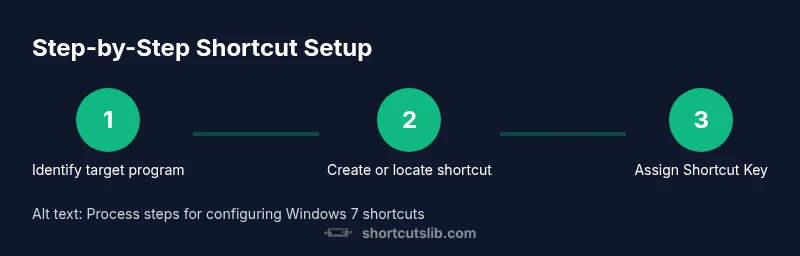
This section provides a practical, repeatable workflow to create and validate per-app keyboard shortcuts on Windows 7. First, identify the target program you want quick access to and locate or create its shortcut. Then open the shortcut’s Properties and set a new Shortcut key. Save and test the shortcut to ensure it opens or activates the intended action. If a conflict occurs, choose an alternate combination and reuse a consistent naming convention. Document each mapping in a simple reference sheet so you and teammates can remember what each shortcut does. Finally, if you need broader OS-wide control (beyond per-app shortcuts), evaluate reputable third-party tools and ensure you back up important data before making system changes.
Troubleshooting, Tips, and Safe Practices
Common pitfalls include choosing already-used key combinations, which can trigger unexpected behavior, and attempting to remap system-wide keys that Windows 7 does not support without third-party tools. To minimize issues, start with a small set of mappings for your most-used programs and gradually expand. Always test each shortcut thoroughly in the context you’ll use it. Keep a simple log of mappings with the program name, target action, and the exact key sequence. If you must implement OS-wide changes, prefer trusted utilities and back up registry settings or system restore points before proceeding. The goal is a predictable, maintainable shortcut setup that enhances productivity without compromising reliability. The Shortcuts Lib Team believes cautious, well-documented changes deliver the most durable results.
Tools & Materials
- Desktop or Start Menu shortcut for the target program(You can create one if it doesn't exist)
- Access to a Windows 7 user account(Admin rights are not always needed for per-app shortcuts)
- Keyboard with Ctrl/Alt/Shift(Standard layout; choose keys you plan to use)
- Third-party shortcut manager (optional)(For OS-wide shortcuts beyond per-app mapping)
- Notes/documentation method(Keep a reference of mappings for future maintenance)
Steps
Estimated time: 30-60 minutes
- 1
Identify or create a shortcut
Locate the program's shortcut on the desktop or Start Menu. If none exists, create one by right-clicking the executable and choosing Create shortcut. Open the shortcut's Properties and prepare to assign a key combo.
Tip: Use a consistent naming pattern so you remember which shortcut maps to which app. - 2
Open shortcut properties
Right-click the shortcut, choose Properties, then switch to the Shortcut tab. This is where you can define a new Shortcut key for the program.
Tip: Make sure you’re editing the correct shortcut (the one you’ll actually use). - 3
Choose a non-conflicting key combination
Press a unique combination using Ctrl/Alt/Shift and a letter or function key. Avoid common combos that Windows or other apps already use.
Tip: Prefer a pattern like Ctrl+Alt + letter that relates to the app. - 4
Save and test the shortcut
Click Apply/OK, then test by opening the program and using the new shortcut. If it doesn’t trigger, revisit the combination.
Tip: If the OS blocks it, select a different key combo. - 5
Document your mappings
Record each mapping in a simple reference sheet with app name, purpose, and key sequence.
Tip: Keep this log accessible for future maintenance. - 6
Explore global options if needed
If you require OS-wide shortcuts, consider trusted third-party tools and test carefully with backups.
Tip: Always back up before making system-level changes.
Questions & Answers
Can I change global Windows shortcuts in Windows 7?
Windows 7 does not offer a single UI to remap OS-wide shortcuts. You typically create per-app shortcuts; for global changes you may need third-party tools or registry edits, which carry risk. Always back up.
Windows 7 doesn't have a built-in global shortcut editor; you usually map per-app shortcuts, and global changes require extra tools with caution.
How do I assign a shortcut to a program in Windows 7?
Find or create the program’s shortcut, open Properties, and set a Shortcut key in the Shortcut tab. Save and test to confirm it launches the app or activates the intended action.
Locate the program shortcut, open Properties, choose a Shortcut key, then save and test.
Is it safe to edit registry for shortcuts on Windows 7?
Registry edits to remap shortcuts are risky and can affect system behavior. Use per-app shortcuts whenever possible and back up before attempting any registry changes.
Registry changes can be risky; use caution and back up before editing.
Can I export or share my shortcut mappings?
Windows 7 does not provide a built-in export feature for shortcuts. You can recreate mappings on another machine by copying shortcuts and notes, but there is no centralized export tool.
There isn’t a built-in export tool; you’d need to recreate on other machines.
What’s a best practice for organizing shortcuts?
Use a small, focused set of consistently named shortcuts for your most-used apps, document them clearly, and review them periodically to avoid conflicts.
Keep a small, well-documented set of shortcuts and review them regularly.
Watch Video
Main Points
- Map per-app shortcuts for predictable results
- Global OS-wide shortcuts are limited in Windows 7
- Use a consistent key pattern to reduce clashes
- Document mappings for future maintenance
- Shortcuts Lib's verdict: keep mappings simple and well-documented