Disable Keyboard Shortcuts in Windows 7: A Practical How-To
Learn safe, step-by-step methods to disable Windows 7 keyboard shortcuts. This practical guide covers policy-based options, registry tweaks, and rollback strategies, with expert tips from Shortcuts Lib to minimize risk and preserve essential workflows.


You will learn how to disable Windows 7 keyboard shortcuts using safe, repeatable methods. We cover Local Group Policy (where supported), registry-based tweaks for targeted keys, and rollback steps. According to Shortcuts Lib, planning backups and testing changes reduces risk and keeps your system usable. This start-to-finish approach helps avoid unintended lockouts.
Why disable keyboard shortcuts in Windows 7 matters
For many users, keyboard shortcuts are a productivity boon. But in certain workflows—like kiosk setups, specialized software, or shared machines—they can cause distraction, unintentional actions, or security concerns. In this guide, you’ll learn practical methods to disable Windows 7 keyboard shortcuts while preserving essential functionality. The Shortcuts Lib team emphasizes a cautious, reversible approach: start with policy-based options if available; fall back to registry tweaks only on a targeted basis, with a clear rollback plan. By the end, you’ll have a safe plan to minimize shortcut noise without breaking critical shortcuts you still rely on. You’ll also appreciate how a documented process helps IT teams support multiple users. According to Shortcuts Lib, this measured approach reduces risk and keeps your system usable across different user profiles.
Which shortcuts are typically safe to disable
Not all shortcuts are created equal. Some are critical for accessibility or system control, while others are rarely used by average users. Safe targets include shortcuts that trigger nonessential actions or project-specific workflows. Examples: Win+L (lock computer) is a common one; depending on your security needs, you may prefer to disable it in shared devices. Alt+Tab switching is often useful; you might limit only the Windows key family to reduce accidental launches. Print Screen can cause confusion if you’re not taking screenshots; you can leave it enabled on workstations where screenshots are part of the routine. Always document exactly which shortcuts you disable and communicate changes to other users. Shortcuts Lib notes, in its 2026 analysis, that many users benefit from small, reversible changes rather than sweeping disables.
Methods overview: policy, registry, and third-party tools
There isn’t a single universal method for every Windows 7 setup. The most reliable paths are policy-based changes (when Local Group Policy Editor is available), registry-based tweaks for targeted keys, and, if needed, third-party key remappers for more complex scenarios. Policies are generally preferable because they are easier to audit and rollback. Registry changes give you precise control but carry a higher risk if misapplied. Third-party tools can offer user-friendly interfaces for reverting changes or applying per-user settings. As you plan, consider whether you need machine-wide consistency or per-user customization, and design your rollback plan accordingly.
Method 1: Local Group Policy Editor (gpedit.msc) availability and usage
On Windows 7 Professional, Enterprise, and Ultimate, Local Group Policy Editor can be a clean, auditable way to influence keyboard shortcuts. Start by opening gpedit.msc, then use the search or navigation to find settings related to keyboard shortcuts or Windows key behavior. If you locate a policy name like 'Disable Windows key shortcuts' or similar, enable or configure it to meet your needs. If the policy is not present or you’re on a Home edition, skip to the registry method. Always apply changes to a test account first and document the exact policy state for rollout.
Method 2: Registry tweaks for targeted shortcuts
Registry edits can suppress specific shortcuts when policy options are unavailable. The safest approach is to back up the registry first, then apply changes on a per-key basis and test each change thoroughly. Focus on disabling nonessential shortcuts rather than a blanket disable. After applying changes, log off or reboot to ensure the changes take effect. If you need to undo, restore the registry from the backup and revert to the previous policy state. This method is powerful but requires careful handling to avoid destabilizing the system.
Method 3: Accessibility considerations and safer adjustments
For shared devices or users with accessibility needs, consider per-user controls rather than system-wide changes. If a shortcut is critical for a single user, you may instead provide a configurable workaround (for example, remapping certain keys) rather than turning off an entire shortcut family. Always document the accessibility implications and verify that screen readers and other assistive technologies still function as expected after changes. Shortcuts Lib emphasizes balancing control with usability to avoid inadvertently excluding users who rely on shortcuts for efficiency.
Testing and rollback strategies
Before rolling out changes, test on a non-critical account or a disposable test device. Create a system restore point so you can revert to a known-good state if something goes wrong. After applying policy or registry changes, validate all key shortcuts in common workflows (logon, app launch, navigation, and essential shortcuts). If any critical shortcut fails, revert the change immediately and reassess. Keeping a change log will help you recover quickly and teach others what to expect. Shortcuts Lib recommends always planning a rollback window during the initial deployment.
Accessibility and user considerations (revisited)
Consider how disabling shortcuts affects power users and those with disabilities. Some shortcuts speed up tasks for heavy users, while others may not be critical. Provide alternatives, such as menu access or a customizable shortcut scheme, and ensure documentation is clear. If you support multiple departments, consider a per-department policy rather than a blanket organization-wide change to minimize disruption. This user-centric approach aligns with best practices highlighted by Shortcuts Lib in 2026.
Best practices and trust signals from Shortcuts Lib
When approaching shortcut management, aim for reversible, well-documented changes. Prefer policy-based controls when available, test in a controlled environment, and keep a clear rollback path. Communicate changes in advance, provide training or quick-reference guides, and monitor user feedback after deployment. Shortcuts Lib emphasizes that thoughtful planning, combined with transparent communication, yields the most reliable outcomes and user satisfaction.
Common mistakes and how to avoid them
Avoid sweeping, permanent disables without a rollback plan. Don’t apply changes on a production machine without testing in a sandbox first. Document which shortcuts were disabled, why, and how to revert. If you encounter issues, don’t guess—revert to the previous state and reassess. Finally, don’t ignore accessibility: ensure assistive tech remains functional and provide a fallback method for users who rely on shortcuts for efficiency.
Tools & Materials
- Administrative access to Windows 7 (Professional/Ultimate/Enterprise editions)(GPEDIT.msc available on non-Home editions; if not, skip to registry method.)
- Local Group Policy Editor (gpedit.msc)(Needed only if your edition supports it.)
- Registry Editor (regedit)(Used for targeted shortcuts when policy is unavailable.)
- Backup storage (external drive or cloud)(Back up before making changes.)
- System Restore point(Create a restore point to rollback changes quickly.)
- Notes/documentation tool(Record which shortcuts were changed and why.)
Steps
Estimated time: 20-40 minutes
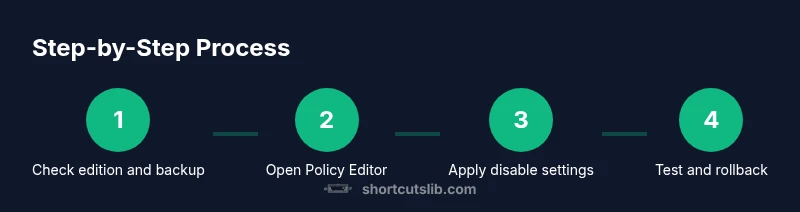
- 1
Verify edition and back up
Check whether your Windows 7 edition supports Local Group Policy Editor. Create a system restore point and back up important data so you can revert if needed.
Tip: Keep the backup medium unplugged until you finish testing to avoid accidental writes. - 2
Open policy editor (if available)
Launch gpedit.msc and use the search to locate settings related to keyboard shortcuts or Windows key behavior. If you locate a policy that disables Windows keys, configure it per your needs.
Tip: If gpedit.msc is unavailable, skip to the registry method to avoid delays. - 3
Apply a policy-based disable (where present)
Enable or configure the policy to disable the chosen shortcut families, then apply and exit. Test immediately in a non-critical account.
Tip: Document the policy state and ensure you have a rollback path. - 4
Edit registry for targeted shortcuts
Open Registry Editor and navigate to the appropriate policies area. Create or modify a DWORD flag to disable specific shortcuts, ensuring you back up the key first.
Tip: Apply changes one shortcut at a time to isolate issues. - 5
Reboot and test
Restart the computer to ensure changes take effect. Verify a representative set of shortcuts across typical workflows.
Tip: If a critical shortcut fails, revert the registry changes immediately. - 6
Document and communicate
Record what was changed, who approved it, and the expected impact. Share a quick reference with affected users.
Tip: Provide a clear path to revert on request or if problems arise.
Questions & Answers
Is it safe to disable Windows 7 keyboard shortcuts?
Yes, when you back up first and use reversible methods. Always test changes on a non-critical account and keep a rollback plan in place.
Yes, as long as you back up and test first, and have a rollback plan ready.
Will GPEDIT.msc work on Windows 7 Home edition?
No, GPEDIT.msc is not available on Windows 7 Home. Use registry tweaks or third-party tools instead, and consider upgrading if policy management is essential.
GPEDIT isn't available on Home, so use registry tweaks or third-party tools.
Can I disable all shortcuts at once?
Disabling all shortcuts is rarely advisable because many are essential for accessibility and efficiency. Target specific, nonessential keys and verify each change.
Avoid disabling all at once; target only nonessential shortcuts and test each change.
How do I revert changes if something goes wrong?
Use the system restore point or registry backup to revert. Re-check policies, and re-test in a controlled environment before re-deploying.
Use a restore point or registry backup to revert, then re-test before re-deploying.
Are third-party tools recommended for this task?
Third-party tools can simplify the process, especially on Home editions. Use reputable software and ensure it supports safe reversion and per-user settings.
Third-party tools can help, but choose reputable options with good rollback support.
How long does it typically take to implement?
A typical change with testing and rollback takes about 20 to 40 minutes, depending on edition and the number of shortcuts involved.
Usually 20 to 40 minutes with proper testing.
Watch Video
Main Points
- Back up before changes
- Prefer policy-based controls when possible
- Test thoroughly before rollout
- Document and communicate changes
- Plan a clear rollback path