How to Remove Keyboard Shortcuts: A Practical Guide
Learn how to remove or remap keyboard shortcuts across Windows and macOS, with step-by-step instructions and best practices from Shortcuts Lib. Safe, practical guidance for users seeking cleaner workflows.


By the end of this guide, you will know how to remove or remap keyboard shortcuts across Windows and macOS, plus how to handle app-specific shortcuts. You'll learn safe methods to disable or rebind keys without breaking essential functionality, when to use built-in settings versus third-party tools, and how to test changes to avoid service disruption.
Why removing keyboard shortcuts matters
According to Shortcuts Lib, removing or remapping shortcuts can significantly streamline workflows by reducing conflicts and accidental triggers. When keyboard combos overlap across applications or the OS, users waste time hunting for the right action. A deliberate, reversible approach minimizes disruption and keeps training simple. This section explains common scenarios where removing shortcuts improves focus and consistency, and why a gradual, documented path beats sweeping changes.
OS-level vs app-level shortcuts: where changes take effect
Shortcuts exist at multiple layers. OS-level shortcuts apply system-wide (for example, global navigation or accessibility commands), while app-level shortcuts are defined within individual programs. Removing or remapping at the OS level can affect many apps, increasing risk of unintended behavior. App-level changes offer precision, letting you tailor behavior per tool while preserving core OS behavior. Understanding the distinction helps you plan changes safely.
Windows: removing or remapping shortcuts
Windows users generally have two pathways: change shortcuts inside apps or use a key remapping tool for broader control. Start in major apps to disable or remap frequently used shortcuts, then consider a system-wide tool only if necessary. In Chrome, visit chrome://extensions/shortcuts to disable or rebind extension triggers. In Word or Excel, use the built-in Keyboard shortcuts editor to reassign keys. If deeper changes are needed, a reputable remapper like PowerToys Keyboard Manager can help, but proceed with caution and create a restore point first.
Best practices: remap vs remove, testing, and backup
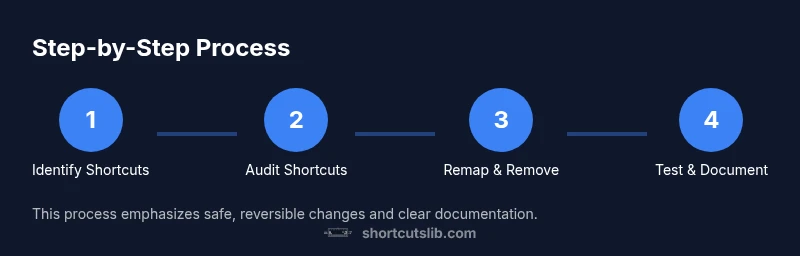
Plan changes with a clear goal and start small. Use a two-step strategy: first remove or remap nonessential shortcuts; then test across typical workflows and apps. Create a rollback plan and backup your mappings. Document each change with the app name, shortcut, new mapping, and reason. Favor app-level changes over system-wide ones to minimize risk, and avoid disabling keys critical to accessibility. Finally, keep a record of your adjustments for future reference.
How to test and validate changes
After applying changes, test across the apps and tasks you use most. Try the modified shortcuts in writing, navigation, and window management to confirm they perform as intended. If any conflict or missing function appears, revert or tweak the mapping and re-test. Use a small, incremental approach to avoid breaking essential workflows.
Tools & Materials
- Computer (Windows 10/11 or macOS 11+)(Ensure you have admin rights if planning to install tools; not strictly required for app-level changes)
- Access to shortcut settings (OS and apps)(Windows: Settings > Accessibility > Keyboard; macOS: System Settings > Keyboard > Shortcuts; apps vary)
- Backup capability (System Restore/Time Machine)(Create a restore point or full backup before major remapping)
- Trusted remapping tools (optional)(Windows: PowerToys Keyboard Manager; macOS: Karabiner-Elements or BetterTouchTool)
- Documentation tool(Notes app or document to record mappings)
Steps
Estimated time: 45-90 minutes
- 1
Identify target shortcuts
List shortcuts you want to remove or remap across OS and apps. Prioritize high-impact keys and avoid essential ones. This step sets a safe boundary so you don’t accidentally disable critical actions.
Tip: Pro tip: Start with nonessential combinations to minimize risk. - 2
Open OS shortcut manager
Access Windows Settings or macOS System Settings to view current mappings. Note conflicts and any overlapping actions you find. This creates a clear baseline before you change anything.
Tip: Take screenshots to document current mappings for rollback. - 3
Remap shortcuts within key apps
In major apps like Chrome and Word (Windows) or Safari/Pages (macOS), use built-in shortcut managers to disable or rebind specific keys. This provides precise control without touching the entire OS.
Tip: Check each app’s help docs for exact menu paths. - 4
Apply system-wide remapping if needed
If global control is necessary, install a trusted remapper (PowerToys on Windows or Karabiner-Elements on macOS) and create safe mappings. Use conservative changes and test incrementally.
Tip: Test with non-critical apps first to catch edge cases. - 5
Test changes across scenarios
Open multiple apps and perform typical tasks to verify behavior. Ensure modified shortcuts don’t break essential workflows or accessibility features.
Tip: Keep a rollback plan ready in case you need to revert quickly. - 6
Document and back up mappings
Record final mappings with app scope, date, and reason. Store a restore point or backup file so you can revert if needed in the future.
Tip: Label entries by OS and app to stay organized.
Questions & Answers
Can I remove keyboard shortcuts globally across my computer?
Global removal is rarely possible without affecting essential functions. Most systems allow per-app or per-shortcut changes, or a few global mappings via specialized tools. Plan changes carefully and aim for reversibility.
Global removal isn’t usually feasible; focus on per-app or controlled global remaps.
Is it safe to use third-party remapping tools?
Third-party remapping tools can be safe if you obtain them from reputable sources and follow their guidance. They modify low-level input, so use caution, back up first, and test thoroughly.
Tools can be safe when sourced from trusted developers and used carefully.
How do I revert changes?
Most apps and OS settings offer a reset to defaults or a restore point. Keep a documented backup of your original mappings so you can quickly revert if needed.
You can reset mappings from the same menus where you changed them, or restore from backup.
Will removing shortcuts affect accessibility?
Yes, removing shortcuts can impact accessibility features and power-user workflows. Be conservative, retain essential keys, and provide a recovery option if needed.
Consider how changes affect accessibility before removing shortcuts.
Which shortcuts should I remove first?
Start with rarely used or conflicting shortcuts in non-critical apps. Avoid changing shortcuts that you rely on daily for navigation or productivity.
Begin with low-risk changes and expand gradually.
Do OS settings override app settings?
OS and apps both define shortcuts; OS-level changes can affect many apps, while app-level changes are more targeted. Prioritize app-level changes first to minimize unintended effects.
OS and app settings both matter; start with app-level changes.
Main Points
- Identify target shortcuts before changing mappings.
- Use OS-level controls first, then app-level tweaks.
- Test changes across apps to avoid breakages.
- Document mappings for future reference and reversibility.
- Backup your system before making major remappings.