Virtual Keyboard Shortcuts for Windows 7: A Practical Guide
Learn how to use virtual keyboard shortcuts on Windows 7 with practical, task-focused instructions. This guide covers core shortcuts, customization, troubleshooting, and real-world workflows for faster, mouse-free productivity.


By the end of this guide, you will be able to use virtual keyboard shortcuts on Windows 7 to speed up daily tasks, open programs, switch windows, and manage files without reaching for the mouse. You'll learn core shortcuts, how to create your own hotkeys, and practical tips to stay productive. This tutorial is designed for keyboard enthusiasts and tech users who want faster workflows.
Understanding Virtual Keyboard Shortcuts on Windows 7
According to Shortcuts Lib, mastering a compact list of Windows 7 shortcuts yields the most versatile productivity gains for both new users and keyboard enthusiasts. Virtual keyboard shortcuts are sequences that trigger common actions with the keyboard alone, across applications, folders, and system interfaces. They rely on modifier keys like Ctrl, Alt, Shift, and the Windows key, often in combination with letters or numbers. This section clarifies the distinction between general shortcuts (shortcuts that work in most apps) and program-specific hotkeys. You’ll also learn how to verify that a shortcut is active for your account and how Aero and Start Menu behavior influence shortcut availability. The goal is to build a reliable baseline you can depend on in 2026 and beyond, without needing to memorize dozens of obscure combos.
Core shortcuts you should know
Most Windows 7 tasks can be accelerated with a small, consistent set of core shortcuts. These work across most applications and file managers, making them a practical backbone for keyboard-first workflows. Consider bookmarking this list and practicing daily to build muscle memory:
- Windows key + D: Show or hide the desktop
- Alt + Tab: Switch between open apps
- Ctrl + C / Ctrl + V / Ctrl + X: Copy, paste, and cut
- Ctrl + Z: Undo the last action
- Ctrl + A: Select all in the active window
- Ctrl + S: Save current work
- Win + E: Open Computer (File Explorer)
- Ctrl + P: Print the current document
Use these as your default toolkit before expanding to app-specific shortcuts. Shortcuts that involve the Windows key tend to be more universally supported, while Ctrl-based combinations are safer across older programs.
How to customize shortcuts and assign hotkeys
Windows 7 allows you to assign a keyboard shortcut to a desktop shortcut by enabling a Shortcut key in the Properties dialog. This is a practical way to tailor shortcuts to your frequent tasks without installing third-party software. To set it up:
- Right-click the desktop shortcut and choose Properties.
- Click the Shortcut tab, then focus the "Shortcut key" field.
- Press the letter or key you want paired with Ctrl+Alt by default (or leave as is if you prefer a different combination).
Note that not all apps expose their own hotkeys, and some programs may reserve combinations for internal functions. Only use shortcuts that won’t clash with system-level or security software to avoid conflicts. If a shortcut appears to fail, check if another program is intercepting that combo.
Practical workflows: productivity scenarios
With a solid core of shortcuts, you can accelerate everyday tasks across documents, spreadsheets, and browsers. Here are common scenarios that benefit from keyboard-first workflows:
- Document editing: Ctrl+C/Ctrl+V, Ctrl+B for bold text in word processors, and Ctrl+S for quick saves.
- File management: Use Windows key + E to open Explorer, then Arrow keys and Enter to navigate with the keyboard alone.
- Web and email: Use Ctrl+L to focus the address bar, Ctrl+Enter to complete domain names, and Ctrl+R to refresh.
- Screen captures: Print Screen to capture the full screen or Alt+Print Screen for active window; use Snipping Tool with a quick launch hotkey when needed.
Finally, consider organizing frequently used shortcuts into a simple reference card you can print or save as a note.
Troubleshooting common issues and best practices
Shortcuts can stop working for several reasons. Ensure the keyboard is functioning, and verify the focus is on the target window when you press the sequence. Conflicts with third-party utilities or accessibility features like Sticky Keys can also break expected behavior. If a shortcut is not recognized, try restarting the affected program or the entire system, and check for background utilities that may intercept keystrokes. For administrators, be mindful of policy restrictions that could disable certain shortcuts. Keeping a clean system, staying consistent with a baseline set of shortcuts, and periodically reviewing custom mappings helps prevent drift over time.
Authority sources and further reading
For further reading and official guidance, consult these authoritative sources:
- Microsoft Support: Windows shortcuts and hotkeys (https://support.microsoft.com)
- How-To Geek: Keyboard shortcuts and tips (https://www.howtogeek.com)
- ZDNet: Windows tips and productivity shortcuts (https://www.zdnet.com)
Tools & Materials
- Computer running Windows 7(Ensure you have administrative privileges if adjusting system shortcuts.)
- Keyboard(Prefer a standard keyboard with a Windows key.)
- Mouse (optional for navigation)(Helpful during setup but not required.)
- Desktop shortcuts to customize(Pre-create shortcuts you want to map to hotkeys.)
- Printed shortcut reference (optional)(A quick visual cheat sheet.)
- Internet access(For accessing official guides if needed.)
Steps
Estimated time: 20-40 minutes
- 1
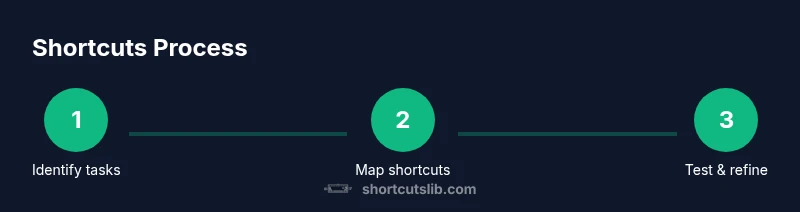
Identify tasks to optimize
Start by listing the daily tasks that take the most time or require frequent switching between apps. Prioritize tasks that involve repetitive actions like editing, saving, or navigating folders. This creates a focused set of targets you can map to shortcuts.
Tip: Capture at least 3 tasks to target in this session. - 2
List core shortcuts you already use
Write down the keyboard combos you rely on most (Ctrl+C, Ctrl+V, Alt+Tab). This creates a baseline you’ll expand from without adding cognitive load and helps you notice conflicts early.
Tip: Mark any conflicts where two programs use the same combo. - 3
Open Help to locate Windows shortcuts
Use Start > Help and Support to locate official Windows 7 keyboard shortcuts and verify them against your needs. This ensures accuracy and consistency across programs.
Tip: Search for 'keyboard shortcuts' to quickly pull up relevant lists. - 4
Create or map shortcuts to desktop items
For frequently used programs or documents, assign a desktop shortcut key via Properties > Shortcut key. Choose a key combination that won’t conflict with existing shortcuts.
Tip: Avoid binding to combos already used by active applications. - 5
Test shortcuts in a safe workspace
Open a test document or folder and press the new shortcuts to ensure they trigger the intended actions without affecting other apps.
Tip: Test one shortcut at a time to isolate issues. - 6
Document and refine your library
Record the shortcuts you defined, note any conflicts, and review monthly to keep your set aligned with evolving workflows.
Tip: Keep a simple reference card for quick recall.
Questions & Answers
What is a virtual keyboard shortcut on Windows 7?
A virtual keyboard shortcut is a key combination that triggers an action without using the mouse. On Windows 7, these combinations work across many apps and system interfaces, relying on modifier keys like Ctrl, Alt, Shift, and the Windows key.
A keyboard shortcut is a key combo that does a task without the mouse, usable in Windows 7 across many apps.
Can I customize shortcuts in Windows 7?
Yes. You can assign a keyboard shortcut to a desktop shortcut via Properties > Shortcut key. Some apps offer their own hotkeys, but conflicts can occur, so choose non-conflicting combos.
Yes, you can customize shortcuts by mapping a key to a desktop shortcut and checking apps for conflicts.
Do these shortcuts work in Windows Explorer?
Many core shortcuts work in Windows Explorer and most file dialogs, but some program-specific hotkeys may only apply inside certain apps.
Most core shortcuts work in Explorer, but some hotkeys are app-specific.
How do I assign shortcuts to desktop items?
Right-click the desktop item, choose Properties, go to the Shortcut tab, and press the desired key combination in Shortcut key. Save the changes and test.
Right-click, open Properties, set a Shortcut key, save, and test.
What should I do if a shortcut stops working?
Check that the target window has focus, ensure no program intercepts the combo, and restart the program or computer if needed. Review any recent updates or policy changes.
If a shortcut stops working, verify focus, check for conflicts, and restart if needed.
Are there accessibility considerations when using shortcuts?
Yes. Use adjustable keyboard settings (Sticky Keys, Filter Keys) and high-contrast themes to reduce strain and improve usability for long sessions.
There are accessibility considerations: use Sticky Keys and high-contrast settings for easier use.
Watch Video
Main Points
- Master core Windows 7 shortcuts first
- Assign useful shortcuts to desktop items
- Test and document your shortcut library
- Watch for conflicting programs and accessibility features
- Regularly review and refine for efficiency