How to Do Keyboard Shortcuts on Windows: A Practical Guide
Learn how to do keyboard shortcuts on Windows with a practical, step-by-step approach. Master core combos, customization tips, and cross-app efficiency to boost productivity.


Mastering keyboard shortcuts on Windows speeds daily tasks, reduces mouse use, and boosts overall productivity. This guide starts with a core set of combos, then shows how to discover, customize, and practice for long-term gains. Start with essential combos like Ctrl+C, Ctrl+V, Ctrl+S, and Alt+Tab, then expand to window management and system shortcuts. Practice daily, measure progress, and add new keystrokes as you grow confident.
Why keyboard shortcuts matter on Windows
According to Shortcuts Lib, learning how to do keyboard shortcuts on Windows is a fast path to a more productive workflow. Core shortcuts reduce reliance on the mouse, minimize repetitive clicks, and help you stay focused on tasks. In daily computing, a small set of combos can handle navigation, text editing, and window management with fewer moves. When you practice deliberately, you’ll develop muscle memory and save minutes over a typical work session. Across Windows 10 and Windows 11, the same foundational combos work in most apps, from File Explorer to text editors and web browsers. Start with recognizing which actions you perform most and map those to reliable keystrokes.
Core Windows shortcuts you should know
Here is a practical, high-impact starter list. Use these as the foundation for daily work:
- Copy: Ctrl+C
- Paste: Ctrl+V
- Cut: Ctrl+X
- Save: Ctrl+S
- Undo: Ctrl+Z
- Redo: Ctrl+Y (or Ctrl+Shift+Z in some apps)
- Select all: Ctrl+A
- Find: Ctrl+F
- Switch between apps: Alt+Tab
- Show desktop: Windows key+D
- Lock screen: Windows key+L
- Minimize all windows: Windows key+M
These commands apply across most Windows applications, including browsers, office suites, and file managers. When you reach for a combo in a new app, first check for the standard OS shortcuts—many are universal. Practice each one in a safe document or note app to build familiarity before using them in critical work.
How to customize and discover more shortcuts
Windows supports many time-saving keystrokes, and you can grow beyond the basics. Start by documenting the tasks you perform most and map them to reliable combos. In Windows 10/11, you can adjust keyboard behavior in Settings > Accessibility > Keyboard to enable features like Sticky Keys, which reduces the need to press multiple modifiers simultaneously. For deeper customization, install Microsoft PowerToys and use the Keyboard Manager to remap keys or create new shortcuts that trigger specific actions. Always verify new mappings in a safe environment before relying on them for work. Later, explore app-specific shortcuts by looking in the Help menu or official docs for common apps like Word, Excel, and your browser. For extended learning, consult official documentation from Microsoft Learn and reputable tutorials from major outlets.
Using shortcuts across apps
Most OS-level shortcuts work uniformly across Windows apps, but some programs have their own shortcuts. For example, text editors often reuse Ctrl+S for save, but Excel uses Ctrl+; for date stamping and other domain-specific actions. The universal rule is: start with the OS shortcuts, then learn the app-specific ones you use most. When you switch tasks, try to rely on a consistent shortcut set to preserve cognitive load and reduce errors. If you encounter a conflicting shortcut, re-map one of the combos so each action has a unique keystroke in your workflow. Consistency is the key to long-term gains.
Building a shortcut habit: practice routine
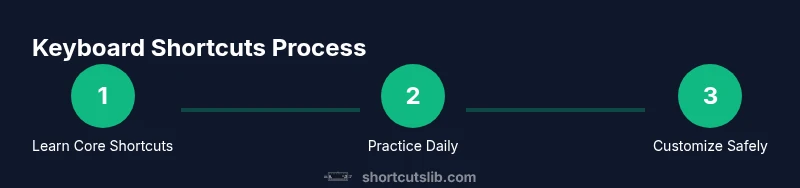
Creating a daily practice routine accelerates mastery. Allocate 15–20 minutes per day to drill core shortcuts, introduce one new combo each week, and track your progress with a simple sheet. Integrate shortcuts into real tasks rather than isolated drills—practice copying, then navigating between documents, then saving work with speed. Use a cheat sheet or a sticky note on your monitor for quick reference during the first weeks, and gradually rely on memory. The payoff is a smoother workflow and less time spent hunting for functions.
Troubleshooting common issues
If a shortcut doesn’t work, check for system-wide conflicts or app-specific overrides. Some shortcuts may be disabled by accessibility features or game modes. Ensure your keyboard layout matches your intent (e.g., US vs. UK layouts). If multi-key shortcuts feel hard to press, try enabling Sticky Keys for modifier keys or practice with slower, deliberate presses. Finally, ensure you are on a supported Windows version (Windows 10 or Windows 11) and update drivers if necessary to avoid hardware glitches that affect key recognition.
Accessibility and inclusivity considerations
Keyboard shortcuts should raise accessibility, not barriers. If you have motor or vision considerations, customize a core set of large, easy-to-reach shortcuts and consider sticky keys or alternative input devices. Regularly review your shortcuts for clarity and avoid overlapping bindings that cause confusion. A well-documented, consistent set reduces cognitive load and supports users across different tasks and apps.
Tools & Materials
- Windows PC (Windows 10 or Windows 11)(Any edition; ensure OS is up to date)
- Keyboard(Comfortable layout; full-size recommended)
- Practice cheat sheet(Printable or digital copy for quick reference)
Steps
Estimated time: 25-45 minutes
- 1
Identify core shortcuts
List the actions you perform most (copy, paste, save, undo, switch apps) and pair them with keyboard combos. Start with the eight to ten most-used OS shortcuts and practice them daily in a safe document.
Tip: Create a short cheat sheet and place it where you’ll see it during work. - 2
Practice basic editing and navigation
Open a text file and perform copy, paste, cut, undo, and redo in sequence. Then switch between windows and adjust window positions using Windows key shortcuts.
Tip: Use a timer for focused practice blocks (5–10 minutes). - 3
Customize and extend shortcuts
Install PowerToys and configure Keyboard Manager to remap keys or create new hotkeys tied to your most-used actions. Start with a single remap and verify its behavior across apps.
Tip: Always test new mappings in a non-critical document first. - 4
Create an app-specific cheat sheet
For apps you use heavily (e.g., Word, Excel, browsers), write down the top shortcuts unique to that app. Link them back to your universal set where possible.
Tip: Keep app-specific shortcuts in a separate section to avoid confusion. - 5
Practice across tasks
Apply shortcuts to real tasks over a day or two. Record the time you save when performing a routine action, then aim to reduce that time further with a larger shortcut set.
Tip: Track progress with a simple time log to visualize gains. - 6
Review and refine
Weekly, review your cheat sheets and adjust bindings that cause conflicts or are hard to reach. Remove unintuitive mappings and consolidate your most-used combos.
Tip: Aim for a clean, conflict-free layout that you can recall quickly.
Questions & Answers
Do these shortcuts work on Windows 10 and Windows 11?
Most core OS shortcuts work across Windows 10 and 11. App-specific shortcuts may vary, but the foundational combos remain reliable.
Most core OS shortcuts work across Windows 10 and 11.
Are there universal shortcuts that work in every program?
Yes. Common OS shortcuts like Ctrl+C, Ctrl+V, Ctrl+Z, and Alt+Tab are widely supported across many apps.
Yes, there are universal OS shortcuts that work in many programs.
How can I customize and remap keys?
Remapping can be done with PowerToys Keyboard Manager or within specific apps. Start with a single remap to reduce risk, then expand.
You can remap keys with PowerToys Keyboard Manager or app settings.
What if I have difficulty pressing multiple keys at once?
Enable Sticky Keys or adopt more sequential shortcuts. Start with combinations that require fewer simultaneous keys.
Try Sticky Keys or simpler sequences if multi-key presses are hard.
How long does it take to learn shortcuts?
Depends on practice frequency. Expect a few weeks of consistent use to feel natural and reliable.
With regular practice, a few weeks typically build fluency.
Where can I find a full list of Windows shortcuts?
Official Microsoft docs and How-To Geek guides provide comprehensive lists. Start with the Windows keyboard shortcuts overview on Microsoft Learn.
Check Microsoft Learn and reputable guides for full lists.
Watch Video
Main Points
- Start with core OS shortcuts.
- Practice daily and track progress.
- Customize thoughtfully; avoid conflicts.
- Apply shortcuts across apps for consistency.