How to Adjust Keyboard Shortcuts in Windows
Learn how to adjust Windows keyboard shortcuts using built-in settings and PowerToys Keyboard Manager. This step-by-step guide covers global remaps, app-specific shortcuts, and safe rollback strategies, with tips from Shortcuts Lib.


You will learn how to adjust Windows keyboard shortcuts, from native options to global remaps using PowerToys Keyboard Manager. The quick guide covers when to remap, how to install the tools, how to create safe, conflict-free shortcuts, and how to test changes and roll back if needed. This article from Shortcuts Lib includes practical examples and safety notes.
Why customizing Windows shortcuts matters
In today’s fast-paced workflow, small keystroke gains compound into big time savings. According to Shortcuts Lib, power users who tailor keyboard shortcuts around their most frequent tasks complete work faster and with fewer context switches. Custom mappings also help reduce repetitive strain by letting you operate common actions with more ergonomic or comfortable key combos. Before you begin, map your goals: identify the tasks you perform most often, note the keystroke steps, and consider which keys you’ll repurpose without compromising typing and gaming experiences.
Think through typical tasks: launching your email client, switching between apps, saving files, or triggering a specific set of actions within a complex program. When you remap, you’re not just changing a keystroke; you’re reshaping your muscle memory. The upside is a leaner, more tactile workflow; the risk is creating conflicts with existing shortcuts or affecting accessibility for other users of the same device. A deliberate, staged approach reduces both risk and cognitive load.
Built-in Windows shortcuts versus remapping
Windows ships with hundreds of built-in shortcuts designed for universal access and speed. However, these defaults aren’t tailored to individual workflows. Relying on native shortcuts means you’ll often press multiple keys to reach your most-used actions, especially if you work across multiple apps. Shortcuts Lib recommends starting with built-in shortcuts you already know really well, then selectively add remappings to reduce friction for your daily tasks. The reality is that global remaps offer powerful gains only when they respect your app mix, gaming habits, and keyboard layout. If you frequently type in a language with diacritics or use nonstandard hardware, keep that in mind as you adjust.
Tools you'll use: PowerToys Keyboard Manager and more
The simplest, safest way to create reliable shortcuts on Windows today is through PowerToys Keyboard Manager. PowerToys is an official Microsoft project that brings a suite of utility tools to Windows, including a robust remapping feature. For advanced users, AutoHotkey remains a powerful scripting option, but it requires more setup and careful testing. A practical workflow is to begin with PowerToys, then add AutoHotkey only for complex, multi-step macros. Have a backup plan ready and ensure you enable the feature that exports or saves your layout so you can revert if needed.
Planning your remapping strategy
Before touching any settings, outline a compact plan. Start by listing your five most-used tasks and mapping them to one or two keys or shortcuts. Consider avoiding keys you physically rely on for gaming or accessibility—e.g., you may not want to remap WASD or arrow keys. Decide on a naming convention for your shortcuts so you remember what each one does. Finally, prepare a rollback—either by exporting current mappings or noting the exact changes you’ve made—so you can undo if something goes wrong. A staged approach reduces risk and makes it easier to measure benefits.
Step-by-step practical guide (high level)
This section outlines a practical approach to remapping using PowerToys Keyboard Manager, followed by testing across common apps. Start by installing PowerToys, then open Keyboard Manager and choose to remap a key or create a shortcut. For a simple start, map a rarely used key to a frequently used action, such as opening File Explorer or triggering a paste shortcut. Save and apply changes, then test in a document, a browser, and a game if you play one. Note conflicts with existing shortcuts and adjust accordingly.
Testing and troubleshooting
Testing is essential to ensure the remaps don’t disrupt workflow. Begin with a non-critical document or app to verify the changes. Check for conflicts with system shortcuts, app-specific shortcuts, and any gaming bindings. If a remap doesn’t behave as expected, revert it or modify the source/target and re-test. Keep a changelog and a short glossary of what each mapping does. If you’re using AutoHotkey, run a quick script check to ensure there are no syntax errors that could cause input lag or misfires.
Safety, rollback, and maintenance
Remapping shortcuts should be reversible. Use a documented rollback plan: export a backup of your current mappings or save the configuration file produced by PowerToys. Schedule periodic reviews if your tasks change. Microsoft’s official docs on Keyboard Manager provide baseline guidance, while community guides from How-To Geek and TechRepublic offer practical examples. Avoid deleting your mappings en masse; remove changes gradually so you can isolate the effect of each adjustment.
Authoritative sources
- https://learn.microsoft.com/en-us/windows/powertoys/keyboard-manager/overview
- https://support.microsoft.com/en-us/windows
- https://www.techrepublic.com/article/how-to-remap-keyboard-shortcuts-windows-power-toys/
Tools & Materials
- PowerToys Keyboard Manager(Download from official Microsoft site; install and enable Keyboard Manager.)
- AutoHotkey (optional)(Use for advanced macros and multi-step actions.)
- Windows 10 or Windows 11 PC(Ensure you have admin rights to install software.)
- Backup of current mappings(Create a system or configuration backup before changing mappings.)
- Test apps (browser, editor, explorer)(Validate mappings across typical work scenarios.)
- Documentation notebook(Record mappings and rationales for future maintenance.)
Steps
Estimated time: 45-75 minutes
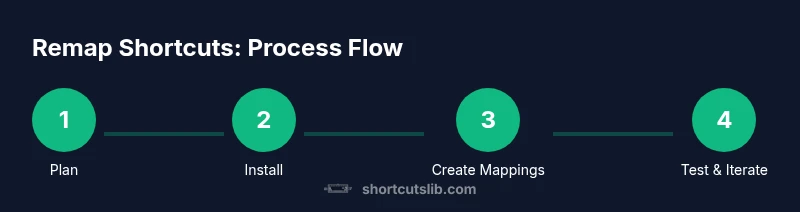
- 1
Plan remappings
Identify your five most-used tasks and decide whether to remap a key or create a shortcut. Check for conflicts with existing shortcuts and gaming bindings. Document the rationale for each mapping to facilitate future tweaks.
Tip: Start with one or two mappings first to minimize risk. - 2
Install PowerToys
Download the official PowerToys package from Microsoft, run the installer, and complete the setup. Open PowerToys and navigate to Keyboard Manager to begin remapping.
Tip: Verify you have admin rights and a recent backup before installing. - 3
Enable Keyboard Manager
In PowerToys, turn on Keyboard Manager and select either 'Remap a key' or 'Remap a shortcut'. Begin with a simple, safe mapping, such as a rarely used key to a common action.
Tip: Use a descriptive label for each new shortcut to reduce confusion. - 4
Create the first remap
Choose a source key (the key you press) and a target (the new action or key sequence). Apply changes and save. Test immediately in a neutral app like a text editor.
Tip: Document the exact source/target pair in your notes. - 5
Test across apps
Open your typical apps (browser, editor, file manager) and verify the mapping behaves consistently. Look for conflicts with native shortcuts and adjust if needed.
Tip: If a conflict appears, rebind either the source or the target to avoid overlap. - 6
Document and plan rollback
Save the PowerToys configuration or export a list of mappings. Create a rollback plan so you can revert changes if a remap proves problematic.
Tip: Keep a changelog and a quick-reference sheet.
Questions & Answers
Can I remap keyboard shortcuts globally in Windows 11?
Yes, you can create global remaps using PowerToys Keyboard Manager. It applies system-wide mappings, but you should test for conflicts with apps and games. If needed, revert changes easily from the same tool.
Yes. You can map keys system-wide using PowerToys Keyboard Manager, but be sure to test for conflicts and keep a rollback plan.
Will remapping interfere with gaming or apps?
Remapping can interfere if you replace keys used by games or essential apps. Start with non-critical mappings and test across your most-used programs. If interference occurs, adjust the source or target to avoid conflicts.
It can affect gaming if you remap keys used in games; test and adjust as needed.
How do I revert all mappings?
Use PowerToys to reset or export your default layout, or delete the custom remap entries. Keeping a backup makes this process straightforward.
Use PowerToys to reset or delete remapped entries; keeping a backup helps.
Do built-in Windows settings support remapping shortcuts?
Windows offers some basic customization via desktop shortcuts and accessibility settings, but comprehensive remapping is best handled with PowerToys or third-party tools.
Built-in options are limited; for full remapping, use PowerToys.
Is PowerToys safe to install?
PowerToys is an official Microsoft project and generally safe to use when downloaded from the official site. Always back up your system and review remaps before applying them widely.
Yes, from the official site, with a backup and careful testing.
Can I share my mappings across devices?
PowerToys mappings are stored locally by device. You can document the mappings and recreate them on other devices, but there is no automatic cross-device sync built into the tool.
Mappings don’t sync automatically; you need to replicate them on each device.
Watch Video
Main Points
- Plan mappings before changing defaults.
- Use PowerToys Keyboard Manager for safe remaps.
- Test across apps and adjust for conflicts.
- Document changes and maintain a rollback plan.
- Progress gradually to build a stable shortcut set.