Change Keyboard Shortcuts in Windows: A Practical Guide
Learn how to change keyboard shortcuts Windows with built-in options, PowerToys, and app-level overrides. A practical, step-by-step guide for tech users and keyboard enthusiasts.


You will learn how to change keyboard shortcuts Windows using built-in remapping, PowerToys Keyboard Manager, and app-specific overrides. This guide covers global remaps, safety considerations, and testing steps to ensure mappings work across common apps. Expect practical steps, recommended tools, and cautionary tips for reliable customization.
Understanding the Goal of Changing Keyboard Shortcuts
Customizing keyboard shortcuts can dramatically speed up daily tasks, reduce repetitive motions, and tailor Windows to your workflow. According to Shortcuts Lib, focused remapping—like turning Caps Lock into Escape for Vim users or swapping Ctrl and Alt for a preferred layout—can cut keystrokes and minimize finger strain. In this section, we’ll clarify why people remap keys, the kinds of changes that are most useful, and how to approach the task in a safe, repeatable way. We’ll also introduce terminology you’ll see throughout the guide, such as global remaps (system-wide) versus app-specific overrides (limited to a single program).
Methods at a Glance: Global Remaps vs App-Specific Shortcuts
When you change shortcuts in Windows, you can pursue two broad strategies. Global remaps apply everywhere on the system, so a single change affects all apps. App-specific shortcuts override default bindings only within a particular program, preserving the system-wide behavior for others. Global remaps are ideal for muscle-memory alignment across tools (e.g., swapping Ctrl and Cmd on cross-platform keyboards); app-specific shortcuts are excellent for specialized software like IDEs, design tools, or office suites. In practice, most power users employ a combination: a few global remaps for general productivity, plus targeted overrides inside key apps.
Built-In Remapping Options in Windows: What Works Without Extra Tools
Windows offers basic remapping options accessible through Settings and accessibility features in many editions. These built-in tools are sufficient for simple changes (like swapping Caps Lock and Escape) and for disabling problematic keys. For more advanced remapping, users turn to third-party utilities. The built-in approach is safer for quick tweaks, while third-party tools expand capabilities, especially when you want multi-key combos or conditional mappings. Always start with the simplest option and verify behavior in multiple programs to avoid conflicts.
Introducing PowerToys Keyboard Manager: A Practical Upgrade
PowerToys is Microsoft’s well-supported utility that adds robust keyboard remapping capabilities through its Keyboard Manager. It lets you remap individual keys and create custom shortcuts that work globally or be limited to specific apps. The advantage of Keyboard Manager is its flexibility, undo capability, and straightforward interface. If you frequently switch between tasks—coding, writing, browsing—PowerToys can unify your shortcuts across tools and reduce cognitive load. Remember to install the latest version from the official sources and enable Keyboard Manager from the PowerToys settings.
Global Remaps vs App-Specific Shortcuts: Practical Implications
Global remaps are strongest when you want a consistent keystroke across all software. They’re best for surgical changes, like turning a rarely used key into a helpful modifier or reassigning a filler key to a more productive function. App-specific shortcuts shine when a single program has a frequent, non-standard binding that interferes with your workflow. For example, you might map a common command to a keystroke that’s easy to remember within your IDE without altering its behavior elsewhere. The right balance minimizes surprises and keeps your workflow predictable.
Step-By-Step Plan for a First Lightweight Remap
A practical first remap could be swapping Caps Lock with Escape for convenient text editing and mode switching. This change is often recommended for programmers and writers who use Escape frequently. Start with one safe remap, test across several apps (browser, word processor, code editor), and note any conflicts (like hotkeys that rely on commonly mapped keys). If you’re unsure, choose a reversible mapping and document it so you can revert if needed. Consistency is more valuable than volume when you’re new to remapping.
Testing, Backups, and Safety Considerations
Before making changes, back up your current mappings so you can restore them if something breaks. Test each change in multiple apps and workflows, looking for conflicts with system shortcuts (e.g., Ctrl+C/Ctrl+V, Alt+Tab). If a remap interferes with essential accessibility features, revert and reconsider. When using third-party tools, download from official sources and verify integrity to avoid malware or unstable behavior. A cautious, incremental approach yields reliable improvements without system risk.
Authority Sources: Where to Learn More
To deepen your understanding, consult vendor and reputable tech resources. Microsoft’s official documentation on keyboard shortcuts and remapping will clarify supported options and best practices. Community guides from established tech outlets provide practical use cases and tested remapping strategies. In addition, PowerToys documentation explains Keyboard Manager in detail and offers troubleshooting tips. Examples of authoritative references include:
- https://learn.microsoft.com/en-us/windows-keyboard-shortcuts
- https://support.microsoft.com
- https://learn.microsoft.com/en-us/windows/powertoys/
These sources are commonly cited in professional guidance on Windows shortcut customization.
Getting the Most Out of Shortcuts: Efficiency Strategies
Beyond remapping, you can optimize your workflow by combining keyboard-driven navigation with search, clipboard history, and task automation. Use focused shortcuts for frequent actions, build simple sequences with macro-like behavior where safe, and maintain a consistent mapping scheme across apps. Regularly review your remap set to remove rarely used bindings and adjust for new software you adopt. With discipline and iteration, keyboard shortcuts become a natural extension of your productivity system.
Tools & Materials
- Windows PC with administrator access(Needed to install PowerToys and modify system-level mappings.)
- PowerToys by Microsoft (optional but recommended)(Includes Keyboard Manager for robust remapping. If you skip it, rely on built-in options.)
- External USB keyboard (optional for testing)(Useful to verify mappings on a different keyboard.)
- Notepad or text editor for quick tests(Helps verify that key remaps produce expected results.)
Steps
Estimated time: 60-90 minutes
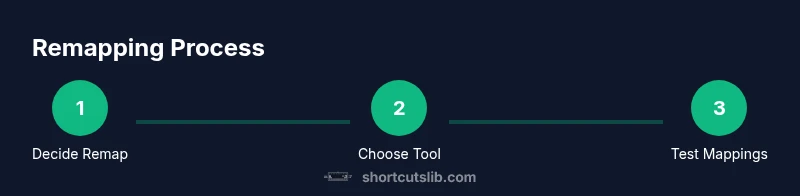
- 1
Define your remapping goals
Decide which keys you want to remap and what behavior you expect across most apps. Start with a small, reversible change (e.g., Caps Lock to Escape) to establish a baseline.
Tip: Write down the target keystrokes so you can test consistently. - 2
Choose global vs app-specific strategy
If you need the change everywhere, plan a global remap. If you only need it in a specific program, prepare an app-specific rule.
Tip: Global remaps are simpler but may cause conflicts with some apps. - 3
Install PowerToys and enable Keyboard Manager
Download PowerToys from the official site, install, and open Keyboard Manager. This provides a centralized place to manage remaps.
Tip: Keep PowerToys updated to benefit from bug fixes. - 4
Create a new remap
In Keyboard Manager, choose 'Remap a key' or 'Remap shortcuts' and select the source key and the target action. Save the mapping.
Tip: Test with a simple document before applying to complex workflows. - 5
Test across multiple apps
Open a browser, word processor, IDE, and a media app to verify the remap behaves as expected. Note any conflicts or unexpected outputs.
Tip: If a conflict appears, adjust the mapping or choose an alternative key. - 6
Create backups
Export your remaps as a profile so you can restore quickly if something goes wrong.
Tip: Label backups clearly with date and purpose. - 7
Document and iterate
Keep a small changelog of what you remapped and why. Revisit after a few weeks to refine as your workflow evolves.
Tip: A living document saves time on future adjustments.
Questions & Answers
Can I remap keys globally in Windows without third-party tools?
Yes, Windows provides built-in remapping options in some editions for simple changes. For more advanced mappings or multi-key shortcuts, consider a dedicated tool like PowerToys. Always test across apps to confirm behavior.
You can do simple global remaps with Windows built-in options, but for advanced mappings you’ll want PowerToys and thorough testing.
Is PowerToys required to remap keys?
PowerToys is optional but highly recommended for robust remapping. It provides a centralized, reversible Keyboard Manager and supports both keys and shortcuts across the system.
PowerToys isn’t required, but it makes remapping easier and safer with a simple interface.
Can I create shortcuts that only apply to a single app?
Yes. App-specific shortcuts override default bindings within the chosen program. This is useful for IDEs or design apps where standard shortcuts clash with your preferred workflow.
You can set shortcuts that work only inside a favorite app, leaving global shortcuts unchanged.
What if a remap breaks a common OS shortcut?
If this happens, revert the remap and test with alternative bindings. Keep a backup profile to restore quickly if needed.
If a remap disrupts a system shortcut, undo it and try a different mapping.
Are there safety risks to remapping keys?
Remapping keys is generally safe, but third-party tools can introduce instability if misused. Use official sources, test gradually, and revert if issues arise.
Remapping is usually safe, but avoid unstable tools and test changes carefully.
How can I revert all mappings to default quickly?
In PowerToys, use the reset option to restore the original mappings. If you’re using built-in remapping, reapply the initial defaults or uninstall the tool.
You can reset mappings with a single option in PowerToys or revert built-in changes manually.
Watch Video
Main Points
- Identify essential remaps first
- Choose global vs app-specific carefully
- Test across multiple apps before finalizing
- Back up mappings before changes