Can You Change Keyboard Shortcuts? A Practical How-To
Learn how to customize keyboard shortcuts across Windows, macOS, Linux, and apps. This educational guide walks you through OS-level and app-level mappings, conflict management, testing, and best practices for a faster, ergonomic workflow.


You can change many keyboard shortcuts across operating systems and apps to speed up tasks. This guide walks you through locating shortcut settings, choosing new key combos, avoiding conflicts, and testing results. You’ll learn how to customize both system-wide shortcuts and app-specific options, plus practical tips for maintaining consistency across tools.
Why customize keyboard shortcuts
For many tech power users, customizing keyboard shortcuts is a core productivity habit. It allows you to map frequent actions to keys that feel fastest to press, reducing context switching and mouse travel. The goal is to align shortcuts with your actual workflow, not the default factory mapping. According to Shortcuts Lib, professional users report that personalized mappings improve muscle memory and reduce cognitive load after a few days of use. Start by listing your most repetitive actions and the apps where you perform them, then decide which shortcuts to reassign first. When choosing new combos, pick combinations that are easy to reach with one hand and unlikely to collide with existing shortcuts.
OS-level vs app-level shortcuts
Shortcuts can exist at the operating system level or within individual applications. OS-level shortcuts are global and work across all apps, while app-level shortcuts are specific to a program. Some apps override system shortcuts or provide their own layers, so you may need to tweak both to avoid conflicts. Understanding this separation helps you organize a consistent mapping strategy and reduces surprise when a shortcut behaves differently in a particular app.
Planning your customization strategy
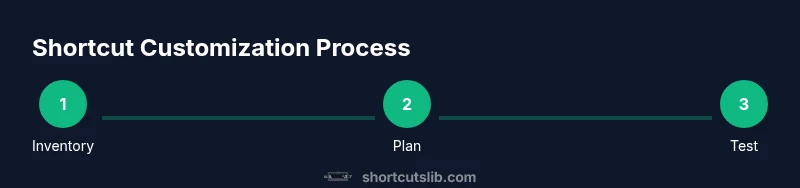
Before touching settings, outline which commands you use most and where you might benefit from quicker access. Create a simple table of actions and proposed key combinations. This planning stage prevents rash changes and helps you measure impact after you implement them. Shortcuts Lib analysis shows that a deliberate plan minimizes rework and increases adoption rates. Keep the plan accessible so you can revert or adjust as you learn what works.
Windows: changing shortcuts system-wide
Windows offers several routes to remap shortcuts, with some keys being fixed by the OS. Start by opening Settings and using the search bar to locate keyboard or accessibility options. If a desired action isn’t natively remappable, you can use third-party tools to create global mappings. Always test in a neutral task (like typing a document) to confirm the new combo does not interfere with essential commands. Microsoft’s own guidance emphasizes consistency and safety when remapping.
macOS: customizing shortcuts at the system level
macOS provides a well-integrated path for shortcut customization. Open System Preferences, select Keyboard, then Shortcuts. From here you can adjust categories like Mission Control, Spotlight, and App Shortcuts. For app-specific mappings, add a new App Shortcut with the exact menu title. This approach minimizes surprises because macOS validates the mapping against the app’s actual menu items. If a conflict arises, you can disable the conflicting system shortcut or choose a different key combo.
Linux environments: GNOME, KDE, and others
Linux shortcut customization varies by desktop environment. GNOME typically uses Settings > Keyboard > Shortcuts, including a section for Custom Shortcuts. KDE provides a similar workflow with System Settings. The core idea is to define global shortcuts and then add app-specific ones within each application's preferences. Because distributions differ, consult your distro’s documentation for exact paths, but the concept remains the same: separate OS-level from app-level mappings to avoid conflicts.
App-specific shortcuts: common tools and editors
Many popular apps expose a shortcuts panel that mirrors the app’s menu items. For example, code editors like VS Code, IDEs, browsers, and design apps offer a way to rebind keys. Start with your most frequent tasks (e.g., duplicate line, save, search) and map them to ergonomic combos. Document these changes in a personal reference so you don’t forget them as you switch between tools.
Dealing with conflicts and testing
Conflicts are the main pitfall when changing shortcuts. If two actions share the same key combination, the larger problem is ambiguity in what triggers. Test each change with realistic tasks and watch for unintended behavior. If conflicts persist, consider swapping one of the keys to a more distinctive combo (for example, adding a modifier like Ctrl or Alt). Keeping a changelog helps you roll back if needed.
Best practices and ergonomic considerations
Aim for shortcuts you can press with a single hand and minimal finger movement. Prefer combinations that are already familiar in your daily workflow to reduce learning time. Be mindful of accessibility: avoid combos that require excessive finger strain or that interfere with screen reader or assistive technology.
Backups and rollback strategies
Before making large-scale changes, back up your current mappings. Most OSes offer a system restore point or Time Machine backup for macOS. If you later decide to revert, restoring from backup is often quicker than retracing each change. Consider keeping a shared document detailing mappings for future reference.
Accessibility and security considerations
Custom shortcuts can improve accessibility by reducing effort for repetitive tasks. However, avoid collapsing security-sensitive actions behind easy-to-press sequences that could be triggered accidentally. Always ensure that shortcuts don’t bypass important prompts or security checks.
Quick validation checklist
After applying changes, run through your most common tasks in at least three apps. Verify that the new shortcuts trigger the intended actions, don’t break existing workflows, and feel natural. If anything feels off, revisit the mapping and adjust accordingly. This iterative approach helps solidify new habits.
Tools & Materials
- Computer with admin access(Needed to modify system-wide shortcuts on Windows/macOS)
- Backup plan (system restore point or Time Machine)(Critical to revert if something goes wrong)
- Notebook or digital doc(Record current mappings and planned changes)
- Keyboard with programmable keys (optional)(Helpful for ergonomic or multi-key combos)
- Third-party mapping tool (optional)(Use only from trusted sources; beware security risks)
- Testing documents and browser tabs(Provide realistic tasks to verify shortcuts)
Steps
Estimated time: 60-90 minutes
- 1
Inventory frequent actions
List the actions you perform most often across your apps. This creates a prioritized target for remapping and sets the baseline for measuring improvement.
Tip: Document at least 6–8 actions to create meaningful value. - 2
Check OS capabilities
Search for shortcut options in your OS’s settings. Some systems allow broad remapping, others offer only app-specific changes.
Tip: Note which shortcuts are non-negotiable and must stay as defaults. - 3
Plan new combos
Draft candidate key combinations for the top actions, prioritizing ease of reach and distinctness from existing shortcuts.
Tip: Prefer one-handed combos, avoid rare purpose keys. - 4
Back up current mappings
Create a restore point or Time Machine backup so you can revert if needed.
Tip: Label backups clearly with date and scope. - 5
Implement OS-level changes first
Apply the first set of mappings at the OS level to establish a consistent baseline across apps.
Tip: Test in neutral tasks before proceeding to app-level changes. - 6
Test in a live workflow
Run through real tasks using the new shortcuts to confirm expected results and identify conflicts.
Tip: Keep a log of failures to revisit later. - 7
Tweak conflicting mappings
If a conflict arises, adjust one shortcut to restore clarity and avoid overlap.
Tip: Change only one factor at a time to isolate the issue. - 8
Add app-specific mappings
For your most-used apps, configure shortcuts that optimize your daily routines without breaking system shortcuts.
Tip: Start with 2–3 key mappings per app. - 9
Document everything
Record final mappings in a centralized reference so you can train new team members or future-you.
Tip: Include OS-level and app-level mappings separately. - 10
Create a rollback plan
Keep a quick-revert path in case new shortcuts slow you down rather than speed you up.
Tip: Schedule a weekly review to ensure shortcuts stay aligned with tasks. - 11
Share your approach
If you work with others, document mappings that affect shared workflows to avoid mismatches.
Tip: Consider a short team guide or cheat sheet. - 12
Review after a set period
After 1–2 weeks, reassess the mapping effectiveness and adjust as needed.
Tip: Aim for continued improvement, not perfection.
Questions & Answers
Can I change keyboard shortcuts on Windows, macOS, and apps?
Yes. You can customize shortcuts at the OS level and within many apps. The exact paths differ by platform, but the core idea is mapping frequent actions to faster key combinations. Start with OS-wide changes, then tune application-specific mappings.
Yes. You can customize shortcuts at the OS level and within many apps. Start with system settings, then adjust apps you use most.
Will changing shortcuts affect accessibility or other shortcuts?
Custom shortcuts can improve efficiency but may interfere with accessibility features if not chosen carefully. Always test with assistive technologies enabled and avoid replacing essential system prompts.
Custom shortcuts can boost efficiency but may impact accessibility if not tested. Try enabling assistive tech during testing.
What should I do if a new shortcut conflicts with an existing one?
If a conflict occurs, modify one of the conflicting shortcuts to a different key combination. Use unique modifiers or alternate keys and re-test in typical tasks.
If you see a conflict, change one shortcut and test it in real tasks.
Is system-wide shortcut changing different from app-specific changes?
Yes. System-wide shortcuts apply everywhere, while app-specific shortcuts only affect a single program. Prioritize system-level mappings for consistency, then tailor apps where you perform critical tasks.
System shortcuts apply everywhere; app shortcuts are per program. Start with system mappings, then customize key apps.
Can I revert to default shortcuts if needed?
Yes. Most systems support restoring defaults via a reset option or by restoring a backup. If you used a restore point, you can revert quickly.
Yes. You can reset to defaults or restore a backup to revert changes.
Do I need third-party software to customize shortcuts?
Some platforms require third-party tools for deeper customization. Use reputable utilities and ensure they don’t introduce security risks.
Third-party tools can extend customization, but choose trusted options and be security-conscious.
Watch Video
Main Points
- Plan before changing shortcuts to reduce rework.
- Separate OS-level and app-level mappings for clarity.
- Test changes in real workflows and document results.
- Back up mappings so you can revert quickly.
- Prioritize ergonomics and consistency across tools.