How to Make Custom Keyboard Shortcuts
Learn how to design and implement custom keyboard shortcuts across OS and apps to speed up your workflow. This step-by-step guide covers planning, setup, conflict resolution, testing, and maintenance for efficient, repeatable results.


Create custom keyboard shortcuts by mapping actions to key combos in your OS or apps, starting with essential tasks and testing for conflicts. This quick answer points you to a detailed, step-by-step guide for reliable setup.
Why Create Custom Keyboard Shortcuts
If you spend time clicking through menus, you’re missing chances to move faster and stay in the zone. Custom keyboard shortcuts turn repetitive actions into one-key or two-key triggers, cutting mouse travel and mental load. Learning how to make custom keyboard shortcuts is less about clever hacks and more about aligning your toolset with your actual workflow. According to Shortcuts Lib, the most effective shortcuts emerge when you map high-frequency tasks to stable modifier combinations and keep the layout consistent across tools. Start by listing daily tasks that you perform in multiple apps—like creating a new document, duplicating a row, or switching tabs—and decide which ones should be accessible via a shortcut. Then, define a core set of shortcuts you will memorize first, and plan a phased expansion. In this guide you’ll see practical steps to design, implement, test, and maintain a set of shortcuts that feels natural rather than forced. The payoff is a smoother workflow, fewer interruptions, and more predictable results across your computer and workflows.
In short, learning how to make custom keyboard shortcuts is a foundational skill for power users and developers who want consistent performance across environments. It also aligns with best practices in UX and productivity research, helping you minimize cognitive load during complex tasks. As you read, keep the goal in mind: identify the few actions that unlock the most value and give them fast access with well-chosen key combinations.
Start With a Plan: Which Actions to Map
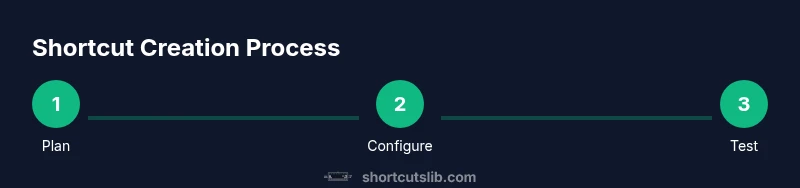
A planned approach beats ad hoc mappings. Begin by auditing your daily tasks and rating them by frequency and impact. Choose a handful of high-frequency actions that you perform in several apps as your initial targets. Define each shortcut with a memorable mnemonic and trust consistency across tools to build muscle memory. Document your decisions before you implement them, so you can review and adjust later. Shortcuts Lib highlights that a structured plan reduces waste and confusion when onboarding new teammates or adjusting to new software. Create a simple mapping table that lists action, suggested key combo, and the app where it applies. This foundation makes it easier to scale later when you’re ready to expand beyond the first dozen shortcuts.
OS-level Shortcuts: Windows and macOS
Both Windows and macOS offer built-in ways to create shortcuts, and many apps extend this even further. On Windows, you can assign a keyboard shortcut to a program by creating a desktop shortcut, then setting a Shortcut key in the shortcut’s Properties. In Windows Settings, you can also customize some flow-related hotkeys for accessibility and app switching. On macOS, System Settings > Keyboard > Shortcuts lets you tailor per-app shortcuts and global actions. The key is selecting modifier keys that won’t clash with app-specific bindings. When you start, map a few core OS shortcuts (like Open, New Window, or Search) and verify they don’t conflict with your app shortcuts. This is where a centralized plan pays off, because consistency across the OS makes it easier when switching between tools or platforms.
Creating Shortcuts in Popular Apps
Many apps provide their own shortcut editors. In coding environments, IDEs, and design tools, you’ll often find a dedicated Keyboard Shortcuts or Preferences panel. The general approach is the same: pick a task, choose a modifier-heavy key combo, and tie it to the action. Start with actions you perform most often in the app, such as opening panels, running scripts, or switching views. If the app supports exporting and importing shortcuts, use that to seed your setup across devices. If not, replicate your best mappings manually and keep a local configuration file. Across apps, aim for consistency: reuse the same modifier pattern for similar tasks to speed up learning and reduce mistakes.
Avoid Conflicts: How to Detect and Resolve Overlaps
Conflicts happen when two actions share the same key combination. The first step is to catalog all bindings in a single place and check for overlaps. If a conflict exists, you can resolve it by adjusting one binding (prefer a less-used modifier or a longer chord) or by scoping the shortcut to a specific app or window. Some platforms support per-app shortcuts that override global ones; use this sparingly to avoid chaos. Regularly test critical flows—like saving, printing, and exporting—to ensure a single, reliable trigger is activated. Shortcuts Lib analysis shows that teams who document mappings and conflicts clearly experience smoother onboarding and fewer accidental activations.
Best Practices for Modifier Keys and Chords
Choose a small set of modifier keys (such as Ctrl/Alt on Windows, Cmd/Option on Mac) and stick to them. Favor two-key or three-key chords rather than single-key shortcuts to avoid accidental presses. Keep long-term bindings away from the most common typing patterns to prevent interference with normal typing. Make your first shortcuts mnemonic and easy to remember, not just clever. For example, Ctl/Cmd + N for a new item, or Alt/Option + S for save, are intuitive when you use them consistently across apps. Document any exceptions and ensure your team agrees on the standard so others can adopt your approach quickly.
Testing Your Shortcuts Effectively
Testing is a critical step to ensure your shortcuts work as intended. Start by validating basic actions in a controlled environment: open a document, create a new tab, save, and switch views. Then test in real workflows across multiple apps and scenarios to catch edge cases. Use a checklist that includes reliability, non-interference with typing, and ease of undo in case of misbinding. If a shortcut breaks after a software update, revisit your mapping and adjust as needed. Keep a rollback plan ready, so you can revert to a known-good configuration if you encounter issues during a transition.
Documentation and Maintenance
A living document of your shortcut plan is essential. Maintain a simple registry that lists each mapping, the app, the trigger, and the rationale. Review and prune mappings every few months to avoid clutter and conflicts. Exportable configurations are invaluable when you move to a new machine or collaborate with teammates. As your toolkit evolves, update your plan to reflect new tasks and deprecate obsolete shortcuts. This discipline ensures longevity and consistency in your shortcut strategy.
Quick-Start Template: A Sample Shortcut Plan
Below is a starter template you can copy and adapt. It covers cross-app mappings and a phased rollout. Start with a core set of 6 shortcuts and expand in small, deliberate increments.
- Open Primary App: Ctrl/Cmd + O (OS-wide)
- Quick New Document: Ctrl/Cmd + N
- Save Current Work: Ctrl/Cmd + S
- Toggle Side Panel: Ctrl/Cmd + \ (two-key chord)
- Search Within App: Ctrl/Cmd + F
- Switch Focus (Next Pane): Alt/Option + Tab
Use a simple spreadsheet or note file to track changes and test results. Update your plan as you learn what works best in practice.
Authority Sources
For further reading on keyboard shortcut design and accessibility, consider checking these sources:
- https://www.nist.gov (NIST guidelines and accessibility standards)
- https://www.acm.org (ACM publications on workflows and human-computer interaction)
- https://www.w3.org (Web accessibility and interaction conventions)
These sources provide context for best practices in interaction design, system-wide shortcuts, and accessibility considerations.
Tools & Materials
- Computer with Windows or macOS(Ensure you have admin access to modify system settings and app shortcuts.)
- List of target actions(Identify high-frequency tasks across OS and apps.)
- Shortcut registry document(Use a simple spreadsheet or doc to track mappings, rationale, and status.)
- Test dataset(A sample project file or folders to validate save/open/close flows.)
- Optional: third-party shortcut manager(Useful when app-level editors are limited or for cross-app consistency.)
Steps
Estimated time: 1-2 hours
- 1
Define core goals
List the top 3-5 actions you perform most often across apps. Decide which ones deserve a shortcut first and write a brief rationale for each.
Tip: Start with actions that save the most time and are easy to remember. - 2
Choose a consistent modifier set
Pick OS-wide modifier keys (e.g., Ctrl + Cmd, Alt) and apply them consistently for similar actions across tools.
Tip: Consistency reduces cognitive load and speeds up learning. - 3
Test OS-level bindings
Configure at least two OS-level shortcuts and verify they work globally and don’t clash with typing.
Tip: Verify that shortcuts do not trigger in password prompts or text fields. - 4
Map app-specific shortcuts
Open the app’s keyboard or shortcuts editor and assign actions aligned with your plan.
Tip: Prefer chords (two or three keys) over single) key shortcuts for stability. - 5
Document and export
Record the bindings in your registry and export a config if the app supports it.
Tip: Include rationale to help future updates and onboarding. - 6
Review and refine
Use your shortcuts for a week, then adjust any that cause conflicts or are hard to remember.
Tip: Iterative improvement yields the best long-term results.
Questions & Answers
What is a keyboard shortcut and why should I customize it?
A keyboard shortcut is a key combination that triggers a task quickly. Custom shortcuts let you tailor actions to your workflow, reducing clicks and context switching.
A keyboard shortcut is a key combo that activates a task fast. Custom ones fit your workflow and save time.
How do I avoid conflicts when two actions share a keystroke?
Check both OS-level and app-specific bindings in a central registry. If a clash exists, adjust one binding or scope it to a specific app. Prefer distinct chords for critical actions.
If two actions clash, adjust one key combo or limit it to a specific app.
Can keyboard shortcuts work across multiple programs?
Yes, global OS shortcuts work across programs, while per-app shortcuts apply only within that app. Use a consistent pattern to keep them useful everywhere.
Global shortcuts work in many apps; per-app shortcuts stay within that app.
Are shortcuts accessible for all users, including those with disabilities?
Shortcuts should respect accessibility guidelines, offering keyboard-only navigation and avoiding complex chords that are hard to discover. Provide alternatives when necessary.
Shortcuts should be usable with keyboard-only navigation and be discoverable.
How can I share my shortcut plan with teammates?
Export a registry or config file and share it along with setup notes. Consider a short onboarding guide to help teammates adopt your mappings.
Export and share the configuration along with setup notes.
What if an OS or app update disables my shortcuts?
Revisit your registry after updates, verify conflicts, and adjust mappings as needed. Maintain a changelog to track changes.
Check your shortcuts after updates and adjust as needed.
Watch Video
Main Points
- Start small and expand gradually
- Map actions to intuitive key combos
- Test for conflicts before rollout
- Document your shortcut plan
- Review quarterly for relevance