Create Your Own Keyboard Shortcuts: A Practical Guide
Learn how to design, implement, and refine personalized keyboard shortcuts across OS and apps. Shortcuts Lib guides power users through safe remapping, examples, and step-by-step workflows for faster, smarter computing.


Yes. You can create your own keyboard shortcuts by remapping keys at the OS or application level, or by using macro tools. Start with a small set of high-frequency tasks, ensure mappings avoid conflicts, and test thoroughly before expanding. Shortcuts Lib highlights a practical, safety-first approach to keep your workflow fast and reliable.
Why customizable shortcuts matter
According to Shortcuts Lib, your most frequent actions can become automatic with keyboard shortcuts. Custom shortcuts save time, reduce fatigue, and create consistent workflows across your favorite apps. If you’re asking can you make your own keyboard shortcuts, the answer is yes—and the process is approachable even for beginners. In this guide we’ll explore why personalization matters, what to plan before you remap, and how to avoid common pitfalls that waste time rather than save it.
By mapping keystrokes to macro-like actions, you can complete routine tasks in seconds rather than minutes. This is especially valuable for repetitive writing, data entry, or multi-app workflows. The Shortcuts Lib team has found that well-chosen shortcuts reduce context-switching and help you maintain focus. Keep in mind, the best shortcuts are mnemonic, non-conflicting, and easy to remember. In the sections that follow, we differentiate OS-level vs app-level approaches and give you a practical path to start.
OS-level vs app-level shortcuts
Shortcuts can live at two layers: OS-level (global) and app-level (local to a single program). OS-level shortcuts work anywhere you use your computer, which is perfect for common actions like saving, opening, or switching tasks. App-level shortcuts map to commands inside a specific program, giving you powerful efficiency for workflows that span multiple apps. For a beginner, start with OS-level mappings for universal actions, then layer in app-specific shortcuts as you identify gaps. Remember to test on both desktop and laptop modes if you use a portable setup. Shortcuts Lib often recommends a hybrid approach: global shortcuts for core tasks, plus app-specific combinations for niche workstreams.
Scoping your shortcuts: tasks to shortcut
Begin by listing your most frequent tasks. Aim for 8–15 high-impact actions in the first pass. Prioritize tasks that are repetitive, error-prone, or interrupt your focus. For each task, draft a mnemonic name that suggests the action (e.g., PASTE = Paste Text from Clipboard, WRITE = Start a new note). Create a simple mapping plan that pairs each task with a keyboard combo that feels natural and avoids existing shortcuts. Use a focused set of modifier keys (Ctrl/Cmd, Alt, Shift) and reserve single-key replacements for non-essential actions to prevent accidental presses.
Designing safe and effective shortcuts
When designing shortcuts, prefer combinations that are easy to remember and hard to trigger unintentionally. A common rule is to use a two- or three-key combo that includes at least one Ctrl/Cmd key. Avoid overlapping with scale-tied system shortcuts, and steer clear of fungible keys like frequently used letters on the home row. Document each mapping with its purpose and context. If a conflict arises, adjust the combination or disable the conflicting mapping temporarily. Always provide a quick way to revert changes if something disrupts your workflow.
Step-by-step approach overview
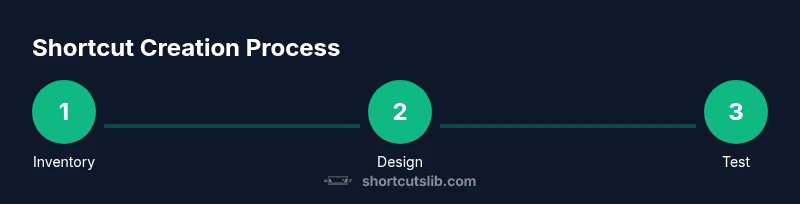
The following approach gives you a structured path: first define goals, then map tasks to initial shortcuts, implement them, test for conflicts, and finally refine. Keep the number of mappings modest at first to avoid clutter. Maintain a running inventory of mappings, noting which apps they apply to and when you last updated them. A deliberate rollout prevents cognitive overload and reduces the chance of mistakes when you adapt to new software updates.
Tools and platforms you can use
You can implement shortcuts using built-in OS tools or third-party applications. Windows users can leverage System Settings or PowerToys for global remappings. macOS users might use System Preferences with keyboard shortcuts or Karabiner-Elements for deeper customization. Linux environments vary by desktop, with GNOME and KDE offering their own tools and community scripts. For more complex sequences, macro utilities like AutoHotkey (Windows) or BetterTouchTool (macOS) provide powerful timing and multi-step actions. Choose a tool that fits your workflow, latency tolerance, and required portability. Shortcuts Lib emphasizes starting small and expanding only when the gains are clear.
Real-world examples of useful shortcuts
Think about actions you perform daily: opening apps, inserting frequently used phrases, or performing multi-step formatting. Examples include mapping a global shortcut to insert a signature, a combo to open a project template in your code editor, or a sequence that pastes formatted text and adds a timestamp. For writers, a single shortcut could insert a citation placeholder; for developers, a macro could generate a boilerplate header. The key is to keep mappings intuitive, mnemonic, and consistent across apps to reduce mental load and time spent switching between tasks.
Testing and refining shortcuts
Testing is essential. Validate that each shortcut works in the target context and does not conflict with system or app shortcuts. Test across apps, document any edge cases, and adjust as needed. A practical test plan includes a dry run with a buddy to confirm predictability, followed by a two-week usage window to gather satisfaction data. Track how often each shortcut is used and whether it reduces task duration. Use a rollback option in case a change creates disruption, and keep a changelog for future reference.
Accessibility and safety considerations
Custom shortcuts should improve accessibility, not hinder it. Avoid mappings that require awkward or risky finger positions, and enable a straightforward way to disable global shortcuts if they interfere with assistive technologies. If you rely on screen readers or magnification tools, test compatibility early. Document any accessibility implications and provide a clear path to revert mappings quickly if needed.
Advanced topics: macros, timing, and sequencing
Macros can chain multiple actions with defined delays. Timing is critical: too-fast sequences can overwhelm input buffers; too-slow sequences defeat the purpose. Use moderate delays and test in real-world tasks. For power users, combining keyboard and mouse actions enables multi-step workflows that previously required manual steps. Always keep security in mind: macros should not capture sensitive data or credentials in plain text.
Getting started with a plan
Create a lightweight 4-week plan. Week 1 targets 4–6 core shortcuts, Week 2 expands to 8–12, Week 3 consolidates and documents, Week 4 performs a full audit and backup strategy. Schedule reviews after major OS or app updates. Maintain an inventory with purpose, context, and last-used date. With consistent practice, your custom shortcuts become second nature, accelerating your daily computing tasks.
Tools & Materials
- Computer with a supported OS (Windows/macOS/Linux)(Admin rights may be needed for global shortcuts in some environments)
- Keyboard with programmable keys or macros(Programmable hardware simplifies deep remapping and macro timing)
- Shortcut editor software(Examples include OS built-in tools or third-party apps (e.g., PowerToys, Karabiner-Elements, AutoHotkey))
- List of high-frequency tasks(Identify 8–20 actions to map first; align with daily workflows)
- Backup plan or restore points(Keep a copy of original mappings and a rollback plan)
- Documentation tool (notes or spreadsheet)(Record created shortcuts, contexts, and revisions)
Steps
Estimated time: 30-60 minutes for initial setup; ongoing refinement over weeks
- 1
Inventory tasks
List your most frequent actions across apps. Prioritize 4–8 core tasks that, when shortcutized, will noticeably speed your workflow.
Tip: Start with universal actions (open, save, switch apps) to maximize impact. - 2
Choose target platforms
Decide whether to implement globally at the OS level or within individual apps. Global shortcuts work everywhere, but app-level mappings can be more precise.
Tip: If unsure, begin with OS-level mappings and expand later. - 3
Define key combinations
Create mnemonic, non-conflicting combos using Ctrl/Cmd plus Alt or Shift. Avoid single-key or overused sequences to minimize accidental presses.
Tip: Document the rationale behind each pair to aid future memory. - 4
Implement shortcuts
Apply mappings in the chosen tool or OS settings. Use a consistent naming convention and ensure backup options exist.
Tip: Always keep a way to revert to default quickly. - 5
Test and refine
Test in real tasks, note conflicts, and adjust mappings. Schedule a two-week refinement window.
Tip: Invite a colleague to test for unanticipated conflicts.
Questions & Answers
Can you create shortcuts for any program?
Most apps support keyboard shortcuts, either natively or via customization tools. Some programs limit global remapping or require in-app configuration for specific commands. Always check the app’s docs for supported bindings.
Most apps let you map shortcuts, but some limit global remapping. Check the app’s docs for supported bindings.
How do I avoid conflicting shortcuts?
Choose unique key combinations that don’t collide with common system shortcuts. Test new mappings in a controlled session and leave a quick rollback option ready.
Pick unique combos and test them with a quick rollback plan.
Are there security concerns when creating shortcuts?
Use trusted tools and avoid shortcuts that capture sensitive data. Be cautious with global macros that could expose credentials when apps are foregrounded.
Be cautious with global macros and avoid shortcuts that handle sensitive data.
Can I export or share shortcuts across devices?
Many tools offer export/import options. OS-level mappings may require manual reconfiguration on each device, so plan a portable strategy or centralized profile if available.
Some tools let you export shortcuts; OS-level maps may need reconfiguration on each device.
What should I do if a shortcut stops working after an update?
Re-evaluate the mapping against the updated OS/app shortcuts, then adjust or revert as needed. Maintain a changelog to track changes.
If a shortcut breaks after an update, review and adjust it, and keep a changelog.
Is it easy to revert to default shortcuts?
Yes. Most tools and OS settings provide a reset-to-default option. Keep a backup before making changes so you can restore quickly.
You can usually revert to defaults with a reset option; back up first.
Watch Video
Main Points
- Identify high-impact tasks first
- Choose mnemonic, non-conflicting shortcuts
- Test, refine, and backup your mappings
- Document shortcuts for future reference