How to Create a Custom Keyboard Shortcut
Learn how to create custom keyboard shortcuts across Windows, macOS, Linux, and web apps. This expert guide from Shortcuts Lib covers design, testing, troubleshooting, and real-world examples to boost productivity without conflicts.


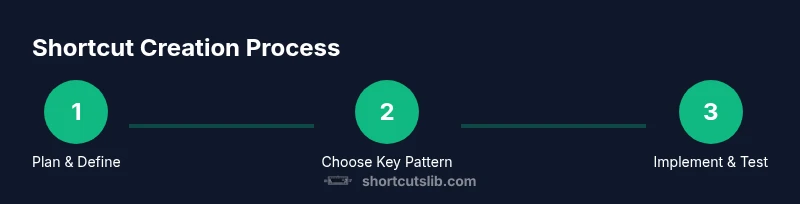
You can create a personal keyboard shortcut by mapping a keystroke to a menu action or command across your OS or apps. Start by choosing a clear, non-conflicting key combination and mapping it to a single, well-defined action. This guide will walk you through planning, implementing, and testing your custom shortcut.
What is a keyboard shortcut and why make one?
A keyboard shortcut is a keystroke combination that triggers a specific action without navigating menus. For many users, shortcuts reduce mouse clicks, speed up workflows, and lower cognitive load when performing repetitive tasks. According to Shortcuts Lib, personalized shortcuts can dramatically accelerate daily workflows. In daily use, a well-chosen shortcut should map to a single, clearly defined action and fit naturally with your other keyboard habits.
- Memorability matters: pick a combination you can recall without a mental map.
- Consistency over novelty: apply a similar pattern across apps whenever possible.
- Use modifiers for safety: pair a main key with Ctrl/Cmd, Alt, or Shift to minimize accidental presses.
By the end of this section you’ll understand whether a custom shortcut fits your needs and what it should accomplish.
Why design matters: speed, accuracy, and consistency
Shortcuts compress complex sequences into a single gesture. This reduces context switching, helps keep attention on the task, and improves consistency across tools you use every day. Shortcuts Lib Analysis, 2026, emphasizes that when shortcuts are purposeful and easy to remember, users complete tasks with fewer errors and less cognitive load. The key is targeting high-frequency actions that you perform repeatedly, such as text formatting, searching, or opening frequently used tools.
To design well, think about how often you perform the action, how disruptive it would be if the shortcut failed, and whether it could be learned quickly by new team members. Proper planning yields shortcuts that feel natural rather than forced.
Design principles for effective shortcuts
Effective shortcuts follow a few core principles:
- Memorability: choose a pattern that makes sense and sticks in memory.
- Ergonomics: prefer combinations that can be pressed comfortably with one hand or without awkward finger stretches.
- Consistency: reuse the same modifier pattern for similar actions across apps.
- Low conflict: avoid system-reserved combinations and existing app shortcuts.
- Accessibility: ensure the shortcut works whether you’re touch-typing or using assistive devices.
In practice, a good shortcut often uses Ctrl/Cmd with a single letter plus an optional Alt or Shift modifier to create a distinct, easy-to-recall gesture.
OS and app variability: where shortcuts live
Shortcuts exist in different places depending on your OS and apps. On Windows, you can assign a keyboard shortcut to a desktop or Start Menu item via Properties > Shortcut key, typically invoking Ctrl+Alt+Letter. macOS offers System Preferences > Keyboard > Shortcuts to map menu items to an app; Linux desktop environments (GNOME, KDE, etc.) provide their own tools for custom shortcuts. Web apps vary even more, sometimes letting you customize hotkeys within settings or via browser extensions.
Understanding where to assign a shortcut—OS level versus an app or web app level—helps you avoid conflicts and ensures consistency across tools. If an app doesn’t expose shortcut customization, you may need third-party utilities or browser extensions to achieve the same result.
How to map actions to keyboard shortcuts: common patterns
Think in terms of actions rather than commands. For example, mapping a shortcut to repeatedly used formatting (bold or underline) or a search action yields immediate value. Common patterns include:
- Launching apps or websites quickly.
- Triggering menu items (Save, Find, Print).
- Executing multi-step sequences via macros.
When possible, tie shortcuts to predictable actions within the same domain (text editing, navigation, or project management). This consistency accelerates learning and reduces mistakes.
Step-by-step planning: define goal, constraints, and success criteria
Before creating a shortcut, outline the goal: what action will it perform, where will it live, and how will you measure success? Define constraints such as conflicting keys and accessibility considerations. Establish clear success criteria, for example: time saved per task, reduction in mouse usage, or fewer navigation errors. Shortcuts Lib emphasizes writing down these criteria so you can validate the shortcut after a trial period. A simple planning checklist is:
- Action you want to trigger
- Preferred key combination (with modifiers)
- Target apps/environments
- Expected benefits and success metrics
Documenting these helps you refine your approach and avoid scope creep.
Testing, debugging, and refining shortcuts
Testing is essential to ensure reliability across tools. Start by testing in a single app or environment, then broaden to others. If a shortcut doesn’t work, check for conflicts with existing shortcuts, OS restrictions, or key remapping tools. Use a simple, repeatable test: press the shortcut on three different documents or tasks and confirm the expected action occurs each time. If you get inconsistent results, isolate the variable by disabling other hotkeys or temporarily removing third-party tooling. Documentation of observed behavior helps with troubleshooting and future improvements.
Real-world examples across domains
In productivity suites, a shortcut to toggle a frequently used formatting option or to open the search pane can save meaningful time. In coding workflows, a key binding to run a build, start a test, or auto-format code can reduce context switching. Designers often map shortcuts to common actions like duplicate, align, or export, streamlining creative flows. The best shortcuts feel intuitive in their domain and align with how you naturally think about your tasks.
If you work across browsers and code editors, the same pattern—small, memorable, and low-conflict—will help you create a cohesive shortcut toolkit that travels with you as you switch between apps and contexts.
The Shortcuts Lib approach: best practices you can trust
Shortcuts Lib recommends starting small: pick a single, high-value action and give it a stable key combo before expanding your shortcut library. Prioritize actions that are awkward with a mouse or require repetitive actions. Use modifiers consistently and document any conflicts you encounter so you can adjust quickly. Finally, create a backup of your mapping settings so you can restore them if you move to a new computer or reset your environment.
According to Shortcuts Lib, the most reliable shortcuts emerge from thoughtful design, user testing, and mindful avoidance of conflicts. The team’s verdict is to treat shortcuts as a productivity habit: plan, test, and refine over time to maximize gains.
Tools & Materials
- Operating system with access to keyboard settings(Windows, macOS, or Linux; ensure you have admin rights if required by your environment)
- Target app or menu item to map(Example: a frequently used feature like Find or Save As in a writing tool)
- Proposed key combination(Prefer Ctrl/Cmd + Alt + a letter; avoid system-reserved shortcuts)
- Third-party tooling (optional)(AutoHotkey (Windows), BetterTouchTool (macOS), or browser extensions for web apps)
- Documentation tool(A simple notes app or document for planning and recording mappings)
Steps
Estimated time: 25-40 minutes
- 1
Define goal
Identify the single action you want to trigger with the shortcut, and specify where it will be used (OS level, app level, or web app). The goal should be concrete and measurable.
Tip: Write the goal in one sentence to keep the scope clear. - 2
Check for conflicts
Search existing shortcuts in your OS and target apps to avoid clashes. Note any combinations that are already in heavy use.
Tip: Choose a modifier-rich combo to minimize overlap. - 3
Choose a key combo
Select a memorable, ergonomic keystroke that won’t strain your hand. Prefer a combination that you can press with one hand when possible.
Tip: Test the combo in a neutral position (home row) before finalizing. - 4
Create or assign the shortcut
Use the OS or app settings to assign the key combo to the desired action. If the app doesn’t support it, consider a third-party tool.
Tip: Document where you configured the shortcut and the exact mapping. - 5
Test in a controlled setting
Run the shortcut in the target app and then in other apps with similar workflows to check for unexpected behavior.
Tip: If it doesn’t work, recheck mapping, conflicts, and focus context. - 6
Refine for consistency
If you’re using multiple shortcuts, align their patterns (same modifier style across actions) to aid memorability.
Tip: Avoid introducing new modifier sets mid-project. - 7
Document and back up
Save a concise guide of the mappings and back up the configuration so you can restore it easily on a new device.
Tip: Consider exporting a config file if your tool supports it. - 8
Share with others
If the shortcut is team-critical, circulate clear instructions and consider a short training session to help coworkers adopt it.
Tip: Provide a quick FAQ about conflicts and reset options. - 9
Review after a period
Reassess the shortcut’s value after a few weeks; drop underperforming mappings and refine the rest.
Tip: Use real task metrics to evaluate success. - 10
Maintain and iterate
Keep your shortcut library organized; periodically prune conflicts and update mappings as tools evolve.
Tip: Make a habit of revisiting mappings quarterly.
Questions & Answers
Can I override existing shortcuts without breaking workflow?
Yes, you can override some shortcuts, but conflicts can reduce reliability. Prefer clear, non-conflicting keys and test across apps to ensure your new mapping behaves as intended.
Yes, you can override some shortcuts, but watch for conflicts and test across apps.
Do all apps support custom shortcuts, or do I need third-party tools?
Not all apps expose shortcut customization. When native support is missing, third-party tools or browser extensions can help you implement equivalents.
Not every app lets you customize shortcuts—some require third-party tools.
What if my shortcut doesn’t work in all contexts?
Shortcuts may be app-specific or environment-specific. Use OS-level mappings for universal actions and reserve app-level shortcuts for targeted tasks.
If it doesn’t work everywhere, check whether it’s app-specific or OS-level.
Is it safe to use third-party tools for shortcuts?
Third-party tools can be safe when sourced from reputable developers and kept up to date. Avoid excessive privileges and read permissions carefully.
Third-party tools can be safe, just keep them updated and mindful of permissions.
Can I share a shortcut setup with teammates?
Yes, you can share mappings as config snippets or guidelines. Provide context and a brief walkthrough so teammates can adapt them to their workflow.
You can share your shortcuts as a config snippet with a short guide.
What should I do if I forget a shortcut I created?
Keep a written inventory of mappings and consider adding a discoverable help command or an in-app hint to remind you.
If you forget, refer to your shortcut guide or help notes.
Watch Video
Main Points
- Plan your shortcut around a single, high-value action
- Check for conflicts before assigning a key combo
- Test in multiple contexts and apps to ensure reliability
- Document mappings and back them up for easy restoration
- Maintain consistency across shortcuts for faster learning