How to Make Keyboard Shortcuts for Typing
Learn to design and deploy custom typing shortcuts that speed up daily text tasks. This step-by-step guide covers OS-level and app-level tools, mapping strategies, testing, and maintenance to boost your typing efficiency.


By the end of this guide you will be able to design and implement custom keyboard shortcuts that speed up typing tasks across apps. You’ll define goals, pick the right tool (OS-level or app-level), map practical commands to keystrokes, and test for conflicts. This steps-based approach follows best practices from Shortcuts Lib to keep shortcuts reliable and safe.
Why you should create your own keyboard shortcuts for typing
According to Shortcuts Lib, personalization is the cornerstone of durable, efficient typing workflows. When you design shortcuts that reflect your actual tasks—snippets for common phrases, auto-corrections, or macros for repetitive edits—you reduce the cognitive load of typing and cut task time. This section explains why bespoke shortcuts beat generic defaults and how to decide what to automate. Start by listing your most frequent text patterns, then group them by context: email drafting, coding comments, or documentation. Map each pattern to a keystroke or small sequence that is easy to remember. The payoff is a more fluid typing rhythm and fewer interruptions to switch to the mouse or menus. Finally, consider accessibility: choose shortcuts that are comfortable to press and visible in your current setup to maintain speed without strain.
Examples of common patterns to automate include personal email templates, product names, or frequently used phrases like “Best regards” followed by your name. Use simple, memorable trigger text that you can type without looking at the keyboard. The goal is to reduce repetitive keystrokes while keeping your workflow legible for others who may review your work.
Core principles for effective typing shortcuts
Effective shortcuts follow consistent patterns and clear naming. Start with readability and predictability: shortcodes should be intuitive enough that you remember them after a pause, yet distinct enough to avoid accidental expansions. Avoid binding a shortcut to a system or app function you already rely on; conflicts create confusion and inefficiency. Build portability by keeping mappings modular—group related shortcuts into a single category (e.g., “email templates,” “code snippets”). Maintainability matters: a lightweight configuration file or a central snippet library makes updates painless. Finally, favor context-specific shortcuts—shortcuts that apply to a document, email, or chat window—so you don’t overwhelm your general workflow.
Choosing the right shortcut tools
You have two main pathways: OS-level tools that work across apps or app-level tools that live inside a single program. OS-level options include AutoHotkey on Windows, Karabiner-Elements on macOS, and built-in text-replacement features. App-level tools include VS Code snippets, Google Docs’ built-in offer, and word processors with macro support. Start with OS-level foundations for broad coverage, but don’t hesitate to layer in app-level refinements for specialized contexts. Safety matters: disable or alert when a shortcut could trigger destructive actions, and ensure you can disable shortcuts quickly if needed.
Crafting practical shortcut mappings (examples)
Begin with a small, safe set of mappings that you can test quickly:
- addr → 123 Main Street, Springfield, IL 62704
- sig → Best regards, Your Name
- dtoday → 2026-02-06
Consider using access-friendly keystrokes like Ctrl/Cmd + Alt + a letter, or a double-tap pattern that’s unlikely to occur by accident. For dynamic content (dates, times), leverage templates that fetch current information when invoked. Keep a changelog for mappings so you can revert or adjust without losing your reference. Finally, separate content blocks by context—write vs. chat—to avoid accidental insertions in documents that require accuracy.
Practical setup: OS-level vs app-level shortcuts
OS-level shortcuts offer broad reach, but you’ll want to tailor more deeply inside key apps. Windows users can deploy AutoHotkey scripts that trigger text expansions, while Mac users can start with Keyboard Shortcuts and Text Replacement, then move to Karabiner-Elements or a macro tool for more complex expansions. Linux users can rely on clipboard managers or xdotool-based scripts. For app-level control, build templates and live snippets inside your editor or word processor, so you can trigger them without leaving the current window. Always back up your shortcut library and test on non-critical documents first.
Quick start example: a simple 3-shortcut workflow
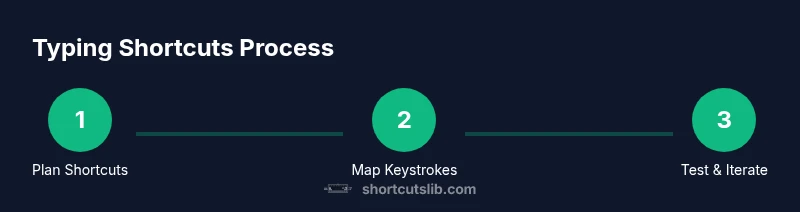
- Define your most frequent phrases and map them to short, memorable triggers. 2) Create a small template file you can copy into your shortcut tool as a starting point. 3) Test each trigger in a safe document, then iterate if needed. 4) Add a brief note in your documentation about what each shortcut does to aid future maintenance.
Common pitfalls and how to avoid them
- Overlapping shortcuts: keep triggers unique to prevent accidental insertions. - Inconsistent naming: use a consistent scheme across all shortcuts. - High-risk actions: separate destructive commands from plain text expansions. - No documentation: always maintain a simple changelog. - Inadequate backups: version-control your shortcut files so you can revert quickly.
Tools & Materials
- Computer with a keyboard(Any OS, desktop or laptop, ensure you have admin rights if needed to install tools.)
- Text editor or note-taking app(Store phrases and scripts for quick reference.)
- Shortcut mapping tool(Examples: AutoHotkey (Windows), Keyboard Maestro (Mac), built-in OS features.)
- Backup and version control(Keep copies of your shortcut configurations.)
- Reference list of common phrases(Examples for quick mapping; keep updated.)
Steps
Estimated time: 60-120 minutes
- 1
Define your typing goals
List the top tasks where keyboard shortcuts will save time (e.g., email templates, code comments, documentation phrases). Establish a target speed and accuracy improvement. Clarify what success looks like and how you will measure it.
Tip: Write down 3 concrete tasks to automate in the first pass. - 2
Choose your toolset
Decide between OS-level and app-level solutions based on where you do most typing. If you need cross-app coverage, start with OS-level automation and layer app-specific snippets later.
Tip: Keep one primary tool to avoid conflicting mappings. - 3
Inventory frequent phrases and actions
Gather phrases, templates, and common actions you repeat. Break them into groups by context (email, coding, docs) and note any required formatting.
Tip: Aim for 5–15 core entries for the initial rollout. - 4
Map triggers to outputs
Create concise triggers (shortcodes) and their outputs (expanded text or actions). Ensure triggers are easy to remember and won’t collide with existing shortcuts.
Tip: Use initials or abbreviations that are unlikely to appear unintentionally. - 5
Implement the mappings
Create your scripts or templates in the chosen tool. Validate each mapping in a safe document before using it in production.
Tip: Comment your code or script so future you understands it. - 6
Test and iterate
Test with real tasks, note conflicts, and adjust triggers or contexts. Iterate over a few days to stabilize performance.
Tip: Keep a log of issues and fixes for quick reference. - 7
Document and maintain
Create a simple changelog and a KB page describing each shortcut. Schedule periodic reviews to retire or update mappings.
Tip: Regular maintenance prevents shortcodes from becoming obsolete.
Questions & Answers
What is the best tool to create keyboard shortcuts for typing?
There isn’t a single best tool; choose OS-level automation for broad coverage and app-level snippets for context-specific tasks. Try a combination that fits your workflow.
Use a combination of OS-level automations for broad coverage and app-level snippets for context-specific tasks to get the best results.
Can I use keyboard shortcuts across all apps?
OS-level shortcuts can cover many apps, but some apps may override or ignore certain mappings. Layer app-specific shortcuts for critical tools to ensure consistency.
Most OS-level shortcuts work across apps, but some apps may override them, so add app-specific shortcuts for essential tools.
Are there risks to editing system shortcuts?
Yes, redefining critical system shortcuts can cause unintended actions. Always test in a safe environment and keep a quick-recovery method to revert changes.
Be careful with system shortcuts; test and keep a quick way to revert in case something goes wrong.
How do I back up and restore shortcuts?
Store your shortcut configs in a version-controlled repository or cloud storage. To restore, re-import the configuration and verify each mapping still works.
Back up using version control or cloud storage, and re-import when needed to restore your setup.
What if a shortcut stops working after an app update?
Post-update, re-validate triggers in the affected apps. Update the mappings or re-record outputs to match new interfaces.
If an update breaks a shortcut, check the app’s UI changes and update your mapping accordingly.
Is it safe to share shorthand mappings with teammates?
Yes, but ensure sensitive data isn’t included in templates and use access-controlled repositories. Provide clear on-boarding documentation.
Sharing is fine if you exclude sensitive data and provide clear guidelines for teammates.
Watch Video
Main Points
- Design shortcuts around real tasks
- Test thoroughly before wide deployment
- Document all mappings for future updates
- Prevent conflicts by choosing unique triggers
- Maintain and back up your shortcut library