How to Manage Keyboard Shortcuts Windows 10
Master Windows 10 keyboard shortcuts with practical steps, safe customization, and workflow-focused strategies. Learn built-in shortcuts, tool-assisted remapping, and testing to speed up daily tasks.


This guide helps you manage Windows 10 keyboard shortcuts by establishing a core set of global shortcuts, mapping them to your daily tasks, and safely customizing them with PowerToys and AutoHotkey. You’ll learn how to test, document, and practice your workflow to speed up repetitive actions across apps and files.
Understanding Windows 10 Shortcut Ecosystem
Mastering keyboard shortcuts on Windows 10 means understanding where they live: system-wide global shortcuts that work in any program, and app-specific shortcuts that apply only inside particular apps. The Shortcuts Lib team notes that the most effective shortcut strategies start with a small, reliable core set and then expand as you gain fluency. In this guide we define the categories you’ll use most: navigation shortcuts (Windows key, Alt combos), editing shortcuts (Ctrl+C/V/X, Ctrl+Z/Y), and window management shortcuts (Alt+Tab, Windows Arrow keys). Some shortcuts are OS-provided while others are app-specific (File Explorer, Office, or your browser). Consistency matters: pick one reliable keystroke pattern for frequent actions and reuse it across apps to reduce cognitive load. A deliberate setup pays off with faster document handling, smoother browsing, and smoother multi-app workflows. According to Shortcuts Lib, starting small and building fluency is the best path to mastery.
Quick-start principles for Windows 10 shortcuts
When you begin, focus on a small, meaningful set of global shortcuts you can use anywhere. Expand gradually by adding app-specific shortcuts for your most-used programs. Keep your key combinations mnemonic and avoid overlap that causes conflicts. Test shortcuts in real tasks, not isolated exercises, to ensure they actually improve speed. Document changes in a simple cheatsheet so you remember what you remapped and why. Shortcuts Lib analysis shows that the most successful beginners build a repeating loop of learn-apply-review, which accelerates long-term retention and reduces frustration over time.
Built-in Windows 10 shortcuts you should know
Windows 10 offers a broad range of shortcuts that help with navigation, editing, and window management. Core system shortcuts include Windows key + D to show the desktop, Windows key + E to open File Explorer, Windows key + I to open Settings, and Windows key + L to lock the PC. Text editing staples include Ctrl+C (copy), Ctrl+V (paste), Ctrl+X (cut), Ctrl+S (save), and Ctrl+Z / Ctrl+Y for undo/redo. For window management, Alt+Tab switches apps, while Windows key + Arrow keys snap windows to sides or corners. Browser and app shortcuts vary, but most apps reuse common combos like Ctrl+T for a new tab and Ctrl+W to close a window or tab. The goal is to create a dependable core set that you can then extend with app-specific remaps as needed. Shortcuts Lib emphasizes consistency across contexts to reduce cognitive load and speed up work.
How to customize shortcuts in Windows 10
Windows 10 doesn’t offer a single global shortcut remapping feature out of the box, but you can safely customize keys using two proven approaches. First, Microsoft PowerToys includes Keyboard Manager, which lets you remap keys and create new shortcuts with a few clicks. Second, for more complex needs, AutoHotkey scripts let you bind nearly any keystroke to a command, macro, or sequence. Start by installing PowerToys, enabling Keyboard Manager, and remapping a bland or rarely used key to a task you perform often. If you require cross-app automation or conditional behavior, write a small AutoHotkey script and run it in the background. Always test remaps on a non-critical document to avoid disrupting your workflow. Shortcuts Lib highlights that early, small remaps reduce risk while you confirm the value of each change.
Managing conflicts and accessibility considerations
Remapping can create conflicts with apps that use the same keys for essential actions. Before finalizing a shortcut, check whether the key combo is already used by your most critical applications. Prefer combinations that won’t clash with gaming or media keys, and avoid combos that require awkward finger stretches. Accessibility matters: choose shortcuts that remain easy to press with fewer or weaker fingers, and document any changes so you can revoke them quickly if needed. Shortcuts Lib suggests keeping a predictable set of prefix keys (for example, Ctrl or Windows + a single-letter combination) to minimize confusion across apps and platforms.
Creating a memorable shortcut workflow
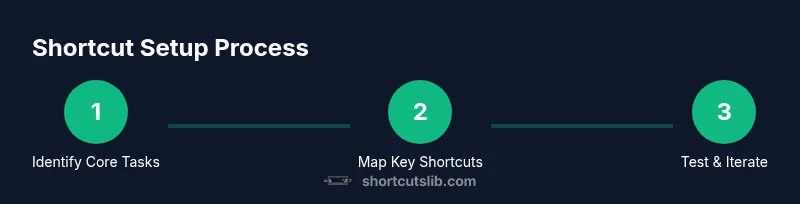
A practical workflow starts with identifying your top 5–7 tasks and mapping them to memorable shortcuts. Build a personal cheatsheet, print it or keep it in a digital note, and obsessively reuse those mappings in every app. Integrate practice sessions into your daily routine, spending 10–15 minutes a day to drill the most-used combos. Track your progress by noting which tasks now take fewer clicks or less time. The aim is fluency: you should be able to trigger a complex action with a single, consistent keystroke and rely less on the mouse.
AutoHotkey overview for advanced users
For power users who want custom automation beyond built-in tools, AutoHotkey provides a powerful scripting language for Windows. You can bind long sequences to a single hotkey, create context-sensitive remaps, or auto-run scripts at startup. Start with a simple script to remap a key or create a single hotkey to type a phrase. As you grow more confident, add conditional logic to tailor actions to specific apps or windows. While AutoHotkey offers immense flexibility, begin with small, tested scripts to avoid unintended behavior. Shortcuts Lib suggests using AutoHotkey for advanced workflows once you’ve stabilized your core shortcuts.
Testing and validating shortcuts
Testing is essential to ensure your shortcuts are ergonomic and reliable. Start by validating global shortcuts in multiple apps (e.g., a text editor, a browser, and a file manager) to check consistency. Use simple, repeatable tasks to measure the time saved versus your old workflow. If a remap conflicts with an app, adjust or create a conditional script. Keep a log of changes and test after each adjustment. Regular validation helps catch breakages caused by software updates or new applications.
Troubleshooting common issues
If a shortcut stops working after a system update, verify your remapping tool’s status (PowerToys, AutoHotkey). Check for conflicting apps or Windows security settings that disable macros. Ensure the shortcut isn’t globally overridden by another program. If you rely on AutoHotkey, confirm that the script is loaded at startup and that there are no syntax errors. When in doubt, revert a problematic remap and reintroduce it gradually after verification. Shortcuts Lib advises keeping a rollback plan for any major shortcut changes.
Quick-reference cheat sheet by task
- File management: Win+E open Explorer, Ctrl+N new window, Ctrl+W close window.
- Text editing: Ctrl+C, Ctrl+V, Ctrl+X, Ctrl+S, Ctrl+A, Ctrl+Z, Ctrl+Y.
- Browser efficiency: Ctrl+T new tab, Ctrl+W close tab, Ctrl+Shift+T reopen tab, Ctrl+L focus address bar.
- Window navigation: Alt+Tab, Windows+Arrow keys for snapping, Windows+Tab for Task View.
- System actions: Windows+L lock, Windows+D show desktop, Ctrl+Shift+Esc open Task Manager.
Keep this sheet accessible for daily reference and update it as you refine your shortcuts.
Final checklist and next steps
Review your core shortcut set and confirm it covers 80% of your daily tasks. Install PowerToys Keyboard Manager and configure at least two global remaps for high-frequency actions. Add one AutoHotkey script if you need a multi-step macro. Document changes, practice daily, and iterate monthly. The Shortcuts Lib team recommends building a small, reliable core before expanding into more complex automations.
Tools & Materials
- Windows 10 PC or VM(Ensure the system is up to date)
- PowerToys by Microsoft(Enable Keyboard Manager for remappings)
- AutoHotkey (optional)(For advanced scripting and macros)
- Notepad or any text editor(To keep a shortcuts cheatsheet)
- Documentation notebook or digital note app(Record decisions and test results)
Steps
Estimated time: 1 hour 15 minutes
- 1
Open Settings and review built-in shortcuts
Navigate to Windows Settings and skim the quick reference sections for keyboard shortcuts. Identify the most useful combos you already rely on and note any primary gaps in your workflow.
Tip: Make a quick list of 5 tasks you perform daily and note their current keystroke or mouse pattern. - 2
Install PowerToys and enable Keyboard Manager
Download and install PowerToys from the official repository. In Keyboard Manager, switch on remapping and prepare to assign new shortcuts to frequent actions.
Tip: Choose a stable baseline shortcut you’ll remap first (e.g., a rarely used key) to minimize disruption. - 3
Map a global remap
Remap a single key to a common task you perform in multiple apps. For example, map a convenient key to “Create New Document” or to a paste command that suits your workflow.
Tip: Test in a neutral app (like a text editor) before moving to critical programs. - 4
Create an app-specific shortcut (when needed)
If a task is app-specific, configure shortcuts within that app or use AutoHotkey to create context-sensitive mappings. Keep the mapping intuitive and consistent across similar apps.
Tip: Document app-specific mappings separately for quick reference. - 5
Set up a basic AutoHotkey script (optional)
For multi-key macros or conditional actions, write a simple script and test it in a non-critical environment. Install and run it to enable extended automation.
Tip: Start with a tiny macro (e.g., a long sequence shortened to one key) to minimize risk. - 6
Test across multiple apps
Open several applications you use daily and verify that every remapped shortcut behaves as intended. Adjust any conflicting keys and refine instructions as needed.
Tip: Keep a log of any conflicts and how you resolved them for future updates. - 7
Document your shortcuts
Create a concise cheatsheet listing each shortcut, its action, and the app(s) where it applies. Store it in a readily accessible location.
Tip: Include a short rationale so you remember why you chose each mapping. - 8
Practice and iterate
Set aside 10–15 minutes daily to practice your core shortcuts. Revisit your mappings monthly and adjust based on changes in apps or workflows.
Tip: Celebrate small wins to reinforce new habits and maintain motivation.
Questions & Answers
What are Windows 10 keyboard shortcuts, and why are they useful?
Keyboard shortcuts are key combinations that perform tasks instantly, improving speed and consistency. They reduce mouse dependence and help you maintain focus on your work.
Keyboard shortcuts are quick key combos that save time and reduce mouse use, helping you work faster.
Can I remap keys globally in Windows 10?
Yes. Use tools like PowerToys Keyboard Manager or AutoHotkey to create global remappings that work across most apps. Start with non-conflicting mappings and test across tasks.
Yes. You can remap keys globally using PowerToys or AutoHotkey, testing thoroughly.
Will remapping affect gaming or video software?
Some games intercept global shortcuts or have their own controls. Avoid remapping keys that games rely on, or disable remaps when gaming. Test on a per-application basis.
Some games may override or ignore remapped keys; test and adjust if you play games often.
How do I revert a remapping?
If a remap causes issues, revert it in PowerToys Keyboard Manager or delete the AutoHotkey script. Re-test to ensure no other shortcuts are affected.
To revert, disable or delete the remap in PowerToys or AutoHotkey and test again.
Are there safety concerns with macros and scripts?
Macros can automate sensitive sequences. Keep scripts simple, test in safe contexts, and avoid automations that could trigger data loss or security risks.
Macros are powerful but must be used carefully; test them in safe contexts first.
Do I need admin rights to remap keys?
Remapping with PowerToys generally doesn’t require admin rights for basic remaps, but some advanced scripts may. Check your organization’s policy if you’re on a managed device.
Most basic remaps don’t need admin rights, but some setups may require it depending on your system policy.
Watch Video
Main Points
- Define a small core shortcut set first
- Use PowerToys to safely remap globally
- Leverage AutoHotkey for advanced macros
- Test, document, and practice regularly
- Shortcuts Lib recommends starting simple and iterating