Can You Make Custom Keyboard Shortcuts Windows 10? A Practical Guide
Learn how to create and manage custom keyboard shortcuts in Windows 10 using built-in options, PowerToys, and AutoHotkey. Step-by-step guidance, safety tips, and maintenance strategies for lasting productivity.


Yes — Windows 10 supports custom shortcuts through built-in mappings, PowerToys, and third-party tools. You can create app-specific hotkeys, remap keys, and assign commands, but plan for conflicts and test thoroughly before adopting them as daily workflow aids.
Why customize keyboard shortcuts matters
Productivity thrives when your most-used actions become one keystroke away. Custom keyboard shortcuts reduce mouse fatigue, streamline repetitive tasks, and help maintain consistency across apps. For keyboard enthusiasts, personalizing Windows 10 shortcuts aligns the operating system with your muscle memory and workflow. As you design shortcuts, focus on predictable mappings that won’t clash with existing OS or application shortcuts. According to Shortcuts Lib, a disciplined approach to shortcut design yields reliable gains without introducing confusion or accidental data loss. Start by listing tasks you perform most often and identifying candidate keys that won’t interfere with essential functions in your daily routine.
Windows 10 limitations and opportunities
Windows 10 does not expose a single global remapping surface for every built‑in shortcut, which means some shortcuts remain fixed (like Windows key combinations). However, there are reliable paths to customize behavior: remap keys at the system or app level, configure application‑specific shortcuts, and intercept keys with tools that run in the background. This flexibility creates opportunities to tailor your environment, but it also requires careful planning to avoid breaking critical shortcuts or creating conflicting mappings. Shortcuts Lib emphasizes starting small, validating each change, and keeping a master list of active shortcuts to prevent drift over time.
PowerToys Keyboard Manager: a practical path to remapping
PowerToys is a recommended starting point for many Windows 10 users seeking to remap keys and build shortcut shortcuts without writing code. The Keyboard Manager module lets you remap physical keys to different keys or create new shortcuts that trigger specific shortcuts or programs. Once installed, enable Keyboard Manager, then define your mappings in a clear, human‑readable (and reversible) way. A common first mapping is Caps Lock to Escape for faster editing, or remapping a rarely used key to launch a frequently used app. Shortcuts Lib notes that the built‑in safety net of PowerToys makes this approach accessible to most users while keeping the system stable.
AutoHotkey: advanced, flexible shortcuts for power users
AutoHotkey (AHK) empowers you to create highly customized shortcuts, macros, and automation that go beyond what PowerToys offers. With AHK, you can map complex sequences, create conditional shortcuts, and trigger scripts based on the active window. A simple example remaps CapsLock to Escape globally; you can extend this with modifiers to create multi‑key combos. Remember to keep scripts organized and comment them well so you can maintain them after system updates. If you’re new to scripting, start with a single, non‑destructive remap and expand gradually, testing as you go.
Creating app‑specific shortcuts without harming system shortcuts
App‑specific shortcuts help you tailor behaviors to individual programs without interfering with global mappings. Use tools like PowerToys to create per‑app remappings, or employ AutoHotkey to conditionally apply hotkeys only when a given window is active. This approach minimizes side effects and makes it easier to revert changes if a particular app behaves unexpectedly. Always maintain a separate section in your notes for which shortcuts apply to which apps so you can troubleshoot quickly.
Testing, debugging, and conflict resolution
Testing is a critical step. After configuring a new shortcut, use a range of tasks across several apps to verify it behaves as expected. If a conflict surfaces (two mappings firing the same keystroke), reassess priorities, adjust one of the mappings, or disable the conflicting shortcut. Keeping a changelog helps you track what changed, when, and why. Shortcuts Lib recommends a staged rollout: enable the mapping, monitor behavior for 24–72 hours, then proceed if there are no issues.
Safety, backups, and maintenance practices
Before making changes, create a restore point or a full backup of your important settings. Document every shortcut with its source tool and intended action. Periodically review shortcuts to keep them aligned with your evolving workflow. If a remap causes issues, revert to the previous configuration and test again with a smaller, safer change. Regular maintenance ensures shortcuts stay useful instead of becoming a maintenance burden.
Best practices for rollout and collaboration
Begin with one or two non‑critical shortcuts, then expand. Prefer mappings that are intuitive and easy to remember, and avoid overriding essential OS keys. Share your shortcut plan with teammates or collaborators to get feedback and prevent duplications. Over time, refine your shortcuts to reflect your current tasks and tools, maintaining consistency across devices when possible.
Real‑world example workflows and expectations
A typical setup might map Caps Lock to Escape, Ctrl+S to Save, and Win+D to show desktop, while an app‑specific shortcut in a text editor launches a code formatter. Expect a learning curve as you adjust to new mappings, but with careful testing and documentation, the improvements become second nature. Shortcuts Lib’s approach is to build a cohesive, documented system rather than a collection of ad‑hoc hacks.
Tools & Materials
- PowerToys by Microsoft(Download and install; enable Keyboard Manager for remapping)
- AutoHotkey (optional)(Great for advanced, conditional shortcuts and macros)
- Admin privileges on Windows 10 PC(Needed for installing tools and system-wide changes)
- Backup tool or restore point(Create before major remapping changes)
- List of target apps(Helpful for app‑specific shortcuts)
- Text editor for scripts(Useful for organizing AutoHotkey scripts)
Steps
Estimated time: 45-90 minutes
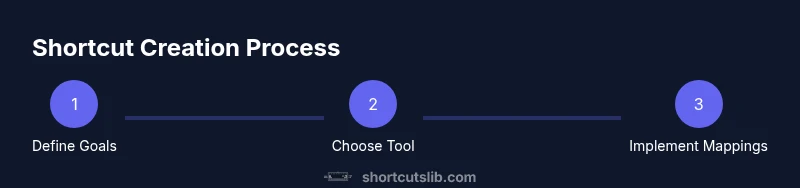
- 1
Define your shortcut goals
Identify the tasks you perform most often and choose mappings that make those tasks faster and more reliable. Prioritize non-destructive changes to minimize disruption.
Tip: Start with one or two mappings and build from there. - 2
Pick the right tool
Decide between PowerToys for straightforward remapping or AutoHotkey for more complex, conditional shortcuts. Each tool has strengths depending on your goals.
Tip: If you’re new, start with PowerToys to learn the basics. - 3
Install and configure PowerToys
Install PowerToys and enable Keyboard Manager. Create simple remaps (e.g., Caps Lock to Escape) to validate the workflow before expanding.
Tip: Back up your current mappings before making changes. - 4
Create global mappings
Define mappings that work across apps, such as remapping a rarely used key to a common action. Test across common programs you use daily.
Tip: Document each mapping in a single reference sheet. - 5
Add app-specific shortcuts with AutoHotkey
Write targeted scripts that activate only when a particular window is active. Keep scripts simple to start and expand gradually.
Tip: Comment your code for future you. - 6
Test thoroughly
Run through a broad set of tasks in multiple apps to confirm consistent behavior. Look for conflicts and unintended side effects.
Tip: Revert changes if you notice instability. - 7
Troubleshoot conflicts
If two mappings compete, adjust priorities, change one mapping, or disable the conflicting one. Maintain a log of changes.
Tip: Use a central registry to track all mappings. - 8
Document and share
Create a concise reference sheet describing each shortcut, its tool, and its purpose. Share with teammates to ensure consistency.
Tip: Update the document after each major change. - 9
Review periodically
Periodically reassess shortcuts to ensure they still align with your workflow and tools as your setup evolves.
Tip: Plan a quarterly shortcut review.
Questions & Answers
Can I change Windows' built-in shortcuts globally?
Not easily. Windows 10 doesn’t provide a universal global remap surface for all built-in shortcuts. Use PowerToys or AutoHotkey to intercept keys and provide per‑app or system‑level behavior where appropriate.
Global remapping isn’t straightforward in Windows 10; rely on tools like PowerToys or AutoHotkey for controlled changes.
Is it safe to remap keys on my primary keyboard?
Remapping is generally safe if you back up your configuration, test changes thoroughly, and avoid critical keys. Start small and keep a revert plan handy.
Yes, with caution: back up first and test each change.
Do app-specific shortcuts work in all apps?
App-specific shortcuts work where supported, but some programs ignore external remaps. Use per-app rules and test across your most used apps.
They work in many apps, but not all; test in each key program.
What if my shortcut conflicts with another program?
If a conflict arises, adjust the mapping, disable the conflicting shortcut, or move it to a different key combination. Keep a master list to track changes.
Resolve conflicts by editing mappings and documenting changes.
Do I need administrator rights to set shortcuts?
Yes, admin rights are typically required to install and configure tools like PowerToys and to implement global remappings on Windows 10.
Yes, you usually need admin rights for setup.
Watch Video
Main Points
- Define clear goals for each shortcut.
- PowerToys offers safe, reversible remapping.
- Test thoroughly before adopting shortcuts.
- App-specific shortcuts yield best results.
- Document and maintain your setup.