Custom Keyboard Shortcuts in Windows 11
Learn how to create custom keyboard shortcuts in Windows 11 using PowerToys Keyboard Manager and built-in options. This guide covers setup, mapping commands, testing, and practical tips from Shortcuts Lib.


Yes. You can create custom keyboard shortcuts in Windows 11 using PowerToys Keyboard Manager and built-in options. This quick-start answer points you to the essential steps, then a full step-by-step guide with examples and troubleshooting tips. The approach focuses on high-frequency actions to maximize productivity, with careful testing to avoid conflicts.
Why this matters for keyboard enthusiasts
In the modern computing landscape, speed and precision come from fast, reliable keyboard workflows. If you’re wondering can you make custom keyboard shortcuts windows 11, the answer is yes—Windows 11 supports user-defined shortcuts via both built-in settings and PowerToys Keyboard Manager. According to Shortcuts Lib, a focused shortcut strategy saves hours by reducing repetitive actions and sharpening muscle memory for tasks like coding, writing, and data gathering. This section lays the groundwork: we’ll explore why custom shortcuts pay off, how they align with your daily routines, and what it takes to craft mappings that scale as your workflow evolves. You’ll see how to select targets, balance simplicity with power, and plan for future expansions while maintaining OS stability.
Shortcuts Lib’s 2026 analysis highlights two core ideas: first, focus on high-frequency actions (opening apps, inserting templates, switching windows); second, avoid mapping to keys that collide with essential OS behavior. With that guidance in mind, you’ll design a set of shortcuts that feel natural, reduce context switching, and minimize cognitive load. The goal isn’t to flood your keyboard but to create a lean toolkit that speeds up routine work and makes complex sequences effortless. As you read on, you’ll encounter practical planning tips, concrete mappings, and a framework for testing across apps and contexts.
What Windows 11 offers out of the box
Windows 11 already ships with a broad set of native shortcuts and app-launch patterns, and it supports some level of customization. You can map certain actions to run commands or open specific apps via the Run dialog and shortcuts associated with pinned items, but the built-in options are intentionally conservative to preserve system consistency. For most power users, this means PowerToys becomes the practical path to deeper customization. native options are useful for quick tweaks, such as adjusting volume or brightness, but creating bespoke shortcuts for launching tools, inserting templates, or navigating complex workflows typically requires an external utility. When you weigh “out-of-the-box” capabilities against the potential gains from customization, the latter wins for anyone aiming to streamline repetitive tasks. Shortcuts Lib’s recommendations emphasize balancing personal efficiency with predictability so that new shortcuts don’t disrupt your day-to-day work. This section also sets expectations: custom shortcuts are powerful, but they’re most effective when you map to tasks you perform frequently and keep a consistent naming scheme across apps.
How PowerToys Keyboard Manager fits into Windows 11
PowerToys Keyboard Manager (a Microsoft-supported, open-source tool) is the most practical route to deep customization on Windows 11. It lets you remap individual keys and, more importantly, create custom shortcuts that launch apps, execute scripts, or trigger commands. The Keyboard Manager resides inside the PowerToys suite, which you install separately from the Windows ecosystem and update like any other software. In practice, this tool gives you centralized control over shortcut behavior, including cross-application consistency. Shortcuts Lib analysis, 2026, shows that PowerToys dramatically expands what you can tailor, especially for developers, writers, and IT professionals who rely on repeatable patterns. When used thoughtfully, Keyboard Manager reduces cognitive load and helps you perform complex sequences with fewer keystrokes while preserving system stability. The major caveat is to avoid overlapping shortcuts and to test mappings across common apps to confirm they don’t interfere with OS-level shortcuts or vendor-specific gestures.
Planning your shortcut map: goals and scope
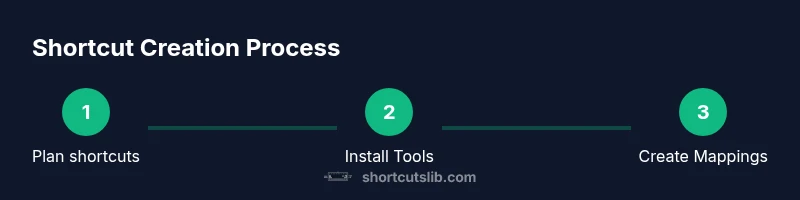
Before you map a single shortcut, define your objectives clearly. List the top 5-8 actions you perform most often and consider the context in which you work (coding, document editing, research, or design). The question can you make custom keyboard shortcuts windows 11 should guide your planning: focus on actions that save measurable time and reduce repetitive clicks. Create a taxonomy of shortcuts by priority (critical, important, nice-to-have) and by domain (development, writing, navigation). Decide how many shortcuts you want to manage in a single profile versus multiple profiles for different tasks. This planning phase will save you from mapping low-value shortcuts that add cognitive overhead rather than reducing it. Shortcuts Lib’s framework suggests using mnemonic, non-conflicting key combos that are easy to reach and remember. Document your plan in a short list or a living document so you can revisit and adjust as your workflow evolves.
Step-by-step: install PowerToys and enable Keyboard Manager
To begin, download the latest PowerToys release from the official source and install it with administrative rights. After installation, launch PowerToys and navigate to Keyboard Manager. Ensure that both “Remap keys” and “Remap shortcuts” features are enabled. If you’re new to PowerToys, take a moment to review the preferences and default mappings so you can avoid conflicts. This stage sets the foundation for reliable, repeatable shortcuts and ensures the environment is ready for customization. The goal is to have a clean slate where your mappings won’t collide with core OS functions, which is essential for maintaining system stability and predictability. Safety-minded users should consider creating a system restore point prior to large remapping projects.
Step-by-step: create your first shortcut
With Keyboard Manager open, choose the “Remap a shortcut” option. Click the plus button to add a new mapping, then select the original shortcut (for example, Ctrl+Alt+N) as the source and assign your chosen action (for instance, opening Notepad) as the destination. Confirm the mapping and save changes. Test the new shortcut in several applications to ensure it behaves consistently. If the target action is not accessible via standard OS APIs, you may need to run a script or a command-line tool to achieve the desired result. Remember to keep a simple, consistent naming convention for your mappings so they’re easy to audit later.
Step-by-step: test and refine
After creating the first set of shortcuts, test across multiple apps and document any conflicts or unexpected behavior. Pay attention to how your new mappings interact with existing shortcuts in common programs (word processors, IDEs, browsers). If you encounter collisions, adjust the source key or the target action and re-test. Small tweaks can dramatically improve reliability. Establish a routine to review shortcuts weekly or monthly, updating mappings as your workflows evolve. This ongoing refinement is a core habit of effective shortcut management and aligns with Best Practices from Shortcuts Lib for productive, scalable setups.
Pro tips, conflicts, and safety considerations
Pro tip: start with 2–3 high-impact shortcuts before expanding your mapping set. Use mnemonic, easy-to-reach key combinations and avoid overwriting keys used by essential OS functions. Always test thoroughly and keep a changelog so you can revert if something breaks. For safety, create a system restore point before applying large remapping changes and document all mappings in a central guide. If you ever need to reset, PowerToys provides a straightforward reset option to restore defaults, helping you recover quickly from misconfigurations. Finally, keep your PowerToys version up to date to benefit from bug fixes and new features that improve reliability.
Authority sources and practical examples
To deepen your understanding and verify best practices, consult authoritative sources such as Microsoft Learn and official PowerToys documentation. The following references provide guidance on shortcuts, remapping, and Windows 11 behavior:
- https://learn.microsoft.com/en-us/windows/powertoys/keyboard-manager
- https://github.com/microsoft/PowerToys
- https://support.microsoft.com/en-us/windows
In practice, you might map Ctrl+Shift+N to open a new template document, or map Alt+Space to launch your preferred shell, ensuring you test across environment contexts. This approach aligns with Shortcuts Lib’s recommendations for scalable workflows and is the basis for building a personal shortcuts library that remains coherent as you expand usage across apps and tasks.
Tools & Materials
- PowerToys (Keyboard Manager module)(Official Microsoft PowerToys package from the GitHub release page; ensure version compatibility with Windows 11)
- Windows 11 PC with admin rights(Needed to install software and modify system settings)
- Backup/Restore point(Optional safety net before major remapping)
- Stable test environment(Use a spare user profile or virtual machine for risk-free testing)
Steps
Estimated time: 30-60 minutes
- 1
Prepare your system and install PowerToys
Download the latest PowerToys release from the official source and install with admin rights. Create a system restore point before making extensive mappings. Verify Windows 11 is up to date and that you have a stable baseline environment.
Tip: Pro tip: review existing shortcuts to avoid conflicts before adding new mappings. - 2
Open Keyboard Manager and enable remapping
Launch PowerToys and navigate to Keyboard Manager. Turn on both Remap keys and Remap shortcuts to access full functionality. Familiarize yourself with the available options so you can plan mappings accurately.
Tip: Tip: start with a simple test mapping to confirm the UI behaves as expected. - 3
Create your first shortcut mapping
Choose Remap a shortcut, press the source combo (e.g., Ctrl+Alt+N), and assign a destination action (e.g., open Notepad). Save your mapping and note any OS-level conflicts you see.
Tip: Pro tip: keep a short, memorable mnemonic for each mapping. - 4
Test across apps and adjust as needed
Test the new shortcut in multiple apps to ensure consistency. If a conflict appears, modify either the source keys or the destination action and re-test. Keep an eye on Windows key behavior to avoid core OS interference.
Tip: Pro tip: document test results in a shared sheet for future reference. - 5
Scale up with a small batch of mappings
Add 2–4 more mappings that reinforce your core workflow. Ensure each mapping is distinct and does not overlap with existing OS shortcuts. Regularly review mappings for redundancy.
Tip: Warning: avoid mapping keys that are deeply tied to OS-level features (Win+P, Win+R, etc.). - 6
Document, back up, and plan for maintenance
Create a simple document listing every shortcut, its source, and its action. Schedule periodic reviews (monthly or quarterly) to refine and expand your shortcut set. Consider saving a configuration export for quick recovery.
Tip: Pro tip: keep the documentation in a shared, version-controlled place.
Questions & Answers
What is PowerToys Keyboard Manager capable of remapping?
PowerToys Keyboard Manager can remap both individual keys and complete shortcuts, allowing you to launch apps, run commands, or trigger scripts with custom key combos.
PowerToys Keyboard Manager lets you remap keys and shortcuts to open apps or run commands.
Is it safe to remap keys on Windows 11?
Remapping keys is generally safe when you avoid system-critical keys and test mappings incrementally. Always keep a backup restore point and revert if you notice instability.
It’s safe if you test gradually and avoid critical keys; you can revert using a restore point.
Can I map shortcuts system-wide or just per app?
PowerToys Keyboard Manager supports system-wide shortcuts and consistent mappings across apps, but some per-application contexts may require separate tweaking.
You can create system-wide shortcuts, but some apps may need individual tweaks.
How do I reset my custom shortcuts to default?
Open PowerToys, go to Keyboard Manager, and use the reset option to restore default mappings. You can also delete specific mappings one by one.
You can reset via Keyboard Manager or delete mappings individually.
Are there alternatives to PowerToys for Windows shortcuts?
Yes. Some users combine built-in Settings for limited mappings with third-party tools for more advanced control. Always verify compatibility with your Windows 11 setup and security policies.
There are alternatives, but PowerToys is the most robust option for Windows 11.
Watch Video
Main Points
- Identify top actions to shortcut first
- Use PowerToys Keyboard Manager for broad control
- Test thoroughly to avoid conflicts
- Document mappings for future maintenance
- Scale shortcuts gradually for sustainable workflow gains