How to create keyboard shortcuts for text in Windows 11
Learn how to create keyboard shortcuts for text in Windows 11 using AutoHotkey, PowerToys, and native options. This step-by-step guide covers setup, examples, best practices, and safety tips to boost productivity with text snippets and quick insertions.


Learn how to create keyboard shortcuts for text windows 11, including native options, scripting with AutoHotkey, and safe, maintainable practices. You’ll discover practical steps to insert boilerplate text, format quickly, and navigate between apps with a keystroke. By the end, you’ll have a clear plan to build a reliable library of text shortcuts that save time and reduce repetitive typing.
Why Windows 11 text shortcuts matter
If you want to learn how to create keyboard shortcuts for text windows 11, this guide will show you how. According to Shortcuts Lib, mastering text shortcuts can dramatically reduce repetitive keystrokes and speed up typing tasks. When you create keyboard shortcuts for text windows 11, you unlock quick insertions of boilerplate phrases, templates, and commonly used blocks of content. This is especially valuable for writers, developers, support agents, and students who frequently produce similar blocks of text. In this guide, we explore why these shortcuts matter, what you can realistically accomplish with Windows 11, and where to start. We’ll cover native options, third party tools like AutoHotkey, and safer strategies to manage your shortcut library. By consolidating your most common phrases into a few keystrokes, you reduce cognitive load and minimize errors, letting you focus on ideas rather than repetition.
According to Shortcuts Lib, establishing a small, well defined set of text shortcuts first can validate your workflow before you scale up to larger templates. The goal is to stay practical: pick high-frequency phrases, keep names simple, and test in the apps you use most. This approach minimizes conflicts with other software and reduces maintenance overhead over time.
As you read, consider your everyday tasks that involve repeated phrases, boilerplate emails, code comments, or support replies. Tracking these patterns helps you decide which shortcuts to create first and how to organize them for quick recall. The broader lesson from Shortcuts Lib is that reliability beats complexity when you’re building your personal macro library.
Windows 11 built-in capabilities and gaps
Windows 11 provides several features that assist text entry, such as clipboard history and punctuation shortcuts, but it does not offer a native, universal text expansion system. This means you won’t get automatic expansion of typed acronyms into long paragraphs without a third-party tool or a scripted solution. The practical effect is: you can speed up some tasks with quick pastes or repeated keystrokes, but you can’t depend on Windows alone to manage large libraries of snippets. Shortcuts Lib’s analysis shows that teams that pair a small set of hotkeys with templates see meaningful productivity gains. In this section, we map out what Windows 11 offers out of the box, what it lacks, and how to bridge the gap safely and effectively.
Key built-in capabilities include clipboard history access via Win+V, basic window switching shortcuts, and the ability to remap certain keys at the OS level using the built-in Keyboard Manager in PowerToys. However, text expansion and long-form boilerplate insertion require a more deliberate approach, either via scripting, a dedicated utility, or a combination of both. Understanding these gaps helps you choose a path that aligns with your risk tolerance and workflow.
To maximize value, plan a minimal viable set of expansions first. This reduces cognitive load, makes testing easier, and allows you to demonstrate tangible gains quickly before expanding your library. A phased approach also helps you spot conflicts with other shortcuts and adjust mappings accordingly.
Native options vs third-party tools: what fits your needs
Native options in Windows are generally safer and simpler, but they’re limited when it comes to text expansion. They’re ideal for small toggles, app-specific shortcuts, or remapping keys where the risk of breaking workflows is low. Third-party tools, especially scripting languages like AutoHotkey, unlock powerful macros, hotstrings, and cross-application hotkeys that work across virtually all programs. The trade-off is a bit more setup and ongoing maintenance, plus a potential security consideration if you download from less reputable sources. When choosing a method, evaluate your workflow: how often you insert long blocks of text, which apps you use, and how important cross-application consistency is for your tasks.
Criterion to consider:
- Scope: Is the shortcut intended for one app or across all apps?
- Maintenance: Are you comfortable updating a script when apps change or you want to add new phrases?
- Security: Will the tool access sensitive information or clipboard data?
- Performance: Does the method introduce noticeable lag or resource usage?
A practical path often starts with native features for small shortcuts and moves to AutoHotkey or PowerToys for more ambitious text expansions. This balanced approach minimizes risk while delivering measurable gains.
Using AutoHotkey to create text shortcuts (basics)
AutoHotkey is a lightweight, powerful scripting language for Windows that lets you map keyboard shortcuts to text. The core concept is hotstrings and hotkeys. A hotstring automatically expands when you type a trigger and ends with a terminating character or space. A hotkey triggers a script when a key or combination is pressed. Below is a simple example to illustrate the approach.
::sig::Best regards,\nYour NameIn this example, typing sig followed by a space expands to a full signature block. You can place multiple hotstrings in a single script file and group them with comments. Start with a single, high-frequency snippet. As you test it across apps, you’ll learn how to adjust timing, termination behavior, and case sensitivity. When expanding to longer blocks, consider adding line breaks, indentation, and variables for personalization.
Maintenance tip: keep a separate file with your most-used blocks and another with experimental ones you’ll refine later. If you ever need to disable all hotstrings temporarily, you can pause AutoHotkey with a single command.
Practical examples: common boilerplates and formatting shortcuts
You can extend hotstrings to include common boilerplates like meeting invites, code comments, or customer replies. For example, you could create:
- ::brb::Be right back
- ::sig2::Best regards,\nYour Name,\nTitle,\nCompany
You can also map hotkeys to simulate formatting keystrokes, such as bold or italics in word processors that support Ctrl+B or Ctrl+I. For example, a hotkey mapping can trigger those keystrokes around a core phrase. While powerful, avoid overusing formatting shortcuts in complex documents, as some editors have their own shortcuts that may conflict with your script.
Security note: store your script in a trusted location and avoid embedding sensitive data in plain text. Periodically review your blocks for accuracy and remove any obsolete ones.
Adopting PowerToys and native features for snippets
Microsoft PowerToys offers a practical path for users who prefer not to dive into scripting. The Keyboard Manager in PowerToys lets you remap keys and create single-key or multi-key triggers in a safe, centralized way. Clipboard history, also part of Windows 11, enables quick access to recently copied text, which you can paste as needed. While these features don’t provide automatic text expansion out of the box, they complement a lightweight expansion strategy by reducing keystrokes and enabling quick pastes of common blocks. A two-pronged approach—PowerToys for key remapping and clipboard history for paste efficiency—often covers most daily needs. When you’re ready for more automation, add a dedicated AutoHotkey script on top of these features to handle longer blocks and cross-application consistency.
Pro tip: document any remaps and hotstrings in a simple changelog. Regular reviews keep your library lean and effective, preventing conflicts as you add more shortcuts.
Best practices and maintenance
Create a formal wishlist of what you want to achieve before writing any script. Start with 3–5 high-frequency snippets and test across your most-used apps. Use descriptive names for your hotstrings and hotkeys, and comment your code so future you can understand the intent. Periodically audit your shortcuts for relevance and remove ones that no longer serve your workflow. Finally, back up scripts to a cloud location or version control to prevent data loss. Following these practices helps ensure your shortcuts remain reliable, secure, and easy to extend.
Conclusion and next steps
The core lesson from this guide is that a successful text shortcut strategy blends practicality with maintainable automation. Start with native capabilities for small wins, then gradually introduce AutoHotkey or PowerToys for broader coverage. By building a focused library of high-value shortcuts and testing them in your daily tasks, you’ll experience measurable gains in speed and accuracy. The Shortcuts Lib team recommends beginning with a few essential boilerplates, validating them in your most-used apps, and expanding as you gain confidence. Remember to back up regularly and review your shortcuts to ensure they stay aligned with your evolving workflow.
Tools & Materials
- Windows 11 PC(A computer running Windows 11 to test and deploy shortcuts.)
- AutoHotkey (AHK)(Download and install from the official site; use the latest stable version.)
- Notepad or any text editor(Used to edit and manage your .ahk script files.)
- Optional: Microsoft PowerToys(Useful for Keyboard Manager remaps and additional utilities.)
- Sample text templates(Boilerplate phrases you plan to shortcut.)
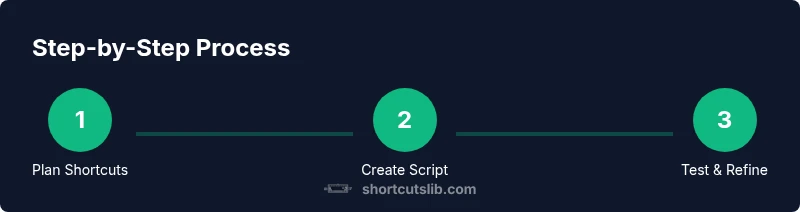
Steps
Estimated time: 45-75 minutes
- 1
Install AutoHotkey and create a script
Download AutoHotkey and install it. Right-click on your desktop, choose New > AutoHotkey Script, then give it a descriptive name like shortcuts.ahk and open it in your editor. This script is where you’ll define your hotstrings and hotkeys.
Tip: Keep the script in a known folder and enable auto-run on startup if you want shortcuts available after reboot. - 2
Define your first hotstring
Add a hotstring that expands a short trigger into a longer block. For example, ::sig::Best regards, Your Name. Also consider line breaks with \n to format multi-line blocks.
Tip: Test in a neutral document to verify spacing and line breaks before using in email or docs. - 3
Add global hotkeys for longer blocks
Create hotkeys that insert blocks of text with a single keystroke, e.g., ^!b inserts a signature. Use the syntax for hotkeys in AutoHotkey and attach the desired text.
Tip: Choose bindings that don’t conflict with existing OS or app shortcuts. - 4
Test across your most-used apps
Open word processors, email clients, and chat apps to ensure the shortcuts work consistently. Watch for app-specific quirks or formatting behavior.
Tip: If a shortcut doesn’t work in a specific app, consider app-specific rules or alternative hotkeys. - 5
Add formatting shortcuts with keystrokes
Map shortcuts to simulate formatting actions, such as bold (Ctrl+B) or italics (Ctrl+I) around a core phrase. This keeps formatting consistent across apps.
Tip: Be cautious with universal formatting mappings to avoid unintended edits. - 6
Organize and comment your script
Use sections and comments to group related shortcuts. This makes future edits easier and helps you explain your setup to teammates.
Tip: Comment blocks with // or ; to document purpose and usage. - 7
Back up and maintain your library
Store backups of your scripts and note changes in a changelog. Regular maintenance prevents drift as software evolves.
Tip: Version-control-like practices keep progress trackable and safe.
Questions & Answers
Can I create text shortcuts without third-party software?
Windows 11 lacks built-in universal text expansion. To create robust text shortcuts that work across apps, you typically need third-party tools like AutoHotkey or PowerToys. Native features can cover small remaps and clipboard history but aren’t a complete replacement for boilerplate expansion.
Windows 11 doesn’t natively offer full text expansion. Most users rely on AutoHotkey or PowerToys for cross-app shortcuts.
What is AutoHotkey and how does it work?
AutoHotkey is a free scripting language for Windows that lets you map keys and define hotstrings to insert text. You write small scripts that run in the background, expanding typed triggers into full blocks of text or simulating keystrokes. It works across most apps and supports multi-line blocks.
AutoHotkey is a free Windows tool for creating hotstrings and hotkeys that insert text everywhere.
Are hotstrings case-sensitive by default?
By default, hotstrings in AutoHotkey are case-insensitive, so typing a trigger in any case can expand. You can adjust this behavior with options in the script if you want exact-case matching for stricter control.
Hotstrings can be case-insensitive by default, but you can customize that in AutoHotkey if you need strict matching.
Will shortcuts work across all apps or only some?
Hotstrings and hotkeys created with AutoHotkey typically work across most Windows applications. Some apps may have their own conflicting shortcuts or security settings that affect behavior, so testing across your workflow is important.
Most shortcuts work across apps, but always test in key apps to catch conflicts.
Is there a safety risk with keyboard macros?
There is potential risk if scripts access sensitive data or are executed in untrusted environments. Use trusted sources, keep secrets out of scripts, and review permissions regularly. Back up scripts and avoid auto-running from insecure locations.
Use trusted tools, back up scripts, and avoid placing sensitive data in macros.
How do I back up and share my shortcuts?
Store scripts in a version-controlled folder or cloud storage. Use clear naming and comments to describe each shortcut, and maintain a changelog so teammates can review and adapt the library without breaking existing workflows.
Back up scripts in a safe location and document changes for easy sharing.
Watch Video
Main Points
- Define a focused set of high-value shortcuts first
- Test across your most-used apps for reliability
- Balance native features with scripting for best coverage
- Document and back up your shortcut library
- Avoid global shortcuts that clash with OS/app defaults