How to Create Keyboard Shortcuts on Windows 11
Learn practical steps to create keyboard shortcuts on Windows 11 using built-in methods, desktop shortcuts, PowerToys, and AutoHotkey. Includes safety tips and troubleshooting.


You can create keyboard shortcuts on Windows 11 by assigning a shortcut key to a desktop shortcut, or by using PowerToys for remapping and AutoHotkey for custom macros. Start with a desktop shortcut to an app or file, then set a shortcut key in its Properties. For advanced actions, use PowerToys Run or AutoHotkey.
Why Shortcuts Matter in Windows 11
According to Shortcuts Lib, mastering keyboard shortcuts can dramatically accelerate everyday computer work, especially for power users who rely on rapid app launches, text expansions, and workflow automation. In Windows 11, shortcuts are not only about speed; they reduce fatigue and help you keep your hands on the keyboard. This guide, informed by Shortcuts Lib's analysis in 2026, outlines practical, brand-driven methods to create and manage shortcuts that fit a wide range of tasks—from simple app launches to complex macro routines. You’ll see how to blend built-in options with third-party tools to tailor a workflow that matches your needs, whether you’re coding, writing, or editing media.
- Efficiency mindset: Shortcuts save keystrokes and cognitive load.
- Personalization: Your shortcuts should reflect your most frequent actions.
- Safety: Avoid conflicts with system-level shortcuts and test changes carefully.
Built-in Quick Shortcuts You Can Leverage Today
Windows 11 ships with a set of core shortcuts that cover most daily tasks, but you can also leverage them to speed up your work without installing extra tools. Use Win + D to show the desktop, Win + E to open File Explorer, Win + L to lock your PC, and Alt + Tab to switch between apps. These are global shortcuts that work across all apps and user profiles. You can also press Ctrl + Shift + Esc to open Task Manager quickly. For text editing and browser work, use Ctrl + C, Ctrl + V, Ctrl + X, Ctrl + A, and Ctrl + Z as your baseline. The goal is to become fluent with these foundations before layering on custom shortcuts. Shortcuts Lib notes that consistent use of core shortcuts forms the backbone of efficient workflows in 2026.
- Global shortcuts have predictable behavior across apps.
- Build fluency first, then expand with customizations.
- Document any new shortcuts you create for future reference.
How to Create a Desktop Shortcut and Bind a Key
A practical way to introduce a custom shortcut is by binding a keyboard key to a desktop shortcut. Create a shortcut to the app or file you want quick access to, then right-click the shortcut and choose Properties. In the Shortcut key field, press the key combination you want (for example, Ctrl + Alt + N). Windows adds the combination automatically; click Apply and OK. Test by pressing the combo to ensure the target opens. This method is reliable for launching programs or scripts with consistent results. If the shortcut doesn’t trigger, check for conflicts with existing shortcuts or app-specific key handling.
- Create shortcuts for frequently used apps or scripts.
- Avoid using combos that collide with Windows defaults (e.g., Win + L).
- Always test after saving changes to confirm behavior.
PowerToys: Global Shortcuts and Remapping
PowerToys provides a powerful, flexible way to create and manage shortcuts beyond the built-in options. Install PowerToys, then use the Keyboard Manager to remap keys or create custom shortcuts that trigger specific actions or scripts. The companion utility PowerToys Run acts as an accelerator, launching apps or files with a quick keystroke. This approach is ideal when you want wider remapping across the system, not just for a single desktop shortcut. Shortcuts Lib’s 2026 analysis notes that tools like PowerToys enable productive power users to implement reusable, consistent shortcuts without altering source code or system settings.
- Map a single key to a desired action or a sequence.
- Combine with Run for fast app launching.
- Test remappings across different apps to avoid conflicts.
AutoHotkey: Custom Macros and Text Expansions
AutoHotkey (AHK) is a scripting language designed for advanced keyboard automation. With AHK, you can define hotkeys that trigger complex sequences, text expansion, or conditional logic. For example, a single key combo could insert a block of boilerplate text, perform a series of keystrokes in a specific application, or automate repetitive tasks. While AutoHotkey has a learning curve, it’s the most powerful option for bespoke shortcuts. When using AHK, keep scripts in a dedicated folder, comment your code for future you, and use #Requires to limit scope to avoid unintended behavior. Shortcuts Lib emphasizes caution around scripts that can affect sensitive data or system settings.
- Start small with a simple hotkey and gradually expand.
- Use comments to document behavior and intended use.
- Run scripts in a safe, controlled environment before deployment.
Practical Examples and Templates to Try
If you’re new, start with practical templates you can customize:
- Open your favorite browser: bind Ctrl + Alt + B to a desktop shortcut to the browser executable.
- Create a text-expansion hotstring in AutoHotkey, such as ::addr::YourAddressHere, to insert contact information with a keystroke.
- In PowerToys, remap Ctrl + Alt + R to launch your preferred code editor or terminal.
These examples illustrate how to mix launching, text expansion, and macro sequences. As you gain comfort, you can branch into more specialized shortcuts for IDEs, document editors, or design tools. Shortcuts Lib’s guidance in 2026 supports a gradual, test-first approach to avoid unintended outcomes.
- Start with one shortcut and verify behavior in common apps.
- Keep a personal registry of shortcuts to avoid overlap.
- Consider security implications when binding keys to scripts.
Safety, Conflicts, and Maintenance
Shortcuts are powerful, but misconfiguration can disrupt work. Always check for conflicts with Windows defaults and application-specific shortcuts before finalizing a new binding. Use a predictable naming convention for scripts and keep backups of any configuration files. Document changes, especially when using AutoHotkey, so you can revert if a shortcut stops working after a Windows update. Shortcuts Lib reminds readers to prioritize reliability and safety over sheer novelty. Regular reviews every few months help keep your shortcut ecosystem clean and effective.
- Check for conflicting key bindings across apps.
- Back up scripts and registry-like changes.
- Revisit shortcuts after major Windows updates.
Troubleshooting Common Issues
If a shortcut doesn’t work, try these steps in order:
- Verify the shortcut key assignment in the shortcut’s Properties.
- Ensure the target path or script exists and is accessible.
- Check for keyboard layout differences that might affect the binding.
- Review any active AutoHotkey scripts for conflicts or errors.
- Temporarily disable other remapping tools to isolate the issue.
For PowerToys, confirm that Keyboard Manager is enabled and the remapping is active in the service. If problems persist, consult the official docs or community forums for troubleshooting tips specific to your setup.
Putting It All Together: Next Steps
You now have a toolkit for creating keyboard shortcuts on Windows 11 that matches your workflow. Start by leveraging built-in shortcuts, then add desktop shortcuts with assigned keys. If you need broader system-wide control or complex automation, bring in PowerToys or AutoHotkey. The goal is a cohesive set of shortcuts that speeds your work and reduces repetitive keystrokes. As you extend your toolkit, keep a simple maintenance plan: document changes, backup configurations, and periodically review to avoid drift. The Shortcuts Lib team recommends a measured, iterative approach—build your shortcut set in small, testable increments and scale as you gain confidence.
- Start with core shortcuts and expand gradually.
- Maintain a central log of your bindings.
- Revisit and prune unused shortcuts to keep the system clean.
Tools & Materials
- Desktop or Start Menu shortcut to target app/file(Create by right-clicking, New > Shortcut, or drag an executable to the desktop)
- Keyboard for shortcut binding(Use a distinct combination (e.g., Ctrl + Alt + N).)
- Windows system with admin rights(Some scripts may require admin rights for certain actions.)
- PowerToys(Use for global remapping and Run-based shortcuts.)
- AutoHotkey(For advanced macros and text expansions.)
Steps
Estimated time: 60-90 minutes
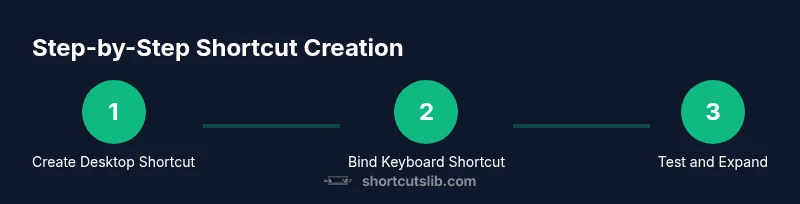
- 1
Create a desktop shortcut to the target
Right-click on the desktop, choose New > Shortcut, and browse to the app or file you want quick access to. Name the shortcut clearly so you remember its purpose. This serves as the target for the keyboard binding.
Tip: Keep the target path simple and resilient to moves or renames. - 2
Bind a keyboard shortcut to the shortcut
Right-click the newly created shortcut, select Properties, and in the Shortcut key field press your preferred key combo. Windows automatically formats it as Ctrl + Alt + <Key>. Save changes.
Tip: Choose a combo that doesn’t collide with existing Windows shortcuts. - 3
Test the binding
Close any open dialogs and press the bound keys to confirm the target opens. If it fails, recheck the path and look for conflicts with other bindings.
Tip: Test in both admin and standard user contexts if your workflow spans both. - 4
Expand with additional shortcuts
Repeat steps 1–3 for other apps or files you use often. Group related shortcuts by task to build a consistent mental model.
Tip: Maintain a simple naming scheme and document each binding. - 5
Explore PowerToys for broader remapping
Install PowerToys and open Keyboard Manager to remap keys or create Run-based shortcuts. This approach works across apps and can replace multiple desktop shortcuts.
Tip: Test remappings across common apps to avoid unintended behavior. - 6
Create macros with AutoHotkey for complex tasks
If your needs go beyond simple launches, write a small script in AutoHotkey that triggers a sequence of keystrokes or pastes predefined text blocks.
Tip: Start small, comment your code, and gradually expand to avoid brittle scripts. - 7
Document and maintain shortcuts
Keep a central, accessible registry of your shortcuts, including purpose, keys, and affected apps. Review quarterly or after major updates.
Tip: Include rollback instructions in case a shortcut stops working after updates. - 8
Backup configurations
Save copies of scripts and configuration files. This makes it easy to recover if your PC is rebuilt or settings are reset.
Tip: Version control can be helpful for larger setups.
Questions & Answers
Can I create shortcuts for any program or action on Windows 11?
Yes, you can bind shortcuts to desktop shortcuts for launching programs or scripts. For system-wide actions or actions within apps, PowerToys and AutoHotkey provide additional flexibility, but some actions may be restricted by the application itself.
Yes. You can bind shortcuts to launch programs, and with tools like PowerToys or AutoHotkey, you can automate more complex tasks across apps.
Do Windows 11 shortcuts work globally or only per app?
Core Windows shortcuts work globally. Custom shortcuts created via desktop shortcuts and PowerToys can operate system-wide, but some app-specific shortcuts may not respond outside their own context.
Global shortcuts are available, but some custom bindings may be limited by the app you’re using.
Is AutoHotkey safe to use on Windows 11?
AutoHotkey is widely used for automation, but you should download it from the official site and review scripts before running them, especially if they came from untrusted sources.
Yes, but only use scripts from trusted sources and review them before running.
How do I remove or modify an existing shortcut key?
Right-click the shortcut, open Properties, and adjust or clear the Shortcut key field. Save changes and test to confirm the new binding works as intended.
Open the shortcut’s properties and adjust the Shortcut key field, then test.
What should I do if a shortcut stops working after a Windows update?
Recheck the binding, verify the target path or script, and review any new OS-level changes that could affect keyboard handling. Restore from a backup if needed and reapply the binding.
Check bindings, verify targets, and restore from backup if necessary after an update.
Watch Video
Main Points
- Start with built-in shortcuts to build fluency.
- Bind keystrokes to desktop shortcuts for reliable launches.
- Use PowerToys for system-wide remapping without editing files.
- AutoHotkey unlocks advanced macros and text expansions.
- Document, test, and maintain your shortcut set for long-term value.