How to Change Keyboard Shortcuts in Windows 11
Master Windows 11 keyboard shortcuts by learning built-in mappings, app shortcuts, and how to remap keys safely. Shortcuts Lib guides practical steps, testing, and best practices.


By the end of this guide you will be able to change Windows 11 keyboard shortcuts. You’ll learn the built-in remapping options, how to assign shortcuts to apps, and when to rely on PowerToys for advanced remaps. This Shortcuts Lib tutorial emphasizes safe practices, testing changes, and choosing mappings that boost your daily workflow.
Why changing keyboard shortcuts on Windows 11 matters
In today’s fast-paced tech workflows, every keystroke counts. Custom keyboard shortcuts can shave seconds off repetitive tasks, reduce finger strain, and help you keep focus on the work that matters. For power users, a carefully chosen set of remaps can transform how you interact with Windows 11 and your apps. Shortcuts Lib’s research emphasizes that purposeful shortcuts—those aligned with your daily tasks—tend to deliver the most noticeable gains. When you tailor shortcuts to your preferred tools, you’ll navigate files, edit documents, and manage windows more efficiently without hunting through menus. This guide covers safe, practical ways to change shortcuts, from built-in options to more advanced remapping using PowerToys. We’ll also discuss consideration for accessibility and potential conflicts with existing shortcuts.
Understanding the built-in options in Windows 11
Windows 11 provides a few foundational ways to influence shortcuts, most of which work best for app-specific commands and simple remaps. You can create shortcuts to launch programs quickly by placing a shortcut on your desktop or in the Start menu, then assigning a keyboard combination in the shortcut’s Properties. Some apps expose their own keyboard mappings within settings, allowing you to customize actions inside the program. It’s important to note that not every system-wide shortcut can be redefined from the OS alone; some keys are reserved by Windows or intercepted by applications. When planning remaps, start with your most-used actions and aim for consistency across apps to avoid confusion.
When to use PowerToys for advanced remapping
For broader remapping goals, Microsoft’s PowerToys offers a robust Keyboard Manager tool. This utility lets you remap individual keys and create new shortcuts that trigger specific actions across the system. PowerToys is particularly useful if you want to swap keys (for example, turning Caps Lock into Escape) or create complex multi-key shortcuts that Span multiple apps. Before you begin, install PowerToys from the official source, verify your system meets requirements, and back up your current configuration. With Keyboard Manager, you can map a single key to a different key, or you can remap a key chord (for example, Ctrl+Alt+N to open a specific app). Plan a small set of changes first, then expand only after you’ve validated stability.
Step-by-step overview of the change process
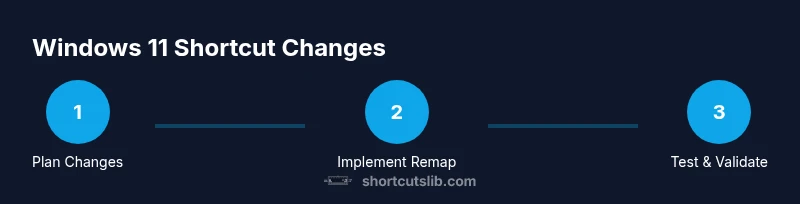
A thoughtful shortcut strategy starts with a clear goal. Decide which actions you want to speed up, then choose the remapping approach that fits those tasks. If you’re making minor tweaks for a single app, you may not need PowerToys. For broader remapping or cross-app shortcuts, PowerToys provides a scalable solution. In this section, you’ll find a high-level blueprint: inventory current workflows, pick target shortcuts, test safely, iterate with small changes, and document your mappings so you can reproduce them later. Shortcuts Lib’s approach emphasizes small, incremental changes that yield tangible productivity gains without breaking existing habits.
Practical examples and troubleshooting during remapping
Consider a few practical examples to illustrate safe remapping. For instance, assigning a frequent action (like opening the clipboard manager or a note app) to a quick key combination can dramatically speed up repetitive tasks. When troubleshooting, look for conflicts where two shortcuts trigger the same action, which can create unpredictable behavior. If a remap doesn’t take effect, verify the correct application of the shortcut (OS-level remaps differ from app-specific mappings), ensure the key isn’t reserved by Windows, and check that the target app is in focus when testing. Shortcuts Lib recommends documenting changes and keeping a small rollback plan in case a mapping disrupts your workflow.
Testing and validating your changes
Testing should be deliberate and incremental. Start with a single remap and validate across the most-used contexts: your primary app, a browser, and the Windows desktop. Use a lightweight testing window to avoid affecting your ongoing work. If you’re using PowerToys, run the app and confirm that the remap is active system-wide or restricted to selected apps as intended. Keep a log of when you tested each change, the exact keystroke, and the observed outcome. If something feels off, revert the change or adjust the mapping to a nearby key that’s not in conflict. A disciplined testing routine is essential to prevent frustration and accidental data loss.
Accessibility and safety considerations when remapping
Accessibility and safety should guide every remapping decision. Avoid remapping keys you rely on for core accessibility features or system-level functions. If you rely on keyboard navigation, ensure your shortcuts don’t remove essential OS controls. For users with motor limitations, choose mappings that minimize finger travel and reduce the risk of repetitive strain. It’s also wise to keep a minimal set of mappings that you can remember without looking at the keyboard, then gradually expand as you grow confident. Shortcuts Lib’s stance is to favor clarity and consistency over complexity, ensuring changes improve the user experience without compromising safety.
Final checks before you commit the changes
Before finalizing, re-run your most frequent tasks to confirm the workflow still feels natural. Confirm that essential shortcuts like Copy, Paste, and Save remain easily accessible, or identify safe substitutes if you’ve replaced any core actions. Create a quick one-page reference of your new shortcuts and save it in a central location for quick onboarding by colleagues or future you. By approaching changes incrementally and keeping the original defaults as a fallback, you’ll reduce risk and maximize the benefit of your Windows 11 shortcut customization.
Documentation and ongoing maintenance
Documentation is key to sustaining a shortcut strategy. Maintain a simple index of mappings, the rationale behind each change, and any app-specific notes. As Windows updates roll out, some mappings may require adjustment, so plan periodic reviews every few months. Shortcuts Lib recommends associating mappings with measurable goals (e.g., reduce time to launch apps by 20%) to keep motivation high and ensure the remapping remains aligned with your workflow.
Summary of best practices
- Start small: a few high-impact mappings first. - Keep a consistent scheme across apps. - Test in real tasks; avoid changing multiple shortcuts simultaneously. - Use PowerToys for system-wide remaps when necessary. - Document everything for future reference and training.
Tools & Materials
- Windows 11 PC(Admin access recommended for installing PowerToys and managing shortcuts)
- PowerToys (optional but recommended)(Install from the official Microsoft source; enables Keyboard Manager)
- External keyboard (optional)(Helpful for testing remapping on physical keys vs. laptop keyboard)
- Backup method (optional but advised)(Create a system restore point or user profile backup before major remaps)
- Note-taking tool(Document your new shortcuts for future reference)
Steps
Estimated time: 30-60 minutes
- 1
Define your remapping goals
Identify the top 3 tasks you perform most often and decide which actions would benefit from faster access. Clear goals prevent scope creep and help you measure success.
Tip: Write down the exact actions and the desired keystroke for each remap. - 2
Check built-in options first
Explore app-specific shortcuts and desktop shortcut properties to see what can be changed without third-party tools. This minimizes risk and keeps changes lightweight.
Tip: Test one built-in change fully before attempting another. - 3
Create a simple app shortcut remap
For a frequently used program, create a desktop shortcut, then assign a keyboard shortcut in its Properties. This approach is safe and easy to revert.
Tip: Choose a key combination that is not already in heavy use by Windows or the app. - 4
Consider PowerToys for broader remapping
If you need system-wide shortcuts or multi-key mappings, install PowerToys and use Keyboard Manager to map keys or create new shortcuts across apps.
Tip: Back up your existing settings before applying PowerToys mappings. - 5
Test in real-work scenarios
Run your typical workflows with the new shortcuts. Look for conflicts, missed commands, or any interference with essential OS shortcuts.
Tip: Keep a quick-reference sheet handy during testing. - 6
Document and secure your changes
Record each mapping, the rationale, and any caveats. Save the file in a shared location so teammates can adopt or adapt the setup.
Tip: Attach a rollback plan in case you need to revert quickly.
Questions & Answers
Can I change standard Windows shortcuts like Ctrl+C or Ctrl+V?
Windows does not easily redefine core OS shortcuts across the board. You can create app-specific shortcuts or use PowerToys for broader remapping, but expect occasional conflicts with universal shortcuts.
You can remap some shortcuts for apps or use PowerToys, but core Windows shortcuts are not always adjustable.
Is remapping keys safe for my system?
Remapping keys is generally safe if you follow best practices: start small, avoid essential OS keys, and keep a rollback plan. Use official tools and back up configurations before making changes.
Remapping is usually safe when done carefully with a rollback plan.
Can I reset shortcuts to default later?
Yes. Most remaps can be undone by reverting the change in the shortcut’s properties or by removing the PowerToys mapping. Keep a record of what was changed to make reset straightforward.
You can reset mappings by undoing the changes or removing PowerToys mappings.
Will remapping affect gaming or performance apps?
Some remaps may collide with game shortcuts. Test remaps in a controlled way and consider applying mappings system-wide only after verifying they don’t interfere with games.
Test remaps with games to avoid conflicts.
What tools should I use for advanced remapping?
PowerToys is the recommended tool for advanced remapping across Windows. It offers a centralized way to manage keys and shortcuts with a rollback option.
PowerToys is a good choice for advanced remapping with a rollback option.
Do I need admin rights to remap keys?
While basic app shortcut changes may not require admin rights, full system-wide remaps with PowerToys often require administrator privileges for installation and configuration.
Admin rights are often needed for full remapping with PowerToys.
Main Points
- Identify tasks that benefit most from shortcuts.
- Use built-in options first before third-party tools.
- Test changes in real workflows and document them.