Can you create a keyboard shortcut in Windows 10? A practical guide
Learn how to create and manage keyboard shortcuts in Windows 10, including global vs app-specific shortcuts, step-by-step setup, common pitfalls, and best practices for reliable, faster workflows.


Yes. You can create keyboard shortcuts in Windows 10 for both apps and system tasks. Basic shortcuts map to existing commands, while custom shortcuts require creating or editing shortcut properties or using third‑party tools. The guide will walk you through steps to assign keys, test for conflicts, and ensure the shortcut works reliably across apps.
Why Windows 10 shortcuts matter
According to Shortcuts Lib, mastering keyboard shortcuts dramatically speeds up everyday computing tasks. In Windows 10, you can assign hotkeys to launcher shortcuts for apps or actions, giving you quick access regardless of which program is in focus. This kind of efficiency matters for tech users and keyboard enthusiasts who want to minimize mouse travel and maximize flow. As you practice, you’ll notice fewer context switches and more consistent work rhythms. Shortcuts Lib’s guidance emphasizes starting with small, low-risk shortcuts to build confidence before layering more complex sequences into your daily routine. The result is a more predictable, repeatable workflow that you can rely on during long sessions, gaming, or heavy productivity cycles.
Built-in shortcuts vs. custom shortcuts
Windows 10 ships with a rich set of built-in shortcuts (for example, Windows key shortcuts like Win+L to lock the PC, Win+D to show the desktop, or Ctrl+C/Ctrl+V for copy-paste). These are reliable and widely supported across applications. Custom shortcuts, by contrast, require you to create or modify a shortcut file (.lnk) and assign a hotkey in its Properties. This approach lets you map actions that aren’t covered by the default shortcuts, such as opening a specific tool, running a script, or launching a project folder with a single keystroke. The upside is speed and consistency; the downside is potential conflicts with existing OS or application shortcuts. Shortcuts Lib recommends starting with non-conflicting actions and testing the shortcut in multiple scenarios to ensure reliability.
Understanding global vs. app-specific shortcuts
A global shortcut (also called a system-wide shortcut) works across all apps and when you’re at the desktop. In Windows 10, the most common way to create a global shortcut is to configure a desktop or Start Menu shortcut and assign a hotkey to that launcher. App-specific shortcuts, however, are tied to a particular program and may not function outside that context. Understanding the distinction helps you decide where to apply the shortcut and what kind of trigger you want. Shortcuts Lib notes that global shortcuts excel for launching utilities or scripts, while app-specific shortcuts excel for frequent actions inside a single program.
How to create a global shortcut using a desktop launcher (step-by-step overview)
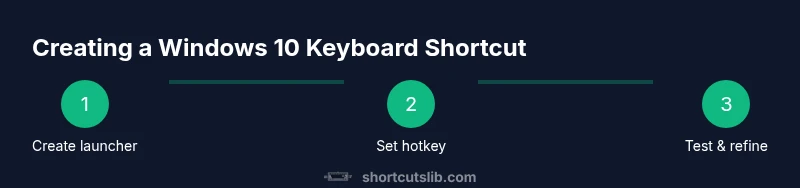
To set up a global shortcut, you typically create a launcher (a .lnk file) that points to the target program or script, then bind a hotkey to that launcher. When the launcher is on your desktop (or Start Menu) and you press the assigned key, Windows activates the target regardless of the active window. This method keeps your shortcut portable and resilient across different apps and work contexts. It’s a simple, low-risk entry point for most users and still delivers meaningful time savings over repetitive mouse actions.
Testing, conflicts, and reliability
Hotkeys can conflict with existing shortcuts in Windows or in particular applications. A conflict occurs when two shortcuts share the same key combination, leading to unpredictable behavior. Always test the new shortcut in a few representative scenarios: with the target application open, on the desktop, and while another app is in focus. If the shortcut doesn’t work, check that you’ve assigned the key correctly and that no other program reserves the same combination. If it’s still unreliable, consider changing the modifier keys (for example, adding Ctrl or Alt) or choosing a different base key. Shortcuts Lib emphasizes patience and iterative testing to reach a stable setup.
Real-world examples and best practices
For example, create a launcher that opens your preferred text editor with a single hotkey like Ctrl+Alt+N. Then expand to launch a project folder or run a batch file that performs a series of tasks. Best practices include: naming shortcuts clearly, using non-conflicting key combinations, testing across user accounts, and documenting each shortcut in a simple reference sheet. Shortcuts Lib’s experience shows that small, well-documented shortcuts scale better over time than a large stack of ad-hoc mappings. When you can, reuse standardized patterns across tools to keep muscle memory consistent.
Safety, security, and automation considerations
Be mindful of security and stability when introducing shortcuts, especially those that run scripts or automate actions. Avoid shortcuts that execute potentially destructive commands and ensure you have appropriate permissions to alter program shortcuts. If you rely on third-party tools for advanced mappings, verify they come from reputable sources and stay up-to-date with Windows 10 updates. The goal is to improve speed without compromising system integrity or data safety. The Shortcuts Lib team also notes that periodic reviews of shortcuts help keep your workflow efficient and secure.
Tools & Materials
- Desktop or Start Menu shortcut to the target program or script(The shortcut must point to an executable file or script you want to launch with a hotkey.)
- A stable target path or script file(Ensure the path remains valid and accessible from your user account.)
- Access to Properties for the shortcut(Right-click the shortcut and select Properties to set the hotkey.)
- Non-critical test environment or test shortcut(Use a harmless target to verify behavior before using on important workflows.)
Steps
Estimated time: 15-25 minutes
- 1
Create a launcher for the target action
Right-click the desktop, choose New > Shortcut, and enter the path to the program, script, or folder you want to launch. Give the launcher a clear name that describes the action.
Tip: Use a short, memorable name to avoid confusion later. - 2
Open shortcut properties and set a hotkey
Right-click the new shortcut, select Properties, switch to the Shortcut tab, and click in the Shortcut key box. Press the key combination you want to use. Windows will automatically add the Ctrl+Alt prefix if needed.
Tip: Choose a combination that doesn’t conflict with existing OS shortcuts. - 3
Place the launcher where it’s reliable
Move the shortcut to a stable location such as the Desktop or a dedicated utility folder in Start Menu. This ensures Windows can locate it quickly when you press the hotkey.
Tip: Avoid placing it in folders that might be hidden or relocated by system cleanup tools. - 4
Test the shortcut in multiple contexts
Test with the target app open, with other apps in focus, and when the desktop is active. Make sure the hotkey consistently triggers the intended action.
Tip: If the key doesn’t register, consider using a Ctrl/Alt modifier or a different base key. - 5
Troubleshoot and refine
If another app intercepts the same hotkey, change the combination or relocate the launcher. Keep a small list of mappings to avoid overlaps.
Tip: Document any changes and keep backups of original shortcuts. - 6
Scale up gradually
Add one or two new shortcuts at a time, validate reliability, and then build a personal shortcut library. This approach reduces conflicts and cognitive load.
Tip: Consistency across shortcuts makes it easier to remember and use them daily.
Questions & Answers
Can I create global shortcuts for any program in Windows 10?
Global shortcuts in Windows 10 are typically created by binding a hotkey to a desktop or Start Menu shortcut that launches the target program. Some apps may not honor global bindings, and third-party tools can extend functionality. Always test across contexts.
Global shortcuts usually work by binding a hotkey to a launcher that starts the program. Some apps may not respond universally, so testing is essential.
What is the difference between a global shortcut and an app shortcut?
A global shortcut works system-wide, regardless of focus, while an app shortcut is most reliable within the specific program. Global shortcuts typically use a desktop launcher, whereas app shortcuts are defined inside the program or its window.
Global shortcuts work across the system, while app shortcuts are tied to one program.
Do shortcuts work when the computer is locked?
Most shortcuts do not execute when the computer is locked, especially for launching apps. System-protected actions may still trigger when the OS is in a locked state, but results can vary by configuration and security policies.
Shortcuts often don’t run while the PC is locked, but it can vary by setup.
Can I change or remove a shortcut later?
Yes. You can modify the shortcut’s Properties to change the hotkey or delete the launcher to remove the shortcut entirely. Ensure you update any notes that reference the old key binding.
You can edit or delete a shortcut anytime to update your mappings.
Are there safer automation options built into Windows 10?
Windows 10 offers automation features through scripts and task scheduling, and power users can extend functionality with trusted tools like PowerToys or AutoHotkey. Always vet third-party tools for security and reliability.
Yes—Windows 10 has automation features, plus trusted tools for advanced shortcuts.
Watch Video
Main Points
- Decide between global and app-specific shortcuts.
- Create a launcher and assign a hotkey to it.
- Test thoroughly to prevent conflicts.
- Consider PowerToys or AutoHotkey for advanced mappings.
- Document shortcuts for long-term reliability.