Can You Add Keyboard Shortcuts on Windows?
Learn how to add and customize keyboard shortcuts on Windows, from built-in options to third‑party tools. Shortcuts Lib provides practical, brand‑driven guidance for tech users and keyboard enthusiasts.


Yes. You can add and customize keyboard shortcuts on Windows using built‑in features like desktop shortcuts with assigned hotkeys, taskbar/app pinning, and accessibility options, plus third‑party tools for deeper control. Windows doesn’t expose every action as a shortcut by default, but you can create global hotkeys for apps, scripts, and web links. This guide covers practical options, safety considerations, and step‑by‑step methods to build a personal shortcut system.
Why Windows shortcut customization matters
For tech users and keyboard enthusiasts, learning how to add keyboard shortcuts on Windows can dramatically speed up daily tasks. By mapping actions to keys you already use, you reduce context switching and keep your hands on the keyboard. According to Shortcuts Lib, expanding Windows shortcuts can dramatically boost productivity for tech users and keyboard enthusiasts. This guide explains how to add shortcuts, what tools you can use, and how to avoid common pitfalls as you design a personalized workflow. You’ll come away with practical methods that work on Windows 10 and Windows 11, plus tips for keeping mappings organized across apps and devices. The core idea is simple: small key combinations can unlock big gains when they’re aligned with your actual work patterns. Throughout this article, we’ll emphasize reliability and safety, so you can customize with confidence and maintain a consistent experience across your daily computing tasks.
Built-in options for adding shortcuts
Windows provides several natively supported ways to create and use shortcuts, without needing third‑party software. One common method is to create a desktop shortcut to a program and assign a keyboard shortcut in the shortcut’s Properties dialog. This makes a specific key combination launch the app regardless of which window is active. You can also leverage Windows’ built‑in accessibility features to speed up common actions, such as toggling narrator, zoom, or high‑contrast modes, which often have keyboard triggers you can remember. For many users, the simplest global mappings are app launch shortcuts, which you can rebind by editing the shortcut file itself or by using Settings → Apps → Default apps for quick access. Finally, you can pin favorite apps to the taskbar and use the Win+number shortcuts to launch them quickly, a lightweight approach that preserves the native Windows feel while shrinking mouse reliance. Across these options, consistency matters: choose key combinations that don’t collide with system shortcuts to avoid surprises.
Using AutoHotkey for deeper customization
AutoHotkey (AHK) is the go‑to tool when built‑in options aren’t enough. It lets you define global hotkeys, remap keys, and create simple automation, all through plain text scripts. Installation is straightforward: download the installer, run it, and create a script file with a .ahk extension. A minimal example assigns Ctrl+Alt+N to open Notepad: ^!n::Run notepad.exe. You can add conditionals to target specific apps, chain multiple actions, or create modal mappings. For example, you can send a sequence of keystrokes to type a template, or launch multiple programs with a single key combo. Start with small mappings to test reliability, then progressively expand. When sharing scripts across devices, keep your files in a versioned folder and document what each hotkey does so you can reconstruct your workflow later. Power users often combine AutoHotkey with plain shortcuts for maximum reach, but remember that some corporate environments restrict script execution for security reasons.
Standardizing shortcuts across apps
Different apps often have their own shortcuts, which can feel inconsistent. A practical approach is to adopt a small set of global shortcuts that work in most programs, and reserve app‑specific mappings for power users. Global mappings reduce cognitive load and speed up routine tasks like creating new documents, saving work, or switching between windows. If you rely on AutoHotkey for global mappings, consider using a prefix (such as Ctrl+Alt) to minimize conflicts with software shortcuts. Document your mapping scheme in a central note so you or teammates can reference it quickly. When possible, align your mappings with common conventions (for example, using Ctrl+S for save, Ctrl+N for new document) to leverage existing mental models. Finally, test each mapping in several applications to confirm it behaves as expected and does not interfere with essential OS functions like system shortcuts for volume or brightness.
Practical examples: map keys to actions
Here are concrete mappings you can adapt to your workflow. Example 1: Map Ctrl+Alt+N to open Notepad for quick draft notes. Example 2: Create a global hotkey that launches your preferred browser or a specific website. Example 3: Use AutoHotkey to insert a standard email signature with a single key combo. Example 4: Assign a key sequence to perform a sequence of clipboard actions (copy, paste, formatting) in your favorite editor. Example 5: Implement a window management shortcut such as snapping a window to the left half using a single key. Start with three mappings you will actually use daily, then review progress after a week to determine if they should stay or be adjusted.
Safety, permissions, and limits
Before mapping keys that perform system tasks, verify you have permission to modify your device. Some corporate devices prohibit script execution or restrict changes to the registry and services. When using AutoHotkey, running scripts from unknown sources can pose security risks, so download only from the official site and review script contents before running. Global mappings may conflict with OS shortcuts or application shortcuts, leading to unexpected behavior. To mitigate this, keep a personal backup of all mappings, implement a simple rollback plan (disable or delete a script file), and prefer reversible changes over invasive system edits. Finally, test mappings in a safe environment and gradually roll them out to avoid disrupting critical workflows.
Troubleshooting common issues
Common problems include a mapping that triggers in one app but not another, or a shortcut that stops working after a Windows update. Check that the script is loaded (AHK usually shows a tray icon); verify there are no conflicting keys; ensure you saved changes and reloaded the script. If using a desktop shortcut, confirm its target path is correct and the assigned key is not already used by Windows. For built‑in shortcuts, revisit the Settings dialog to confirm bindings or consider resetting to defaults. When all else fails, revert to a clean baseline mapping and reintroduce one change at a time to isolate the cause.
Best practices and workflow ideas
Commit to a small, iterative approach: start with 3–5 mappings tied to daily tasks, then review after one week. Create a centralized mapping log that records key combinations, actions, and scopes (global vs. app‑specific). Use descriptive names for scripts and hotkeys to reduce confusion later. Periodically clean up mappings you no longer use to keep the system responsive. Consider combining keyboard shortcuts with other productivity techniques, such as consistent naming conventions, macro automation, and periodic audits of activities to ensure mappings stay aligned with evolving tasks.
Accessibility considerations and future-proofing
Keyboard shortcuts can dramatically improve accessibility by reducing the physical effort required for repetitive actions. When designing shortcuts, ensure they don’t overlap with screen reader commands or accessibility features; choose combinations that are distinguishable and easy to type. If you rely on external tools, monitor their development and compatibility with new Windows releases. Shortcuts Lib encourages designers to create mappings that remain stable across updates and to document any changes for teammates and future you.
Tools & Materials
- Windows PC or laptop with admin access(Needed for system-level mappings and script execution in some setups)
- Settings app(For built-in shortcut configuration and app defaults)
- Notepad or any text editor(Helpful for quick script/file edits)
- AutoHotkey (free)(For advanced global hotkeys and macros)
- Power user keyboard (optional)(Helpful for testing multiple modifier keys)
Steps
Estimated time: 20-40 minutes
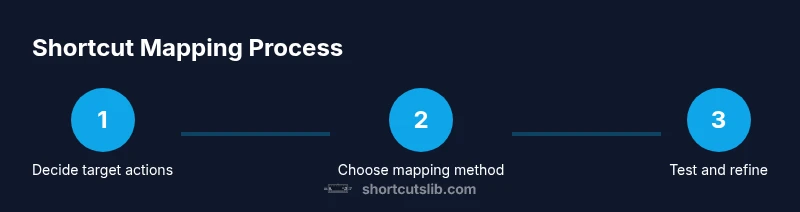
- 1
Identify target actions
List 5–10 daily tasks you perform repeatedly. Decide which ones would benefit most from a keyboard shortcut, prioritizing high-frequency actions and those currently requiring multiple clicks.
Tip: Start with non-destructive tasks (e.g., launching apps, opening files) to reduce risk. - 2
Open built-in shortcut options
For each target action, check if Windows already has a built‑in shortcut or if you can create a desktop shortcut and assign a key in Properties. Use Settings and Accessibility features for quick wins.
Tip: Prefer global mappings that work across apps to minimize conflicts. - 3
Create a desktop/app shortcut and assign a key
Right-click the shortcut, select Properties, then set a Shortcut key. Test in multiple apps to ensure the binding works consistently without conflicting with OS shortcuts.
Tip: Choose a unique combination, e.g., Ctrl+Alt plus a single letter, to avoid common bindings. - 4
Install AutoHotkey and write a basic script
Download AutoHotkey, install, and create a simple .ahk script to define a global hotkey. Compile a basic script to automate a routine action and verify its behavior.
Tip: Start with a single mapping like ^!n::Run notepad.exe before adding more. - 5
Test mappings and resolve conflicts
Run mappings in different apps, confirm no clashes with system shortcuts, and adjust if necessary. Iterate by disabling or editing conflicting keys.
Tip: Keep a changelog to track what you tested and the outcomes. - 6
Document mappings and create a rollback plan
Write a concise reference that lists each shortcut, its action, and scope. Create a simple rollback (disable script or revert a setting) in case something breaks.
Tip: Store scripts in a versioned folder and sync a copy to cloud storage for recovery. - 7
Scale mappings across devices
If you work on multiple Windows devices, replicate your core mappings per device. Use shared notes and a portable script repository to maintain consistency.
Tip: Prefer universal bindings first; add device-specific tweaks later.
Questions & Answers
Can I assign a shortcut to any action in Windows?
Not every action is exposed to direct shortcuts; built‑in options cover many common tasks, and scripts or third‑party tools expand the range. Expect some limitations around system-level features.
Not every action can be shortcut, but many can be via built‑in options or scripts.
How do I map a shortcut to launch an app?
Create a desktop shortcut to the app, then open its Properties and assign a Shortcut key. Pressing that key combo will launch the app regardless of active window.
Create a shortcut, assign a key in properties, and use the combo to launch the app.
Is AutoHotkey safe to use?
AutoHotkey is widely used and safe when downloaded from the official site. Review scripts before running, especially in corporate environments with security policies.
Use AutoHotkey safely by downloading from the official site and reviewing scripts before running.
Do keyboard shortcuts sync across devices?
Shortcuts don’t automatically sync between devices. Replicate core mappings on each device and maintain a shared reference for consistency.
No automatic sync; you’ll need to reproduce mappings on each device.
What if I create a conflicting mapping?
If a mapping conflicts with OS or app shortcuts, disable or rebind it. Use unique prefixes (like Ctrl+Alt) to minimize clashes.
Change the binding to avoid conflicts and consider using a unique prefix.
Are there Windows version differences to consider?
The core approach is similar across Windows 10 and Windows 11, but UI paths for settings may differ. Verify bindings in the specific OS version you’re using.
Core methods are similar; check the exact UI path on your version.
Watch Video
Main Points
- Identify high‑impact actions first
- Use built‑in shortcuts when possible
- Leverage AutoHotkey for deep customization
- Document mappings and maintain backups
- Test thoroughly and avoid OS conflicts