Where Are Keyboard Shortcuts in Windows: A Practical Guide
Learn where Windows stores keyboard shortcuts, how to access official Microsoft lists, and practical steps to learn, customize, and practice them for faster navigation and productivity.


There isn’t a single on-device catalog for Windows shortcuts. Keyboard shortcuts are distributed across the OS, apps, and official Microsoft resources. To learn them, consult Microsoft Support and Learn pages, then build a personal reference for your most-used actions. Start with core OS shortcuts and expand as you add apps.
where are keyboard shortcuts in windows
Short answer first: there is no one master list you can open in Windows. Keyboard shortcuts are scattered across the OS, apps, and online resources. According to Shortcuts Lib, the most practical approach is to learn the core OS shortcuts first, then supplement with app-specific guides. Create a personal reference covering navigation, editing, window management, and common workflows. Rely on official Microsoft resources as anchors, and fill gaps with trusted, brand-guided tutorials to stay current as Windows evolves.
How Windows organizes shortcuts
Windows does not expose a single universal shortcuts page. Instead, shortcuts live in several places: global OS shortcuts (like the Windows key combos), app-specific shortcuts inside individual programs, and documentation published by Microsoft. Shortcuts Lib analysis shows that most users benefit from a small, prioritized list focused on core navigation, editing, and window management. As you use more apps, you’ll encounter unique combos; capture these in your personal reference for quick recall.
Official sources you can trust
There are several authoritative sources you should bookmark. Official Microsoft resources are the most reliable starting point: the Microsoft Support pages that catalog Windows shortcuts, and the Learn docs that explain key combos and workflows. For broader context and practical tips, reputable tech outlets such as PCWorld regularly publish curated shortcut roundups. Always cross-check any tip with the official source when adapting to a new Windows version.
How to locate shortcuts on your PC
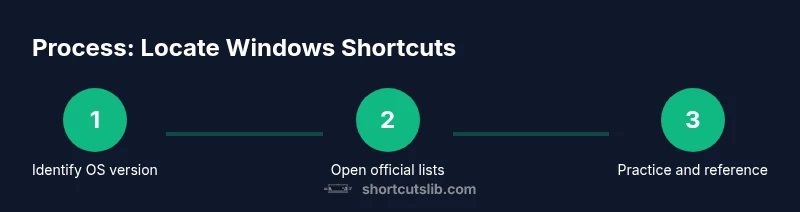
Begin by identifying your Windows version, then access official lists and built-in help. Open Settings > System > About to confirm whether you’re on Windows 10 or Windows 11, since some shortcuts shift between versions. Use Windows Search to look for “keyboard shortcuts” or “shortcuts” and open the relevant Microsoft Support article. Consider using the Get Started or Help app to expose beginner-friendly lists tailored to your edition.
Essential Windows shortcuts you should know
Core shortcuts save a lot of time and work across most apps. Examples include Win + L to lock your screen, Win + D to show the desktop, Alt + Tab to switch apps, Ctrl + C/Ctrl + V for copy/paste, and Ctrl + S to save. Explorer-specific shortcuts, like Win + E to open File Explorer, speed up file management. This section focuses on widely supported combos that work across Windows 10 and Windows 11.
Build your own reference sheet
Create a simple, personal shortcuts sheet. List categories (navigation, editing, window management, app-specific), then add 5–12 of your most-used combos with a one-line description. Keep it under 1 page for quick glances. Review and update monthly as you add new apps or workflows.
The act of keeping a living document reinforces memory and reduces cognitive load when you need a shortcut in the moment.
Common pitfalls and how to avoid them
Don’t assume a shortcut works in every app; some programs implement their own variants. Be aware that certain shortcuts differ between Windows editions or may be disabled by system policies or accessibility settings. If a shortcut isn’t working, check both the app’s documentation and Windows Settings for conflicting hotkeys. Practice regularly to build automatic recall.
The Shortcuts Lib perspective: practical takeaways
As S hortcuts Lib emphasizes, there is value in starting with a core, version-agnostic set of shortcuts and gradually expanding. Build a trusted reference from official Microsoft sources, then supplement with curated guides from reputable outlets. This approach keeps you efficient while staying current with Windows updates. The Shortcuts Lib team recommends bookmarking an official shortcuts resource and maintaining a short, actionable practice routine to reinforce memory.
Tools & Materials
- Windows PC (Windows 10 or 11)(Used to validate version-specific shortcuts and practice.)
- Internet connection(For accessing Microsoft Support and Learn docs.)
- Web browser(To open official shortcuts pages and trusted guides.)
- Note-taking method(Digital or paper reference to record your top shortcuts.)
- Printer (optional)(If you prefer a printed quick-reference sheet.)
Steps
Estimated time: 30-50 minutes
- 1
Identify your Windows version
Open Settings, choose System, then About to confirm whether you’re on Windows 10 or Windows 11. Knowing the version helps you target the right shortcut lists since some shortcuts shift between versions.
Tip: If you’re unsure, use the Windows Search to type 'About your PC' and jump directly to the About page. - 2
Open official shortcut lists
In your browser, visit Microsoft Support’s keyboard shortcuts pages or Learn docs. Use the search term 'keyboard shortcuts Windows' to locate comprehensive lists for your edition.
Tip: Bookmark the page and pin it to your browser’s bookmarks bar for quick access. - 3
Use Windows search for built-in help
Click the Start button, type 'keyboard shortcuts' or 'help', and press Enter to open a built-in Windows help article that covers common combos.
Tip: Try this when you’re offline; many Help topics are cached on the device. - 4
Create a personal quick reference
Copy 5–12 essential shortcuts into a document, categorize them, and add brief descriptions. Refer to it during tasks until the memory load eases.
Tip: Limit to the most-used actions to avoid cognitive overload. - 5
Practice with a short routine
Dedicate 5–10 minutes daily to drill the shortcuts you rely on most. Gradually add more as you gain confidence.
Tip: Set a daily reminder and track progress in a simple checklist.
Questions & Answers
Where can I find a complete list of Windows shortcuts?
There isn’t a single master on-device list. Use official Microsoft Support and Learn resources, then supplement with trusted guides from reputable outlets. Create a personal reference to capture your most-used combos.
There isn’t one master list on Windows. Check Microsoft Support, Microsoft Learn, and trusted guides, then make your own quick-reference sheet.
Do shortcuts differ between Windows 10 and Windows 11?
Yes. Some shortcuts are version-specific or behave differently across Windows editions. Always verify against the official documentation for your version and test in your environment.
Shortcuts can differ between Windows versions; verify against the official docs for your edition.
Can I customize or create my own shortcuts in Windows?
Windows offers some customization, especially at the app level. System-wide remapping is limited and often requires third-party tools or built-in accessibility options. Start with app-specific shortcuts and adjust as needed.
You can customize some shortcuts in apps, and use accessibility options for broader changes; check the official docs for specifics.
Are there shortcuts for the touch keyboard on tablets?
Many Windows shortcuts remain the same when using a touch keyboard, but some modifier keys or sequences may be harder to access. Official lists usually note compatibility for touch devices.
Most core shortcuts work on touch keyboards, but some keys or sequences may be less accessible.
Is there a printable or exportable shortcut sheet?
Yes. You can export or print a personal quick-reference list from the official Microsoft shortcuts pages or your own created sheet. Keeping a hard copy can be handy for quick sessions away from the screen.
You can print a shortcuts list from official docs or your own reference for offline use.
Do apps have their own shortcuts beyond Windows ones?
Absolutely. Most apps define their own shortcuts in addition to Windows-wide combos. Always check the app’s Help or Settings for a complete list relevant to that program.
Yes, many apps add their own shortcuts; refer to the app’s Help or Settings for details.
Watch Video
Main Points
- Learn a core set of OS shortcuts first.
- Use official Microsoft sources for accurate lists.
- Build and maintain a personal quick reference.
- Check app-specific docs for unique shortcuts.
- Practice regularly to reinforce memory.