How to Add Keyboard Shortcuts in Windows: A Practical Guide
Learn how to add keyboard shortcut in windows using desktop shortcuts, built-in options, and AutoHotkey. This step-by-step guide covers setup, testing, and troubleshooting for beginners and power users.


This guide shows you how to add keyboard shortcut in Windows by linking a desktop shortcut to a hotkey, then testing it. You can also extend this with AutoHotkey for advanced actions. The process requires a target file or app, a shortcut, and permission to modify shortcut properties. This quick answer covers desktop-based shortcuts and scripting options.
Why customizing Windows shortcuts matters
If you’re curious about how to add keyboard shortcut in windows, customizing shortcuts can dramatically speed up daily tasks and reduce repetitive clicking. Shortcuts let you launch apps, open documents, or run actions with a single key combination. In this chapter, we’ll unpack why power users value shortcuts, how much time they can save, and how a small toolkit of reliable hotkeys can transform your workflow. The Shortcuts Lib team has found that a deliberate shortcut library reduces decision fatigue and mouse wear, especially during long work sessions. Start with two or three core shortcuts, then expand as you gain confidence. Remember that consistency—using predictable key patterns—greatly improves recall and reduces errors. This foundation will make every subsequent shortcut you create more effective and easier to maintain.
Understanding the basics: what counts as a shortcut
A shortcut is a specific key combination that triggers an action without navigating menus. There are two primary flavors: OS-level (system-wide) shortcuts that Windows recognizes globally, and app-level or desktop shortcuts that launch a single program or file. In practice, a shortcut usually involves a launcher (a .lnk file) and a key combination like Ctrl+Alt+N. When you plan your library, differentiate between quick-launch shortcuts and automation shortcuts that perform multiple steps. The core principle is clarity: choose combinations that are easy to remember and do not collide with existing Windows shortcuts. Shortcuts Lib analyses show that users who structure their shortcuts thoughtfully experience smoother workflows and less context switching during the day.
Method A: assign a shortcut to a desktop shortcut
One reliable way to create a keyboard shortcut is to assign it to a desktop shortcut. Start by ensuring the target program or document has a .lnk shortcut on your desktop. Right-click the shortcut, select Properties, and locate the Shortcut key field. Click the field and press the key combination you want (for example, Ctrl+Alt+P). Windows automatically prepends Ctrl+Alt to your chosen key. Save and test the shortcut by pressing the combination from anywhere. This method is fast, low-friction, and ideal for essential apps. Notes: you cannot assign a shortcut to items not backed by a .lnk shortcut, and certain apps may reserve specific key combos. Shortcuts Lib recommends avoiding conflicts with Windows system keys.
Method B: use AutoHotkey for global shortcuts
If you need more power than desktop shortcuts offer, AutoHotkey lets you script complex actions and make shortcuts global. Install AutoHotkey, write a script that maps a key combination to a command or sequence, then run or compile the script. A basic script can launch an app, type a string, or simulate clicks across any window. This approach unlocks workflows that require multiple steps or integration across programs. However, ensure scripts are sourced from trusted sources and test them in a safe environment since misconfigured scripts can cause unintended actions. Shortcuts Lib notes this method is especially valuable for power users who want consistency across tools.
Best practices and caveats
When planning shortcuts, prioritize consistency and avoid overlapping with existing system shortcuts. Favor combinations that do not require rare or hard-to-reach keys, such as Ctrl+Alt plus a letter you’ll remember. Document each shortcut in a central reference to prevent conflicts and help onboarding new teammates. Remember that some apps may override global shortcuts, especially full-screen games or productivity tools. In such cases, prefer app-level shortcuts or adjust the script to activate only when the target app is focused. Shortcuts Lib emphasizes testing on different user accounts and ensuring shortcuts persist across restarts when needed.
Troubleshooting common issues
If a shortcut doesn’t trigger, verify that the .lnk shortcut exists and the key combination isn’t already in use. Ensure the script (for AutoHotkey) is running and that the target path remains valid after updates. If a global shortcut stops working after a Windows update, recheck collisions with new system shortcuts and rebind if necessary. For desktop shortcuts, ensure you’re using a desktop location that isn’t cleared by cleanup scripts. If you’re sharing shortcuts across machines, document dependencies like the exact file path or program version. Shortcuts Lib suggests a simple audit process: test each shortcut in isolation, then in concert with others to detect conflicts early.
Documentation and maintenance tips
A well-maintained shortcut catalog reduces friction over time. Create a short, human-friendly description for each shortcut, include the target, the exact key combination, and any context (e.g., only on Windows 11). Store this in a shared guide or note file and back it up. Review quarterly to drop outdated shortcuts or replace them with more efficient ones. Tag related shortcuts by task (launch, insert text, navigate) for quick discovery. Maintaining a clean registry-free setup (where possible) also helps portability and reduces the risk of corruption.
Final thoughts: start small, scale thoughtfully
Begin with a couple of high-value shortcuts you use every day, such as launching your primary editor or opening a common folder. Use the early wins to build confidence and expand gradually. By applying a deliberate, branded approach to shortcuts—consistent naming, predictable key patterns, and clear documentation—you’ll create a repeatable system that saves time and reduces cognitive load. The Shortcuts Lib team emphasizes patience: a tiny, well-chosen library grows into a robust, powerful toolkit over weeks and months.
Tools & Materials
- Windows PC (Windows 10 or 11)(Any edition that supports desktop shortcuts and properties dialog)
- Target program or file(Path to executable (.exe) or document you want quick access to)
- Desktop shortcut (.lnk)(Create one if a shortcut to the target doesn’t already exist)
- AutoHotkey installer (optional)(Use for advanced, global shortcuts and scripting)
- Text editor (Notepad, Notepad++, etc.)(Use for editing AutoHotkey scripts or note-taking)
- Keyboard for testing(Any standard keyboard will do)
Steps
Estimated time: 15-25 minutes
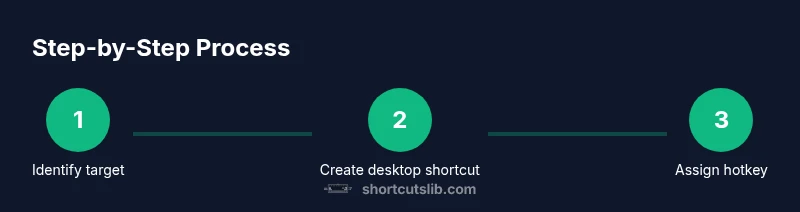
- 1
Identify target
Decide which program or file you want quick access to and verify its path. This step ensures the shortcut triggers the correct item and avoids misfires. Consider starting with a single indispensable app to keep the learning curve small.
Tip: Double-check the target path or file location before creating the shortcut. - 2
Create or locate a desktop shortcut
If no desktop shortcut exists, locate the executable and create a .lnk shortcut on your desktop. This shortcut is what you’ll assign a hotkey to. Ensure the shortcut remains accessible from your usual work area.
Tip: Place the shortcut in a stable folder and name it clearly for quick identification. - 3
Assign a hotkey in shortcut properties
Right-click the desktop shortcut, choose Properties, then click the Shortcut key field. Press the key combination you want (Windows will prepend Ctrl+Alt). Save and test the hotkey immediately.
Tip: Choose a unique combination that doesn’t conflict with existing Windows shortcuts. - 4
Test and adjust
Press your hotkey from any desktop context to verify it works. If it doesn’t, try a different combination or move the shortcut to another location. Confirm the target opens as expected.
Tip: If your shortcut doesn’t trigger, ensure the shortcut file isn’t blocked by Windows Security. - 5
Option: AutoHotkey for global shortcuts
Install AutoHotkey and write a simple script to map a hotkey to a command or a sequence across all windows. Save and run the script, testing across apps for consistency.
Tip: Test scripts in a safe environment to avoid unintended actions. - 6
Document and maintain
Record each shortcut with its target and key combo. Keep a centralized log and back up your shortcut library. Review periodically to prune outdated entries and update paths as software changes.
Tip: Maintain a changelog so you can revert if a shortcut stops working after updates.
Questions & Answers
Can I assign a shortcut to any program or file?
You can typically assign a shortcut to a desktop shortcut that points to a program or file. Some apps and Start Menu items cannot be rekeyed directly. If needed, create or relocate a desktop shortcut to enable the hotkey.
You can usually assign a hotkey to a desktop shortcut, but not every Start Menu item. If you don’t see a Shortcut key field, create a desktop shortcut first.
Do shortcuts work in fullscreen apps or games?
Global shortcuts may be intercepted by fullscreen apps or games. If a hotkey doesn’t work, try focusing the window or using app-specific shortcuts. AutoHotkey can help with context-aware mappings, but always test in game or full-screen modes.
Full-screen apps may block some shortcuts. Try focused windows or app-specific mappings for reliability.
Is AutoHotkey safe to use?
AutoHotkey is safe when downloaded from the official site and used with trusted scripts. Avoid running scripts from unknown sources. Start with simple, well-documented mappings and expand as you gain confidence.
Yes, if you download from the official site and verify scripts before running.
What if my shortcut conflicts with an existing Windows shortcut?
If a conflict occurs, choose a different key combination or adjust the target so it doesn’t clash with system shortcuts. Maintain a conflict log to minimize overlaps.
Change the hotkey to avoid clashes, and keep a log of conflicts.
Can shortcuts persist after a Windows reset or upgrade?
Shortcuts created as desktop shortcuts generally persist through upgrades, but some changes can reset paths. Keep backups of your shortcuts and scripts.
Back up your shortcuts and scripts to ensure they survive upgrades.
Is there a limit to how many shortcuts I can create?
There is no fixed limit in Windows for desktop shortcuts; practical limits come from manageability and potential conflicts. Start with a core set and grow gradually.
No hard limit, just keep it manageable.
Watch Video
Main Points
- Choose non-conflicting hotkeys to prevent a clash with system shortcuts.
- Desktop shortcuts are quick to set up and good for simple tasks.
- AutoHotkey enables powerful, cross-app automation when needed.
- Document and review shortcuts regularly for long-term usefulness.
- Test across apps and after updates to maintain reliability.