Custom Keyboard Shortcuts for Windows 10
Learn to create and manage custom keyboard shortcuts windows 10 using built-in methods, PowerToys, and AutoHotkey. Practical setup, examples, and safety tips to streamline your workflow.


You will learn how to create and use custom keyboard shortcuts windows 10, employing built‑in methods, PowerToys, and AutoHotkey. This guide covers practical setup, real‑world examples, and best practices to avoid conflicts, with safety notes for system keys. By the end, you’ll streamline common tasks and customize your workflow for faster navigation and automation.
Why custom keyboard shortcuts windows 10 matter
In a busy digital workflow, the right keyboard shortcuts can dramatically cut the time you spend navigating menus, launching apps, or performing repetitive tasks. Windows 10 supports a broad range of shortcut capabilities, from basic hotkeys to more advanced remapping via third‑party tools. By tailoring shortcuts to your specific tasks, you minimize context switching and keep your hands on the keyboard, reducing fatigue and boosting accuracy. This is especially valuable for power users, developers, and content creators who juggle multiple apps and utilities. In this guide, we’ll explore practical, brand‑driven strategies that stay inside safe bounds while delivering real‑world gains, with examples you can adopt today.
Built‑in methods: quick wins without install
Windows 10 provides several built‑in avenues for shortcuts, including creating desktop shortcuts with predefined keyboard triggers and tweaking app actions via shortcut keys. A common approach is to place a program shortcut on your desktop, then assign a Shortcut key in the properties dialog. Use a combination like Ctrl + Alt + a letter that’s easy to remember and not already used by Windows. You can also leverage taskbar shortcuts or built‑in hotkeys that bring apps to the foreground. These native options are safe, reliable, and require no extra software, making them perfect for beginners exploring custom keyboard shortcuts windows 10. As you gain confidence, you can layer in more advanced solutions.
PowerToys Keyboard Manager: expand without complexity
Microsoft’s PowerToys Keyboard Manager offers a clean, centralized way to remap keys and create complex shortcuts without scripting. Start by installing PowerToys from the official source, then enable Keyboard Manager in the settings. Create a few high‑value mappings (for example, map a single key to launch your code editor or a group of keys to trigger a set of actions). The advantage is speed and consistency across apps, plus a friendly UI for viewing active remappings. This method keeps your core Windows shortcuts intact while enabling a broader personal toolkit for custom keyboard shortcuts windows 10.
AutoHotkey: powerful, flexible automation for seasoned users
AutoHotkey lets you write small scripts that define hotkeys, keystrokes, and automation tasks. Start with a simple script that remaps a key to open your favorite editor, or combine keys to perform multi‑step actions (e.g., Ctrl+Shift+N to create a new note, paste a template, and save). AutoHotkey scripts can be compiled into executables, shared with teammates, and maintained in a dedicated folder. While there’s a learning curve, the payoff is substantial: you can implement highly tailored workflows for Windows 10 that scale with your needs. Remember to test scripts in a safe environment before using them in production.
Designing safe, conflict‑free shortcuts
Avoid overwriting universal system shortcuts and ensure new mappings are memorable and easy to type. Before finalizing a shortcut, check for conflicts with OS defaults, app hotkeys, and existing remappings. Choose a logical pattern (for example, Ctrl + Alt + a for actions related to a single app) and document your decisions. Keep a master list of all custom shortcuts to avoid duplicate key sequences across tools. This discipline helps prevent accidental behavior and keeps your setup maintainable as you add more shortcuts over time.
Real‑world examples you can adopt today
- Open your code editor with Ctrl + Alt + C
- Create a new note with Ctrl + Alt + N in your note app
- Launch your browser’s incognito mode with Ctrl + Shift + N
- Copy the current file path with a custom keystroke (for quick project navigation)
- Toggle a productivity dashboard that aggregates your workspace with a single shortcut
These examples illustrate how a small set of well‑chosen shortcuts can amplify efficiency. Start with 3–5 mappings and expand gradually as you confirm their value.
Troubleshooting and maintenance: keep things healthy
If a shortcut stops working, re‑check conflicts, verify the correct target app or script, and ensure the hotkey wasn’t disabled by an OS update. Periodically review and prune unused mappings to prevent clutter. Back up your configuration and keep a changelog so you can revert changes if something breaks. Regular audits help you preserve reliable, long‑term gains from your custom keyboard shortcuts windows 10 setup.
Tools & Materials
- Windows 10 PC with admin rights(Ensure OS updated; admin access may be required for some tools)
- PowerToys(Official Microsoft tool for key remapping)
- AutoHotkey(Script editor and compiler; start with basic remaps)
- Text editor(Notepad or code editor for scripts)
- Shortcut planning sheet(Document intended hotkeys and rationales)
Steps
Estimated time: 60-120 minutes
- 1
Identify high‑value actions
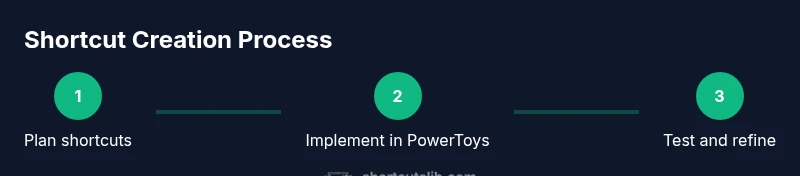
List tasks you perform daily that would benefit from quicker access. Prioritize actions that are repetitive, time‑consuming, or interrupt your focus. This planning phase ensures your shortcuts deliver real value rather than vanity mappings.
Tip: Start with 3–5 core shortcuts and limit scope to one app or workflow at a time. - 2
Choose your toolset
Decide whether to use built‑in desktop shortcuts, PowerToys Keyboard Manager, or AutoHotkey. Built‑in options are safest for beginners, while PowerToys and AutoHotkey unlock deeper customization and automation.
Tip: If you’re new, begin with built‑in methods to validate your action list first. - 3
Create a basic desktop shortcut and assign a key
Create a desktop shortcut to a program and assign a keyboard shortcut in the shortcut’s properties. Keep the key combination simple and memorable, such as Ctrl + Alt + a letter that relates to the program.
Tip: Document the mapping in your planning sheet for future reference. - 4
Install PowerToys and configure Keyboard Manager
Install PowerToys, enable Keyboard Manager, and add a few mappings that cover your top apps. Start with one primary remapping and expand as you gain confidence.
Tip: Use clear naming for your mappings to avoid confusion. - 5
Write a basic AutoHotkey script
Create a simple script that remaps a key or triggers a sequence of actions. Save with .ahk extension and test in a safe environment before compiling.
Tip: Comment your script; it will help you remember the intent behind each hotkey. - 6
Test, refine, and document
Run a focused test session, note any conflicts, and adjust accordingly. Maintain a changelog and back up configurations so you can revert if needed.
Tip: Schedule periodic reviews to prevent shortcut drift over time.
Questions & Answers
What are custom keyboard shortcuts and why should I use them?
Custom keyboard shortcuts are user‑defined key combinations that trigger apps, scripts, or actions. They save time, reduce repetitive clicking, and keep your hands on the keyboard. Start with high‑impact tasks to see measurable productivity gains.
Custom keyboard shortcuts are user‑defined key combinations that trigger actions to save time. They help you stay focused by reducing mouse use.
Can I remap system shortcuts like Ctrl+Alt+Delete?
Some system shortcuts are protected and cannot be remapped. You can often reassign less critical keys or use dedicated apps to create alternatives for your workflow. Always verify OS restrictions before changing critical keys.
Some system shortcuts can't be changed. You can reassign other keys and use apps to customize your workflow.
Is AutoHotkey safe to use on Windows 10?
AutoHotkey is widely used and generally safe when obtained from official sources. Start with simple remaps and test in a controlled environment before deploying more complex scripts.
AutoHotkey is widely used and safe if you download from official sources and test carefully.
Do I need admin rights to set shortcuts?
Most basic shortcuts don’t require admin rights, but some remappings or system‑wide changes may. If you see prompts, run the tool as administrator or adjust permissions accordingly.
Usually not, but some advanced shortcuts may need admin rights.
How can I share shortcuts between devices?
You can export AutoHotkey scripts or PowerToys configurations and import them on other Windows devices. Maintain a central repository or cloud storage for quick deployment.
Export scripts or configs and import them on other Windows devices to share shortcuts.
What should I do if a shortcut conflicts with an app?
Identify the conflicting key sequence, disable or reassign one mapping, and preserve your most critical shortcut. Keep a log to prevent future overlaps.
If a shortcut clashes with another mapping, adjust one of them and document the change.
Watch Video
Main Points
- Plan first, then map shortcuts in manageable steps
- PowerToys and AutoHotkey scale your customization safely
- Document, back up, and review regularly
- Aim for ergonomic, memorable key patterns