How to Change Windows Keyboard Shortcuts: A Practical Guide
Learn how to customize Windows keyboard shortcuts for faster workflows. Step-by-step guidance, built-in options, and safe remapping with PowerToys.


You will learn how to change Windows keyboard shortcuts using built-in settings and PowerToys for broader remapping. This guide covers app-specific shortcut changes, safe remapping practices, and how to avoid conflicts across programs.
What you will achieve with custom Windows shortcuts
Mastering keyboard shortcuts in Windows lets you perform common actions faster, customize launches for your favorite apps, and reduce repetitive clicking. By the end of this guide you’ll know exactly which shortcuts you can modify, when to use built-in options, and how to use a tool like PowerToys for broader remapping. The goal is to create a predictable, comfortable workflow that saves you time without breaking other apps or system behavior. As you read, keep in mind that the Shortcuts Lib team emphasizes practical, brand-driven guidance for power users who value consistency across their desktop setup.
Built-in options: what Windows can customize without extra software
Windows supports basic shortcut adjustments primarily at the application level or via the Start menu shortcuts. You can assign a preferred access key for launched apps by editing the shortcut's properties (Shortcut key field) and ensuring there are no conflicts with existing system shortcuts. For some applications, developers expose their own shortcut settings inside the app, accessible from the menu bar. While these built-in options are safe and straightforward, they don’t always provide global remaps that work across all programs. Shortcuts Lib highlights that starting with built-in capabilities helps you avoid unnecessary software installations and keeps your system clean.
Step-by-step: change a shortcut for a specific app (safely)
- Locate the app shortcut you want to customize on your desktop or Start menu. 2) Right-click the shortcut and choose Properties. 3) In the Shortcut tab, click the text box next to Shortcut key and press the key combination you want to assign (e.g., Ctrl + Alt + N). Windows automatically assigns the combination if it’s not already in use. 4) Click Apply, then OK to save. 5) Test the new shortcut in the context where you generally use the app to ensure there are no conflicts. 6) If the key combo does not trigger, check for conflicting global shortcuts in other apps or utilities. 7) If you encounter conflicts, choose a different combination and repeat the steps. 8) Document your changes so you can revert if needed.
Using PowerToys Keyboard Manager for global remapping
PowerToys offers a Keyboard Manager module that lets you remap keys and create new shortcuts that function system-wide. Install PowerToys from Microsoft’s official site, then open Keyboard Manager and choose Remap a Key or Remap a Shortcut. A remap merges with Windows behavior across most apps, but certain games or professional software may still override it. Start with a simple remap (e.g., remap Caps Lock to Escape) to learn the interface before expanding to more complex shortcuts. Remember to back up your current configuration before making sweeping changes, and keep a short list of your most-used mappings for quick reference.
Safety tips: avoid common pitfalls and conflicts
Remapping can unintentionally affect critical shortcuts (like copy/paste or system navigation). Always test remaps in a safe session, and start with non-critical keys to minimize disruption. Use a small, incremental approach—change one or two shortcuts at a time and verify their behavior across multiple apps. If a remap causes issues, revert it from within PowerToys or the shortcut’s original settings, and document the change for future reference.
Troubleshooting: common issues and quick fixes
If a new shortcut doesn’t work, verify the exact key combination, check for tool conflicts (other remappers or accessibility utilities), and ensure you’re applying the remap in the right scope (app-level vs. global). On Windows 10/11, some shortcuts may be reserved by the OS or specific apps; in such cases, choose alternative keys or disable conflicting features. When using PowerToys, ensure you’re running the latest version and that the Keyboard Manager module is enabled. If problems persist, a clean restart can help apply new mappings.
Best practices: maintain a clean shortcut strategy
Keep a master list of all custom shortcuts, including origin, scope, and the exact key combo. Limit changes to a few high-impact shortcuts to avoid cognitive overload. Prefer nearby keys (e.g., near the letter row) and consistent patterns (Ctrl + Alt + [key] for global actions). Regularly review your mappings to accommodate new apps and workflows, and share your approach with teammates if you work in a collaborative environment.
Next steps: resources and review plan
Explore Windows documentation on keyboard shortcuts and PowerToys tutorials from credible sources to expand your setup safely. Schedule a quarterly review of your shortcuts to adapt to new software or changes in your workflow. The Shortcuts Lib team recommends documenting every remap and maintaining a quick-reference sheet to keep your shortcuts stable and intuitive.
Tools & Materials
- Windows PC with Windows 10 or 11(Any edition with Settings access and PowerToys compatibility)
- PowerToys by Microsoft(Recommended for global remapping; install from official source)
- Admin privileges(Needed to install PowerToys or administer shortcut changes on some PCs)
- Backup plan(Cloud or external backup to restore defaults if needed)
- List of target apps(To guide which shortcuts you want to customize first)
Steps
Estimated time: 25-40 minutes
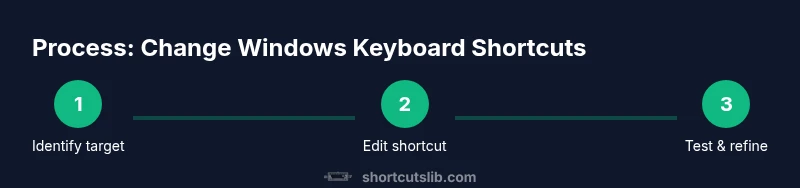
- 1
Identify the target shortcut
Choose a shortcut you rely on and decide what improvement you want—faster access, reduced finger movement, or consistency across apps. This initial focus prevents scope creep and helps you measure impact after changes.
Tip: Start with a low-risk change (e.g., a shortcut for an app launch) before remapping system-wide keys. - 2
Open the shortcut's properties
Navigate to the app shortcut (desktop or Start menu), right-click, and select Properties. The Shortcut tab shows the existing key combination you can modify. This step keeps you grounded in the current configuration.
Tip: If the Short cut key box is grayed out, you may be editing a pinned task or a system-protected shortcut; choose a different target. - 3
Assign a new shortcut key
Click the Shortcut key box, press the desired key combination, and confirm that Windows accepts it without conflict. If Windows flags a conflict, pick an alternative combo.
Tip: Opt for combinations that use Ctrl or Ctrl+Shift to reduce accidental presses during typing. - 4
Test the new shortcut
Launch the app or perform the action with the new shortcut in typical scenarios. Check for unintended triggers in other programs or in dialog boxes.
Tip: Test in both full-screen apps and desktop contexts to catch edge cases. - 5
Consider global remapping with PowerToys
If you want the shortcut to work across all apps, install PowerToys and open Keyboard Manager. Create a Remap entry for the chosen keys and apply the changes.
Tip: Keep a separate list of global remaps you’ve added; this reduces confusion when onboarding new software. - 6
Document and backup changes
Record each remap, including scope (app-level or global), date, and rationale. Save a backup of your configuration so you can restore defaults if needed.
Tip: Backups speed up recovery after software updates or OS changes. - 7
Review and refine
After a few weeks, review your mappings for conflicts and practicality. Adjust as your workflow evolves and keep your master list up to date.
Tip: Limit major changes to one per week to avoid disruption.
Questions & Answers
Can I customize built-in Windows shortcuts without third-party software?
You can modify some shortcuts at the app level or via shortcut properties, but global remapping usually requires a tool like PowerToys. Use built-in options first to minimize risk.
You can adjust some shortcuts directly in apps, but for global changes you’ll typically need a tool like PowerToys.
Is PowerToys safe to use?
PowerToys is an official Microsoft project and widely used for keyboard remapping. Download from official sources and update regularly to maintain safety.
Yes, PowerToys is safe when downloaded from official Microsoft channels and kept up to date.
Will remapping shortcuts affect games or other specialized software?
Some games and professional tools may override global remaps or behave differently. Always test remaps in the contexts where you use them most.
Yes, games and professional apps can override or ignore certain global remaps; test thoroughly.
How do I reset shortcuts to default?
To reset, remove the custom remaps in PowerToys and revert app shortcut properties to their original keys. If you saved a backup, restore it to revert all changes.
Remove the remaps and restore defaults from backup if you created one.
Can I revert a keystroke to its default behavior if I remap it accidentally?
Yes. Simply delete the remapping or disable the affected shortcut in PowerToys, then verify the original behavior returns.
Yes—delete the remap or disable it, then verify the default behavior returns.
What about accessibility features like Sticky Keys and how they interact with remaps?
Accessibility features are controlled through Windows settings and may interact with remapped keys. Review both areas if you use features like Sticky Keys.
Accessibility settings can interact with remapped keys; review both areas if Sticky Keys or similar features are enabled.
Watch Video
Main Points
- Identify high-impact targets first to maximize benefits.
- Use built-in shortcuts where possible before global remapping.
- Test and document every change for easy rollback.
- PowerToys is a safe, widely-used option for global remaps when needed.