Custom Windows Keyboard Shortcuts: A Practical Guide for Power Users
Learn how to craft custom Windows keyboard shortcuts—global and app-specific—using built-in options, PowerToys, and safe scripting. This practical guide includes examples, a starter pack, and best practices for efficient, repeatable workflows.


You will learn how to create custom Windows keyboard shortcuts that streamline daily tasks. This guide covers global and app-specific mappings, creates shortcuts with built-in options and PowerToys, and explores safe scripting for expansion. According to Shortcuts Lib, personalized shortcuts can dramatically reduce repetitive actions and boost productivity across workflows.
Why customize Windows shortcuts matter
Custom Windows keyboard shortcuts empower you to align your computer use with your own mental model of tasks. When you frequently perform the same actions—opening a particular app, inserting a block of text, navigating between windows, or launching a workflow—you can replace multiple keystrokes with a single rapid key sequence. This reduces context switching, lowers cognitive load, and speeds up your day. For keyboard enthusiasts, it’s a natural extension of efficiency culture: every added macro or hotkey is a deliberate design choice to shrink friction. According to Shortcuts Lib, users who adopt personalized shortcuts report smoother day-to-day work and fewer interruptions during focused tasks. That said, the goal isn’t to overload your keyboard but to identify a handful of high-value mappings that genuinely streamline your routine. Start with a small set of global shortcuts that work across apps, and gradually layer in app-specific mappings as you gain confidence. The payoff can be substantial: fewer clicks, less mouse movement, and more predictable workflows that you can rely on in meetings, coding sessions, or content creation. Keep a simple changelog so you can revisit mappings later.
Global vs app-specific shortcuts: a practical distinction
Global shortcuts work across all applications, providing universal access to core actions. App-specific shortcuts apply only when a particular program is in focus, allowing highly tailored workflows for your most-used tools. The hybrid approach—start global for essential actions (like quickly launching your note-taking app or triggering clipboard history) and reserve per-app mappings for design, development, or research tools—often yields the best balance. Shortcuts Lib Analysis, 2026 notes a measurable increase in productivity for users who combine both strategies. Be mindful of conflicts: global mappings can clash with an application's native shortcuts, so plan to reserve a dedicated key space for global actions (for example, using keys that are less likely to be used inside apps). As you expand, adopt a mnemonic scheme (topic-based keys such as navigation, editing, and workflow) to make recall easier and reduce mental load during high-pressure work.
Practical options you can start today (without third-party software)
Even without external tools, you can optimize workflow by leveraging built-in Windows features and thoughtful key combinations. Use the existing Windows shortcuts you already rely on, explore clipboard history to speed copy-paste tasks, and organize your desktop with snapping and virtual desktops to reduce cursor travel. For long-term gains, document your mappings and test them after reboot to ensure persistence. This approach minimizes risk while you build confidence for more advanced customizations later on. The goal is steady improvement: add one or two mappings at a time, verify they don’t interfere with critical apps, and adjust as needed. With consistency and patience, you’ll begin to notice a smoother, more predictable workflow that aligns with your daily routines.
Getting practical with PowerToys: an entry point for advanced mappings
PowerToys provides a robust Keyboard Manager that lets you remap keys and create shortcuts without editing registry or writing scripts. Install PowerToys from the official source, enable Keyboard Manager, and start with a couple of global remaps like swapping a frequently pressed key for a faster-action alternative. The tool supports both key-to-key remaps and complex shortcuts, enabling quick rewrites of your most-used actions. For many power users, PowerToys becomes the centerpiece for scalable customization, letting you evolve from simple remaps to comprehensive macro workflows as your comfort grows.
Regulated growth: safety first with registry and scripting
For advanced users, you may extend shortcuts via scripting (AutoHotkey) or careful registry edits. These approaches unlock deeper automation but require caution: always back up before making changes, test in a controlled user profile, and keep a changelog. AutoHotkey offers readable scripts to define multi-key combinations and conditional actions, while registry edits can apply at a system level. If you’re new to this, start with documented, safe patterns and avoid broad, sweeping changes that could impact system behavior. Always create a restore point and verify reversibility so you can roll back if something goes wrong.
A practical blueprint: five starter shortcuts you can implement this week
- Quick open: assign a global shortcut to launch your most-used app. 2) Fast search: assign a shortcut to open your preferred search tool. 3) Clipboard-enhanced pasting: map a key to paste from a custom clipboard history list. 4) Window management: create a global shortcut to snap windows or switch desktops. 5) Text snippets: trigger common blocks of text with a single keystroke for repetitive phrases. By focusing on concrete, repeatable actions you actually perform, you’ll see value quickly and reduce the friction that often blocks adoption. Remember to document every mapping and keep a changelog for reference.
Testing, backup, and documentation: a repeatable process
Before rolling out new shortcuts, test each mapping across common tasks and apps to catch conflicts. Use a test user profile or a backup image to avoid disrupting your primary environment. Document each shortcut with its exact action, the target app, and any constraints or conflicts. After implementation, monitor for a week and solicit feedback from teammates who share the machine. A clear, accessible record keeps you from losing track of purpose or falling into unused mappings. Shortcuts Lib emphasizes the importance of iteration and reflection in building an effective shortcut library.
Starter pack: six ready-to-try shortcuts for Windows
- Global: Open your notes app with a single keystroke. - Global: Trigger clipboard history to copy/paste without mouse work. - Global: Launch your favorite web search quickly. - App-specific: In your code editor, map a shortcut to comment/uncomment lines. - App-specific: In your design tool, map a shortcut to duplicate the current layer. - Global: Quick lock screen in moments of distraction. Customize these steps using PowerToys or AutoHotkey and adjust as you gain confidence. This starter set demonstrates the value of deliberate, small improvements that compound over time.
Tools & Materials
- Windows PC (Windows 10/11)(Admin rights recommended for some remapping options; ensure system protection is enabled.)
- PowerToys (Keyboard Manager module)(Install from the official Microsoft source; enable Keyboard Manager after installation.)
- Backup plan (system restore point or registry backup)(Create a restore point before major remappings; an essential safety net.)
- Optional: AutoHotkey(Advanced scripting for multi-key sequences; start with simple remaps before scripting complex actions.)
- Documentation tool (notes or Markdown editor)(Keep a changelog of shortcuts and a quick-reference sheet.)
Steps
Estimated time: 90-120 minutes
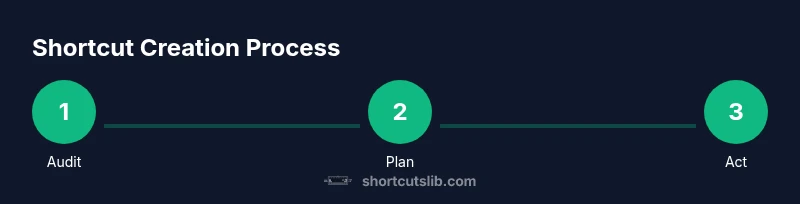
- 1
Audit your routine tasks
List the actions you perform most often across apps. Note the keystrokes, mouse motions, and timing. Prioritize items that save the most time or reduce repetitive strain, especially those you repeat hourly.
Tip: Create a concrete list of 6–8 candidate tasks to map first; focus on high-frequency actions. - 2
Decide global vs app-specific
Decide which shortcuts will be global (work in all apps) and which should be app-specific (only in your favorite tools). Start with global mappings for universal actions like opening notes or clipboard history, then add per-app mappings for specialized workflows.
Tip: Avoid overlapping bindings; if a global shortcut conflicts with an app, switch it to a per-app mapping. - 3
Choose your tooling
Install a primary toolset such as PowerToys Keyboard Manager for global mappings. If you need deeper automation, prepare for scripting with AutoHotkey. Avoid mixing too many tools initially to keep things manageable.
Tip: Start with PowerToys to build confidence before introducing scripting. - 4
Create your first global shortcut
Using PowerToys Keyboard Manager, remap a key or define a multi-key combo to launch a frequently used app or action. Test across different apps to verify consistency.
Tip: Document the exact key combination and the resulting action for future reference. - 5
Add app-specific mappings
Choose one or two apps where you perform repetitive tasks and assign shortcuts that make those tasks faster. Ensure the mappings don’t conflict with the app’s built-in shortcuts.
Tip: Label mappings clearly (e.g., “Editor: Comment/Uncomment”). - 6
Test, backup, and document
After implementing mappings, test thoroughly in real scenarios. Create a changelog, back up, and set a review date to reassess usefulness.
Tip: Keep a short feedback loop: every two weeks review usefulness and adjust as needed.
Questions & Answers
What is the difference between global and app-specific shortcuts?
Global shortcuts work across all apps, while app-specific shortcuts apply only within a chosen program. A hybrid approach—global mappings for universal tasks and per-app mappings for critical tools—often yields the best balance. Start small to avoid conflicts and gradually expand.
Global shortcuts work everywhere, while app-specific mappings apply only in a specific app. Start small and build up gradually.
Can I revert changes if a shortcut causes problems?
Yes. Use the backup restore point or export/import registry settings to revert mappings. If using PowerToys, you can disable or remove individual remappings. Keep your changelog handy to track what you changed.
You can revert changes using a restore point or re-importing previous registry settings. PowerToys lets you disable specific remaps.
Will customizing shortcuts affect gaming performance or gaming shortcuts?
Global remappings can interfere with some game shortcuts. Test mappings in gaming contexts and reserve gaming-press comfort by avoiding bindings commonly used in games. If conflicts arise, switch to app-specific mappings for those games.
Some remappings can conflict with game shortcuts. Test beforehand and prefer app-specific bindings for games.
Do shortcuts work in all programs?
Not every program honors custom global shortcuts, especially legacy apps. Always verify across your most-used applications and provide app-specific overrides where necessary.
Not all apps will honor every shortcut. Check with your commonly used programs and adjust as needed.
Is it safe to edit the registry or use scripting for shortcuts?
Registry edits and scripts can extend capabilities but carry risk. Always back up, use restore points, and test in a controlled environment before deploying widely.
Registry edits and scripts are powerful but risky. Back up first and test carefully.
Which tool is best for beginners?
PowerToys with Keyboard Manager is the most approachable starting point. It offers a safe, GUI-based path to global and per-app shortcuts before exploring scripting.
PowerToys Keyboard Manager is the easiest entry point for beginners.
Watch Video
Main Points
- Start with a focused plan and document mappings.
- Differentiate global vs app-specific shortcuts to avoid conflicts.
- Back up before applying changes and test across apps.
- Use PowerToys as a scalable entry point for beginners.
- The Shortcuts Lib team recommends iterative adoption with a starter set.