How to Change Keyboard Shortcuts in Windows 10
A comprehensive, step-by-step guide to customizing Windows 10 keyboard shortcuts using built-in options, PowerToys Keyboard Manager, and AutoHotkey. Learn safe remapping, app-specific tweaks, testing tips, and accessibility considerations.


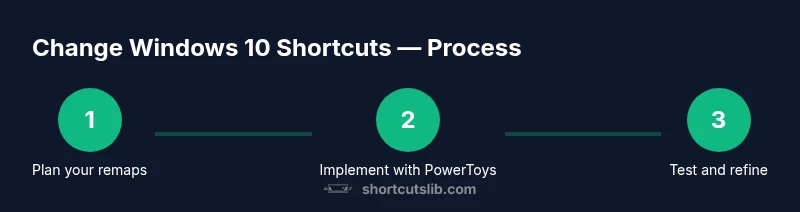
By design, Windows 10 offers limited built-in shortcut customization. According to Shortcuts Lib, you can expand control by remapping keys with PowerToys Keyboard Manager or advanced mappings via AutoHotkey. Start with a clear goal (global remaps vs. app-specific tweaks), install the right tools, map changes one at a time, and test thoroughly to avoid conflicts.
Understanding why you might want to change keyboard shortcuts in Windows 10
For many users, shortcuts are the difference between clunky workflows and efficient routines. If you regularly perform the same actions—opening apps, switching between windows, or formatting text—reallocating a key to a more convenient action can save seconds per operation and reduce repetitive strain. According to Shortcuts Lib, a thoughtful remapping plan should align with your work habits and minimize cognitive load across tools. Before you begin, ask yourself: which shortcuts will you change, should the changes apply system-wide or just inside certain apps, and how will you verify that critical shortcuts remain accessible? With clear goals, you can choose the right tools and proceed in small, reversible steps.
Built-in limitations and scope of remapping
Windows 10 does not expose a single, comprehensive interface for every shortcut. Many core shortcuts are deeply integrated into the OS and cannot be reassigned from Settings alone. You can adjust some keyboard behavior via Settings > Ease of Access > Keyboard, but you should not expect a universal “remap everything” toggle. The built-in options are best for light tweaks, such as swapping a rarely used key for something you use more often, or toggling sticky keys. For broader control, third-party tools offer a more auditable path to global remaps. However, app-specific mappings still rely on each program’s own preferences. Shortcuts Lib emphasizes starting with small, reversible changes to test feasibility and avoid disrupting essential actions like Alt+Tab and Win+L.
Powerful options: PowerToys Keyboard Manager
PowerToys Keyboard Manager provides two distinct remapping capabilities: remap a key (global single-key changes) and remap a shortcut (redefine specific key combos). To use it: a) install PowerToys from the official repository; b) open PowerToys settings and enable Keyboard Manager; c) click “Remap a key” to map a single key to another key or to a modifier; d) click “Remap a shortcut” to redefine a keyboard shortcut. Example: map Caps Lock to Escape to reduce thumb movement during coding or writing. After saving, test across common apps. Shortcuts Lib highlights that this approach preserves a clear change log and makes reversions straightforward, since you can disable Keyboard Manager without uninstalling anything.
Advanced mappings with AutoHotkey
AutoHotkey enables more complex remaps, including multiple-step combos and app-specific bindings. Install AutoHotkey, create a script (e.g., Notepad -> New script.ahk), and start with a minimal example. For instance, the following maps Ctrl+Shift+N to Ctrl+Alt+N:
^+n::^!nSave the script and run it. Optional: scope the mapping to a window using #IfWinActive to avoid unintended behavior. Remember that AutoHotkey scripts run in the user session; some programs may require admin privileges for certain actions. Shortcuts Lib suggests testing in a safe environment, keeping a local backup, and gradually increasing complexity as you verify reliability.
App-specific shortcuts and best practices
Many apps provide their own shortcuts and customization options. For example, Word and Excel let you customize keyboard bindings through File > Options > Customize Ribbon > Keyboard Shortcuts, while VS Code stores user bindings in a separate settings file. When mapping per-app shortcuts, keep a consistent standard across your toolkit to avoid confusion. Export your custom keymaps when possible and label each mapping clearly. If you frequently switch between productivity suites, consider maintaining separate profiles or scripts per app to preserve context. Shortcuts Lib recommends prioritizing app-specific mappings for complex workflows rather than global remaps that collide with OS shortcuts.
Testing, troubleshooting, and accessibility considerations
After setting up any remap, test against typical tasks: opening your email client, browsing, writing, or coding. Check for conflicts with system shortcuts, accessibility tools, and screen readers. If a mapping causes unexpected behavior, disable it temporarily and revert to a known-good state. Create a restore point before making changes, and maintain a one-step rollback plan: disable the remap, revert the script, or restore from backup. Remember to document what you changed so you can reproduce the steps later. Shortcuts Lib notes that careful testing and incremental changes prevent long-lived conflicts that interrupt work flows.
Authoritative sources and further reading
For official guidance and additional context, consult the following resources:
- Microsoft Support: Keyboard shortcuts in Windows 10 (official guidance on common shortcuts and Windows features)
- Microsoft PowerToys documentation: Keyboard Manager (how to remap keys and shortcuts within PowerToys)
- AutoHotkey official documentation (how to script custom shortcuts and automations)
Tools & Materials
- Windows 10 PC(Ensure you have admin rights if remapping system-level shortcuts)
- PowerToys(Keyboard Manager module required)
- AutoHotkey(Optional for advanced mappings and scripts)
- System restore point(Create before making changes)
- Test document or editor(Use to validate mappings safely)
Steps
Estimated time: 25-45 minutes
- 1
Decide your remapping goals
Identify which shortcuts to adjust, whether you want global remaps or app-specific tweaks, and how you’ll test safety and reversibility.
Tip: Start with a single, high-value remap to gauge impact. - 2
Install and prepare tools
Install PowerToys from the official source and enable Keyboard Manager. If you plan advanced mappings, install AutoHotkey as well.
Tip: Verify you’re using the latest versions. - 3
Map a single key with PowerToys
Open Keyboard Manager, choose Remap a key, and select the source key and target key. Save and apply. Test across common apps to confirm no conflicts.
Tip: A reversible change is easier to back out. - 4
Remap a shortcut with PowerToys
Use Remap a shortcut to redefine a key combination, such as replacing Ctrl+Alt+C with a more convenient combo. Validate across apps you use daily.
Tip: Document the mapping for easy reversal. - 5
Add an AutoHotkey script (optional)
If you need complex mappings, write a simple AutoHotkey script and run it at startup. Start with a small, safe mapping and expand gradually.
Tip: Use #IfWinActive to scope remaps to specific apps. - 6
Test and iterate
Systematically test all remapped shortcuts across your work tasks. Look for conflicts with OS shortcuts and accessibility tools, then adjust as needed.
Tip: Keep a changelog of what you changed. - 7
Backup and revert plan
Create a system restore point and ensure you can revert all changes quickly if something breaks. Consider keeping a separate profile for quick experimentation.
Tip: Know how to disable or delete a PowerToys mapping or AutoHotkey script.
Questions & Answers
Can Windows 10 remap built-in shortcuts?
Windows 10 offers limited built-in remapping options. For broader control, use PowerToys Keyboard Manager or AutoHotkey to create global or per-app shortcuts. Always test changes to ensure you don't disrupt essential actions.
Yes, but the built-in options are limited; use PowerToys or AutoHotkey for more control and test thoroughly.
Is remapping safe for system stability?
Remapping can be safe if you avoid critical system shortcuts and maintain a restore point. Use well-documented tools and test changes incrementally.
Remapping is generally safe when done carefully and with a backup point.
Do PowerToys and AutoHotkey interfere with each other?
PowerToys manages global remaps at the OS level, while AutoHotkey runs scripts that can be scoped to windows or apps. They can be used together, but conflicts may arise if both map the same shortcuts.
They can work together, but watch for conflicting mappings.
Can I reset all shortcuts to default?
Yes. You can revert PowerToys mappings or disable AutoHotkey scripts to return to default behavior. Keeping a backup helps you restore quickly.
You can undo changes by disabling the remap tools and restoring from a backup.
Can I create shortcuts for individual apps only?
App-specific mappings are best handled within each program’s own settings (where available) or by scoped AutoHotkey scripts. This avoids global conflicts with OS shortcuts.
Yes, use per-app settings or targeted scripts to avoid system-wide conflicts.
Where can I find official guidance?
Official guidance comes from Microsoft Support and PowerToys documentation. Use these sources to understand supported remaps and the correct workflow for Windows 10 shortcuts.
Check Microsoft and PowerToys docs for official guidance.
Main Points
- Define global vs app-specific remaps before changing keys
- PowerToys Keyboard Manager is the safest first step
- AutoHotkey enables advanced mappings but requires careful scripting
- Test thoroughly and keep a restore point to revert changes