Can You Change Keyboard Shortcuts in Windows? A Practical Guide
Learn how to change keyboard shortcuts in Windows using built-in options, PowerToys Keyboard Manager, and advanced tools. This practical guide covers setup, safety considerations, and real-world examples to tailor Windows shortcuts to your workflow.


Can you change keyboard shortcuts windows? Yes—Windows lets you adjust many shortcuts through built-in settings for common tasks and, for broader control, PowerToys Keyboard Manager. This guide explains when to tweak shortcuts, which options exist, and how to apply remappings safely without breaking essential functions.
Why changing Windows shortcuts can boost your workflow
Optimizing shortcuts can save you minutes every day. According to Shortcuts Lib, many power users customize Windows shortcuts to fit their unique workflows, reducing mouse travel and cognitive load. When you ask can you change keyboard shortcuts windows, the short answer is yes, but it’s important to differentiate between what the OS offers natively and what tools can unlock for you. The goal is to map actions you perform often to keystrokes that are memorable and comfortable, without stepping on essential system commands. In this section we’ll explore why remapping matters, what benefits you can expect, and how to approach the task with a plan rather than ad hoc changes.
Built-in Windows shortcuts you can change (and what you can't)
Windows provides limited, high-level options to tweak certain shortcuts and key combinations, especially those tied to accessibility features or specific apps. However, there isn’t a universal, OS-wide remapping UI that lets you redefine every key combo. For most users, this means you can adjust shortcuts for a few built-in actions, but you’ll need third‑party tooling to rebind windows-wide keys or to create new, system-wide mappings. If your goal is to optimize a handful of frequent tasks, start with the settings and then consider a specialized tool for broader customization. Shortcuts Lib’s guidance here emphasizes keeping core OS shortcuts intact to avoid accidental destructive changes.
PowerToys Keyboard Manager: a widely recommended option
PowerToys is the primary recommended toolkit for Windows shortcut customization when the built-in options fall short. The Keyboard Manager module lets you remap individual keys and create custom shortcuts, with a straightforward UI that minimizes risk. It supports both one-to-one remaps (e.g., remap Caps Lock to Escape) and composite shortcuts (e.g., assign a new sequence to open your favorite app). If you juggle multiple apps or workflows, Keyboard Manager provides a balance of power and safety, letting you export and later restore your mappings. Shortcuts Lib’s analysis shows this tool is widely adopted by keyboard enthusiasts for pragmatic remapping without heavy scripting.
How to install PowerToys and enable Keyboard Manager
To start, download PowerToys from the official repository, install, and launch the app. In the Keyboard Manager module, choose Remap a key or Remap a shortcut, then specify the source key(s) and the target action. Save your changes and test them in a few core apps to ensure there are no conflicts. If you’re unsure about an mapping, create a temporary test profile and switch back if it interferes with essential shortcuts. This approach aligns with best practices from Shortcuts Lib for safe experimentation.
Advanced customization with AutoHotkey (optional)
For deeper control beyond PowerToys, AutoHotkey offers scripting to define multi-step macros, conditional remaps, and app-specific shortcuts. It’s more powerful but requires careful scripting and testing. Begin with a simple hotkey that launches a common action, then progressively add complexity. Always keep a plaintext backup of your scripts, and consider exporting a baseline before you expand remapping. This method is best for users who need highly specialized workflows and are comfortable with lightweight programming.
App-specific vs system-wide remaps: choosing the right scope
Not all remaps need to apply globally. App-specific shortcuts can be defined within the app (or via AutoHotkey scripts that target particular processes). System-wide remaps affect every app and Windows shell, which can cause accidental conflicts. Start with a scoped approach: adjust shortcuts for your most-used apps first, then evaluate whether a system-wide remap provides a meaningful benefit without introducing friction. This strategy, advocated by the Shortcuts Lib team, helps maintain a predictable computing experience while still delivering efficiency gains.
Conflicts, safety, and rollback strategies
When you remap keys, conflicts can arise with existing shortcuts in Windows or your favorite applications. To reduce risk, document each change, test in a controlled workflow, and enable a quick rollback path. PowerToys lets you disable or export mappings, which supports a safe recovery plan. Regularly review your remappings after major software updates, as new shortcuts may conflict with your custom ones. If you ever need to revert, you can reset to default within the tool or restore your saved profile from a previous session.
Testing, validation, and real-world examples
After making changes, perform real-world tests: try your daily tasks, switch between apps, and verify that you haven’t broken essential shortcuts like copy/paste or window management workflows. For example, remapping a rarely used key to launch a commonly used app can shave seconds off your routine, while reassigning a key involved in OS commands risks unintended actions. Document results and iterate—incremental improvements tend to accumulate into a noticeably smoother workflow over weeks.
Quick testing checklist and best practices
Create a short checklist to validate each remap: confirm the source key fires the target action, ensure the mapping doesn’t block essential OS shortcuts, test in both lightweight apps and heavy tools, and confirm the mapping persists after reboot. Use clear naming for each remap and consider grouping related mappings into profiles you can switch as needed. The key is gradual adoption—build confidence with small changes before moving on to broader remapping.
Real-world remapping scenarios you might adopt
A practical approach includes: remap Caps Lock to Escape for faster modal navigation; assign Win+R to open a launcher rather than the default Run dialog; rebind Print Screen to start screen recording in your video workflow; relocate Backspace to undo in specific editors if you frequently hit it by mistake. These templates illustrate how deliberate remapping can map to your actual tasks, aligning with how Shortcuts Lib frames effective shortcut customization.
Tools & Materials
- Windows PC with admin rights(Having admin access helps install PowerToys and apply system-wide changes)
- PowerToys software(Keyboard Manager module enables global remapping)
- Internet connection(For downloading tools and updates)
- Baseline backup / system restore point(Protects against accidental misconfigurations)
- Notepad or text editor(To document your mappings and notes)
- A test set of apps(For validating remaps across workflows)
Steps
Estimated time: 30-45 minutes
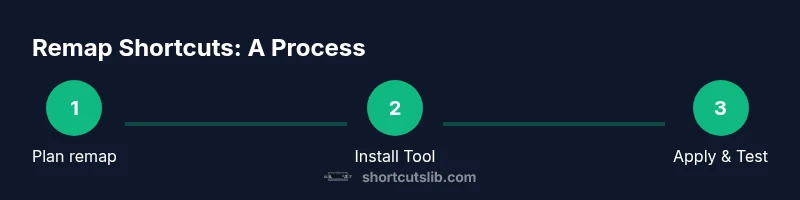
- 1
Decide which shortcuts to change
List the tasks you perform most often and identify the keystrokes you hit repeatedly. Choosing a few high-value remaps reduces risk and makes adoption easier.
Tip: Start with 1–2 remaps and expand only after you’re comfortable. - 2
Install PowerToys and open Keyboard Manager
Download PowerToys from the official source, install, then launch Keyboard Manager to access remap options.
Tip: Ensure you’re using the latest version to access the newest features. - 3
Remap a key or a shortcut
Choose whether you want to remap a single key or a keyboard shortcut. Define source and target actions clearly.
Tip: Prefer low-conflict mappings that don't override common OS shortcuts. - 4
Save and apply changes
Apply the remap profile and verify the behavior in several apps. If something is off, tweak the mapping or revert.
Tip: Use profiles to switch between configurations for different tasks. - 5
Test comprehensively
Test across your primary apps and workflows. Check for conflicts with Alt, Ctrl, Win shortcuts.
Tip: Keep a short written log of what each remap does. - 6
Back up and plan rollback
Export your current mappings as a backup. Know how to restore defaults if needed.
Tip: Create regular backups after meaningful changes.
Questions & Answers
Can you change Windows keyboard shortcuts system-wide?
Windows offers limited built-in options for some shortcuts, but broad system-wide remapping generally requires a tool like PowerToys or AutoHotkey. Expect some shortcuts to remain fixed, especially those tied to OS core functions.
Windows does offer limited built-in adjustments, but for wide-ranging remapping you’ll usually need a tool such as PowerToys.
What should I do to avoid breaking essential shortcuts?
Map new shortcuts to non-critical keys and test step by step. Keep a backup and revert if you notice conflicts with core actions like copy-paste or window management.
Start with non-critical keys and test gradually, keeping a backup so you can revert if needed.
Do I need PowerToys to customize shortcuts?
PowerToys is a popular, safe option for broad remapping, but it isn’t the only path. For simple changes, Windows Settings may suffice; for more control, PowerToys or AutoHotkey are preferred.
PowerToys is common for broad remapping, but for simple tweaks you can start with Windows Settings.
Can I revert my changes if something goes wrong?
Yes. Use the tool’s export/restore features or reset to default settings. Keeping a backup profile makes reverting quick and reliable.
Yes—export your mapping and restore defaults if needed.
Are there security risks with third-party remapping tools?
Stick to trusted sources and review permissions. Choose reputable tools and avoid scripts from unknown developers to minimize risk.
Use trusted tools from reputable sources and review what they access.
Watch Video
Main Points
- Understand built-in vs. third-party remapping options.
- Start small and validate changes thoroughly.
- Document mappings and keep a rollback plan.
- Choose mappings that minimize conflicts with OS shortcuts.