Mac vs Windows Keyboard Shortcuts: A Practical Comparison
A rigorous, vendor-neutral guide comparing macOS and Windows keyboard shortcuts, with cross-platform tips and best practices to boost productivity for power users and keyboard enthusiasts.


For most users, macOS shortcuts emphasize the Command key and native app conventions, while Windows shortcuts lean on the Ctrl key and Windows-specific behaviors. This comparison highlights the key differences, practical do's and don'ts, and cross-platform strategies to help you work faster, whether you primarily use a Mac, a PC, or switch between them. It includes recommendations for common tasks, notes on modifier keys, and guidance on customizing shortcuts to fit your workflow.
Understanding the landscape of mac vs windows keyboard shortcuts
In the realm of keyboard productivity, mac vs windows keyboard shortcuts reflect the design philosophies of two major platforms. For power users, the differences shape daily workflows more than any other tool. This article lays out the landscape: which modifiers dominate, how apps interpret keystrokes, and where your learning time pays off when you work across both ecosystems. According to Shortcuts Lib, the macOS shortcut conventions prioritize Command-based actions and menu-driven consistency, while Windows shortcuts center on Ctrl-driven actions and Windows-specific workflows. This framing helps you decide where to invest practice time and how to unify your process when you alternate machines. We’ll map core concepts—modifier keys, common command layouts, and the distinction between global shortcuts and application-level shortcuts. The practical takeaway is simple: build a solid baseline for your primary OS, then layer cross‑platform mappings for the tasks you perform most often.
Modifier keys and naming conventions
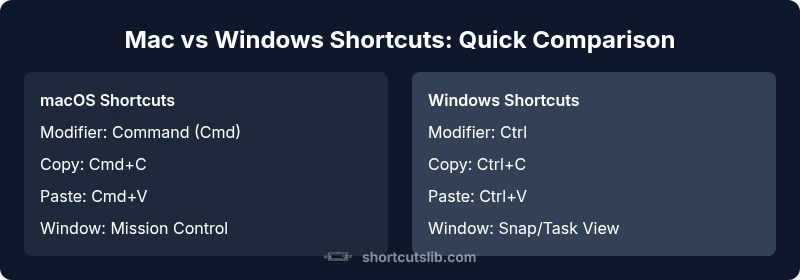
Modifier keys are the most visible difference between the two ecosystems. On macOS, the Command (⌘) key is the workhorse for most actions, with Option (⌥) adding alternate functions. On Windows, Ctrl handles the majority of shortcuts, with Alt offering access to menus and system dialogs. The Fn key, Escape, and function keys add further nuance on both platforms. When you learn Mac shortcuts, you’ll notice many commands begin with Cmd, while Windows shortcuts start with Ctrl. This distinction shapes how you memorize, say, Copy, Paste, and Undo across apps. A practical rule of thumb: map your most frequent actions to the platform you use most, then create direct crosswalks for the occasional switch. This section also highlights how ergonomic layouts influence muscle memory over time, which is especially relevant for long coding sessions or heavy document work.
System-level vs app-level shortcuts
System-level shortcuts control global behaviors (like screenshot, clipboard management, or quick settings) and tend to be consistent within an OS. App-level shortcuts, however, vary by program and can differ even among similar apps on the same OS. On macOS, many apps follow the Command-based patterns, but some titles implement their own conventions, especially in professional software. Windows apps often rely on Ctrl for universal actions, yet specific editors or IDEs may override these. The upshot: crucial shortcuts like Copy, Paste, and Undo behave similarly, but advanced shortcuts require targeted memorization within each app. If you frequently switch apps, consider keeping a quick-reference map for your most-used programs to minimize cognitive load.
Window management and workspace navigation
Window management is a high-leverage area for productivity. On macOS, Mission Control, Exposé, and the new Spaces system organize windows and desktops efficiently. Windows users leverage Snap Assist, Task View, and virtual desktops to manage multiple apps. Keyboard-driven window tiling, focusing, and switching between tasks can shave minutes off a day’s work. The key is consistency: decide on a core set of window-management shortcuts and practice them until they become second nature. If you work across both platforms, there are cross-platform equivalents you can lean on (e.g., Alt-Tab vs Cmd-Tab for app switching) to keep flow intact.
Text editing and formatting shortcuts
Text editing shortcuts are a daily battleground for speed and accuracy. On macOS, Cmd+C/X/V cut and paste, Cmd+Z for undo, Cmd+A for select all, and Cmd+F for find are the baseline. Windows keeps the Ctrl equivalents: Ctrl+C/X/V, Ctrl-Z, Ctrl+A, and Ctrl+F. Formatting shortcuts (Bold, Italic, Underline) follow similar patterns in most apps, but a few native apps diverge—especially in text editors and design tools. The practical takeaway is to memorize the core command pairs on your primary OS, then learn the counterpart on the other system to minimize friction when you switch devices. Practice with a few flagship apps you use daily to cement the habits.
Cross-platform workflows and best practices
Cross-platform efficiency comes from mapping shared tasks to familiar keystrokes and using remapping tools when needed. For Mac users, Karabiner-Elements can help align modifiers or emulate Windows shortcuts for specific apps. Windows users can rely on AutoHotkey to customize shortcuts and create universal mappings for common actions. Consider building a universal cheat sheet that lists: Copy/Paste, Undo, Find, and window management commands in both OS-specific forms. This ensures you can navigate the same cognitive space no matter which machine you’re on. The goal is to minimize context-switching costs and keep your flow steady across environments.
Tool-specific shortcuts: browsers, editors, and terminals
Different tools emphasize different patterns. In browsers, Mac users often rely on Cmd+L to focus the address bar, while Windows users default to Ctrl+L. Code editors like VS Code or JetBrains products preserve many cross-platform conventions, but you’ll still see variations in refactoring shortcuts or multi-cursor commands. Terminal shortcuts also diverge: macOS Terminal and iTerm2 lean into Cmd-based navigation within shells, whereas Windows PowerShell or Windows Terminal emphasize Ctrl and Alt in command-line workflows. A solid strategy is to create a quick-start map for your top three tools across both platforms and keep it handy as you switch contexts. Consider using a habit loop—practice daily for 14 days to lock in muscle memory for your most-used combinations.
Accessibility and personalization: customizing shortcuts
Accessibility settings often unlock additional shortcut layers. Mac users can explore VoiceOver, Zoom, and other assistive features, while Windows users can tailor Ease of Access shortcuts to suit their workflow. Personalization matters: you’ll be more productive if you can customize the shortcuts around your natural hand position, screen layout, and typical task order. If you frequently work with both ecosystems, consider a shared two-tier approach: a primary set of OS-specific shortcuts and a secondary, cross-platform mapping for universal actions. This structure supports both speed and inclusivity in daily tasks.
Future trends and tailoring your setup
The shortcut landscape continues to evolve with new OS releases, app ecosystems, and hardware innovations. Expect tighter cross-platform integration, better support for remapping across devices via cloud profiles, and smarter tooling that predicts your next action. Tailor your setup by auditing your daily tasks, consolidating the most-used shortcuts, and adopting automation where possible. The ultimate goal is to reduce keystrokes while expanding capability—so you can focus on the task rather than the keystroke. Shortcuts Lib anticipates continued improvements in cross-platform parity and the widespread adoption of personalized shortcut maps across professional workflows.
Comparison
| Feature | macOS Shortcuts | Windows Shortcuts |
|---|---|---|
| Modifier keys | Command/Option-centric shortcuts (Cmd⌘ for most actions, Option for alternate functions) | Ctrl/Alt-centric shortcuts (Ctrl for most actions, Alt for menus) |
| Copy/Cut/Paste | Cmd+C / Cmd+X / Cmd+V | Ctrl+C / Ctrl+X / Ctrl+V |
| Window management | Mission Control/Exposé for quick window navigation | Snap Assist, Task View, and virtual desktops |
| Text editing | Cmd+Z for undo, Cmd+A for select all, Cmd+F for find | Ctrl+Z for undo, Ctrl+A for select all, Ctrl+F for find |
| Accessibility & extras | VoiceOver, Zoom, and Assistive features | Ease of Access shortcuts and Narrator |
| Cross-application consistency | High within macOS-native apps | Often consistent within Windows apps, varies by program |
Pros
- Clear, platform-consistent shortcuts for each OS
- Good for deep proficiency within a single ecosystem
- Strong workflow potential when using native apps
- Helpful for cross-platform work when using virtualization or dual-boot setups
Cons
- Switching between Mac and Windows shortcuts can cause temporary confusion
- Modifier key differences create occasional cognitive load during transitions
- App-specific shortcuts vary across programs, requiring memorization for each tool
Adopt a hybrid approach: specialize in your primary OS shortcuts, and learn key cross-platform mappings for common tasks.
If you mostly use one platform, nail its shortcuts first. When you work across both, create a concise crosswalk for universal actions and keep a small reference handy. Shortcuts Lib’s guidance supports a pragmatic balance between mastery and flexibility.
Questions & Answers
What is the most important difference between macOS and Windows shortcuts?
The central divide is the Command key on macOS versus the Ctrl key on Windows. This differentiates most core actions (copy, paste, undo) and sets expectations for menu navigation and app behavior. Understanding this baseline helps reduce errors during cross-platform work.
The big difference is Command versus Ctrl. Start by mapping common tasks to the Command key on Mac and the Ctrl key on Windows, then learn the equivalents when you switch platforms.
Can I use the same keyboard shortcuts across Mac and Windows?
Some shortcuts map directly (like Copy, Paste, Undo) but many do not because of different modifier keys and app behaviors. Create a cross-platform mapping for your most-used actions and practice the substitutions until they feel natural.
Yes for core tasks like copy and paste, but many others differ. Build a cross-platform map for your day-to-day actions.
How do I customize shortcuts on Mac and Windows?
Both platforms support shortcut customization, though the process differs. macOS users often modify shortcuts through System Preferences and individual apps; Windows users can tweak via Settings > Keyboard or use third-party tools like AutoHotkey. Start with your most-used commands and expand gradually.
You can customize shortcuts on both. Use System Preferences on Mac and Settings or tools on Windows to tailor them to your workflow.
Are there universal shortcuts that work on both platforms?
Some universal shortcuts exist (like Copy, Paste, Undo) but many platform-specific actions require different keystrokes. Prioritize universal mappings for efficiency and supplement with short, platform-specific overrides for your most frequent tasks.
There are a few universal basics, but most are platform-specific. Create a core universal set and fill in the gaps for each OS.
What should I do if I switch between Mac and Windows often?
Develop a small cross-platform cheat sheet for the most-used actions and consider remapping tools to unify your workflow. Regular practice helps cement the differences and reduces friction when transitioning between machines.
Build a tiny cross-platform cheat sheet and use remapping tools to keep your flow steady across both OSs.
What tools help unify shortcuts across platforms?
Tools like AutoHotkey on Windows and Karabiner-Elements on Mac can align workflows by mapping actions across platforms. Use them to create shared shortcuts for your top tasks, then rely on app-specific shortcuts for advanced features.
AutoHotkey and Karabiner-Elements help unify shortcuts. They let you map common actions so your muscle memory stays consistent.
Main Points
- Learn core Mac shortcuts first if you are a Mac user
- Map the Ctrl- and Cmd-based patterns across platforms
- Create a universal cheat sheet for repeated tasks
- Leverage app-specific shortcuts to maximize tool efficiency
- Consider remapping tools to unify common actions across OSs