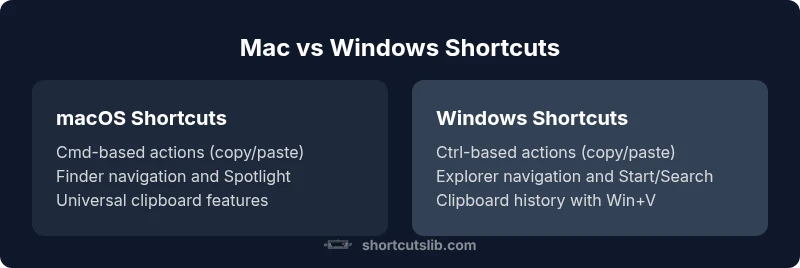
Mac vs Windows Keyboard Shortcuts: A Practical Guide
Explore practical, side-by-side Mac and Windows keyboard shortcuts. Learn how to unify workflows, optimize productivity, and use cross-platform tricks with Shortcuts Lib.


According to Shortcuts Lib, mac windows keyboard shortcuts form a practical cross-platform toolkit that speeds up everyday tasks. This quick comparison highlights core differences, shared mappings, and best practices to build a unified workflow. By standardizing a minimal cross-platform map, you reduce cognitive load and accelerate efficiency across macOS and Windows.
The Core Concept: macOS vs Windows Shortcuts in Practice
Despite the OS divide, a lot of shortcut logic overlaps between macOS and Windows, and recognizing where they diverge is the fastest path to fluency. The macOS model leans on the Cmd modifier as the primary trigger for editing, navigation, and system actions, while Windows relies on Ctrl as the backbone and uses Alt for accessing menus and secondary commands. This section maps the big picture: which actions are OS-native, which are app-specific, and where you can apply a single approach across both platforms. Shortcuts Lib’s analysis emphasizes building a mental crosswalk: a small, consistent set of core mappings you can carry from one OS to another. When you learn these core mappings, you unlock faster text editing, file management, and window navigation without constantly translating keys.
Key takeaway: Start by mastering Cmd vs Ctrl, then learn the closest equivalents for common tasks like copy, paste, undo, and select all across apps. This shared toolkit becomes the foundation for a reliable cross-platform workflow.
Modifier Keys and What They Do
The two biggest design differences in macOS and Windows shortcuts come down to the modifier keys and the optional Alt/Option keys. On macOS, Cmd (⌘) is the primary modifier for most actions, with Option (⌥) providing alternate paths or extended selections. On Windows, Ctrl handles most editing commands, with Alt facilitating menu access and advanced keyboard shortcuts.
- Cmd ↔ Ctrl: For common actions like copy (Cmd+C vs Ctrl+C) and paste (Cmd+V vs Ctrl+V), think of Cmd as the Mac staple and Ctrl as the Windows staple.
- Option ↔ Alt: Option on Mac opens alternate input or extended behavior; Alt on Windows activates real-time menu shortcuts.
- Fn and Shift: The Fn key modifies function keys and hardware controls; Shift is a universal modifier for capitalization and selective actions.
Shortcuts across apps often adapt these two cores, so learning the base mappings first pays off in everything from text editors to browsers. A practical tip is to build a personal cheat sheet that lists Cmd↔Ctrl equivalents side by side with Option↔Alt equivalents across your most-used apps.
Common Text Editing Shortcuts Across Platforms
Text editing shortcuts are where most users notice a big difference in muscle memory. Below is a cross-platform reference you can memorize and customize by app.
- Copy: Cmd+C on macOS; Ctrl+C on Windows
- Paste: Cmd+V on macOS; Ctrl+V on Windows
- Cut: Cmd+X on macOS; Ctrl+X on Windows
- Undo/Redo: Cmd+Z / Cmd+Shift+Z on macOS; Ctrl+Z / Ctrl+Y on Windows
- Select All: Cmd+A on macOS; Ctrl+A on Windows
- Find: Cmd+F on macOS; Ctrl+F on Windows
Beyond these basics, many apps provide app-specific shortcuts. For cross-platform efficiency, aim to master these core equivalents first, then gradually learn the most-used app shortcuts. Shortcuts Lib suggests creating a single, portable reference you can consult during quick practice sessions rather than trying to memorize every shortcut in every app at once.
File Management and Navigation Shortcuts
Navigating files and folders is a daily task that benefits from consistent shortcuts. macOS uses Finder and Spotlight for navigation and search, while Windows uses Explorer and the Start/Search system. Key practices include learning the dominant keyboard actions in each environment and building a cross-platform mapping for frequent tasks.
Finder shortcuts (macOS) often involve Cmd for actions like new folder, rename, or quick search. Explorer shortcuts (Windows) rely on Ctrl for similar commands, with Ctrl+N for new item and F2 for rename. Spotlight and Windows Search provide quick entry points to files, apps, and settings when you learn the right trigger keys. By coupling these takeaway actions into a reverse-lookup cheat sheet, you can reduce translation time when switching between macOS and Windows.
Pro-tip: Build a small set of universal file-management shortcuts (like New Folder, Rename, Copy, Paste) in a single list, and map the Mac and Windows versions side by side for fast recall in real work scenarios.
Window Management and App Switching
Window management is where platform behavior diverges the most, but you can still achieve high efficiency with mindful practice. On macOS, Command+Tab switches apps, while Cmd+` toggles between windows of the current app. Windows uses Alt+Tab for app switching and Win+Arrow keys for window snapping. Mission Control on macOS and Task View on Windows add overviews of open windows, desktops, and apps for quick navigation.
Cross-platform tip: establish a consistent approach to session navigation—use Cmd+Tab (Mac) or Alt+Tab (Windows) to switch apps, and use a platform-neutral pattern like a quick window switch followed by a window-level command (e.g., close, minimize) in both OSs.
As you practice, integrate a daily micro-routine: switch apps with the shortcut, then arrange the active windows with a predictable pattern. This reduces context-switch cost and strengthens muscle memory across environments.
Screen Capture and Accessibility Shortcuts
Screen capture shortcuts differ widely, but a practical approach is to map the most-used captures to a small set of cross-platform keystrokes. macOS uses Cmd+Shift+4 for area selection and Cmd+Shift+3 for full screen, with Cmd+Shift+5 offering extended controls. Windows provides a variety of options via PrtScn, or Win+Shift+S for the built-in Snip & Sketch tool. Accessibility shortcuts—such as zoom and screen magnification—also vary by platform and app.
To maximize cross-platform efficiency, create a minimal capture map that works in your primary apps (e.g., keyboard shortcuts for selecting a region, saving to clipboard, or exporting). Over time, you can expand to include additional capture modes for specific workflows like screenshots for documentation or design reviews.
Remember: consistent capture shortcuts reduce the need to switch mental models when moving between macOS and Windows tasks.
Cross-Platform Mapping Strategies
If your work spans both macOS and Windows, a few core strategies help you stay productive without cognitive overload. First, identify a minimal, high-frequency mapping that covers the vast majority of your tasks (copy, paste, undo, find, select all, new, save). Second, adopt a side-by-side cheat sheet that stacks the Mac and Windows equivalents for quick reference. Third, practice a weekly cross-platform drill: pick 15 minutes to rehearse the mappings using real work tasks.
Additionally, think about app-agnostic shortcuts first (text editing, navigation, window management), then layer in app-specific shortcuts as needed. This approach yields faster mastery and reduces cross-platform friction. Shortcuts Lib’s research emphasizes consistency and repetition as keys to long-term retention.
Practical tip: keep a one-page cross-platform cheat sheet on your desktop or in your notes app, and annotate with quick app-specific notes for areas where shortcuts differ.
Learning Techniques That Stick
To convert short-term familiarity into durable skill, combine deliberate practice with contextual application. Start with a compact core mapping and practice it in small daily tasks. Use spaced repetition by revisiting the cheat sheet every few days, then integrate the new mappings into real projects. Create micro-habits: every time you perform a task, consciously press the equivalent shortcut on the other platform to reinforce the mental model.
Another powerful method is to narrate your actions aloud during practice sessions. This verbal reinforcement solidifies the sequence in your memory and reduces hesitation when you switch platforms during actual work. Finally, track your progress by recording the frequency of cross-platform shortcut usage in your daily workflow.
Shortcuts Lib notes that the most successful learners blend structured practice with real-world tasks, producing durable cross-platform fluency.
Real-World Scenarios: When to Use Platform-Specific Shortcuts vs Cross-Platform Maps
In everyday work, you will often switch between Mac-native apps and Windows-native apps, which means you’ll rely on both platform-specific shortcuts and cross-platform mappings. For core tasks like quick editing in a cross-platform editor, cross-platform mappings save cognitive load and enable a smoother workflow. When you’re deep inside a platform-specific app—such as Final Cut Pro on Mac or Visual Studio on Windows—platform-specific shortcuts are often the fastest route to peak productivity.
A practical rule of thumb is to use cross-platform shortcuts for routine, cross-application work (text editing, navigation, basic file operations) and reserve platform-specific shortcuts for native apps with specialized workflows. Over time, your muscle memory will yield substantial speed improvements and fewer errors when moving between platforms. This balanced approach, advocated by Shortcuts Lib, helps teams stay efficient without forcing one OS onto every task.
Comparison
| Feature | macOS Shortcuts | Windows Shortcuts |
|---|---|---|
| Modifier keys | Cmd (⌘) as primary modifier; Option (⌥) for alternate paths | Ctrl as primary modifier; Alt for menus and extended actions |
| Text editing | Cmd+C/V/X for copy/cut/paste; Cmd+Z for undo | Ctrl+C/V/X for copy/cut/paste; Ctrl+Z/ Ctrl+Y for undo/redo |
| Navigation | Cmd+Tab to switch apps; Cmd+` to cycle windows | Alt+Tab to switch apps; Win+Arrow keys for window arrangement |
| File management | Finder shortcuts (Cmd+N new window); Cmd+Shift+N for new folder | Explorer shortcuts (Ctrl+N); Ctrl+Shift+N for new folder |
| Screenshots and capture | Cmd+Shift+3/4; Cmd+Shift+5 for options | PrtScn, Win+Shift+S for region capture |
| Cross-platform mapping | Establish Cmd↔Ctrl and Cmd↔Ctrl+X/Y mappings across apps | Mirror mapping approach for Alt/Option where possible |
Pros
- Promotes consistency across platforms
- Reduces cognitive load with a shared core
- Speeds up daily tasks once learned
- Can be customized per workflow
- Improves cross-team collaboration on mixed-OS setups
Cons
- Requires initial time investment to learn
- App-specific shortcuts can differ widely
- Over-relying on cross-platform mappings may slow native apps
- Memory burden if cheat sheets grow too large
Cross-platform mapping plus selective platform-specific shortcuts is the right balance
Adopt a core cross-platform map to minimize context-switching. Supplement with platform-specific shortcuts when working in native apps to maximize speed and accuracy.
Questions & Answers
What are the most universal Mac and Windows shortcuts that work across both platforms?
The most universal shortcuts include copy, paste, cut, undo, select all, and find. These combos exist in most apps and across both operating systems, though the modifier keys differ (Cmd vs Ctrl, Option vs Alt). Building a cross-platform map for these actions is the first step to fluency.
Copy and paste, undo, and find are universal across Mac and Windows apps, with Cmd or Ctrl as the primary modifier depending on the OS.
Are there OS differences in how shortcuts behave across apps?
Yes. Shortcuts often behave differently in each OS and in specific apps. For example, app menus, window management, and file navigation can vary notably. The best approach is to learn a core cross-platform set and then supplement with platform-specific actions when needed.
Yes, shortcuts differ by OS and app; start with a core cross-platform set and add platform-specific actions as needed.
How can I map Cmd to Ctrl across apps effectively?
Create a consistent mapping for the most-used actions (copy, paste, undo, find) by labeling the Mac equivalents alongside their Windows counterparts. Practice applying both forms in your daily tasks until the muscle memory is uniform across environments.
Set a consistent Cmd-to-Ctrl mapping for core actions and practice until it feels natural on both platforms.
Do cross-platform shortcuts apply in browsers or only in native apps?
Cross-platform shortcuts apply in browsers, text editors, and many cross-platform apps, but there are browser-specific shortcuts that differ by engine and OS. Familiarize yourself with the universal editing shortcuts first, then learn browser-specific items as needed.
Universal editing shortcuts work in browsers too, with some browser-specific variations.
What is the best approach to learning cross-platform shortcuts?
Start with a concise cross-platform map for the most-used actions, practice in real tasks, and review weekly to reinforce memory. Use spaced repetition and maintain a single cheat sheet to keep cognitive load low.
Begin with a small cross-platform map, practice daily, and review regularly with a single cheat sheet.
Are there risks or pitfalls when mixing platform shortcuts?
The main risk is confusion from context switches where a shortcut exists but behaves differently between OSs or apps. Establishing a core map and labeling each shortcut with its OS context reduces the risk and improves accuracy.
The risk is confusion from OS differences; use a labeled core map to reduce mistakes.
Should I memorize every shortcut for every app?
No. Focus on a core set that's most frequently used across your tech stack, then gradually add app-specific shortcuts as you need them. This staged approach keeps learning manageable and effective.
Prioritize a core set and add app-specific shortcuts gradually.
Main Points
- Prioritize Cmd/Ctrl equivalents for core editing tasks
- Create a one-page cross-platform cheat sheet
- Practice daily with real tasks for durable learning
- Balance cross-platform mappings with platform-specific shortcuts
- Use the cheat sheet across apps to reduce cognitive load