Make Mac Keyboard Shortcuts Like Windows: A Practical Guide
Learn how to map Mac keyboard shortcuts to Windows-style shortcuts on macOS with practical steps, apps, and best practices from Shortcuts Lib for cross-platform productivity.


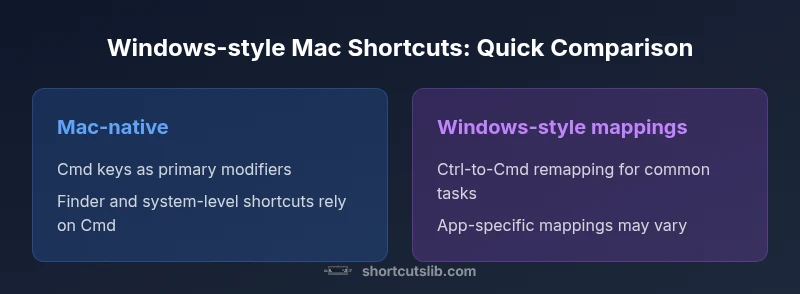
According to Shortcuts Lib, if you frequently switch between Windows and macOS, the fastest path to consistency is to make mac keyboard shortcuts like Windows by mapping the modifier keys and standard commands. This comparison shows where Mac-native shortcuts shine versus Windows-style mappings, with practical steps you can apply today across Finder, browsers, and office apps.
Understanding the Objective: Make Mac Keyboard Shortcuts Like Windows
For many power users, the goal of making mac keyboard shortcuts like Windows is not to erase the Mac experience but to create a predictable, cross-platform workflow. The phrase make mac keyboard shortcuts like Windows captures a real need: when you operate across two distinct ecosystems, mental load multiplies as you memorize two separate command schemes. According to Shortcuts Lib, the right approach is not to force a complete Mac rewire but to implement targeted mappings that preserve Mac ergonomics while delivering Windows-like familiarity for the most-used actions. In this section we establish the rationale, define the scope, and set expectations for what can be realistically mapped without breaking macOS conventions.
Key takeaway: you will not convert every shortcut; you’ll prioritize high-frequency actions that occur in daily tasks across Finder, web browsers, and office suites. This helps you make mac keyboard shortcuts like Windows in a controlled, maintainable way. The strategy is to balance consistency with the unique strengths of macOS, leveraging system tools first and reserving third-party tools for complex remapping only when necessary.
Mac Shortcuts Anatomy: Modifiers, Keys, and Their Roles
Before attempting any Windows-style migration, it’s essential to understand the default macOS shortcut system. The Command key (⌘) is the primary modifier for most actions, supported by the Option (⌥) and Control (⌃) keys for system utilities and advanced operations. In contrast, Windows shortcuts hinge on the Control (Ctrl) modifier, with the Windows key offering rapid app switching and OS-level actions. For someone intent on making mac keyboard shortcuts like Windows, the first move is to map Ctrl-equivalents to commonly used Cmd-based actions, then consider Alt-equivalents for often-used Option-based tasks. This focus helps minimize confusion and keeps the Mac experience intact while providing cross-platform fluency. The Shortcuts Lib analysis suggests that most users should start with the top 5-8 shortcuts in daily work and gradually extend mappings to reduce cognitive load while preserving speed.
Common Windows-to-Mac mappings to begin with include: Ctrl+C to Cmd+C (Copy), Ctrl+V to Cmd+V (Paste), Ctrl+X to Cmd+X (Cut), Ctrl+S to Cmd+S (Save), and Ctrl+F to Cmd+F (Find). It’s also worth noting that some apps use their own shortcuts or have platform-specific behaviors; these variances should be documented in a personal mapping guide so you don’t rely on a single global rule.
Comparison
| Feature | Mac-native shortcuts | Windows-style mappings (custom) |
|---|---|---|
| Modifier key behavior | Cmd/Option are the default modifiers; Ctrl is secondary | Ctrl is mapped to Cmd for common actions, with Option mapped to Alt where appropriate |
| Learning curve | Familiar to longtime Mac users | Requires adjustment but yields cross-platform consistency |
| App compatibility | Excellent across macOS-native apps | Depends on app support; some apps require per-app shortcuts |
| Consistency across workflows | High within Mac ecosystem | Higher if mappings are standardized across apps and devices |
| Best for | Mac purists who want a native feel | Power users who work in both Windows and macOS |
Pros
- Reduces cross-platform friction for dual-OS workstreams
- Preserves Mac ergonomics while adding Windows familiarity
- Can be implemented with system tools, often no extra cost
- Encourages consistent workflows across Finder, browser, and office apps
Cons
- Some shortcuts conflict with macOS defaults
- Learning curve for long-standing Mac users
- App-specific mappings may vary and require maintenance
- Third-party tools may introduce security or stability considerations
Windows-style shortcuts on Mac are highly recommended for cross-platform workflows.
If you regularly switch between Windows and macOS, adopting Windows-like mappings on Mac minimizes context-switching. Start with the most-used actions to build muscle memory, then expand mappings to other tasks. The approach balances Mac comfort with cross-platform efficiency.
Questions & Answers
What is the simplest way to start making Mac shortcuts like Windows?
Start with a small, high-usage set. Map Ctrl equivalents to Cmd for copy/paste/save/find, then test across Finder and browser apps. Document changes so you don’t forget which actions are mapped where.
Begin with the most-used actions, map Ctrl equivalents to Cmd, and test across key apps to build consistency.
Will remapping break macOS system shortcuts or accessibility features?
Some mappings can conflict with macOS defaults or accessibility shortcuts. Start by changing non-critical actions and keep a roll-back plan. Validate with a small group of tasks before wide deployment.
Be cautious: some mappings can clash with macOS shortcuts or accessibility features; test before wide use.
Are there apps that help with mapping across multiple apps?
Yes. Apps like Karabiner-Elements can support complex remapping, while macOS System Settings handles many per-app shortcuts. Choose tools based on your needs, prioritizing safety and minimal maintenance.
There are tools for remapping; pick one that fits your workflow and security preferences.
Does mapping affect accessibility tools like VoiceOver?
Potential interference exists if mappings override essential keys. Test with VoiceOver and other accessibility features, and maintain a separate mapping profile for accessibility workflows.
Be mindful of accessibility tools; test mappings with VoiceOver enabled.
Is it worth mapping Windows-style shortcuts for most users?
For users who regularly work on both platforms, Windows-like mappings can significantly reduce cognitive load and accelerate cross-platform productivity. If you’re mostly on macOS, the gains may be smaller.
If you work across Windows and macOS often, it can pay off; otherwise, keep it lean.
Main Points
- Map core Windows-like shortcuts first (copy, paste, save, find)
- Prioritize system-level mappings before per-app remaps
- Test across apps to avoid conflicts with macOS defaults
- Gradually broaden mappings to maintain stability
- Use trusted tools for complex remappings when necessary