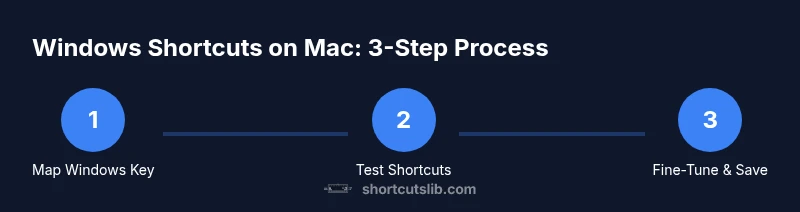
How to Use Windows Keyboard Shortcuts on Mac
Learn how to use Windows-style keyboard shortcuts on a Mac with mapping strategies, built-in macOS options, and optional remapping tools. Perfect for power users who switch between Windows and macOS on a Mac.


You can use Windows keyboard shortcuts on a Mac by adopting a consistent mapping strategy and, when needed, remapping keys. The simplest approach is to rely on macOS defaults for most shortcuts and map Windows-style keys to Command and Option. If you run Windows on your Mac (via Boot Camp or a VM), you can use Windows shortcuts there. This guide shows you how.
What changes when you use Windows shortcuts on a Mac
When you first try to press Ctrl+C on macOS, you might expect a copy, but depending on your setup, you may experience a different result. macOS prioritizes the Command key as the primary modifier for most shortcuts, while Windows shortcuts rely on Ctrl. If you plan to work with Windows-style shortcuts on a Mac, you should be prepared for a mismatch between the two keyboard ecosystems. According to Shortcuts Lib, the most reliable path is to map your Windows-style shortcuts to macOS equivalents or to run Windows in a VM or Boot Camp where Windows shortcuts are native. The big idea is to keep a consistent modifier system so you aren’t guessing which key performs a given action. This means building a simple mental model: Command handles the Mac equivalents, and the Windows key can be mapped to Command when you’re using a Windows keyboard on macOS.
Top-level thoughts on consistency and predictability are essential to avoid accidental edits or data loss.
Tools & Materials
- Mac computer (macOS 10.15+ recommended)(Ensure you can access System Settings or System Preferences to remap keys.)
- Windows keyboard (optional)(Helpful to replicate Windows layouts; any keyboard works with proper mapping.)
- System Settings access to Keyboard > Modifier Keys(Used to map the Windows key to Command and Alt to Option.)
- Karabiner-Elements (optional)(Advanced remapping across apps for deeper Windows-style shortcuts.)
- Boot Camp or virtualization software (optional)(If you plan to run Windows within macOS to preserve Windows shortcuts.)
Steps
Estimated time: 30-45 minutes
- 1
Choose your mapping approach
Decide whether you’ll rely on macOS defaults with occasional remapping or implement a full Windows-style mapping across macOS. Your choice shapes which keys you’ll modify and how you’ll test them in your everyday workflows.
Tip: Start with a small set of core shortcuts (Copy, Paste, Save) to validate your approach before expanding. - 2
Open Modifier Keys settings
In macOS System Settings, navigate to Keyboard and open Modifier Keys. Identify which physical key on your Windows keyboard will trigger Command, Option, and Control on macOS in your setup.
Tip: If the Windows logo key doesn’t appear in the options, you may need an app like Karabiner-Elements. - 3
Map the Windows key to Command and Alt to Option
Set the Windows logo key to trigger Command and the Alt/Option key to trigger Option. This aligns Windows shortcuts with macOS-style actions.
Tip: Test immediately by performing Cmd-based shortcuts to confirm Command mapping works as expected. - 4
Install and configure Karabiner-Elements (optional)
If you need more granular control, install Karabiner-Elements and create simple modifications to enforce Windows-style shortcuts across apps.
Tip: Back up the current profile before making major changes. - 5
Test core shortcuts in multiple apps
Open a text editor, Finder, and a browser. Verify that essential actions (Copy, Paste, Save, Undo, Find) respond as intended after mapping.
Tip: Document any app-specific anomalies so you can tailor per-application shortcuts. - 6
Fine-tune per-app shortcuts
Some apps have unique shortcuts. Create per-app rules or keep a global mapping with Command-based equivalents for consistency.
Tip: Use app-specific shortcuts where macOS defaults don’t align with the Windows layout. - 7
Save your configuration and back it up
Export your mapping profile or note the changes you made so you can restore quickly if needed.
Tip: Consider labeling the profile as “Windows-style on Mac” for future reference.
Questions & Answers
Can I use Windows shortcuts on Mac without remapping?
Some shortcuts may work by default (like Cmd-based equivalents), but many Windows shortcuts won’t map cleanly without adjusting the modifier keys. Remapping often provides a smoother, more predictable experience.
You can try standard macOS shortcuts first, but for full parity you’ll likely need to adjust the modifier keys.
What is the best way to map keys on macOS?
Use System Settings > Keyboard > Modifier Keys for basic mapping (Windows key to Command, Alt to Option). For deeper control, Karabiner-Elements offers per-app and global mappings.
Start with Modifier Keys, then add Karabiner-Elements if you need finer control.
Will Boot Camp or virtualization affect shortcut mappings?
In Boot Camp, Windows shortcuts work as in a PC. In a VM or Parallels, you can usually use Windows shortcuts inside the Windows environment, while macOS shortcuts govern the host.
Shortcuts depend on the running OS; Windows shortcuts are native in Windows environments on your Mac.
Do Windows shortcuts work in macOS apps when mapped?
Many macOS applications support Command-based shortcuts; Windows-style shortcuts may only work after proper mapping. Some apps keep their own shortcuts independent of global mappings.
With proper mapping, you can achieve parity, but some apps may differ.
How do I revert my mappings if something goes wrong?
Reset modifier keys to default in System Settings or uninstall any remapping tool and reapply the defaults. Keeping a backup helps restore quickly.
If things go wrong, restore defaults and reapply carefully.
Is there a risk to enabling remappings?
Yes, remapping can interfere with OS shortcuts and application shortcuts. Always back up settings and test gradually to avoid surprises.
There is some risk; proceed with caution and back up first.
Watch Video
Main Points
- Map Windows keys to macOS modifiers for consistency.
- Test core shortcuts across apps to confirm behavior.
- Consider Karabiner-Elements for advanced mappings.
- Use VM/Boot Camp to preserve Windows shortcuts when needed.
- Document your setup for future reference.