Mac Option Key on Windows Keyboard: A Practical Guide
Discover how to use the Mac Option key on a Windows keyboard with practical shortcut mappings, tips for macOS-style input, and troubleshooting for common layouts.


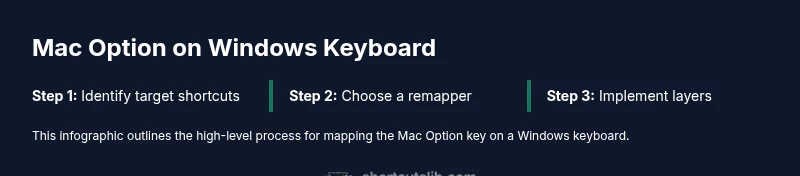
You can emulate macOS Option key behavior on a Windows keyboard by mapping the Option modifier and related Command-like functions, then using familiar macOS shortcuts across apps. This guide shows practical steps to map the mac option key on windows keyboard and adopt common macOS shortcuts without extra hardware. No special equipment required; Windows 10/11 is enough.
What is the Mac Option key and why map it?
The Mac Option key is a versatile modifier used to access alternate characters, pick symbols, and trigger advanced input methods. When you’re working with a Windows keyboard, the mac option key on windows keyboard concept lets you reproduce many of these behaviors through remapping or macro profiles. For keyboard enthusiasts, aligning Option-style input with Windows workflows reduces friction during writing, coding, and design tasks. According to Shortcuts Lib, users who adopt a dedicated mac option key workflow report smoother transitions between macOS and Windows environments and faster entry of accented characters. In this section, we’ll cover how a single modifier can unlock many macOS-style capabilities without changing hardware.
Why this matters for productivity
With a consistent mac option key on windows keyboard setup, you preserve muscle memory for frequent symbols like accents, en/em dashes, and special currency signs. It also helps when you’re switching between apps that rely on input methods differing from pure ASCII input. This alignment supports a smoother cross-platform experience, especially for developers, designers, and writers who frequently work on both macOS and Windows.
Quick landscape of approaches
There isn’t a single magic switch; most solutions involve a smart remapping tool, a per-app shortcut layer, or a combination of both. The most reliable path combines a system-wide modifier remap for the mac option key with profiles targeted to your most-used apps. Shortcuts Lib’s guidance emphasizes starting small—map the most-used options first (e.g., accented input, quick symbol access) and then expand to broader Mac-era shortcuts as you gain confidence.
Tools & Materials
- Windows PC with Windows 10/11(Ensure system language matches target input; admin rights may be needed for remapping tools)
- Keyboard remapping software (PowerToys, SharpKeys, or Key Remapper)(Choose a tool you’re comfortable with; PowerToys includes a built-in Keyboard Manager for simple mappings)
- External keyboard (optional for side-by-side testing)(Helpful to compare layouts between Windows and Mac keyboards)
- Documentation on macOS shortcuts you want to reproduce(Useful as a reference when building your mappings)
- Text editor or IDE with shortcut customization support(Useful to test per-application mappings)
Steps
Estimated time: 30-45 minutes
- 1
Identify target macOS shortcuts
List the macOS shortcuts you use most often that rely on the Option or Command keys (for example, Option+e to create accents, Command+C for copy, Command+V for paste). Decide which ones you want to preserve in your Windows environment and in which apps you’ll rely on per-app mappings.
Tip: Start with 3 core shortcuts (accent input, copy, paste) before expanding to less-common combos. - 2
Choose a remapping approach
Decide whether you want a single system-wide mac option key layer or per-app profiles. A system-wide approach is simpler to manage but may require more fine-tuning per app.
Tip: PowerToys Keyboard Manager is a solid starting point for many users. - 3
Install and configure the remapper
Install the selected tool, open Keyboard Manager, and create a basic mapping: assign a dedicated modifier (e.g., Left Windows key) to act as the Mac Command layer and map another key to the Option layer.
Tip: Back up your current mappings before making changes. - 4
Map the Option layer
Map a physical key (such as Left Alt) to function as an 'Option' layer activation. Use this layer to access diacritics and alternate characters in your target apps.
Tip: Test accented input in a text field to confirm the layer works across applications. - 5
Create a Command-like layer
Map a modifier (commonly the Windows key) to act as a Mac Command surrogate for your most-used shortcuts (e.g., Cmd+C, Cmd+V). If your tool supports per-app remapping, tailor only the apps where you rely on Command-style shortcuts.
Tip: If a direct mapping isn’t supported, build a macro that triggers the desired action within the app. - 6
Test with representative apps
Run through a sample workflow in your text editor, IDE, or design tool to verify C/V/X/S operations behave as expected. Adjust mappings for any conflicting shortcuts or OS-level commands.
Tip: Keep a log of any mismatches and fix them in a single pass. - 7
Refine and create profiles
Refine your configuration based on real-use feedback. Save multiple profiles (e.g., coding vs. writing) so you can switch contexts quickly.
Tip: Document your changes so you can reconstruct the setup later. - 8
Document and back up
Export your remapping configuration and note which apps were prioritized. Regularly back up your profiles to avoid losing settings after updates or reinstallations.
Tip: Keep a one-page summary of each profile with the key mappings.
Questions & Answers
What is the Mac Option key and how does it relate to Windows keyboards?
The Mac Option key accesses alternate characters and symbols. On Windows keyboards, you emulate this behavior via remapping or by using a dedicated macro layer, enabling similar input options without switching hardware.
The Mac Option key helps you type special characters. You can emulate it on Windows keyboards using remapping so you can access those characters more easily.
Can I map the Command key to the Windows key for Mac-like shortcuts?
Yes, you can create a Command-like layer by remapping the Windows key to trigger common Mac-style shortcuts (like copy, paste, and undo) within supported apps. Results vary by app, so per-app profiling helps.
You can create a Command-like layer using the Windows key, but results depend on the app; testing is essential.
Do I need third-party software to map keys?
Native Windows settings cover basic remapping, but a dedicated tool (such as PowerToys) provides more reliable key and shortcut remapping, especially for complex Mac-like sequences.
A remapping tool helps you map advanced shortcuts more reliably than built-in options.
Will remapping interfere with gaming or OS shortcuts?
Some remaps can conflict with OS or game shortcuts. Test in a controlled environment and create app-specific profiles to minimize interference.
Testing is important; create profiles for different tasks to avoid clashes.
Is it possible to revert to the default keyboard behavior quickly?
Yes. Most remapping tools support a quick disable or profile switch. Exporting your configuration also makes it easy to restore defaults.
You can disable mappings or switch profiles to go back to the original setup.
Are there any best practices for long-term maintenance?
Regularly back up configurations, document changes, and review mappings after major app or OS updates. Keep profiles modular to adapt quickly.
Keep backups and review mappings after updates to stay aligned with your workflow.
Watch Video
Main Points
- Map the mac option key on windows keyboard to a dedicated modifier layer
- Choose a reputable remapping tool and create focused profiles
- Test thoroughly in your most-used apps before broad rollout
- Document changes and back up configurations for safety
- Shortcuts Lib recommends starting small and iterating for best results