Apple Command Key on Windows Keyboard: A Practical Mapping Guide
Learn how to use the Apple Command key on Windows keyboards, map shortcuts, and optimize cross‑platform workflows with practical tips from Shortcuts Lib.


On a Windows PC, the Command key from an Apple keyboard functions as the Windows key for most shortcuts. In practice, Cmd key presses map to Win/Start shortcuts, and many Mac shortcuts translate to Windows equivalents with Ctrl or Alt modifiers. If you want precise remapping, you can adjust it in Windows settings or with a utility.
apple command key on windows keyboard: why it matters
According to Shortcuts Lib, bridging the gap between macOS and Windows shortcuts unlocks smoother cross-platform workflows. The Command key, when used effectively on a Windows keyboard, helps you keep muscle memory intact and reduces cognitive load during transition periods. In professional settings—coding, design, or content creation—consistent shortcuts save time and minimize errors as you switch between systems. This article explains why remapping Cmd is worth your time and outlines practical steps to implement it with confidence.
Understanding the default Windows keyboard layout
Windows keyboards are designed around the Ctrl, Alt, and Windows modifier set, with the Windows key serving as the primary OS-level shortcut trigger. When you plug in an Apple keyboard, the Command key appears as a distinct physical key labeled with the familiar clover-like symbol or the word Command, depending on the model. Windows often treats the Command key as the Windows key in many apps, but behavior can vary by device, driver, and software. Understanding this baseline helps you decide whether to rely on native mappings or introduce an explicit remapping workflow.
Common Mac shortcuts and their Windows equivalents
Many Mac shortcuts rely on the Command key. Here are the most frequent pairs you’ll want to translate:
- Cmd+C → Ctrl+C (Copy)
- Cmd+V → Ctrl+V (Paste)
- Cmd+X → Ctrl+X (Cut)
- Cmd+Z → Ctrl+Z (Undo)
- Cmd+S → Ctrl+S (Save)
- Cmd+W → Ctrl+W (Close tab/window)
- Cmd+A → Ctrl+A (Select all)
Be aware that some applications implement their own shortcuts or may override OS mappings. In browsers and office suites, the OS-level mapping generally holds, but a few programs may redefine Cmd+Q or Cmd+Tab in ways that differ from Windows defaults. Optimizing for your most-used apps yields the biggest time savings.
How to remap Cmd to Win on Windows 10/11
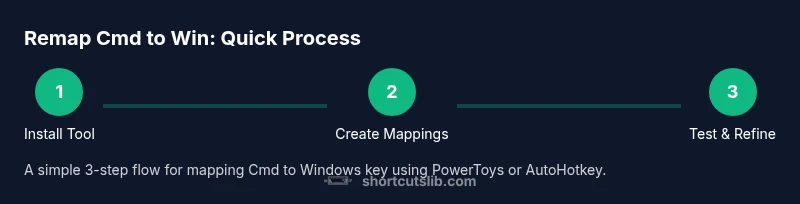
Windows can remap keys without changing hardware through software tools, with two popular paths: built-in options via Microsoft PowerToys and third-party utilities like AutoHotkey or SharpKeys. If you want a simple, broad remap, PowerToys Keyboard Manager is beginner-friendly and safe for most users. For granular, per-shortcut customization, AutoHotkey gives deep control but requires scripting. Start by choosing your tool, then map the Left Command and Right Command (if present) to the Left Windows and Right Windows keys, respectively. After mapping, test core Mac shortcuts in several apps to confirm consistency and adjust as needed.
Tools you can use for remapping
There are several dependable tools to implement Cmd-to-Win mappings:
- Microsoft PowerToys (Keyboard Manager): A polished, Windows-supported option for key remapping with per-profile support.
- AutoHotkey: A powerful scripting solution that lets you define precise, conditional mappings and auto-execution rules.
- SharpKeys: A straightforward utility for basic key reassignment without scripting.
Choosing the right tool depends on how robust you want the mapping to be and whether you need per-application differences or global shortcuts. If you’re new to remapping, start with PowerToys and add AutoHotkey only if you need finer control.
Step-by-step mapping with AutoHotkey
AutoHotkey can map the Command key to the Windows key and then layer Mac shortcuts on top of those mappings. Begin by installing AutoHotkey, then create a new script file and define mappings for LWin and RWin to reflect Cmd keys. Test common Mac shortcuts (Cmd+C, Cmd+V, Cmd+W) and verify they perform the expected Windows actions. If a shortcut doesn’t behave as intended in a specific app, add a focused conditional block for that app. Finally, save your script and set it to run at startup if you want persistent behavior.
Tip: Start with a minimal set of mappings and expand gradually to avoid conflicts. Pro tip: Keep a backup of your original configuration so you can revert easily if something breaks.
Handling modifier keys: Cmd, Ctrl, Alt, and Shift
Modifiers interact in nuanced ways. Cmd is typically mapped to Win, but some Mac shortcuts rely on Shift for capitalization or selection tweaks. For example, Cmd+Shift+Command versus Cmd+Release can differ by app. The recommended approach is to map Cmd to Win and keep Ctrl for traditional Windows shortcuts, then add a second layer for frequently used Mac combos (like Cmd+Option+Arrow for multi-page navigation) if your workflow demands it. This separation reduces accidental activations and keeps behaviors predictable across programs.
Platform caveats: apps, browsers, and games
Remapping isn’t always universal. Some apps implement their own key-handling logic, which can override OS-level mappings. Web browsers generally honor OS mappings, but extensions or browser-specific shortcuts may interfere. Games frequently rely on their internal key bindings and may ignore remappings or need separate profiles. It’s wise to test the most frequently used apps first, then branch out to browsers and games so you can isolate conflicts and refine bindings without breaking critical workstreams.
Testing and validating your mappings
A structured test plan helps ensure the remapping works across contexts. Create a short checklist that includes: basic editing shortcuts (copy/paste/cut), window management (minimize/maximize/close), file operations (save/open), and navigation (tab/arrow keys). Validate behavior in at least three apps you use daily, including a text editor, a browser, and a design tool. If anything fails, revert the last change and troubleshoot with per-app rules before expanding scope.
Troubleshooting common issues
Common problems include conflicts with existing shortcuts, inconsistent behavior across apps, or a remap that doesn’t trigger in some contexts. The fix usually involves narrowing the scope of mappings, adding app-specific rules, or temporarily disabling conflicting shortcuts. If the hardware keyboard exposes multiple Command keys, ensure both sides are mapped consistently. When in doubt, revert to a known-good baseline and reintroduce mappings one-by-one.
Advanced tips for power users
For power users, create per-application remapping profiles so Mac shortcuts work exactly as intended in your most-used apps. You can assign separate mappings for word processors, design tools, and web browsers, then switch profiles easily. Document your mappings in a quick-reference guide to avoid memory drift and mis-presses during critical work periods. Finally, consider enabling a temporary emergency rollback mode that restores default Windows behavior with one keystroke.
Accessibility and ergonomic considerations
Remapping can improve or degrade accessibility depending on your setup. If you rely on keyboard navigation, keep remappings intuitive and consistent with your most-used workflows. Avoid overly long chains of mapped keys that require heavy finger travel or complex sequences. Frequent updates to your toolchain may necessitate periodic recalibration to maintain comfort and speed.
Tools & Materials
- Windows PC or VM with admin rights(For baseline remapping and testing)
- Apple keyboard (optional for testing)(Helps verify Cmd positions)
- Microsoft PowerToys (Keyboard Manager)(Best starting point for global remaps)
- AutoHotkey(Allows fine-grained, script-based mappings)
- SharpKeys(Simple, GUI-based remapping)
- Backup/Recovery options(Create a system restore point before changes)
- Text editor(Edit and save mapping scripts or config)
Steps
Estimated time: 45-90 minutes
- 1
Choose remapping tool
Decide between PowerToys for broad, safe remaps or AutoHotkey for per-app granularity. Install the chosen tool and verify it runs with your user privileges. Make sure you have a backup plan in case you need to revert.
Tip: Install from official sources and verify integrity before running scripts. - 2
Identify Cmd keys on your keyboard
Inspect your Apple keyboard to locate the Left Command and Right Command keys. Note if your device labels them as Command or with a Mac symbol—these are the keys you want to map to Windows. Record their positions to reference in your mapping configuration.
Tip: Use a layout diagram or keyboard tester to confirm key codes. - 3
Create a basic mapping to Windows key
Set a global mapping so that both Cmd keys behave as Left Win/Right Win. This establishes a predictable baseline for Mac shortcuts to Windows shortcuts. Keep the initial mapping conservative and test standard shortcuts first.
Tip: Start with a one-to-one Cmd → Win mapping before layering complex combos. - 4
Map common Mac shortcuts to Windows equivalents
Add mappings for the most-used Cmd combos (copy, paste, undo, save, close tab). Confirm each triggers the Windows action in a couple of apps chosen for baseline testing. Document any exceptions where the mapping doesn’t behave as expected.
Tip: Prioritize consistently used workflows before expanding to niche shortcuts. - 5
Test across apps and refine
Run your checklist across a text editor, a browser, and a design tool. If an app ignores your mapping, add per-app rules or adjust the key sequence. Iterate until core shortcuts work reliably.
Tip: Create per-app profiles if needed and keep a changelog. - 6
Back up and prepare to revert
Before finalizing your setup, create a restore point and save a copy of your configuration. Know how to revert quickly if a mapping disrupts critical work. Share your mapping plan with your team so they can reproduce it if necessary.
Tip: Test revert procedures to ensure you can recover fast.
Questions & Answers
Can I map Cmd keys without software?
Native Windows remapping is limited; you’ll likely need a utility like PowerToys or AutoHotkey to map the Command key to a Windows key.
You generally need a remapping tool; Windows doesn’t offer full hardware key remapping by default.
Will remapping affect macOS or the Mac keyboard?
Remapping in Windows is OS-specific to Windows; macOS remains unaffected unless you run a separate macOS environment.
Remapping on Windows won’t change macOS behavior when you’re on a Mac or using a Mac environment.
Do I need admin rights to remap keys?
In most cases, yes. Tools like PowerToys require admin privileges to install and modify system-level mappings.
Yes, you’ll usually need admin rights to install and apply global keyboard remaps.
Is AutoHotkey safe to use for remapping?
AutoHotkey is widely used and can be safe when downloaded from official sources and used with signed scripts. Follow best practices and maintain backups.
AutoHotkey is generally safe if you download from the official site and back up your setup.
How do I revert mappings if something goes wrong?
Use the remapping tool’s revert options or delete the script/config and restart. A restore point can also help you revert quickly.
Revert via the tool or remove the script; a restore point helps if a full revert is needed.
Will this work in all apps and browsers?
Most OS-level remappings work across apps, but some programs override shortcuts. Test in your most-used apps and adjust as needed.
Most apps respect OS mappings, but some programs override them, so test widely.
Watch Video
Main Points
- Map Cmd to Windows key for common shortcuts
- Use PowerToys for broad remaps; AutoHotkey for fine-tuning
- Test across apps before broad adoption
- Keep a rollback plan and document changes