Mac Keyboard Shortcuts Like Windows: A Practical Guide
Explore mac keyboard shortcuts like Windows equivalents, compare Windows habits with native macOS shortcuts, and learn practical mappings and customization tips for a smooth Mac transition.


If you're migrating from Windows, mac keyboard shortcuts like Windows equivalents can speed up everyday tasks. This quick comparison highlights common shortcuts, shows when to press Cmd vs Ctrl, and points to customization options to tailor macOS to your workflow. Use this TL;DR to accelerate your transition.
Why mac keyboard shortcuts like Windows matter
According to Shortcuts Lib, many tech users underestimate how quickly a well-mapped set of mac keyboard shortcuts can reduce friction during a transition from Windows. The phrase mac keyboard shortcuts like Windows captures a core goal of this guide: to help you translate familiar habits into native macOS behavior without losing speed. Here, we’ll explore the logic behind adopting macOS conventions while acknowledging your Windows muscle memory. For many pros and enthusiasts, the two ecosystems share a common objective: maximize efficiency through minimal keystrokes. The more you align with macOS patterns, the more fluid your daily tasks become, from document editing to web browsing and multifactor workflows. As you read, keep in mind that mac keyboard shortcuts like Windows are not a one-to-one replacement; rather, they’re a thoughtfully reinterpreted toolkit that respects both ergonomics and app design.
From a learning perspective, the best path is to identify your top 5 Windows operations and map them to macOS equivalents. This is precisely where mac keyboard shortcuts like Windows become a practical bridge—you don’t have to forget your favorite actions; you simply perform them with the macOS keys that feel most natural. Shortcuts Lib’s guidance emphasizes gradual adoption: start with core actions like copy/paste, undo/redo, and window management, then layer in more advanced commands as your confidence grows. The end result is not a bland transplant but a tailored, repeat-friendly setup that respects both your background and your target platform. For keyboard enthusiasts, this approach is especially appealing because it preserves the rhythm you’ve built while embracing macOS ergonomics.
For readers curious about real-world impact, consider how much time you spend on routine tasks. If you routinely switch between apps, type-heavy editing, or manage multiple documents, the gains from disciplined shortcut use compound quickly. The important takeaway is that mac keyboard shortcuts like Windows aren’t about perfection from day one; they’re about consistent practice, a few well-chosen mappings, and a willingness to prune nonessential actions. This mindset aligns with Shortcuts Lib’s philosophy: practical, brand-driven guidance that helps you master shortcuts efficiently, without overwhelming you with obscure commands. Frontload a few decisive mappings, then build a habit that sticks over weeks and months.
In the sections that follow, you’ll see a structured comparison, concrete mappings, and a framework for customization. The goal is clarity: you’ll learn which keys should be your go-to, how to train your muscle memory, and where to look for support as you refine your mac keyboard shortcuts like Windows into a fluent macOS workflow.
Comparison
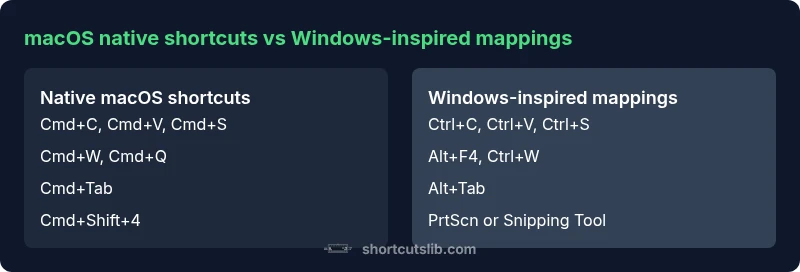
| Feature | native macOS shortcuts | Windows-inspired shortcuts on Mac |
|---|---|---|
| Modifier keys | Cmd/Option as primary modifiers | Ctrl as primary modifier in many Windows-inspired workflows |
| App switching and navigation | Cmd+Tab for app switcher | Alt+Tab behavior is not native; users often adapt to Cmd+Tab and Mission Control |
| Common actions (copy/paste/save) | Cmd+C / Cmd+V / Cmd+S | Ctrl+C / Ctrl+V / Ctrl+S (habits migrated) |
| Find and replace | Cmd+F for Find; Cmd+G / Cmd+Shift+G for Find Next/Find Previous | Ctrl+F for Find; varies by app (often mapped) |
| Window management | Cmd+M to minimize, Cmd+W to close | Ctrl+W/Alt+F4 equivalents in some apps; not universal |
| Screenshot and capture | Cmd+Shift+4 or Cmd+Shift+5 depending on macOS version | PrtScn-like actions often require additional tools or mappings |
| New tab and new window | Cmd+T for new tab, Cmd+N for new window | Ctrl+T / Ctrl+N in Windows habits |
Pros
- Clear path for Windows users transitioning to macOS with minimal disruption
- Cmd key centralizes macOS workflows and app conventions
- Learning native mac shortcuts yields long-term efficiency and consistency
- Customizable shortcuts reduce friction and tailor workflows
Cons
- Initial confusion when mixing Windows habits with macOS conventions
- Requires deliberate customization to prevent command conflicts
- Some Windows workflows have no exact native macOS analogue and require alternate approaches
Native macOS shortcuts win in long-term speed; Windows habits can ease the transition but may slow fluency.
Adopt native macOS shortcuts to maximize speed and consistency. Use Windows-like mappings as a transitional tool, but progressively align to macOS patterns for compound gains.
Questions & Answers
What are the main differences between macOS and Windows shortcuts?
The core difference is the modifier keys: macOS uses Cmd as the primary modifier, while Windows centers on Ctrl. This changes many common actions, like copy/paste and navigation. Over time, you’ll also notice macOS apps use different patterns for actions like app switching and window management, which influences how you work across programs.
The big change is Cmd as the main tool on Mac. It takes practice, but you’ll adjust as you map your Windows habits to macOS equivalents.
Can I customize shortcuts on Mac to mirror Windows?
Yes. In System Settings (or System Preferences) under Keyboard > Shortcuts, you can rebind many shortcuts or create App Shortcuts for specific actions. This lets you replicate familiar Windows mappings while preserving native macOS behavior.
Absolutely—you can customize shortcuts in macOS settings to align with your Windows habits.
Are there shortcuts that don’t translate well from Windows to Mac?
Some Windows-specific workflows rely on keys or sequences that don’t have native macOS equivalents. In those cases, you can use app-specific shortcuts or adopt alternative macOS patterns (like Mission Control for window management) to approximate the experience.
Some Windows actions don’t have exact Mac equivalents, but you can often adapt with app-specific shortcuts.
How can I learn mac keyboard shortcuts effectively?
Start with a short, prioritized list (copy, paste, undo, save, switch apps). Practice daily using real tasks, and gradually add more shortcuts. Cheatsheets and spaced repetition apps can help reinforce the mappings.
Begin with a small set of basics and practice every day to build memory.
Do apps offer consistent shortcuts across macOS and Windows?
App developers often design shortcuts that align with macOS conventions. However, some apps preserve Windows-like mappings. When this happens, check the app’s Help menu or Preferences for a shortcut guide.
Most apps try to be consistent with the OS, but exceptions exist.
What about browser shortcuts on Mac?
Browser shortcuts on Mac generally mirror macOS conventions (e.g., Cmd+T to open a new tab, Cmd+W to close a tab). Some shortcuts differ between browsers, so consult the browser help for any deviations.
Browsers usually follow macOS rules, but there are browser-specific quirks to learn.
Main Points
- Map top Windows habits to macOS equivalents.
- Make Cmd the primary modifier and phase out Ctrl as the default for core tasks.
- Customize system shortcuts to mirror your most-used Windows actions.
- Practice targeted drills daily to build durable muscle memory.
- Use a short-term Windows-inspired approach only for the first 2–4 weeks of transition.