Keyboard Shortcuts Mac vs Windows: A Practical Comparison
A rigorous comparison of macOS and Windows keyboard shortcuts, highlighting core differences, common tasks, and practical remapping tips for faster, cross-platform productivity.


Whether you primarily use a Mac or a PC, keyboard shortcuts shape your daily speed. Mac shortcuts center on the Command key, while Windows relies on the Ctrl key; many tasks have distinct keystroke patterns, but the underlying actions remain the same. According to Shortcuts Lib, understanding these foundations reduces friction when switching between platforms and boosts cross-OS productivity. This comparison highlights the core differences and practical tips to bridge them.
Why the keyboard shortcut ecosystem matters
In both macOS and Windows, keyboard shortcuts do more than save keystrokes—they shape how you think about tasks. Proficient shortcuts reduce context switching, sustain flow, and reinforce muscle memory across apps. For creators, developers, and power users, a well-designed shortcut set can be the difference between a 30-minute task and a 5-minute sprint. According to Shortcuts Lib, the way a platform structures its shortcuts often determines how quickly users internalize them and how easily they adapt when switching between ecosystems. On macOS, for example, many shortcut actions lean into the Command key as a consistent modifier across system and app layers, while Windows foregrounds the Ctrl key for most core actions and reserves the Windows key for system-level tasks. This separation isn't simply historical—it directly informs learning strategies, tool choice, and cross-platform ergonomics. The goal of this article is to unpack these differences with clear examples, practical tips, and concrete remapping strategies so you can optimize your daily workflows regardless of which machine you seat yourself at.
Core differences at a glance
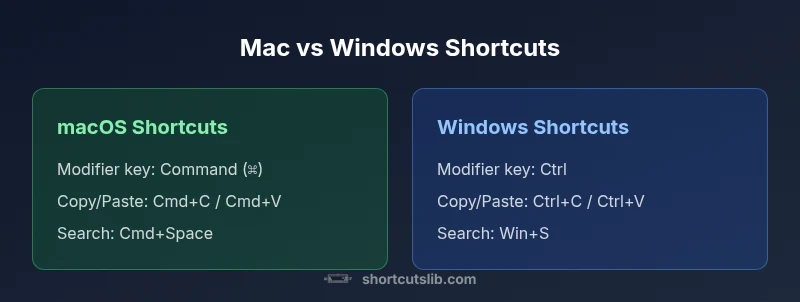
- Modifier keys: macOS centers on Command (⌘) with Option (⌥) and Control (⌃) for secondary functions, while Windows prioritizes Ctrl with Alt and the Windows key for system actions.
- Copy, paste, and undo: Mac uses Cmd+C/V/Z; Windows uses Ctrl+C/V/Z, with common variations like Cmd+Shift+Z vs Ctrl+Y for redo in many apps.
- Search and navigation: macOS favors Cmd+Space for Spotlight; Windows leans on Win+S for system search and Ctrl+F inside documents.
- Window management: macOS relies on Mission Control and App Exposé; Windows emphasizes Task View, Snap Assist, and Win+Arrow for tiling.
- App parity and exceptions: While many apps unify behavior, some professional tools retain platform-specific conventions that affect speed and accuracy.
Modifier keys and their roles
Modifier keys are the single most visible difference between macOS and Windows shortcuts. On Macs, the Command key acts as the primary modifier and is paired with Option for alternate characters and with Control in specialized contexts. On Windows, Ctrl is the workhorse modifier, with Win for system actions and Alt for menu access. The net effect is a mental map that differs by platform but aligns on core actions like copy, paste, and undo. A practical approach is to memorize the three most-used clusters on each OS: navigation (movement within a document), editing (copy/paste/undo), and window management. If you switch between platforms, you can maintain speed by remembering parallel ideas (Cmd+C mirrors Ctrl+C; Cmd+V mirrors Ctrl+V).
Common tasks: copy, paste, undo, find, select all
The most frequent actions in any workflow revolve around manipulating content. Copy and paste are foundational across the ecosystem, but the exact keystrokes differ: Cmd+C / Cmd+V on Mac, Ctrl+C / Ctrl+V on Windows. Undo and redo reflect similar patterns: Cmd+Z / Cmd+Shift+Z on macOS versus Ctrl+Z / Ctrl+Y on Windows. Finding text typically uses Cmd+F on Mac and Ctrl+F on Windows, while selecting all uses Cmd+A vs Ctrl+A. For power users, these mappings extend into app-specific shortcuts, such as code editors, graphic design tools, and office suites. The key takeaway is that your speed comes from habit, not just knowing the keystrokes, so consistent practice matters more than memorizing every edge case.
Window management and multi-tasking shortcuts
Efficient multitasking hinges on how you manage windows and desktops. macOS provides Mission Control (often F3 or Control+↑) and App Exposé to isolate app windows quickly, while Windows offers Task View (Win+Tab) and Snap Assist (Win+Arrow) to arrange windows side-by-side. These features reduce friction when comparing apps, dragging, and organizing workspace. Users who frequently switch between applications should learn the native window-management shortcuts thoroughly, then map common actions to a single action across both OSes (for example, switching focus between open apps or moving a window between displays).
Progressive users can also customize shortcuts in each OS to align with their most-used workflows, further decreasing the cognitive load when alternating between devices.
Text editing and formatting shortcuts
Text editing relies on precise keystrokes for navigation and modification. macOS typically uses Option+Arrow for word-by-word movement, Cmd+Left/Right to jump to line ends, and Cmd+Up/Down to jump to document extremes. Windows relies on Alt+Left/Right for backward/forward navigation in some contexts, Ctrl+Left/Right for word-level movement, and Ctrl+Up/Down for scrolling through paragraphs or documents depending on the app. In rich text editors, bold/italic/underline toggles also differ by shortcuts; many apps strive to maintain parity, but platform conventions often influence default mappings. A practical tip is to enable on-screen hints or macro palettes during learning, so you can gradually internalize both ecosystems without overloading memory.
File management and navigation shortcuts
Navigating file systems efficiently mirrors overall OS philosophy. In Finder, Mac users rely on Cmd+N to create new windows, Cmd+Shift+N for a new folder, and Cmd+Shift+G to go to a path. In Windows Explorer, similar actions map to Ctrl+N, Ctrl+Shift+N, and Alt+D for focus path navigation. Quick actions like copy/paste, rename, and delete share underlying semantics but differ in keystrokes. When working with files across platforms, build muscle memory around core actions (new window, new folder, rename, delete) and use each OS's unique finder/file manager capabilities to your advantage. This reduces the cognitive overhead of cross-platform tasks.
System search, accessibility, and quick actions
System search and accessibility shortcuts enable rapid access to apps, files, and system settings. macOS uses Spotlight (Cmd+Space) for broad queries and leverages accessibility shortcuts to support users with different needs. Windows uses Windows Search (Win+S) and accessibility features integrated into the operating system. Additionally, universal shortcuts like copy/paste and undo are foundational across both platforms. Understanding how each system surfaces quick actions—whether through search, system tray menus, or accessibility keys—helps you design a consistent workflow that minimizes context switching and keeps you productive.
Customization and learning strategies
Rather than memorize every shortcut from memory, adopt a structured learning approach. Start with the top 20 most-used actions (copy, paste, undo, find, select all, window management, and search) and practice them on one platform until you feel fluent. Then introduce cross-platform parity by mapping similar actions to the same mental model. System settings on macOS let you modify Modifier Keys, while Windows users can rely on PowerToys Keyboard Manager to remap keys. Use cheat sheets temporarily, then gradually phase them out as auto-pilot kicks in. Regularly review your progress and adjust based on the apps you use most—this keeps your shortcut set lean and highly effective.
Pitfalls and how to avoid them when switching OS shortcuts
Switching between macOS and Windows shortcuts can disrupt flow if you rely too heavily on memory without practice. Common mistakes include assuming identical shortcuts across platforms, not accounting for app-specific quirks, and neglecting window-management differences that slow you down. To avoid these pitfalls, create a minimal cross-platform plan: learn the universal actions first, then add OS-specific shortcuts. Practice in context—when editing a document, a browser, or a design tool. Finally, track your speed and accuracy to identify areas where remapping or focused practice would yield the greatest gains.
Comparison
| Feature | macOS Shortcuts | Windows Shortcuts |
|---|---|---|
| Modifier keys | Command as primary modifier; Option for alternate chars; Control in specialized contexts | Ctrl as primary modifier; Windows key for system actions; Alt for menu access |
| Copy / Paste | Cmd+C / Cmd+V | Ctrl+C / Ctrl+V |
| Undo / Redo | Cmd+Z / Cmd+Shift+Z | Ctrl+Z / Ctrl+Y |
| Open Search | Cmd+Space (Spotlight) | Win+S (Windows Search) |
| Window management | Mission Control / App Exposé (e.g., Ctrl+↑) | Task View / Snap Assist (Win+Tab, Win+Arrow) |
| Text navigation | Option+Left/Right, Cmd+Left/Right, Cmd+↑/↓ | Alt+Left/Right, Ctrl+Left/Right, Ctrl+↑/↓ |
| Find in document | Cmd+F | Ctrl+F |
| Best for | Mac: creative workflows & Apple ecosystem | Windows: enterprise, gaming, broad app support |
Pros
- Faster productivity within a single OS due to native design
- High integration with system features and apps
- Extensive customization options for modifier keys and shortcuts
- Clear, predictable learning path within each platform
- Strong accessibility support and power-user workflows
Cons
- Cross-platform switching requires remapping and adaptation
- App-specific shortcuts can vary even within the same OS across programs
- Initial learning curve when adopting the other OS defaults
Native shortcuts win for each OS; cross-platform work benefits from a deliberate hybrid approach
Leverage the best of each ecosystem by prioritizing platform-native shortcuts. For cross-platform tasks, define a small, consistent remapping plan and practice daily to bridge gaps efficiently.
Questions & Answers
What is the most universal shortcut across macOS and Windows?
Copy and paste are among the most universal actions, but the keys differ by platform (Cmd on Mac, Ctrl on Windows). Undo, redo, and find also map similarly across OSes with key differences. Focus on those universal actions to build cross-platform fluency.
Copy and paste are the most universal shortcuts, with Cmd on Mac and Ctrl on Windows. Undo and find also map closely across platforms, so start there when learning both systems.
Do Mac and Windows share any keyboard shortcuts?
Yes, many shortcuts correspond to the same actions but use different modifier keys. For example, copy and paste exist on both platforms, but the keys used are different. Be mindful of platform-specific nuances in the apps you use most.
They share the same ideas, like copy and paste, but the exact keys differ by platform. Learn the mapping for your most-used tools.
How can I remap modifiers on Mac and Windows?
On Mac, go to System Settings > Keyboard and modify Modifier Keys. On Windows, use PowerToys Keyboard Manager or in-app remapping tools. Start with one or two changes that align with your workflow and expand gradually.
On Mac, use System Settings to change modifier keys. On Windows, try PowerToys to remap keys—start small and expand as you get comfortable.
Are there keyboard shortcuts optimized for accessibility?
Yes. Both platforms provide accessibility shortcuts and features to simplify navigation, screen reading, and zooming. Start with the built-in accessibility settings, and tailor shortcuts to your needs.
Both macOS and Windows offer accessibility shortcuts. Customize them in settings to fit your needs and improve usability.
What is the best approach to learn cross-platform shortcuts quickly?
Begin with universal actions (copy, paste, undo, find). Add OS-specific shortcuts gradually, practicing in the apps you use most. Use cheat sheets or practice modes to reinforce memory.
Start with universal shortcuts, then add OS-specific ones as you practice in your most-used apps. Use quick cheats to reinforce learning.
Should I remap to a single universal set across OSes?
A pragmatic approach is to map a core universal set to consistent keys across both OSes while retaining OS-specific shortcuts for advanced tasks. This minimizes context switching and reduces errors.
Yes—map a core universal set to consistent keys on both systems, then learn OS-specific shortcuts for advanced work.
Main Points
- Learn the primary modifier keys for your OS first
- Prioritize universal actions (copy, paste, undo, find)
- Use window-management shortcuts to maximize workspace
- Customize only what you use most to avoid overload
- Practice consistently to build cross-platform fluency