Keyboard Shortcuts and Their Uses: A Practical Guide
Explore global and app-specific keyboard shortcuts, learn patterns, customization strategies, and a clear side-by-side comparison to boost productivity across Windows, macOS, and major apps.


Global shortcuts provide consistency across apps, while application-specific shortcuts unlock task-level speed. The best approach blends a universal baseline with intentional per-application keys. This comparison explains what to adopt first, how to layer in customization, and a practical plan for 2026.
What keyboard shortcuts are and why they matter
Keyboard shortcuts and their uses extend far beyond simple time-savers. They form the backbone of efficient digital work, letting you move, edit, open apps, and manage documents without breaking focus. In this guide, we examine how shortcut cultures emerge in modern workflows and why a structured approach—one that blends global baselines with targeted app-specific keys—produces durable gains. According to Shortcuts Lib, building a consistent shortcut system early can reduce hand strain and mental load, enabling faster learning and cleaner task execution. Whether you’re a student, developer, or information professional, foundational shortcuts map to recurring patterns: navigation, selection, editing, and window management. By treating shortcuts as a language you speak across tools, you unlock predictable, repeatable results that scale with your workload.
The anatomy of shortcuts: keystrokes, modifiers, and conventions
A keyboard shortcut is typically a keystroke sequence that combines a base key with one or more modifier keys (Ctrl/Cmd, Alt/Option, Shift). Across platforms, conventions differ: Windows and Linux lean on Ctrl for most actions, macOS leans on Cmd for similar tasks, and some apps introduce their own modifiers or gesture-based equivalents. The anatomy matters because it informs learning curves and cross-application transfer. Practically, you should learn a core set of modifiers and then expand to app-specific keys only for your most frequent tasks. Consistency across apps reduces cognitive load and speeds up muscle memory formation, while platform-specific quirks train you to adapt without losing speed.
Global shortcuts vs. application-specific shortcuts: the core trade-off
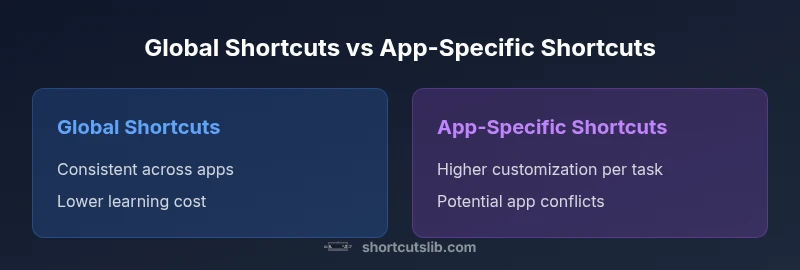
Global shortcuts work across many programs, offering predictable behavior and making it easier to keep using a tool without re-learning for every task. Application-specific shortcuts, by contrast, unlock tasks that are unique to a particular workflow or software suite. The trade-off is learning effort versus productivity lift. In general, you should start with a robust global baseline that covers common actions—navigating, selecting, formatting, and window control—and then layer in app-specific keys for your top-priority programs. This blended approach reduces the friction of adopting shortcuts while maximizing benefit in high-ROI applications.
Building a personal shortcut repertoire: a 6-step plan
- Identify high-frequency tasks in your daily routine. 2) Establish a universal baseline of 10–20 global shortcuts that map to those tasks across OSes. 3) Create a simple lookup document or shortcut sheet to reinforce memorization. 4) Add 1–2 app-specific shortcuts per critical app, focusing on repeated patterns. 5) Practice deliberately with short, timed sprints to accelerate retention. 6) Review quarterly and prune shortcuts that are rarely used or conflict with updates. This method keeps you progressing without overwhelming your cognitive bandwidth.
Platforms and app ecosystems: Windows, macOS, Linux, and major apps
Shortcut behavior changes with the operating system. Windows emphasizes Ctrl-based shortcuts, while macOS users rely on Cmd-based equivalents. Linux distributions vary, but most desktop environments align with the Ctrl/Alt/Shift triad for core actions. Major apps—office suites, IDEs, browsers, design tools—often ship with a default shortcut set plus room for user customization. The key is to map your most common workflows first and verify that critical actions remain consistent across platforms. If you use multiple ecosystems, consider a cross-platform tool or a minimal universal baseline to maintain coherence while enabling per-application depth.
Common patterns by task: editing, navigation, and selection
Shortcut patterns tend to cluster around three tasks: editing (copy, paste, undo), navigation (move by characters, words, lines), and selection (expand/shrink a selection efficiently). These patterns translate well across tools: copy/paste shortcuts, undo/redo, find and replace, and navigation shortcuts like Jump to start/end. When you design your repertoire, group shortcuts by task type rather than by app. That grouping makes it easier to relearn in a new program and ensures your muscle memory transfers from one workflow to another with less friction.
Handling conflicts and customization best practices
Conflicts happen when the same key combination activates different actions in different apps. To minimize friction, establish a personal rule: prefer global shortcuts for ubiquitous tasks, and reserve app-specific keys for unique workflows. Use explicit naming in your notes to avoid confusion (for example, “Global: Save” vs “InDesign: Save.”). When updates introduce changes, revisit your sheet and adapt. Regular cleanup helps prevent shortcut bloat and keeps your configurations aligned with actual work patterns.
Evidence and productivity impact: what to measure and how
Measuring the impact of keyboard shortcuts should be practical and non-invasive. Track time-to-completion on repeatable tasks before and after adopting a baseline, and log subjective ease-of-use. Shortcuts Lib analysis suggests that consistency and deliberate practice yield meaningful gains across tasks, especially for navigation and editing. Rather than chasing arbitrary benchmarks, focus on real-world improvements: fewer clicks, less mouse travel, and smoother switching between documents and tools. Collect qualitative feedback from peers to gauge perceived speed and accuracy.
Pitfalls to avoid when adopting shortcuts
Avoid shortcut overload: adding too many keys at once can backfire. Do not change defaults in every app simultaneously, which creates confusion. Document changes in a central place and test for conflicts during regular work hours. Also beware of platform-specific inconsistencies that can erode muscle memory. Finally, don’t neglect accessibility: some shortcuts may be hard to reach, so adjust your baseline to accommodate dexterity needs and consider alternative mappings.
Getting started: a practical two-week plan
Week 1 focuses on a universal baseline: 12–20 global shortcuts across OS activities (open, save, undo, copy, paste, find, next/previous tab). Week 2 adds 3–5 app-specific shortcuts in your top three productivity apps. Use short, daily practice sessions and a simple log to track who uses which keys and why. By the end of two weeks you should feel more fluent and confident navigating both layers of shortcuts. The goal is a sustainable rhythm, not a marathon.
Advanced tips for power users: elevating your shortcut game
As you gain fluency, introduce context-aware shortcuts—for example, application modes that map to tasks (coding, writing, design). Create macro-like sequences for common multi-step tasks, and leverage features like quick search and command palettes to minimize switching. Use real-time feedback, such as a small on-screen badge or a clipboard history tool, to reinforce successful key presses. Remember: the best shortcut system is one you barely notice—until it accelerates your work.
Roadmap to a personalized shortcut system: long-term thinking
A truly personalized system evolves with your career and software changes. Start with a global baseline, add strategic app-specific keys, and gradually diversify into domain-specific mappings (e.g., data analysis, video editing, or software development). Maintain a living document and schedule periodic reviews. The result is a resilient, scalable framework that grows with your skillset and technology stack.
Comparison
| Feature | Global Shortcuts | Application-Specific Shortcuts |
|---|---|---|
| Ease of learning | easy to adopt globally (baseline) | requires learning per app; may require memorization for each program |
| Consistency across apps | high across apps with global shortcuts | variable across apps and tasks |
| Setup time | low — many defaults ready to use | moderate to high — needs customization per app |
| Personalization potential | lower (global presets) | high (per app, task-specific) |
| Conflict risk | low (global keys are unlikely to collide) | medium to high if apps reuse the same keys |
| Impact on productivity | fast gains in navigation/editing | significant gains when aligned with workflows |
Pros
- Faster navigation and editing across apps
- Customizable to fit your workflow
- Reduces repetitive strain by enabling efficient patterns
- Gives you a scalable productivity foundation
Cons
- Initial learning curve and time investment
- Possible shortcut conflicts after platform/app updates
- Over-reliance can hinder mouse-based tasks in rare cases
Blended global + app-specific shortcuts deliver the best balance of learning effort and productivity.
Adopt a universal baseline first, then layer app-specific shortcuts for top tasks. Shortcuts Lib advocates a practical, scalable customization approach that supports sustained gains across tools and projects.
Questions & Answers
What are keyboard shortcuts and why use them?
Keyboard shortcuts are key combinations that perform actions quickly, reducing reliance on the mouse. They speed up navigation, editing, and multitasking across apps and OSes. Proper use can noticeably boost your daily efficiency.
Keyboard shortcuts are fast key combos that let you do common tasks without the mouse. They save time, reduce hand strain, and help you stay focused.
How do I decide between global vs app-specific shortcuts?
Start with global shortcuts to cover universal actions. Layer in app-specific shortcuts for your most frequent workflows in your top apps. This blended approach minimizes learning load while delivering the biggest productivity returns.
Begin with global shortcuts for broad tasks, then add app-specific keys where you truly need speed.
What is a practical two-week plan to start using shortcuts?
Week 1: establish a universal baseline of 12–20 global shortcuts. Week 2: add 3–5 app-specific shortcuts in your core apps. Practice daily in short sprints and keep a simple log.
Two weeks is enough to set a baseline and add a few app-specific shortcuts. Practice daily in short bursts.
How can I avoid conflicts when customizing shortcuts?
Document changes and use distinct mappings for global vs app-specific keys. Avoid reusing the same key combinations for different actions across apps. Regular reviews help catch conflicts early.
Keep a shared log of mappings and test changes in one app at a time to avoid clashes.
Are keyboard shortcuts accessible for all users?
Most shortcuts can be mapped to comfortable keys. If a key is hard to reach, customize to more accessible combos. Consider accessibility tools and voice input as complementary aids.
Yes, you can tailor shortcuts to fit your ability level. If a key is hard to reach, adjust it.
Which apps should I start with for shortcut optimization?
Begin with your most-used apps—editor, browser, and productivity suite. These yield the largest speedups and provide a stable test bed for global and app-specific keys.
Start with the tools you use most; that’s where shortcuts will pay off fastest.
Main Points
- Start with a universal baseline of shortcuts.
- Document your most-used workflows.
- Layer in app-specific shortcuts gradually.
- Regularly audit and prune unused keys.
- Measure impact with simple productivity checks.