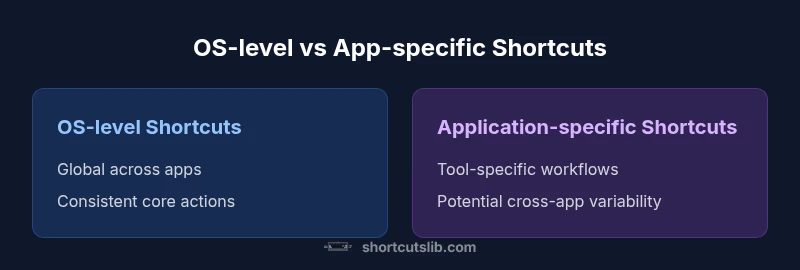
Keyboard Shortcuts and Their Functions: OS vs App
An analytical comparison of OS-level versus application-specific keyboard shortcuts, with a layered strategy to optimize speed, accuracy, and cross-application consistency.


OS-level/global keyboard shortcuts give fast, consistent control across most apps. Application-specific shortcuts deliver workflow-optimized actions within individual programs. For most users, starting with OS-wide shortcuts and then layering app shortcuts offers the best balance of speed and adaptability.
Why keyboard shortcuts matter
In digital work, seemingly small actions accumulate into large time savings. Keyboard shortcuts are concentrated, repeatable actions that replace menus and clicks with keystrokes. When we talk about keyboard shortcuts and their functions, we are describing a toolkit that reduces mouse dependence, lowers cognitive load, and speeds up common tasks. According to Shortcuts Lib, these shortcuts are the backbone of practical efficiency across the most-used apps.
From the perspective of performance, the most valuable shortcuts are those you use frequently across multiple apps: copy, paste, undo, redo, save, and switching tasks. By mastering these universal commands, you create a fast baseline you can rely on anywhere. Beyond universal commands, tool-specific shortcuts unlock tailored workflows that let you execute complex sequences with a few keystrokes. This article, written for tech users and keyboard enthusiasts, explores how OS-level shortcuts and per-app shortcuts interact and how to build a scalable, maintainable shortcut strategy you can actually keep up with over time.
OS-level shortcuts: scope and examples
Global, OS-level shortcuts operate across almost all programs, providing a stable set of commands you can lean on regardless of the app in use. The main advantage is portability: once you know the shortcuts, you can rely on them in text editors, spreadsheets, browsers, and communication apps. The scope includes basic actions such as copying, pasting, undoing, and switching between windows or apps. On Windows and macOS, equivalents exist but rely on different modifier keys (Control versus Command, Alt versus Option). The consistency matters: a small, familiar set reduces interrupts and cognitive load when switching tasks. Another benefit is speed: reusing the same keystrokes across contexts minimizes context-switching and keeps your hands near the keyboard. When you’re learning OS-level shortcuts, focus on the core actions you perform every day and map them to your most-used workflows. This foundation supports a layered shortcut strategy and reduces reliance on menus.
Application-specific shortcuts: tailoring to your tools
Within applications, shortcuts can encode complex actions unique to the task at hand. For developers, designers, writers, and analysts, per-app shortcuts map to workflows that matter most in that environment. In code editors, for example, you may have shortcuts that trigger multi-step operations such as jumping to definitions, refactoring, or running tests with a single keystroke. In spreadsheet programs, shortcuts accelerate formatting, formulas, and navigation across large data sets. In creative tools, shortcuts can control brushes, layers, and export pipelines with minimal clicks. The advantage of per-app shortcuts is the ability to optimize for the exact sequence of actions you perform in a given tool. However, this comes with a caveat: consistency declines across programs. To maximize efficiency, pair strong OS-level shortcuts with the most valuable app shortcuts, and keep a simple, documented set you can teach to teammates. Personalizing shortcuts helps you complete tasks faster and with fewer context switches.
Cross-platform patterns and differences
Across Windows, macOS, and Linux, the core idea of shortcuts is the same, but the implementation varies. Modifier keys differ: Windows uses Control and Windows key; macOS uses Command and Option; Linux distributions may mix workflows. The same action often has a different key combination depending on the platform, which can cause confusion when moving between devices. A practical rule is to learn platform equivalents and maintain a mental map of where the shortcuts line up. For example, copy, paste, and undo exist in most environments, but the exact keys may vary. The true power comes when you can translate across platforms with minimal friction, and when you maintain a core set of OS-level shortcuts that you can apply in most apps. This cross-platform awareness reduces cognitive load during transitions and helps you maintain a consistent workflow.
How to learn and practice keyboard shortcuts
A deliberate practice approach yields better results than ad hoc memorization. Start with a core set of OS-level shortcuts you use daily, then expand to the most-used app shortcuts. Use deliberate repetition, spaced reviews, and task-based drills: perform a routine task and note which keystrokes accelerate it. Create a personal map that shows the relationship between actions and keys, so you can recall them under pressure. Build a habit: set aside short, recurring sessions to review and test yourself. Use sticky notes, digital flashcards, or built-in teaching modes in apps to reinforce memory. Record progress by noting time saved or errors reduced rather than counting shortcuts learned. Finally, integrate shortcuts into your workflow: use them to navigate menus, manage windows, and switch between apps to sustain momentum.
Designing a shortcut strategy: core vs per-app
A scalable shortcut strategy starts with a core set of OS-level shortcuts that you can apply across programs, then layers in app-specific shortcuts for your top tools. Think in terms of frequency: identify the actions you perform most often and map them to efficient keystrokes. Guidelines include keeping a small, memorable set across all apps, choosing intuitive keys, and avoiding conflicts with existing OS or app shortcuts. Use one main approach per tool: global actions stay consistent, while advanced actions leverage per-app shortcuts. Creating a personal shortcut dictionary helps you avoid confusion and makes onboarding easier for teammates. Finally, review and prune: as your workflow evolves, remove rarely used shortcuts to reduce confusion and keep the system lean.
Conflicts and troubleshooting
Shortcuts can collide when OS-level mappings override app shortcuts or when apps define conflicting keystrokes. To troubleshoot, audit both sides: list all shortcuts you rely on and test whether they trigger the intended actions. When conflicts appear, remap one side (usually the app) or disable the conflicting global shortcut. In collaborative environments, document agreed-upon mappings to prevent drift. Tools such as conflict detectors and shortcut managers can help you visualize overlaps and propose clean mappings. Remember that some software updates may shift shortcuts; maintain a practice of rechecking shortcuts after major updates. By keeping a clear, documented plan, you minimize friction and preserve speed.
Accessibility and ergonomics
Keyboard shortcuts can improve accessibility by reducing repeated mouse movement and enabling keyboard-driven navigation. People with mobility challenges or repetitive strain concerns benefit from efficient shortcuts and keyboard-only workflows. However, poorly designed shortcuts can also create barriers if they rely on awkward key combos or require rapid sequences. When building your shortcut setup, prefer ergonomic keys with moderate reach and avoid combinations that require both hands to cross. If needed, enable accessibility features like sticky keys or key repeat adjustments. Designing for accessibility also means providing alternatives, such as menu navigation or voice input, for users who cannot or prefer not to use keyboard shortcuts. The goal is faster, more comfortable interaction without sacrificing accuracy or control.
Productivity impact: real-world scenarios
Consider three typical workflows: writing and editing, data analysis, and design or development. In writing, keyboard shortcuts for navigation, formatting, and spell-check accelerate revision cycles. In data work, shortcuts for selection, filtering, and formulas reduce time spent on repetitive tasks. In design or development, advanced shortcuts enable rapid tool changes and multi-step actions. The net effect is a reduction in context switching, which keeps cognitive load manageable and improves output quality. While the exact gains depend on current habits, adopting a layered shortcut strategy typically yields noticeable improvements in task throughput and consistency across sessions. Shortcuts Lib's framework emphasizes gradual adoption, so you can realize benefits without overwhelming your workflow.
Comparison
| Feature | OS-level/global shortcuts | Application-specific shortcuts |
|---|---|---|
| Scope | Global, across apps | Per-app, tool-specific |
| Customizability | High (system settings) | High (per-app settings) |
| Consistency | High across apps | Low between apps |
| Learning curve | Medium | Medium to high |
| Best for | Cross-app speed and portability | Per-tool optimization and advanced workflows |
Pros
- Global shortcuts speed up common tasks across apps
- Constant baseline actions across platforms
- Easier onboarding for new teammates
- Supports cross-platform consistency
- Helps reduce cognitive load during heavy workflows
Cons
- Potential conflicts with per-app mappings
- Initial learning curve for new users
- Over-specialization can reduce discoverability of menus
- Updates may shift shortcut behavior
Layered shortcuts win for most users
Master OS-level shortcuts first for cross-app speed, then tailor app-specific shortcuts for key tools. This balances portability with workflow optimization, aligning with Shortcuts Lib's disciplined approach.
Questions & Answers
What are OS-level shortcuts?
OS-level shortcuts operate across most programs, providing a stable, global set of actions. They are essential for cross-app speed and consistency.
OS shortcuts work across many apps, giving you a solid base to build from.
How do you customize shortcuts?
Shortcuts can be customized in system settings or within individual apps. Start with actions you perform most often and map them to intuitive keys.
Customize shortcuts in settings to fit your workflow.
What is the difference between Windows and macOS shortcuts?
Windows and macOS use different modifier keys, so the same action may use Ctrl/Alt or Command/Option. Learn equivalents for cross-platform work.
Windows and Mac use different keys; map each action to its equivalent.
Are shortcuts accessible for everyone?
Shortcuts can improve accessibility by reducing mouse use, but poor design can hinder usability. Include alternatives and adjust as needed.
Shortcuts can help accessibility when designed thoughtfully.
How many shortcuts should I learn first?
Begin with a core set: copy, paste, undo, redo, save, open, and switch apps. Expand gradually as you gain confidence.
Start with a core set, then add more as you practice.
How do I resolve shortcut conflicts?
Audit both OS and app shortcuts, then remap or disable conflicting keys. Document mappings to prevent drift.
Check for conflicts and remap where needed.
Main Points
- Master core OS shortcuts first for cross-app speed
- Layer in app-specific shortcuts for top tools
- Document and audit your shortcut library regularly
- Resolve conflicts proactively to maintain productivity
- Practice consistently to move shortcuts from conscious to automatic