Keyboard Shortcuts and Symbols: A Comprehensive Comparison
An analytical comparison of system-wide vs app-specific keyboard shortcuts and symbols, with practical guidance on learning, customization, and cross-platform considerations for power users.


System-wide keyboard shortcuts offer consistent access across programs, while application-specific shortcuts optimize workflows within a single app. This comparison analyzes scope, learning curves, and customization strategies to help you choose the right approach for your needs. According to Shortcuts Lib, beginners benefit most from a solid base of system-wide keys, then layer app-specific shortcuts for top tools. The guide also highlights practical methods to learn and tailor your setup, including how symbols are used and encoded across platforms.
Why keyboard shortcuts and symbols matter
The role of keyboard shortcuts and symbols in modern workflows cannot be overstated. They reduce context switching, cut mouse reliance, and sharpen focus during fast-paced tasks such as coding, writing, and data analysis. For keyboard enthusiasts, these keystrokes become a language: a compact, precise way to issue commands without lifting hands from the home row. In this article, we compare system-wide shortcuts, which work across many apps, with app-specific shortcuts that tailor actions to particular programs. Throughout, we consider common symbols, notation, and encoding issues that can affect cross-platform usability. When you master the core set of system-wide shortcuts, you also learn transferable patterns you can extend into specialized tools. Shortcuts Lib's ongoing research indicates that early gains come from building muscle memory for basics (copy, paste, undo) before layering more complex macros. By understanding both the broad and the narrow options, you can design a shortcut strategy that stays reliable as your toolset expands.
Scope and definitions: system-wide vs app-specific shortcuts
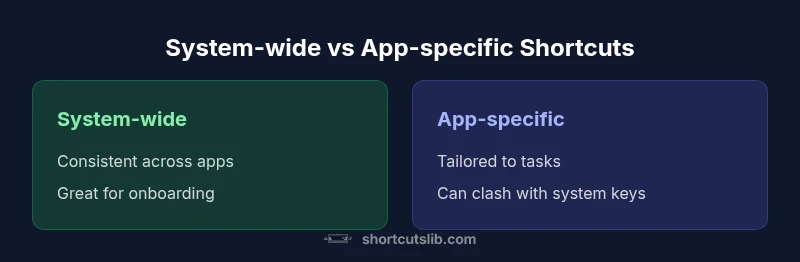
Two fundamental classes shape the shortcut landscape: system-wide shortcuts that operate across nearly every program, and app-specific shortcuts that are defined inside a single application or suite. System-wide shortcuts deliver consistency and fast onboarding; they let you perform common actions with the same keystrokes regardless of which app you’re using. App-specific shortcuts unlock advanced workflows that take advantage of a program’s unique features—think Excel’s data-entry sequences, Photoshop’s tool presets, or IDE commands that accelerate coding. The trade-off is scope: system-wide shortcuts are easier to learn first but may offer fewer options for specialized work, while app-specific shortcuts deliver power where you need it most but require separate muscle memory for each app. A practical approach, advocated by Shortcuts Lib Team, is to start with a solid base of system-wide keys and progressively layer app-specific shortcuts in the most-used applications. This hybrid strategy yields broad consistency with targeted speedups.
Symbol usage in shortcuts: common glyphs and notation
In keyboard shortcuts we encounter more than plain letters: glyphs, symbols, and platform-specific keys carry meaning that must be recognized quickly. Common symbols include the command or control keys (Cmd on macOS, Ctrl on Windows), the Option/Alt key, and the Shift modifier. Across user interfaces you’ll see glyph representations such as ⌘, ⌃, ⌥, ⇧, and ⎋; these are part of a visual shorthand that helps professionals communicate complex actions at a glance. There are also ASCII-style phrases like Ctrl+C for copy or Ctrl+V for paste. Encoding matters: on some systems, symbols may render differently depending on fonts and locale, which can confuse when sharing shortcuts across teams. When symbols appear in app documentation, ensure your team uses consistent notation and test across the software you rely on. Shortcuts Lib’s analysis shows that clear notation reduces onboarding time and prevents conflicts when customizing shortcuts across platforms.
Learning curves and cognitive load
Learning shortcuts is a cognitive trade-off: you sacrifice short-term effort for long-term speed. System-wide shortcuts offer a lower learning curve initially, because there are fewer variants to memorize and they apply in many contexts. As you gain confidence, app-specific shortcuts become valuable because they are tailored to your most-used tools. The critical factor is how you distribute practice: start with high-impact keys (copy, paste, undo) and gradually add modifiers and multi-step macros. Spacing practice sessions and using spaced repetition helps sustain retention. For keyboard enthusiasts, the additional value comes from building mini-macros that chain actions into a single gesture. The payoff is measurable in reduced mouse movement, lower fatigue, and faster task completion. The goal is not to memorize everything at once, but to create a manageable map that grows with your daily routines.
Customization pathways on major platforms
Different ecosystems provide different doors for customization. Windows supports keyboard shortcuts at both the system and program level, with tools to remap keys and create scripts; macOS emphasizes Modifier key customization, app shortcuts, and Automator workflows; Linux offers both keyboard layout tweaks and customizable global shortcuts via desktop environments. The challenge is avoiding conflicts between system-wide keys and app-specific ones—especially when you rely on hybrid setups (e.g., Windows running in Parallels on a Mac). A practical workflow is to identify a small, high-impact baseline of shortcuts for each platform, then progressively add layers for your most-used apps. In this process, keep the goal of consistent behavior across tasks. Shortcuts Lib Team recommends documenting your mapping in a simple cheat sheet and revisiting it quarterly to prune or adjust conflicts.
Practical examples across common apps
To illustrate, consider a typical content-creation workflow in three popular domains: word processing, data analysis, and web browsing. In word processors, system-wide shortcuts like Ctrl+C, Ctrl+S, and Ctrl+P speed up editing, while app-specific keys unlock features such as paragraph styles or track changes. In spreadsheets, shortcuts for selecting rows, applying formulas, and autofilling reduce mouse usage dramatically, and symbols like ⌘ or Ctrl remain important across platforms. In a browser, navigation shortcuts (Ctrl/Cmd+T for a new tab, Ctrl+W to close a tab) are universal, but app-defined shortcuts can uncover features such as motion-fast zoom or reader view. From Shortcuts Lib’s point of view, the best practice is to keep a core set universal while mapping additional shortcuts to your top 5-7 apps. A practical tip is to document new shortcuts right in your notes or a lightweight wiki so you can reuse them later.
Symbols accessibility and encoding issues
Accessibility considerations go beyond visibility. People rely on screen readers and keyboard-only navigation, so shortcuts should be discoverable, predictable, and not dependent on inaccessible glyphs. Unicode encoding ensures symbols survive across platforms, but fonts and rendering differences can still cause misinterpretation. When you share shortcuts in team documents or onboarding slides, prefer plain-text representations for portability and maintain a separate legend for platform-specific glyphs. If your team uses non-Latin keyboards, maintain a mapping sheet that translates local key names to the standard symbols. Finally, consider whether symbols (like the power of the Esc key or function keys) convey meaning when fonts change; a simple fallback like textual hints (e.g., “Escape”) can reduce ambiguity. Overall, accessible shortcuts reinforce inclusivity while preserving speed benefits for power users.
Discoverability and documentation
The ability to discover and learn shortcuts depends on how effectively you document and share them. Operating systems often provide a central directory of system-wide shortcuts, while individual apps maintain their own help pages and official cheat sheets. A strong strategy uses both: create your personal shortcut catalog that links to OS-level commands, then annotate app-specific keys with examples tied to your daily tasks. Visual aids, such as quick-reference cards, can reinforce memory faster than text alone. Another pillar is consistent naming: use a standard phrasing for modifiers (Ctrl/Cmd, Alt/Option, Shift) and make a habit of testing new mappings in a low-stakes project. Over time, you’ll notice patterns—commands that consistently map to similar actions across programs—making it easier to carry learnings from one tool to another. The goal is to tighten the loop between practice and performance, turning exploration into reliable, repeatable speed.
Trade-offs and best practices
Every shortcut decision involves trade-offs. The most critical differentiator is scope: system-wide shortcuts offer broad coverage but may lack depth for specialized tasks, while app-specific shortcuts provide depth but dilute cross-app consistency. A solid best-practice framework includes a curated core set (copy, paste, undo, save), app-specific enhancements for your top five tools, and a regular review process to prune conflicts. Adopt consistent modifier usage across platforms (e.g., Ctrl/Cmd for primary actions, Alt/Option for secondary actions) and maintain a short, readable cheat sheet. When conflicts arise, opt for keeping the system-level shortcuts where possible and rebind interfering actions at the app level. Finally, test after each change: measure time saved, error rate, and user satisfaction. Shortcuts Lib's guidance emphasizes incremental changes and clear documentation to maximize long-term productivity.
How to start: a 14-day plan
Day 1-2: Inventory your most frequent tasks and identify the top 5 actions you perform with the keyboard. Day 3-4: Map system-wide shortcuts for copy, paste, undo, save, and new-tab or new-document across your devices. Day 5-7: Begin adding app-specific shortcuts for your daily tools (e.g., Word, Excel, your browser). Day 8-10: Draft a two-page cheat sheet with symbol explanations and platform-specific notes. Day 11-12: Practice deliberately, focusing on accuracy first, speed second. Day 13-14: Review results, prune conflicts, and wire in a 5-minute daily warm-up. The process should be iterative: keep a living document and revise as your work evolves. The 14-day plan is a practical starting point endorsed by Shortcuts Lib Team to help you build durable, transferable skills.
Common pitfalls and troubleshooting
Common pitfalls include overloading mappings with too many shortcuts, creating conflicts across platforms, and neglecting accessibility considerations. When shortcuts stop delivering speed, check for keyboard remapping clashes, ensure you are using the correct modifier keys for your OS, and verify that applications support the defined actions. Troubleshooting steps include resetting conflicting mappings, testing in a clean user profile, and checking for software updates that may alter shortcut behavior. If you rely on macros or chained shortcuts, ensure each step has clear, testable outcomes and guard against unintended side effects. Finally, remember that learning is iterative: small, consistent improvements outperform sporadic bursts of heavy programming. By addressing these issues, you keep your workflow robust and resilient to future changes in software.
Power-user strategies and future-proofing
Power users optimize by exploiting macro chains, context-aware shortcuts, and cross-application patterns. Build multi-step workflows that combine several actions into a single gesture and embed these in your daily routine. Consider context-aware shortcuts that change meaning depending on the active app or document state, reducing keystrokes while preserving accuracy. To future-proof your setup, maintain a neutral base: choose platform-agnostic keys where possible, maintain a portable configuration file, and backup your mappings. Finally, stay current with the evolution of keyboard technologies: better keyboards with programmable keys, haptic feedback, and software that records and shares macro libraries will amplify your productivity. Shortcuts Lib emphasizes continuous refinement and user-driven testing to ensure long-term value.
Comparison
| Feature | System-wide shortcuts | App-specific shortcuts |
|---|---|---|
| Scope | Across OS and apps | Within a specific app or suite |
| Consistency | High across platforms | Variable between apps |
| Learning curve | Lower initial learning curve | Higher initial effort but greater payoff |
| Customization options | Remap system keys, create global macros | Map to app menus and toolbars |
| Examples | Copy/Cut/Paste, Save, Undo | Excel/Word shortcuts, IDE commands |
| Best for | General productivity across many apps | Power users in specific programs |
Pros
- Faster onboarding with cross-app consistency
- Lower cognitive load for new users
- Easier to document and standardize across teams
- Supports learning across devices and apps
- Facilitates automation through macros
Cons
- Conflicts between system-wide and app-specific shortcuts
- Limited depth for highly specialized tasks
- Requires ongoing maintenance as apps update
- Potential reliance on nonstandard keyboards or layouts
System-wide shortcuts generally offer broader efficiency and consistency, while app-specific shortcuts excel in specialized workflows.
For most users, start with system-wide shortcuts to build a reliable foundation and cross-app speed. Layer app-specific shortcuts for your top tools to unlock deeper productivity. The recommended approach, endorsed by Shortcuts Lib Team, balances breadth and depth to future-proof your workflow.
Questions & Answers
What are keyboard shortcuts and symbols?
Keyboard shortcuts are key combinations that perform actions without the mouse; symbols are glyphs used in documentation to represent modifier keys. Together, they speed up tasks and reduce repetitive motions.
Keyboard shortcuts are quick key combos for actions, while symbols help describe those combos clearly for learning and sharing.
How do I start learning system-wide shortcuts?
Begin with the most-used actions (copy, paste, undo, save) and learn them across your main OS. Once comfortable, extend to other apps that you use daily.
Start with the basics like copy and paste, then expand to more actions, one app at a time.
Windows vs Mac shortcuts: which should I prioritize?
Prioritize system-wide shortcuts that work across both platforms if you switch devices often. Then learn platform-specific keys for your primary OS and the apps you rely on most.
If you switch between Windows and Mac, start with cross-platform basics, then tailor to each OS.
Can symbols appear in shortcuts in real life?
Yes. Symbols like ⌘, ⌥, and ⎋ help convey actions quickly in documentation and training. Use consistent notation across platforms to avoid confusion.
Symbols help you learn and teach shortcuts faster.
How can I customize shortcuts across apps?
Most apps let you remap frequently used actions. Use a centralized cheat sheet to avoid conflicts and test changes in a safe project first.
You can remap keys in apps, but keep a shared sheet to stay consistent.
Are there accessibility concerns with keyboard shortcuts?
Yes. Shortcuts should be discoverable and usable with screen readers. Prefer textual hints and avoid glyphs that rely on specific fonts.
Make shortcuts easy to discover and readable by everyone.
Main Points
- Start with system-wide shortcuts for broad consistency
- Add app-specific shortcuts for your top tools
- Document mappings in a living cheat sheet
- Use clear, platform-consistent notation for symbols
- Test changes and prune conflicts regularly