How to Reset VS Code Keyboard Shortcuts to Default
Learn how to reset VS Code keyboard shortcuts to default with a clear, step-by-step approach. Use the Keyboard Shortcuts UI or directly edit keybindings.json to restore original mappings safely.


You will restore VS Code’s keyboard shortcuts to their original defaults. Start by deciding whether you want a quick UI-based reset or a full cleanup via keybindings.json. This guide covers both approaches and safety tips to avoid losing custom mappings. The Shortcuts Lib team notes that most users only need to reset a subset of bindings, leaving core shortcuts intact.
Why reset keyboard shortcuts in VS Code?
Over time, developers tweak dozens of shortcuts to fit their workflow. In VS Code, a tangled set of personal overrides can slow you down instead of speeding you up. The vs code reset keyboard shortcuts to default operation helps you reclaim a clean baseline, so you can re-assign commands with clarity. This article explains when a reset makes sense, how both UI-based and JSON-based methods work, and how to avoid common pitfalls. According to Shortcuts Lib, starting from a clean slate can improve muscle memory and reduce friction, especially after a major extension or workflow change. This approach is especially helpful for new team members or when you’re harmonizing shortcuts across devices. The goal is not to erase all personalization, but to remove accidental conflicts and restore reliability. By the end, you’ll know when to use the UI and when to edit configuration files for a sustainable shortcut strategy.
The two reliable paths to reset
There are two primary methods to reset VS Code shortcuts:
- UI-based reset: Quickly clear or override specific bindings from the Keyboard Shortcuts editor without touching the JSON file.
- JSON-based reset: Remove or modify entries in keybindings.json to restore the entire shortcut set to VS Code defaults.
Both paths achieve the same end—returning to the original mapping state—but they cater to different preferences. UI-based resets are faster and safer for a few overrides, while JSON-based resets offer a thorough, auditable reset suitable for large-scale cleanups. Shortcuts Lib emphasizes choosing the method that minimizes risk to your existing workflows and maintaining a backup plan to recover any binding you later want to reintroduce.
Understanding defaults vs. overrides
VS Code ships with a comprehensive set of default shortcuts designed for common workflows. Your personal overrides live in the user keybindings.json file and workspace-level settings when you work on a project. When you reset, you’re deciding how aggressively you want to remove overrides. A partial reset might be enough if you’ve only changed a handful of bindings; a full reset clears all personal mappings so you can rebuild from scratch. The difference matters: a full reset means re-learning or re-creating shortcuts for frequently used commands, while a partial reset preserves most of your muscle memory. To maximize clarity, document any overrides you rely on before a reset and consider exporting a copy of your current keybindings for reference.
How to decide which method to choose
If your goal is to fix a few mis-mapped shortcuts or resolve conflicts between extensions, the UI-based approach is typically sufficient. For environments where multiple machines must align on a core set of shortcuts, a keybindings.json reset offers a reproducible baseline. Shortcuts Lib recommends a risk-aware strategy: back up your current configuration, perform a targeted reset first, then evaluate whether a full reset is necessary. By taking a staged approach, you minimize disruption and keep productivity high while preserving the ability to revert if needed.
Practical considerations and compatibility
Some shortcuts might be re-bound by extensions after a reset. If you rely on extension-specific keys, plan to re-create or adjust those mappings post-reset. If you use a multi-device workflow, consider syncing settings through VS Code Settings Sync or a manual backup of keybindings.json. Finally, ensure you’re running a stable VS Code release to avoid quirks related to older builds. The goal is to create a consistent experience across devices without sacrificing essential shortcuts that speed up your work. Shortcuts Lib’s guidance is to test critical shortcuts directly after resetting to verify their behavior in real-world tasks.
When not to reset (potential downsides)
Labeling unnecessary resets can erase productive customizations. If you’ve invested time in a well-tuned setup, there’s value in preserving overrides that truly enhance your efficiency. Also, be mindful that a reset might temporarily disrupt your rhythm as you relearn. Always set a clear plan, back up your current configuration, and validate core work patterns (like save, search, code navigation) immediately after the reset.
Summary of the two paths with quick checks
- UI-based reset: Fast, safe, and good for few overrides. Check the Keyboard Shortcuts editor for a per-command Reset/Remove option.
- JSON-based reset: Thorough, auditable, and ideal for full baseline restoration. Edit or replace keybindings.json and reload VS Code to apply changes.
Now that you understand the two paths, decide which route aligns with your goals. Shortcuts Lib’s approach is to minimize risk, maximize traceability, and keep a backup strategy in place so you can recover any needed overrides quickly.
Authority sources and next steps
For official guidance and detailed command references, see the VS Code Keyboard Shortcuts docs. Also review general keyboard shortcut best practices in major developer docs to align with broader workflows. If you want to see examples and expected defaults, refer to recommended practice sections in the official documentation.
Tools & Materials
- Visual Studio Code (latest stable release)(Ensure you can access the application and its settings)
- Keybindings.json (path varies by OS)(Backup first; typical paths: Windows: %APPDATA%\Code\User\keybindings.json; macOS: ~/Library/Application Support/Code/User/keybindings.json; Linux: ~/.config/Code/User/keybindings.json)
- Backup location(Optional but highly recommended to store a copy of current bindings before changes)
Steps
Estimated time: 12-20 minutes
- 1
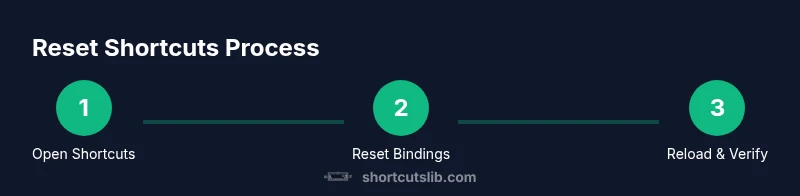
Open Keyboard Shortcuts editor
Launch VS Code and open the Keyboard Shortcuts editor to view current bindings. You can do this quickly by pressing Ctrl+K then Ctrl+S (Windows/Linux) or Cmd+K Cmd+S (macOS). This step establishes a baseline so you know which shortcuts are overridden.
Tip: If a shortcut isn’t obvious, use the search bar in the editor to locate the command and its current binding. - 2
Identify overrides to reset
Scan for commands with a custom binding you want to remove or adjust. Focus on shortcuts that conflict with others or are no longer part of your workflow. Note the commands and the keys involved for quick reference.
Tip: Use the filter or search feature to find only user-defined overrides (often marked differently from defaults). - 3
Reset a single binding
For a specific command, click the trash icon or use the Reset option to restore the default binding. You’ll see the UI revert to the original shortcut. Repeat for any other overrides you want to drop.
Tip: Test the command immediately after resetting to confirm it behaves like the default. - 4
Full reset via keybindings.json (optional)
If you want a complete restoration, open the keybindings.json file from the keyboard shortcuts editor’s upper-right menu and delete your user overrides. You can also replace the file content with an empty array [] to reset all bindings.
Tip: Make a backup of the current file before deleting so you can recover specific overrides if needed. - 5
Reload and verify
Reload the VS Code window to apply changes, then re-run essential tasks to verify defaults. Confirm that core actions (save, find, run command) map to their expected defaults.
Tip: If something feels off, revert from your backup and re-evaluate which overrides were truly necessary.
Questions & Answers
How do I reset VS Code keyboard shortcuts to default?
Open the Keyboard Shortcuts editor (Ctrl+K, Ctrl+S), delete or reset the overrides you want, or edit keybindings.json to restore defaults. Reload VS Code to apply changes and verify core shortcuts.
Open the shortcuts editor, remove overrides you don’t want, or edit the JSON to restore defaults, then reload to apply.
Will resetting affect my other settings?
Resetting keyboard shortcuts only affects bindings, not broader settings like themes or extensions. However, some extensions may reapply their own shortcuts on startup.
Resetting only touches bindings, not your overall settings; extensions may reapply shortcuts on startup.
Can I reset shortcuts for only a few commands?
Yes. Use the Keyboard Shortcuts editor to target and reset individual bindings. This avoids a full reset and preserves most of your custom mappings.
Yes—reset individual bindings in the editor without touching others.
What if I delete keybindings.json by mistake?
If you delete keybindings.json, VS Code will revert to defaults until you recreate your overrides. Restore from your backup and re-add only the necessary bindings.
If you delete the file, restore from backup and re-add only what you need.
Do workspace bindings override user bindings after a reset?
Workspace bindings take precedence over user bindings for a given project. If you reset, check both scopes to ensure consistency across environments.
Workspace bindings override user ones per project, so verify both.
Is there a way to export current keybindings before resetting?
Yes. Copy the contents of keybindings.json or use the editor to export bindings as a backup before making changes.
You can copy keybindings.json to back them up before changes.
Watch Video
Main Points
- Back up before you reset.
- Use UI for small changes and JSON for full resets.
- Test critical shortcuts immediately after changes.
- Document your overrides for future reference.