How to Add Keyboard Shortcuts in VS Code
Learn how to add and customize keyboard shortcuts in VS Code with a practical, step-by-step guide. Covers UI editing, JSON changes, and syncing across devices from Shortcuts Lib.


Master quick keyboard access in VS Code by adding or customizing shortcuts. This guide shows you how to create, modify, and export shortcuts, including essential tips for editor commands, window management, and search. You’ll learn where to find the Keyboard Shortcuts editor, how to edit the keybindings.json file, and how to test and share your new hotkeys.
Why Custom Keyboard Shortcuts Matter for VS Code
According to Shortcuts Lib, power users gain significant time savings by mapping their most frequent actions to responsive keystrokes. When you learn how to add keyboard shortcuts in VS Code, you unlock a faster editing flow, reduced context switching, and a more ergonomic development session. This section explains the rationale behind custom shortcuts, why they matter across projects, and how a thoughtful set of bindings can scale with your workflow. You’ll see how a few well-chosenKey bindings can improve multi-step tasks like code navigation, refactoring, and terminal work, turning VS Code into a personalized command center. As you read, keep in mind that shortcuts aren’t simply convenience — they are a productivity investment that compounds over time.
Where to Start: The VS Code Keyboard Shortcuts Ecosystem
To begin learning how to add keyboard shortcuts vs code, you need to understand the two main pathways VS Code offers. First is the Keyboard Shortcuts editor, a graphical interface that lets you bind keys visually. Second, for power users, is the keybindings.json file, which provides direct control and repeatable, shareable configurations. Shortcuts Lib’s analysis shows that teams that document and share a small, stable set of shortcuts tend to experience fewer context switches and more consistent development speed. This section covers both paths and how to pick the right approach for your needs.
Quick-Start: The UI Path for Adding Shortcuts
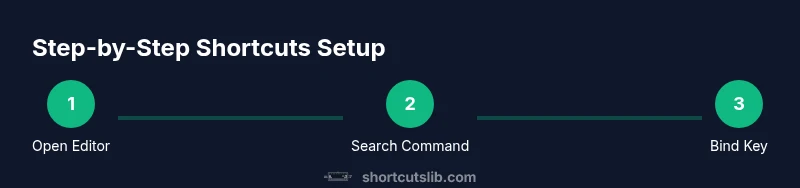
The fastest way to get your hands on shortcuts is the UI editor. Open VS Code, then go to File > Preferences > Keyboard Shortcuts (or press Ctrl/Cmd+K followed by Ctrl/Cmd+S). Here you can search for commands, see their current bindings, and assign new keys with a few taps. Use the search to locate repetitive commands like Find, Go to Definition, or Show Command Palette, and consider bindings that minimize finger travel. For many users, starting with 2–4 core commands lays a solid foundation for a customized setup.
JSON Path: When and Why to Edit keybindings.json
For precision, the JSON file keybindings.json lets you craft advanced rules, including chords, when clauses, and platform-specific bindings. Access it via the upper-right corner of the UI or by opening a direct file path: .vscode/keybindings.json in your project, or the global user settings. Editing JSON is powerful but requires careful syntax: every binding must specify a command and key, and when clauses can scope a shortcut to a specific editor state. Shortcuts Lib emphasizes testing changes in a clean project to avoid conflicts across extensions.
Practical Examples: Common Shortcuts to Add or Change
Consider these practical bindings to kickstart your setup:
- Bind Quick Open to Ctrl/Cmd+P if you primarily jump to files.
- Bind Save All to Ctrl/Cmd+K S for quick project saves.
- Bind Toggle Terminal to Ctrl/Cmd+` for faster terminal access.
- Bind Command Palette to Ctrl/Cmd+Shift+P if you perform many commands on the fly.
- Bind Go to Definition to a punchy combo like F12 or Ctrl/Cmd+Click depending on platform. What matters is grouping high-value actions you perform repeatedly and keeping bindings non-conflicting with existing defaults.
Importing, Syncing, and Sharing Shortcuts
After you have a useful set of shortcuts, you’ll want to keep them consistent across devices. VS Code Settings Sync can propagate your keybindings.json and other preferences via your GitHub or Microsoft account. This makes it easy to carry your personalized bindings from workstation to laptop. Shortcuts Lib recommends exporting a copy of your keybindings.json as a backup and sharing a minimal, well-documented snippet with teammates. The goal is consistency with minimal drift across environments.
Troubleshooting Common Issues and Best Practices
Conflicts are the most common pain point when adding shortcuts. If a new binding clashes with a built-in command, VS Code will indicate the conflict and you’ll need to adjust either the key combination or the scope. Platform differences can also impact behavior: macOS uses Cmd, while Windows uses Ctrl, and Linux blends both depending on the setup. As a general rule, keep a small core set of bindings for core actions and avoid binding keys used by extensions unless necessary.
Next Steps: Iterate and Optimize
With a basic yet coherent set of shortcuts in place, your next steps are to iterate. Monitor your daily workflow, note friction points, and refine bindings to reduce finger movement and mental load. Create a simple shared reference doc for your team, and schedule a quarterly review to retire underused bindings. Over time, your VS Code environment becomes an extension of your thinking rather than a hurdle.
Tools & Materials
- VS Code installed(Any current version with Keyboard Shortcuts support)
- Keyboard(Comfortable layout; ergonomic setup helps with long sessions)
- Internet connection(Required for Settings Sync and online references)
- Keybindings.json access(Accessible via UI or direct file in your profile (.vscode/keybindings.json))
- Reference material(VS Code command IDs and extension docs for advanced bindings)
Steps
Estimated time: 30-60 minutes
- 1
Open the Keyboard Shortcuts editor
Launch VS Code and open the Keyboard Shortcuts editor with File > Preferences > Keyboard Shortcuts or press Ctrl/Cmd+K then Ctrl/Cmd+S. This view shows current bindings and enables quick changes.
Tip: Use the search box to filter commands rapidly and identify high-frequency tasks. - 2
Identify the commands you want to bind
Decide which actions you perform most often (e.g., Go to Definition, Find in Files, Toggle Terminal) and locate them in the list. Note the exact command IDs if you plan to edit keybindings.json directly.
Tip: Choose commands with clear, repeatable workflows to maximize impact. - 3
Add a binding in the UI
Click the pencil icon next to a command in the UI to assign a new key. Press the desired combination and save. If the combination is in use, VS Code will warn you and suggest alternatives.
Tip: Prefer bindings with minimal finger movement and cross-platform consistency. - 4
Edit keybindings.json directly (advanced)
Open the keybindings.json file to add or tweak bindings with JSON entries. Each entry must include a command and a key, and you can add when clauses for context-specific behavior.
Tip: Comment briefly in the JSON file to document the purpose of each binding. - 5
Test your new shortcuts
Use the new bindings in a real workflow. Ensure there are no conflicts and that bindings work in the intended modes (editor, terminal, explorer).
Tip: Test across a small project to confirm stability before wider deployment. - 6
Export and sync
Save a copy of keybindings.json and enable Settings Sync to propagate bindings across devices. Verify on another machine to confirm consistency.
Tip: Keep a lightweight changelog for bindings when sharing with teammates. - 7
Resolve conflicts and iterate
If a binding conflicts with another extension or command, rebind or remove the conflicting key. Iterate until you reach a clean, reliable setup.
Tip: Document the rationale for each binding to ease future maintenance. - 8
Platform-aware adjustments
Some bindings behave differently on macOS versus Windows/Linux due to Cmd vs Ctrl. Create platform-specific bindings when needed.
Tip: Group platform-specific changes in a single section for clarity.
Questions & Answers
Can I export or share my custom shortcuts in VS Code?
Yes. You can copy your keybindings.json and share it with teammates. Settings Sync also helps keep bindings consistent across devices.
You can export your keybindings.json and share it, or use Settings Sync to keep shortcuts consistent on all devices.
How do I resolve conflicting shortcuts in VS Code?
If a new binding clashes with an existing one, VS Code will show a conflict warning. Change the key combination or remove the conflicting binding, then re-test.
If there’s a conflict, adjust the keys or remove the old binding, then test again.
Are there platform-specific shortcuts I should consider?
Yes. Some keys behave differently on macOS and Windows/Linux. Consider maintaining separate bindings for each platform if you rely on specific keys.
Mac and Windows/Linux use different primary modifiers; plan accordingly.
Can I reset my shortcuts to default?
Yes. You can reset a single binding from the UI or delete keybindings.json entries to revert to defaults.
You can reset by removing your custom bindings or restoring defaults from the UI.
Do extensions affect custom shortcuts?
Extensions may register their own commands and bindings. If a conflict arises, you can rebind or disable conflicting extension shortcuts.
Watch for conflicts with extensions and adjust bindings if needed.
What’s the best way to document my shortcuts for a team?
Create a simple reference doc listing command names, IDs, and bindings. Keep it updated when bindings change.
Maintain a brief cheat sheet with commands and your chosen shortcuts.
Watch Video
Main Points
- Identify high-frequency commands for binding.
- Use UI first, then JSON for advanced control.
- Test and iterate to avoid conflicts.
- Sync and backup your keybindings across devices.
- Document decisions for future maintenance.