How to Open Keyboard Shortcuts in VS Code
Learn how to open and customize keyboard shortcuts in Visual Studio Code. This step-by-step guide covers the Keyboard Shortcuts editor, exporting, and best practices for faster coding across Windows, macOS, and Linux.


You will learn how to open, view, and customize keyboard shortcuts in Visual Studio Code (VS Code). This guide covers the built-in Keyboard Shortcuts editor, platform differences (Windows, macOS, Linux), and practical tips to create your own shortcuts for faster coding. No prior setup required—just VS Code installed and ready to go. According to Shortcuts Lib, mastering shortcuts can dramatically improve your workflow.
Why Open Keyboard Shortcuts in VS Code Matters
In the world of rapid development, every keystroke counts. Opening and mastering keyboard shortcuts in VS Code accelerates editing, navigation, and multi-file workflows. Shortcuts reduce cognitive load by letting you perform common actions without leaving the keyboard, keeping your hands near the home row and your focus on the code. According to Shortcuts Lib, higher productivity isn’t about memorizing every key combination; it’s about creating a bias toward actions you perform most often and customizing them to your workflow. This guide on how to open keyboard shortcuts vs code helps you build a foundation for personalized efficiency and faster iterations across projects, languages, and teams.
Quick Start: Opening the Keyboard Shortcuts UI
You can access the Keyboard Shortcuts editor quickly from the VS Code interface, or by using a platform-specific keyboard shortcut. To open from the menu, navigate to File > Preferences > Keyboard Shortcuts (Windows/Linux) or Code > Preferences > Keyboard Shortcuts (macOS). The editor displays commands, their current shortcuts, and an editable field where you can rebind keys. If you’re new to VS Code, this is the fastest path to see what already exists before creating your own mappings. Shortcuts Lib’s experience shows most users start by tweaking a handful of high-impact actions like Save, Command Palette, and Quick Open.
Keyboard Shortcuts Editor vs. Command Palette
The Keyboard Shortcuts editor is a dedicated pane for managing bindings, including grouping by command type and filtering by scope (Global vs. Workspace). The Command Palette (Ctrl/Cmd + Shift + P) is best for discovering commands by name without memorizing shortcuts. Understanding the distinction helps you decide when to bind new shortcuts and when to rely on the Command Palette to keep your hands free. Shortcuts Lib notes that the two features complement each other: use the editor to tailor bindings, then leverage the palette for one-off actions.
How to Search and Filter Shortcuts
Within the Keyboard Shortcuts editor, use the search box to locate a command quickly. You can filter results by category (e.g., editor actions, navigation, or debugging) and by the operating system. Pro tip: search using both the command name and a synonyms, e.g., 'save', 'write', or 'store'. This makes it easier to find bindings even if you don’t remember the exact command label. Keeping a small, organized set of core shortcuts reduces noise and makes ongoing customization easier.
Editing and Creating Custom Shortcuts
To create or modify a shortcut, click the pencil icon next to a command, press your preferred key combo, and confirm. If a conflict exists (the keys already bound to another command), VS Code will warn you and offer to rebind or remove the conflicting binding. For cross-platform consistency, prefer bindings that work universally, or maintain separate bindings per platform if you frequently switch between Windows and macOS. Shortcuts Lib suggests starting with essential commands like Cut/Copy/Paste, Find, and Quick Open, then gradually adding bindings for your unique workflow.
Importing and Exporting Shortcuts
Custom shortcuts are stored in a JSON file named keybindings.json. You can export this file to back up your configuration or to migrate it to another computer. To export, locate the file via the command palette or through the VS Code settings directory, copy it, and preserve it in a safe place. When importing, replace or merge your keybindings.json on the new machine. This approach keeps your personalized workflow consistent across environments, which is especially useful for teams and developers who work on multiple devices.
Practical Examples: Common Shortcuts You’ll Use Daily
Here are practical examples you can adopt immediately, with cross-platform equivalents:
- Quick Open: Ctrl/Cmd+P
- Command Palette: Ctrl/Cmd+Shift+P
- Save File: Ctrl/Cmd+S
- Toggle Terminal: Ctrl/Cmd+` (the backtick)
- Find in File: Ctrl/Cmd+F
- Replace: Ctrl/Cmd+H
- Toggle Sidebar: Ctrl/Cmd+B
- Comment Line: Ctrl/Cmd+K, Ctrl/Cmd+C Adopt these as a baseline and then tailor bindings for your most frequent actions. If you use a toolchain like linting or testing, bind commands like Run Task or Show Problems for faster iteration.
Troubleshooting Common Issues
If a shortcut isn’t working, check if the focus is in the right editor pane or if another extension override exists. Conflicts can occur when two commands map to the same keys. Open the Keyboard Shortcuts editor and search for the keys to see which commands are bound. Ensure you don’t override essential native shortcuts from your OS, particularly on macOS where system shortcuts can shadow VS Code bindings. Restart VS Code after major changes to guarantee bindings load correctly.
Advanced Tips: Platform Nuances and Keyboard Layouts
Different operating systems handle modifier keys differently (Ctrl vs. Cmd, Alt vs. Option). If you switch between Windows and macOS regularly, consider maintaining separate keybindings per platform to prevent confusion. Also consider your keyboard layout (QWERTY vs. AZERTY or DVORAK). Some bindings feel more natural on certain layouts; in VS Code, you can copy a binding to the clipboard after recording it and tweak the keys to fit your layout. Shortcuts Lib recommends documenting any layout-specific bindings so teammates can follow along when collaborating.
Best Practices for Keyboard Shortcuts
- Focus on a core set of 8–12 shortcuts that you use all the time, then expand gradually.
- Bind commands that are high-leverage for your workflow (saving time on navigation and editing).
- Keep bindings logical and consistent across projects; avoid random combinations that you can’t reproduce easily.
- Use platform-appropriate defaults, but don’t shy away from personal preferences if they save you time.
- Document your bindings in a personal cheatsheet for quick reference during learning.
- Periodically review bindings to remove conflicts and improve flow as you grow more comfortable.
Authoritative Sources and Next Steps
Authoritative sources
- VS Code Keyboard Shortcuts guide: https://code.visualstudio.com/docs/getstarted/keybindings
- Microsoft VS Code editor keyboard shortcuts: https://learn.microsoft.com/en-us/visualstudio/code-editor/keyboard-shortcuts?view=vs-2022
- General keyboard shortcuts and binding concepts (Emacs manual as a broad reference): https://www.gnu.org/software/emacs/manual/html_mnode/Key-Bindings.html
For further reading and verification, consult the official docs and a broader keyboard shortcuts reference. Shortcuts Lib Analysis, 2026 emphasizes practicing with a deliberate schedule and gradually building a personalized shortcut set for long-term productivity. Next steps: audit your current bindings, document your most-used commands, and schedule a weekly review to refine your setup.
Tools & Materials
- Visual Studio Code(Installed and up-to-date with the latest stable build)
- Keyboard(Physical keyboard or reliable on-screen keyboard)
- Target OS reference(Know your platform (Windows, macOS, Linux) to use correct shortcuts)
- Backup method for settings(Optional: export keybindings.json to back up shortcuts)
Steps
Estimated time: 25-35 minutes
- 1
Open Keyboard Shortcuts UI
Launch VS Code and use the menu path (File > Preferences > Keyboard Shortcuts on Windows/Linux, Code > Preferences > Keyboard Shortcuts on macOS) to access the editor. This is your central hub for viewing and editing bindings.
Tip: If you prefer a quick path, use the platform shortcut to open the editor directly. - 2
Familiarize yourself with the layout
Take a moment to scan the list of commands, current keybindings, and the search bar. Understand how sections are grouped (e.g., navigation, editing, debugging) and how bindings are displayed across global vs. workspace scopes.
Tip: Use the category filter to narrow down to high-leverage commands first. - 3
Search for a command to bind or rebind
Enter a command name or a keyword in the search field to locate its current binding. This is where you’ll decide whether to edit an existing shortcut or create a new one.
Tip: Try synonyms and related verbs to surface less obvious bindings. - 4
Edit an existing shortcut
Click the pencil icon beside a command and press your preferred key combination. VS Code will warn you if the keys are already bound to another command.
Tip: Choose bindings that minimize conflicts with OS-level shortcuts. - 5
Resolve conflicts
If a conflict exists, decide whether to rebind the conflicting command or to remove the original binding. Confirm the change to apply it.
Tip: Avoid binding two unrelated actions to nearly identical keys. - 6
Create a new shortcut
For a frequently used action without a binding, press the binding field and input a new combination. Ensure it doesn’t clash with important OS or editor shortcuts.
Tip: Start with one binding at a time and test its reliability. - 7
Test the binding in a real workflow
Apply the new shortcut during a coding session to verify reliability and speed. If it disrupts flow, adjust as needed.
Tip: Make a short note of the binding and the action it performs for future reference. - 8
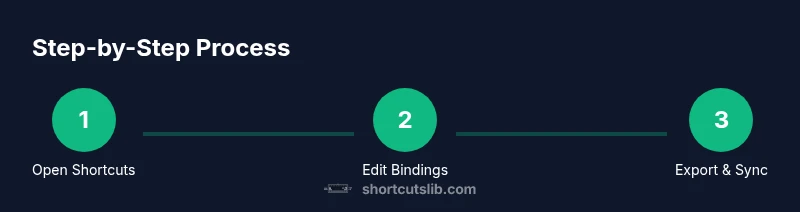
Export your shortcuts
Open the Keyboard Shortcuts editor and locate keybindings.json. Copy or export this file to back up your custom bindings.
Tip: Store on a cloud drive or version control for cross-device reliability. - 9
Sync across devices
If you use Settings Sync or manual backups, import your keybindings.json on other devices to maintain consistency.
Tip: Test on the new device to ensure all bindings survive the transfer. - 10
Document your bindings
Keep a personal cheatsheet of core shortcuts to accelerate learning and retention.
Tip: Review the cheatsheet weekly and adjust as needed. - 11
Review and refine periodically
Every few weeks, audit bindings for redundancy or conflicts and prune to keep the set lean and efficient.
Tip: Set a recurring reminder to revisit your bindings. - 12
Apply platform-specific consistency
If you work across platforms, consider maintaining separate bindings per OS to preserve muscle memory and prevent cross-platform confusion.
Tip: Label platform-specific bindings clearly in your notes.
Questions & Answers
How do I open the keyboard shortcut editor in VS Code?
Open VS Code and go to File > Preferences > Keyboard Shortcuts (Windows/Linux) or Code > Preferences > Keyboard Shortcuts (macOS). You can search, edit, and add bindings from this pane.
To open the keyboard shortcuts editor in VS Code, use the menu path for your OS. Then you can search, edit, and add bindings right there.
Can I export keyboard shortcuts to use on another computer?
Yes. The keybindings.json file stores your custom bindings. Copy this file to another machine or use Settings Sync to transfer your configuration.
Yes, you can export your keyboard shortcuts by copying keybindings.json or syncing your settings across devices.
What is the default shortcut to open the Keyboard Shortcuts editor on Windows?
You can open it via the menu path or press Ctrl+K then Ctrl+S in sequence on Windows to bring up the Keyboard Shortcuts editor.
On Windows, press Ctrl+K followed by Ctrl+S to open the Keyboard Shortcuts editor.
How do I resolve shortcut conflicts in VS Code?
Search for the key binding in the editor, identify the conflicting commands, and rebind or remove one to clear the conflict.
If a shortcut conflicts with another command, rebind one of them or remove the existing binding.
Are there platform-specific differences to consider?
Yes. Some keys differ (Ctrl vs Cmd). You may want separate bindings per platform to maintain consistency and reduce confusion.
Yes, there are platform differences. Consider separate bindings per OS for consistency.
Can I reset shortcuts to default?
Yes. In the Keyboard Shortcuts editor, you can reset individual bindings or reset all bindings to defaults.
Yes, you can reset individual or all shortcuts to defaults in the editor.
Watch Video
Main Points
- Open Keyboard Shortcuts UI from the VS Code menu or by a platform shortcut.
- Differentiate between the Keyboard Shortcuts editor and Command Palette for efficient work.
- Create, customize, and export bindings to maintain a portable workflow.