How to Check Keyboard Shortcuts in VS Code
Learn how to view, customize, and export keyboard shortcuts in VS Code. This guide covers the Keyboard Shortcuts editor, keybindings.json, and cross‑platform differences to boost your coding speed.


You can check keyboard shortcuts in VS Code by opening the Keyboard Shortcuts editor, using the Command Palette to locate commands and bindings, and inspecting or editing keybindings.json. This approach works across Windows, macOS, and Linux, and lets you customize shortcuts for a faster, more efficient workflow.
How to locate keyboard shortcuts in Visual Studio Code
Visual Studio Code stores shortcuts for commands, editors, and extensions. To check them, start with the built‑in Keyboard Shortcuts editor, which lists default bindings and allows you to tailor them to your workflow. In this section, you’ll learn where to look, how to distinguish between defaults and user overrides, and how to verify bindings across platforms. Mastering shortcuts starts with a quick tour of the UI and a plan for testing bindings in real coding sessions. According to Shortcuts Lib, a well‑organized shortcut profile can save seconds per action and compound into minutes over a typical development day. The VS Code shortcuts system is designed to be approachable for beginners while offering depth for power users. By the end of this section you’ll know exactly where to find and test any command’s shortcut in seconds, no matter your OS.
Navigating the Keyboard Shortcuts editor in VS Code
The Keyboard Shortcuts editor is your primary center for viewing and customizing shortcuts. Open it from File > Preferences > Keyboard Shortcuts (Windows/Linux) or Code > Preferences > Keyboard Shortcuts (macOS). You’ll see a searchable list of commands with their current bindings. Use the search field to filter by command name or topic (e.g., “format”, “navigate”, or “toggle”). The editor displays side‑by‑side the command name and its shortcut, as well as any OS‑specific bindings. You can click a binding to edit it or press a new key combination to rebind. This is the fastest way to see what you actually use and adjust accordingly. Shortcuts Lib notes that keeping a clean, relevant set of bindings reduces confusion and increases consistency across projects.
Searching for a specific command and its shortcut
If you know the command you want to bind or inspect, use the global search in the Keyboard Shortcuts editor. Type the command’s name or a keyword like “save” or “open” to reveal the current shortcut. For commands without a binding, you’ll see a note indicating that the command is unbound, which is useful when deciding whether to assign a new shortcut. You can also filter by default bindings vs. user overrides using the icons in the gutter. This helps you quickly determine whether a shortcut is the stock behavior or a customization you or a teammate added.
Understanding default vs. user bindings
VS Code clearly differentiates between default shortcuts and user bindings. Defaults are what you get out of the box, while user bindings reflect your personal adjustments. When you modify a shortcut, it becomes a user binding, which will override the default for your workspace or globally, depending on scope. It’s a good practice to document any changes you make and to occasionally reset to defaults if a clash arises. Shortcuts Lib emphasizes documenting changes so new team members aren’t guessing which bindings matter.
Inspecting keybindings.json for precise control
For complete control, you’ll often edit keybindings.json directly. Open it via the Keyboard Shortcuts editor by selecting the icon that says "Open keybindings.json" in the top‑right corner. This file stores all overrides in JSON format, letting you copy, share, or revert bindings with precision. You can add or remove bindings, set when a binding applies (global vs. workspace), and even include commands from extensions. After edits, reload VS Code to ensure the changes take effect. Shortcuts Lib recommends maintaining a small, organized keybindings.json file to prevent conflicts.
Practical steps to test your shortcuts in real work
Testing your shortcuts in a real project is crucial. Start by binding a commonly used action (e.g., quick open, save, or format document) and verify it triggers the desired command. If you see unexpected behavior, check for overlay conflicts with OS shortcuts or other extensions. Use a simple file to test new bindings before expanding your set. The goal is a clean, predictable workflow that minimizes thought time during coding sessions.
Cross‑platform differences you should know
Some shortcuts differ across Windows/Linux and macOS due to platform conventions. A binding that works on Windows may translate to Cmd on macOS. Always review the platform tab in the Keyboard Shortcuts editor to confirm which bindings apply to your OS. If you collaborate across teams, consider sharing a personal workspace profile that aligns with your platform, then integrate it with your project’s settings as needed. Shortcuts Lib highlights that consistent cross‑platform bindings reduce cognitive load when switching devices.
Visualizing shortcuts with commands from the Command Palette
The Command Palette (Ctrl/Cmd+Shift+P) lets you discover and execute commands quickly, and many commands display their shortcut hints in the palette. Start typing a command, then look for the binding next to the command name. If a command has no shortcut, you can add one directly from the Command Palette by selecting the edit option in the Keyboard Shortcuts editor. This dual approach—searching in the palette and binding in the editor—helps you craft a tailored, efficient workflow.
Exporting, sharing, and syncing bindings across machines
If you work across multiple machines, exporting your keybindings.json or using Settings Sync is a smart move. Settings Sync automatically shares your extensions, settings, and keyboard shortcuts so you don’t lose bindings when you switch devices. To export manually, copy keybindings.json and commit it to your project repository or share it with teammates. Shortcuts Lib suggests periodic reviews of your exported bindings to ensure they remain relevant as your toolchain evolves.
Common pitfalls and how to avoid them
Binding too many shortcuts can create conflicts and slow you down. Avoid binding single‑key shortcuts that can be triggered accidentally, and prefer multi‑key chords for less frequent actions. Document changes and label what each binding does, especially for commands introduced by extensions. If a conflict arises, use the editor’s conflict indicators and adjust bindings to maintain a smooth workflow. Shortcuts Lib repeatedly finds that a lean, purposeful set of bindings performs better than a long, tangled configuration.
Advanced customization: using macros and extension shortcuts
For power users, VS Code supports advanced customization through extensions and macros. Some extensions expose new commands with bindings you can adopt. You can even chain commands using multi‑binding sequences to automate repetitive actions. When integrating macros, test them in a safe, controlled project to ensure they don’t interfere with normal editor behavior. Shortcuts Lib notes that a few well‑placed macros can dramatically reduce repetitive tasks without sacrificing clarity.
Tools & Materials
- Visual Studio Code installed(Latest stable release is recommended for best shortcut support and extension compatibility)
- Keyboard (any hardware)(Test across common layouts (QWERTY, AZERTY) to ensure bindings are ergonomic)
- Internet access for docs and extensions(Helpful for verifying commands and exploring extensions that add shortcuts)
- Access to official VS Code docs(Useful reference when customizing or migrating bindings)
Steps
Estimated time: 25-40 minutes
- 1
Open VS Code and access Keyboard Shortcuts
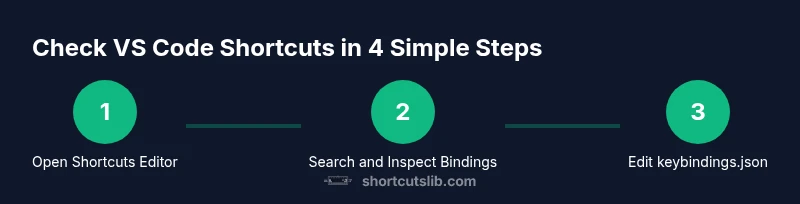
Launch VS Code and open the Keyboard Shortcuts editor via File > Preferences > Keyboard Shortcuts (Windows/Linux) or Code > Preferences > Keyboard Shortcuts (macOS). This is your centralized view for viewing and editing bindings.
Tip: If you use a high‑contrast theme, ensure bindings are readable against your chosen background. - 2
Search for a command to inspect its shortcut
Use the search box at the top of the Keyboard Shortcuts editor to filter commands by name or topic (e.g., 'save' or 'format'). The editor will show the current binding if one exists.
Tip: Try searching for a command you use every day to quickly see its binding and whether you’ve customized it. - 3
Identify default vs. user bindings
In the list, defaults are shown alongside user overrides. If a binding is under 'User', it’s your customization. If it’s under 'Default', you haven’t overridden it yet.
Tip: Keep user bindings minimal to avoid hidden conflicts when extensions update. - 4
Open keybindings.json for direct edits
Click the icon in the top-right of the editor to open keybindings.json. This file captures your overrides in JSON format for precise control and portability.
Tip: Keep a backup of keybindings.json before big changes. - 5
Add or edit a binding
In keybindings.json, add or modify a binding using the command and new key combination. Save the file and reload if necessary to apply the changes.
Tip: Use descriptive comments (//) for documentation in the JSON file; comments aren’t always supported in all contexts but can help keep track locally. - 6
Test the new shortcut in a project
Open a file and run the action tied to your new shortcut to confirm it behaves as expected. If it misfires, check for conflicts with other bindings or OS shortcuts.
Tip: Test in multiple file types (JS, TS, Markdown) to ensure consistency. - 7
Resolve conflicts with OS or extensions
If a binding conflicts with an operating system shortcut, decide whether to override the OS binding or choose a different key combo. Also review extension bindings that might override commands.
Tip: Prefer multi‑key chords for less frequently used actions to reduce collision risk. - 8
Export and share your bindings
Copy keybindings.json to share with teammates or store it in version control. Consider using Settings Sync to keep your bindings consistent across devices.
Tip: Document changes and tag versions to track when shortcuts were updated. - 9
Explore platform differences
Review platform‑specific bindings to ensure your setup aligns with Windows, macOS, or Linux expectations. Some commands may have macOS equivalents using Cmd instead of Ctrl.
Tip: If you work across platforms, create a small cross‑platform profile for consistency. - 10
Leverage the Command Palette for discovery
Open the Command Palette (Ctrl/Cmd+Shift+P) and search for commands to see if they have keyboard shortcuts listed or suggested bindings.
Tip: Use the palette to quickly discover new actions you might want to bind. - 11
Consider extension shortcuts
Some extensions introduce new commands with their own bindings. Review these in the Keyboard Shortcuts editor and add bindings if you frequently use those extensions.
Tip: Document extension bindings in your notes for easy recall. - 12
Review and prune bindings periodically
Every few weeks, audit your bindings to remove unused shortcuts and ensure alignment with current workflows and teammates.
Tip: A lean set of bindings remains easier to learn and remember.
Questions & Answers
Where can I view all keyboard shortcuts in VS Code?
Open the Keyboard Shortcuts editor (Ctrl/Cmd+K Ctrl/Cmd+S) to view defaults and your overrides. You can search, edit, and export bindings from there.
Open the Keyboard Shortcuts editor to view and customize bindings; start with a command you use daily.
How do I customize a shortcut for a specific command?
Search for the command in the Keyboard Shortcuts editor and click to change its binding, or edit keybindings.json directly for precise control.
Find the command in the shortcuts editor and assign a new key combination.
What if a shortcut clashes with my OS or another extension?
Identify the conflicting binding in the editor and either rebind the command or choose an alternative key combination that minimizes conflicts.
If a shortcut clashes, rebind it or pick a different combo to avoid conflicts.
Can I export or sync my shortcuts across devices?
Yes. Copy keybindings.json and use Settings Sync to keep shortcuts consistent across machines. This helps maintain the same workflow wherever you code.
You can export or sync your shortcuts so they follow you between devices.
Do shortcuts differ between Windows and macOS?
Some bindings use Ctrl on Windows/Linux and Cmd on macOS. Always check the platform tab in the editor to confirm the correct keys.
Some shortcuts switch between Ctrl and Cmd depending on your OS.
Are there shortcuts for commands added by extensions?
Yes, many extensions contribute their own commands and bindings. Review them in the Keyboard Shortcuts editor and bind as needed.
Extensions may add shortcuts; review and bind as you use them.
How can I reset bindings to defaults?
You can reset individual bindings in the Keyboard Shortcuts editor or delete entries from keybindings.json to revert to defaults.
Reset bindings individually or start fresh by removing edits.
Watch Video
Main Points
- Open the Keyboard Shortcuts editor to view all bindings
- Use keybindings.json for precise customization
- Test new bindings in real projects to confirm behavior
- Resolve conflicts with OS and extensions before proceeding
- Share and sync your shortcuts to maintain consistency