How to change keyboard shortcuts in VS Code
Learn to customize Visual Studio Code shortcuts to fit your workflow. View defaults, remap via GUI or keybindings.json, and share portable presets with confidence.


You will learn how to change keyboard shortcuts in VS Code, including where to view defaults, how to remap commands in the GUI and in keybindings.json, and how to export or share your custom layouts. Requires VS Code installed and basic JSON familiarity. This guide covers GUI and JSON methods, conflict handling, and best practices.
Why customize keyboard shortcuts in VS Code
According to Shortcuts Lib, customizing keyboard shortcuts in VS Code helps you streamline your workflow by aligning the editor's controls with your unique workflow. A well-thought-out keybinding set reduces interruptions, speeds up repetitive tasks, and makes frequent actions feel instant. This section explains why tailoring keybindings matters, especially for heavy VS Code users who rely on the Command Palette, multi-cursor actions, and navigation shortcuts. We will explore how personal mappings complement built-in defaults, and how a thoughtful scheme can scale with your development style. By the end, you'll see how a targeted shortcut strategy can scale from single-file edits to multi-project development.
Understanding the default shortcut scheme
Visual Studio Code ships with a broad set of shortcuts designed to cover common editing, navigation, and debugging tasks. The exact bindings can vary by operating system (Windows/Linux vs macOS), but the underlying idea is consistent: quick access to the Command Palette, editor commands, and terminal interactions. The defaults are a solid starting point, but they aren’t one-size-fits-all. A large majority of developers find that moving a handful of commands to more memorable keys or grouping related actions under a single prefix dramatically reduces mouse reliance and accelerates focus. As you plan your customization, consider your daily routines: do you rely on multi-cursor editing, quick file switching, or frequent search-and-replace? A tailored map can reflect these patterns and cut cognitive load during intense coding sessions.
How to view and edit shortcuts in VS Code
Open the Keyboard Shortcuts editor to view and modify mappings. On Windows and Linux you can access it via File > Preferences > Keyboard Shortcuts or by pressing Ctrl+K Ctrl+S. On macOS the path is Code > Preferences > Keyboard Shortcuts, or Cmd+K Cmd+S. The editor shows two panes: the Command column (the action) and the Keybinding column (the assigned keys). To change a shortcut, click the pencil icon beside a command, press your new key combination, and confirm. You can also search for commands by name or by the feature (e.g., "search", "split editor"), and you’ll see conflicts highlighted so you can adjust accordingly. If you prefer a portable setup, you can edit keybindings.json directly via the Open Keyboard Shortcuts (JSON) button.
Step-by-step: change a single shortcut via GUI
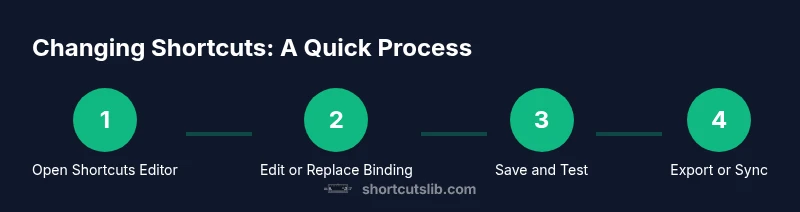
- Open the Keyboard Shortcuts editor to ensure you’re editing the user scope. This keeps OS defaults intact for other users. Tip: use the search box to locate the command quickly.
- Locate the command you want to remap. Filter by name or browse categories; choose commands you use often. Tip: map to a memorable, easy-to-reach key.
- Click the pencil icon next to the current binding to enter edit mode. Tip: reserve a rarely used combo for critical tasks to avoid conflicts.
- Press the new key combination. If VS Code detects a collision with another binding, you’ll see a warning—decide whether to rebind the other command or keep the original.
- Save the change. If prompted, confirm the override. Tip: test the shortcut in code editor, terminal, and file explorer contexts.
- Verify the shortcut works as intended and note any extension conflicts. If needed, adjust either the extension’s mappings or your own for consistency. Time estimate: 15-25 minutes.
Step-by-step: change a shortcut via keybindings.json
- Open keybindings.json from the Keyboard Shortcuts editor (Open Keyboard Shortcuts (JSON)).
- Locate the command’s entry or create a new one. Ensure you’re editing the user-level file for portability across machines.
- Add or modify the JSON object with fields like "key": "ctrl+k", "command": "workbench.action.files.newUntitledFile", and optional "when" context. Tip: use a consistent prefix (Ctrl/Cmd) for all bindings to minimize OS conflicts.
- Save the file. VS Code applies changes immediately; if not, reload the window.
- Test the updated binding in multiple contexts (editor, terminal, explorer) and refine the context condition as needed. Tip: back up the original file before changes.
- Sync or export your keybindings.json for use on other machines. Time estimate: 15-25 minutes.
Import, export, and share your keybindings
Exporting your custom shortcuts makes it easy to reuse them across projects or machines. In the GUI, you can copy the keybindings.json to a safe location or commit it to a personal dotfiles repository. When you move to a new device, import the file by replacing the target keybindings.json, or re-sync via your cloud provider. Organize your bindings with descriptive comments (where supported) and maintain a small core set: the commands you use daily. This practice keeps your setup portable while reducing drift between environments.
Best practices for keyboard shortcuts in VS Code
- Start with a minimal core: map only a handful of essential actions and expand gradually.
- Use a consistent prefix (prefer Ctrl/Cmd) for all custom bindings to avoid OS conflicts.
- Prefer GUI remaps for obvious actions and JSON edits for portable, shareable presets.
- Document changes in a personal cheat sheet and keep a backup of keybindings.json.
- Align VS Code shortcuts with extensions you rely on to prevent clashes.
- Periodically audit your mappings: remove rarely used bindings and refresh your layout for new projects.
Troubleshooting common issues with changed shortcuts
- Conflicts appear as warnings in the editor. Resolve by reassigning either the new command or the conflicting one.
- Extensions may rebind keys at startup. If a binding stops working, disable or reconfigure the extension’s shortcuts.
- If changes don’t apply, ensure you edited the correct keybindings.json (User vs Workspace) and reload VS Code.
- Cross-platform setups can introduce OS-level shortcuts. Consider using platform-specific conditional keys in keybindings.json or separate profiles for Windows and Mac.
- When in doubt, revert to the default map, then reintroduce changes incrementally to isolate the issue.
How Shortcuts Lib can help you master keybindings
For developers who want to optimize every keystroke, Shortcuts Lib offers brand-driven, practical guides on keyboard shortcuts. Our analysis emphasizes tailoring mappings to your workflow and maintaining consistency across projects, rather than chasing every new trick. Following our evidence-based approach helps you build a durable shortcut system that accelerates coding, navigation, and testing. The Shortcuts Lib team emphasizes keeping a lean, testable scheme so you can reuse it across machines and team setups.
Authority sources
- VS Code Keyboard Shortcuts: https://code.visualstudio.com/docs/getstarted/keybindings
- Windows keyboard shortcuts: https://support.microsoft.com/en-us/help/12445/keyboard-shortcuts
- macOS keyboard shortcuts: https://support.apple.com/guide/mac-help/keyboard-shortcuts
Tools & Materials
- VS Code installed(Latest stable release preferred.)
- Admin/Root access (for OS-level changes, if needed)(Only if you plan to edit system-wide shortcuts.)
- Backup location(Keep a copy of keybindings.json before major changes.)
- Optional: dotfiles repository(For sharing portable shortcuts across machines.)
Steps
Estimated time: 15-25 minutes
- 1
Open Keyboard Shortcuts editor
Open the editor to view all commands and their current bindings. This is your starting point for GUI-based remapping and for identifying where a change is most impactful.
Tip: Use the search box to quickly locate the target command. - 2
Find the command you want to remap
Filter by name or category to locate high-frequency actions. This helps prioritize changes with the greatest workflow impact.
Tip: Prioritize commands you use daily to maximize payoff. - 3
Click the pencil to edit
Enter edit mode for the selected command so you can assign a new key binding. This visual cue prevents accidental edits elsewhere.
Tip: Keep a memorable yet distinct binding to avoid clashes. - 4
Enter the new binding
Press the new key combination and confirm. If conflicts appear, decide whether to rebind the conflicting command or keep the original.
Tip: If you see a warning, adjust one of the bindings to maintain consistency. - 5
Test across contexts
Try the shortcut in the editor, terminal, and file explorer to ensure it behaves as intended.
Tip: Testing early prevents long debugging sessions later. - 6
Document and backup
Note the change in a personal cheat sheet and keep a backup of keybindings.json.
Tip: Backups save time if you need to revert.
Questions & Answers
Can I reset all keyboard shortcuts to VS Code defaults?
Yes. Open the Keyboard Shortcuts editor and use the feature to reset to defaults, or edit keybindings.json to remove user bindings and revert to the built-in mappings.
Yes. You can reset to defaults from the Keyboard Shortcuts editor or by editing the keybindings.json and removing your custom entries.
Where are my custom keybindings stored?
Custom bindings live in keybindings.json for the User scope. If you’re using a workspace-specific setup, you may have a workspace keybindings.json as well.
Your custom bindings are stored in keybindings.json for the user scope, with a separate workspace file if you’re applying per-project mappings.
How can I share my shortcut setup with another machine?
Export your keybindings.json file and import it on the other machine. You can also use the Settings Sync feature or a dotfiles repository for versioned sharing.
You can share by exporting keybindings.json and importing it on another machine, or by using a sync or dotfiles method.
Will changing shortcuts affect extensions that define their own keys?
Extensions may bind keys; after changes, verify that core actions still function and adjust extension bindings if needed.
Extensions can rebind keys, so check that both core actions and extension shortcuts still work after changes.
What if I forget the new shortcut I created?
Use the Commands Palette to search for the action and rebind it, or view the keybindings.json to recall your mapping.
If you forget a shortcut, search for the command in the Command Palette or open keybindings.json to review your mapping.
Is there a best practice for cross-platform shortcuts?
Yes. Prefer a platform-agnostic prefix when possible and use conditional bindings in keybindings.json to differentiate Windows and Mac behavior.
Yes—use platform-aware bindings and a consistent prefix to keep behavior predictable across Windows and Mac.
Watch Video
Main Points
- Map daily actions first
- Use a consistent prefix for all bindings
- Choose GUI for obvious actions, JSON for portability
- Back up bindings before big changes
- Test bindings across editor, terminal, and explorer