How to Change Keyboard Shortcut in VS Code
Master VS Code shortcuts with a practical, step-by-step guide to customize keys, resolve conflicts, and boost coding speed. Insights from Shortcuts Lib to help you tailor your workflow.


Wondering how to change keyboard shortcut in vs code? Open the Keyboard Shortcuts editor, find the command, and rebind it to a preferred key. Use Ctrl/Cmd+K, Ctrl/Cmd+S to access shortcuts quickly, or navigate via File > Preferences > Keyboard Shortcuts. This quick guide covers binding changes, conflict handling, and exporting your personalized setup.
Why customizing keyboard shortcuts matters
Custom shortcuts speed up routine tasks like code navigation, search, and editing. When you tailor keys to your workflow, you reduce finger movement and cognitive load, letting you focus on problem solving. According to Shortcuts Lib, personalized bindings correlate with faster task completion and fewer context switches. This section explains why a small investment in customizing shortcuts yields big productivity returns, especially when you work with large codebases and multiple languages.
Understanding VS Code's keyboard shortcuts model
Visual Studio Code ships with a broad set of default shortcuts that work out of the box. You can override any of these with user-level bindings, or create workspace-specific ones tied to a project. The keybindings.json file holds your personal bindings, while the Keyboard Shortcuts editor provides a friendly GUI to edit them. This separation lets you share a workspace without forcing every developer to adopt the same defaults. With practice, you’ll discover that many commands map well to your most-used fingers and mental models, boosting speed and accuracy.
How to open and navigate the Keyboard Shortcuts editor
To start customizing, open the Keyboard Shortcuts editor. Use the keyboard shortcut Ctrl/Cmd+K, Ctrl/Cmd+S to open quickly, or navigate via File > Preferences > Keyboard Shortcuts. The editor shows a searchable list of commands on the left and current bindings on the right. Use the search field to filter by name, and rely on the keyboard hints to choose a binding that won’t conflict with OS shortcuts. You can also switch to the JSON view to edit bindings directly.
Step-by-step: Changing a binding for a command
- Locate the command you want to rebind using the search in the Keyboard Shortcuts editor. 2) Click the pencil icon next to the binding to edit. 3) Press the new key combination on your keyboard, ensuring you aren’t using a combination already bound to something critical. 4) Confirm and save; VS Code will show a conflict warning if the binding is in use. 5) Test the new shortcut in a code file to confirm the action triggers as expected. 6) If needed, revert quickly or export your set for backup.\n\nTip: Prefer bindings that use rarely used modifiers and group related actions in the same modifier family to build muscle memory.
Handling conflicts and advanced bindings
Conflicts happen when a new binding clashes with an OS shortcut or another VS Code action. Use the conflict indicator in the editor and adjust the key sequence or the "When" clause to limit the binding to a specific context (for example while the editor is focused). Advanced users often create two sets: a default set and a work-specific set, switching between them as needed. You can also disable a conflicting global shortcut at the OS level to prevent interference.
Exporting, sharing, and syncing your shortcuts
After you settle on a comfortable set, export the bindings to the user keybindings.json file for safekeeping and portability. You can copy the file to another device or use VS Code Settings Sync to propagate your preferences automatically. If you customize via the GUI, VS Code stores changes in your user profile, making it easy to replicate across machines.
Common pitfalls and troubleshooting
Avoid common mistakes like binding multiple commands to the same key, ignoring the "When" context, or using platform-specific keys that differ across operating systems. Always back up keybindings.json before making large edits. If a shortcut stops working after an extension installation, re-open the editor and check for conflicts introduced by the new extension. Remember: small, consistent bindings beat long, obscure combos.
Tools & Materials
- VS Code installed(Latest stable build recommended)
- A keyboard you can comfortably press(Standard layout for your OS)
- Backup of current keybindings.json(Located in your user settings directory)
- Access to Keyboard Shortcuts editor (GUI) or JSON view(Choose your preferred editing method)
- Optional: Settings Sync enabled(Keeps bindings across devices)
- Optional: A separate test project(To try new bindings without breaking current work)
Steps
Estimated time: 20-30 minutes
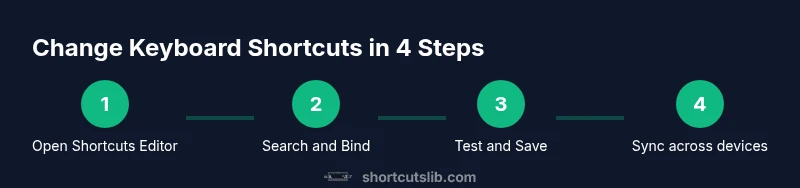
- 1
Open the Keyboard Shortcuts editor
Launch VS Code and open the shortcuts editor using the GUI or the quick shortcut. This sets the stage for safe, targeted changes.
Tip: Use Ctrl/Cmd+K, Ctrl/Cmd+S for speed; avoid making changes on a busy project without backing up. - 2
Search for the command you want to rebind
Enter a keyword in the search box to locate the exact action. Narrow results to avoid accidental edits.
Tip: If the command is not obvious, look at the command's description to ensure you pick the right one. - 3
Click the pencil to edit the binding
Click the pencil icon beside the current shortcut to enable editing. The UI prompts you to press a new key combo.
Tip: Choose a combination that minimizes conflicts with OS-level shortcuts. - 4
Press the new key combination
Type the desired keys. VS Code will show conflicts in real-time if the binding is already in use.
Tip: Prefer simple, memorable combos; avoid long sequences that are hard to reproduce. - 5
Save and test the new binding
Save the change and test in a real editor window to confirm the action triggers correctly.
Tip: Test in different file types to ensure consistent behavior. - 6
Handle conflicts and consider export
If a conflict arises, adjust contexts or revert the change. Export your bindings for backup.
Tip: Keeping a backup makes it easy to migrate to a new machine.
Questions & Answers
Can I reset all keybindings to default?
Yes. You can reset individual bindings from the Keyboard Shortcuts editor or revert keybindings.json to the default file. Open the editor, search for a binding, and choose 'Reset'.
You can reset individual bindings or revert the file to defaults from the editor.
How do I sync shortcuts across devices?
Enable Settings Sync in VS Code and sign in. Your keybindings will propagate to other devices, maintaining your workflow.
Enable Settings Sync to keep your shortcuts across devices.
What if a shortcut conflicts with my OS?
Disable the conflicting OS shortcut in your system settings or rebind it in VS Code with the 'When' clause.
If an OS shortcut conflicts, disable it in your OS or remap in VS Code.
Can I export my bindings to a JSON file?
Yes. Use the Keyboard Shortcuts editor to open keybindings.json and copy or save the content to a file.
You can export your bindings as a JSON file.
Do extensions affect keyboard shortcuts?
Extensions can add, override, or conflict with shortcuts. Check the extension's commands and keybindings, and adjust as needed.
Extensions can change shortcuts; check their keybindings if something stops working.
Is there a quick shortcut to open keybindings.json directly?
Yes. From the Keyboard Shortcuts editor, select the link to open keybindings.json in your editor.
Yes, you can open the keybindings.json directly from the editor.
Watch Video
Main Points
- Map commands to memorable keys.
- Differentiate global vs workspace bindings.
- Back up keybindings.json regularly.
- Test changes in real editing sessions.
- Sync and share your setup across devices.