VS Code Keyboard Shortcuts Not Working: Quick Troubleshoot
Urgent troubleshooting guide for when VS Code keyboard shortcuts stop working. Learn a structured diagnostic flow, reset bindings, manage extensions, and prevent future issues with practical steps from Shortcuts Lib.


Most likely the issue is a misconfigured keybindings.json, a conflicting extension, or an OS/global shortcut stealing the keys. Start by disabling recently installed extensions and resetting VS Code keybindings to default. If problems persist, test with a clean user profile, then reload VS Code. This sequence fixes most cases and restores normal shortcut behavior.
Why VS Code keyboard shortcuts might fail
If you’re seeing the message that the shortcuts aren’t working in VS Code, you’re not alone. According to Shortcuts Lib, the most common culprits are conflicting extensions, a modified keybindings.json file, or OS-level shortcuts that intercept the same key combinations. Locale or keyboard layout differences can also alter how shortcuts register, especially for non-US keyboards. This guide helps you identify the root cause and get back to a productive workflow quickly. The goal is to restore reliable shortcuts that work consistently across Windows, macOS, and Linux environments, so you stay in flow while coding.
Throughout this guide, you’ll learn a practical diagnostic flow and concrete fixes you can apply in sequence. Keep in mind that the intent is not to overwhelm you with fixes, but to give you a logical path from quick wins to deeper investigations. The Shortcuts Lib team emphasizes a systematic approach: isolate the variable, test the fix, and confirm the change by re-testing a handful of core shortcuts like copy, paste, and save.
Quick checks you can do right now
Before diving into configuration files or extensions, run through a few quick checks that catch common causes. First, verify the keyboard itself works in other apps (notepad, browser text fields, system dialogs). If the hardware is fine, attempt a few universal shortcuts in VS Code (Ctrl/Cmd+C, Ctrl/Cmd+S, Ctrl/Cmd+P) to confirm the behavior is localized to VS Code. Ensure VS Code is up to date, and that you’re not running in a restrictive mode or with missing permissions. If you use a non-English keyboard, temporarily switch to a US layout to see if shortcuts respond normally; mismatch between hardware layout and VS Code’s expected codes can cause the issue. Finally, check that you haven’t enabled any global accessibility features that modify keyboard input, such as sticky keys, which can alter shortcut behavior. This quick pass often resolves the majority of straightforward problems and buys you time to tackle deeper causes.
Inspect keybindings.json and OS shortcuts
The most actionable step is to inspect keybindings.json and compare it to VS Code’s defaults. Open Keyboard Shortcuts (JSON) via File > Preferences > Keyboard Shortcuts (JSON) or press Ctrl/Cmd+K then Ctrl/Cmd+S and click the icon to open the JSON file. Look for duplicates, conflicts, or overrides that map intended shortcuts to different commands. If you spot conflicting entries, you can delete or modify them to align with your preferred mappings. For OS shortcuts, review your system-wide key settings to ensure nothing else uses the same combinations (for example, changing global print screen shortcuts or window management keys). After editing, restart VS Code to apply changes and re-test core shortcuts.
Diagnose extension conflicts
Extensions can silently hijack keybindings or alter editor behavior. To test for conflicts, start VS Code with extensions disabled: code --disable-extensions. If shortcuts work, re-enable extensions one by one (or in small batches) to identify the culprit. Pay particular attention to extensions that implement editor enhancements, UI tweaks, or alternative command palettes, as these commonly override or intercept keyboard shortcuts. If you locate a conflicting extension, check its settings for a dedicated shortcut, update or disable that feature, or replace it with a non-conflicting alternative.
Test with a clean profile / portable mode
A corrupted user profile can manifest as missing or nonfunctional shortcuts. Try launching VS Code with a clean user data directory to isolate profile-specific issues: code --user-data-dir <path-to-empty-folder>. If shortcuts function normally in this clean environment, your personal settings or cached files are the likely cause. To return to normal, compare the clean profile against your regular profile, and selectively copy settings that don’t cause conflicts. If the clean profile fixes the problem, you can migrate your preferences gradually to the main profile to identify the exact source of the issue.
OS-specific considerations by platform
Windows: Some exploits involve the Windows key or clipboard/macro utilities that redefine shortcuts. Check that your antivirus or third-party hotkey apps aren’t intercepting key combinations.
macOS: System Preferences > Keyboard > Shortcuts may override app shortcuts. Confirm that Spotlight, Mission Control, or app-specific shortcuts aren’t conflicting with VS Code’s mappings.
Linux: Desktop environment shortcuts can overlap with VS Code. Review GNOME/KDE shortcuts and ensure your non-US keyboard input method doesn’t rewrite key events that VS Code relies on.
Quick verification checklist
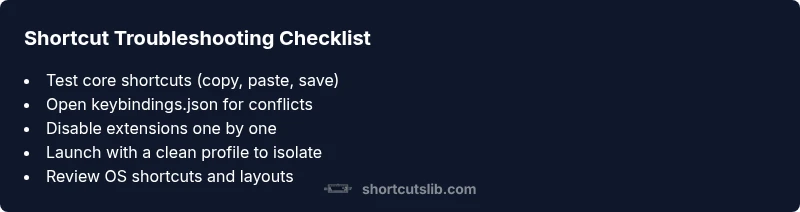
- Test a small set of core shortcuts (copy, paste, save) in a new editor tab.
- Open Keyboard Shortcuts (JSON) and look for duplicates or overrides.
- Disable extensions and re-check shortcuts.
- Launch with a clean profile to rule out profile corruption.
- Confirm there are no OS-level conflicts or conflicting utility apps.
- Reinstall or repair VS Code if the above steps don’t resolve the issue.
Prevention and best practices
Document your preferred shortcuts and keep a backup of your keybindings.json. Regularly review extensions after updates, as new versions can rebind keys. Use a consistent keyboard layout across your devices to avoid locale-related mapping problems. Finally, maintain up-to-date backups of your VS Code settings; this makes it easier to recover if a future update introduces a conflicting shortcut.
Steps
Estimated time: 25-40 minutes
- 1
Reproduce and list affected shortcuts
Identify which shortcuts fail (copy, paste, save, quick open). Note whether the issue affects all shortcuts or just specific commands. This helps you prioritize fixes.
Tip: Document the exact shortcuts and their expected behavior for reference. - 2
Open keyboard settings
Open VS Code Keyboard Shortcuts (JSON) to inspect current mappings. Look for duplicates or overrides that could hijack your intended keys.
Tip: If you see conflicting entries, back up the file before edits. - 3
Reset to defaults
Reset the keybindings.json to the default values or carefully remove conflicting lines. Save and reload VS Code.
Tip: After resetting, re-test the core shortcuts to confirm baseline behavior. - 4
Disable extensions
Restart with extensions disabled (code --disable-extensions) and verify shortcuts. If they work, re-enable in small batches.
Tip: Focus on extensions that modify editor behavior or shortcuts. - 5
Test with a clean profile
Launch VS Code with a fresh user-data-dir to isolate profile corruption. Compare behavior with your main profile.
Tip: If it works in a clean profile, migrate settings gradually.
Diagnosis: VS Code shortcuts not working or behaving inconsistently
Possible Causes
- highConflicting extension
- highModified keybindings.json
- mediumOS/global shortcuts intercepting keys
- mediumKeyboard layout/locale mismatch
- lowProfile corruption or VS Code cache issue
Fixes
- easyDisable recently installed extensions and test shortcuts
- easyReset keybindings.json to VS Code default or fix conflicts
- easyTest with --disable-extensions or a clean user profile
- mediumCheck OS shortcuts and adjust layout to match keyboard
- hardRepair VS Code installation or reinstall if necessary
Questions & Answers
Why are VS Code shortcuts not working after installing a new extension?
New extensions can override or intercept shortcuts. Disable the extension to confirm, then reconfigure its keybinding or remove it if it’s not essential.
New extensions might override shortcuts. Try disabling the extension to confirm, then adjust or remove it if needed.
How do I reset keybindings to default in VS Code?
Open Keyboard Shortcuts (JSON) and remove custom mappings, or use the command to reset keybindings to VS Code defaults. Reload the editor to apply changes.
Reset keybindings in the settings to return to defaults, then reload VS Code.
Can OS shortcuts affect VS Code shortcuts?
Yes. System-wide shortcuts can intercept keys used by VS Code. Check your OS settings and disable conflicting global shortcuts where possible.
Yes, OS shortcuts can steal keys from VS Code. Check system settings for conflicts.
What should I do if shortcuts work in a clean profile but not in my main profile?
A clean profile indicates a corrupted user data cache. Compare settings, copy non-conflicting ones, and gradually migrate to identify the culprit.
If a clean profile works, compare and migrate settings slowly to your main profile.
Is it safe to edit keybindings.json directly?
Editing is safe if you back up first. Validate JSON syntax and test changes incrementally to avoid breaking the file.
Yes, but back up first and validate your edits.
When should I reinstall VS Code for shortcut issues?
Reinstall as a last resort if all other fixes fail. This can repair corrupted installations or settings that block shortcuts.
Reinstall as a last resort if issues persist after all fixes.
Watch Video
Main Points
- Back up keybindings.json before edits.
- Disable extensions to identify conflicts.
- Test with a clean profile to isolate issues.
- Check OS shortcuts and keyboard layout.
- The Shortcuts Lib team recommends routine shortcut audits.