How to Replace a Shortcut Key on Your Computer Today
Learn how to replace a shortcut key on Windows, macOS, or Linux. This practical guide covers remapping methods, safety backups, and troubleshooting tips from Shortcuts Lib to ensure smooth keyboard workflows.


You can replace or remap a shortcut key using OS settings or third‑party tools. This guide walks through Windows, macOS, and Linux, showing how to reassign keys safely, back up your current mappings, and verify the result. It assumes admin rights, a supported keyboard, and a recovery plan in case conflicts arise.
Why replace and remap shortcut keys?
Keyboards are high-leverage tools for efficiency. Replacing or remapping a shortcut key means assigning a different function to an existing key so you can trigger tasks faster with fewer keystrokes. According to Shortcuts Lib, remapping can dramatically reduce mouse usage and cognitive load for power users, especially when you work across multiple apps and platforms. The goal is not to confuse yourself with too many changes; it’s to streamline the exact tasks you perform most often. If you frequently switch between writing and coding, for example, you can give a single key a dual role—open your editor with one gesture and insert a template with another. In this section, we’ll cover the reasons to replace a shortcut key and how to plan a remapping that lasts beyond a single session. The central question is: does the change improve speed, accuracy, and comfort when you replace shortcut key in computer? The answer is often yes, when done thoughtfully.
The decision to replace shortcut keys should be guided by your daily task profile. Start by listing the top 5 actions you perform with keystrokes and identify which single key could host a more productive action. If you’re a developer, you might map a key to quickly toggle a terminal pane or run a build. If you’re a writer, mapping a key to insert a block of boilerplate text can save time each day. The intent is clarity and consistency: a small change that yields large gains over weeks. Remember to keep changes limited to the most used shortcuts to avoid cognitive overload. Shortcuts Lib emphasizes deliberate, incremental changes over sweeping overhauls.
Methods for remapping: OS-native vs. third-party tools
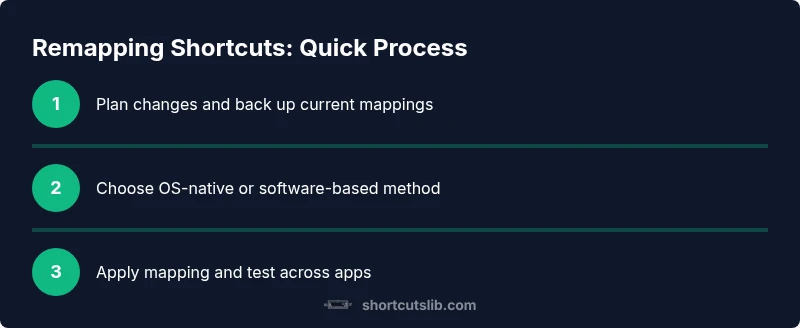
There are two broad paths to replace shortcut key in computer: use native OS features, or employ third-party remapping software. OS-native options are safest because they integrate with startup, update, and accessibility settings, and they usually provide an easy rollback. Third-party tools offer deeper control, like per-app mappings or complex macros. Choose the method that fits your needs and risk tolerance. In this guide we’ll compare Windows, macOS, and Linux approaches across both paths, with practical examples you can try today. Regardless of method, always start with a backup so you can revert if a remapping produces unintended consequences in key combos you rely on every day. When you’re ready, move to the platform-specific steps, keeping the goal of a reliable, repeatable workflow in mind.
Windows: remapping a key
Windows users have a straightforward path thanks to built-in tools and widely adopted utilities. The most supported approach is using Microsoft PowerToys Keyboard Manager, which lets you remap a single key or create a macro, and it persists across reboots. Start by installing PowerToys, then open Keyboard Manager and select Remap a key. Choose the physical key you want to replace and assign the new function from the list (for example, making Caps Lock act as Escape or a media button). Save your changes and test across common programs to ensure compatibility. If you rely on custom shortcuts in certain apps, validate that those apps honor system mappings or provide their own overrides. If something doesn’t work as expected, revert using the restore point or reconfigure from the backup you created earlier. This approach minimizes risk while offering clear, mechanical steps for the replace shortcut key in computer workflow.
macOS: remapping a key
Mac users often employ System Settings and sometimes third-party utilities like Karabiner-Elements for deeper remapping. Start by analyzing which key you want to replace and what you want it to do. If you’re using macOS 13 or later, you can adjust Modifier Keys under System Settings > Keyboard to reassign Command, Control, Option, and Escape roles. For broader remaps, install Karabiner-Elements, then configure a simple rule that maps the target key to a new function. After applying the change, log out and back in or restart to ensure the new mapping is loaded. Test common workflows (shortcuts in Finder, browsers, and development tools) to confirm behavior. If anything conflicts with system shortcuts, disable the offending rule and refine your mapping. This is a reliable path to replace shortcut key in computer environments on macOS.
Linux: remapping a key
Linux provides powerful, flexible options via X11 or Wayland, depending on your distribution. A classic approach uses xmodmap or setxkbmap to reassign keys at startup. For GNOME-based environments, you can also use the Keyboard settings or GNOME Tweaks to modify shortcuts. Start by backing up your current keymap, then choose a tool. For example, with xmodmap: xmodmap -e 'keycode 66 = Escape' changes a specific key. Save your changes to a startup script so the remap persists. If you’re using Wayland, rely on your compositor’s per-key mappings or a tool like Wayland's input configuration. After applying the remap, log out and in, then test common keyboard shortcuts in your favorite apps. Linux users often find this option highly adaptable, though it may require extra steps after system updates. If you run into conflicts, adjust keycodes or create per-app rules.
Backups and safety before you begin
Always back up before changing keyboard mappings. Create a system restore point (Windows), a Time Machine snapshot (macOS), or a backup of your keymap file (Linux) so you can revert quickly if something goes wrong. Document the exact key you’re changing, the target function, and any apps that might be affected. Consider saving a printable quick-reference sheet that lists old versus new mappings. Keep the backup in a separate drive or cloud storage. If available, test the remapping in a controlled environment (a less-used account or a virtual machine) to reduce risk. Shortcuts Lib recommends establishing a rollback plan and practicing it so you can safely replace shortcut key in computer without disrupting critical tasks.
Common pitfalls and how to avoid them
Remapping can create conflicts with existing shortcuts, especially in productivity suites and design tools. Avoid mapping keys that already trigger critical system actions (e.g., Alt+Tab, Ctrl+Alt+Delete equivalents) to avoid breaking access. Be mindful of cross-app consistency; a mapping that works in a browser might be useless in a terminal. After changes, verify that all essential shortcuts still function and that you can still type quickly. If you rely on remote work or collaboration platforms, check that your remapped keys don’t interfere with chat commands or shortcuts other people use on shared machines. Keep a changelog and revert when you encounter problems. Shortcuts Lib emphasizes a slow, test-first approach when replace shortcut key in computer workflows.
Real-world use cases and examples
Power users often remap to speed up common tasks: map a single key to open the editor, start a build, or insert a frequently used snippet. Developers may assign one key to run tests, another to switch Git branches, and a third to toggle a terminal pane. Students can map a key to launch a PDF reader with notes, and writers may set a key to insert a predefined block of text. For accessibility, remapping can help those with motor impairments by reducing finger travel. In team environments, keep remappings documented so colleagues can understand and maintain the setup. When you replace shortcut key in computer, the goal is consistency across apps while preserving essential OS shortcuts.
Testing and verification: ensure reliability
After applying a remap, run a structured test across your most-used apps. Check the remapped key in the context of text input, dialog boxes, and menu shortcuts. If a conflict arises, revisit the mapping and adjust the target function or scope (system-wide vs. per-application). Use a keyboard tester to confirm that the key registers correctly. Keep a rollback plan ready in case you need to undo changes quickly. Regularly revisit mappings after OS updates, because some updates may override or reset custom shortcuts. With careful validation, you’ll have a stable, functional, replaced shortcut key in computer workflow that sticks across sessions. The goal is a setup that feels native and reliable.
Tools & Materials
- Admin access on target computer(Needed to install software and modify system settings)
- Backup of current mappings(Export registry/keyboard settings and create a restore point)
- Keyboard drivers up to date(Ensure compatibility with remapping software)
- Remapping software (optional)(PowerToys (Windows) / Karabiner-Elements (macOS) / setxkbmap/xmodmap (Linux))
- Documentation notebook(Record changes for rollback)
Steps
Estimated time: 30-60 minutes
- 1
Back up current mappings
Create a full backup of current key mappings and, if possible, a system restore point. This gives you a safety net in case the new mapping causes conflicts. Document existing shortcuts you may depend on daily.
Tip: Store backups off the primary drive to prevent loss during system issues. - 2
Decide the target function
Identify the exact action you want the key to perform and ensure it complements, rather than conflicts with, existing shortcuts. Prioritize high‑frequency tasks to maximize impact.
Tip: Write down the old function and the new one for quick reference. - 3
Choose remapping method
Select either OS-native remapping or a third‑party tool based on your platform and needs. Native tools are safer for long-term use; third‑party tools offer more flexibility.
Tip: If unsure, start with OS-native options and escalate if needed. - 4
Windows: install PowerToys
If on Windows, install PowerToys and open Keyboard Manager. This centralizes your remappings in a single, restart-persistent place.
Tip: Ensure you download from the official repository to avoid malware. - 5
Windows: remap a key
In Keyboard Manager, choose “Remap a key,” select the physical key to replace, and assign the desired function from the list or by typing a custom key combo.
Tip: Test the new mapping in a simple editor before heavy usage. - 6
macOS: choose your approach
For macOS, decide between Modifier Keys reassignments or Karabiner‑Elements for deeper remaps. Install the chosen tool and prepare rules.
Tip: Karabiner-Elements is powerful but may require more setup. - 7
Linux: apply a map
On Linux, apply a map with xmodmap or setxkbmap. If you use GNOME, consider Keyboard Settings or GNOME Tweaks for per-application shortcuts.
Tip: Add the mapping to startup scripts to persist after reboots. - 8
Test cross‑app behavior
Open your most-used apps and verify that the new key works as intended, without breaking critical OS shortcuts.
Tip: Check both text input and command palettes for reliability. - 9
Document and secure the changes
Record the new mapping, note any caveats, and keep the backup accessible. This makes rollback easy if needed.
Tip: Share changes with teammates if you work on shared machines.
Questions & Answers
What does it mean to replace a shortcut key?
Replacing a shortcut key means reassigning a key to perform a different function. This can apply system-wide or per-application and should be backed up so you can revert if needed.
Remapping a key means giving it a new function and keeping a backup so you can undo if something goes wrong.
Is it safe to replace a shortcut key?
Yes, if you back up mappings and choose reasonable targets. Start small and test thoroughly to avoid disrupting essential tasks.
Yes, as long as you back up first and test gradually, you can safely remap keys.
How do I revert changes if something goes wrong?
Use the backup you created before the remap or use the system restore functionality to reset to the previous configuration.
You can revert by restoring from your backup or using the OS restore feature.
Will remapping affect all apps or only some?
OS-level remappings typically affect all apps, but per-app remapping can be configured for specific programs. Check each tool’s scope settings.
Mostly it applies across apps, but you can limit it to certain programs if the tool supports per-app rules.
What if the key I want to replace is physically broken?
If a key is damaged, replace the keyboard or use an external keyboard while you fix the hardware. Remapping won’t fix hardware issues.
If the key is broken, consider a keyboard replacement, remapping won’t solve hardware problems.
Watch Video
Main Points
- Back up before changing mappings
- Test changes across critical apps
- Prioritize high‑frequency tasks
- Document changes for easy rollback
- Revisit mappings after OS updates