How to Replace a Shortcut Key in Excel
Learn how to replace a shortcut key in Excel with a practical, step-by-step approach for Windows and Mac. Includes macros, conflict checks, testing, and best practices for reliable workflow improvements.


Goal: replace shortcut key in excel by reassigning a command to a new key, avoiding conflicts with existing mappings. You’ll need a current Excel setup with customization capabilities and access to the Macro or Quick Access Toolbar options. This guide covers Windows and Mac workflows, verification steps, and best practices to ensure a smooth replacement.
Understanding why you might want to replace a shortcut key in Excel
According to Shortcuts Lib, customizing Excel shortcuts can dramatically speed up daily tasks and reduce repetitive clicking. When your daily work revolves around a handful of commands, mapping those to keys you naturally reach for can cut down on mouse travel and cognitive load. People replace shortcuts to reflect personal habits (for example, mapping a macro that clears formatting to a single press) or to harmonize shortcuts across multiple Office apps. The goal is a predictable, repeatable interaction model: you press a key and the command executes exactly as you expect. Before you start, audit your current mapping: which shortcuts do you rely on, which ones cause conflicts with new actions, and which commands are best served by a macro or a custom ribbon button? Shortcuts Lib consistently recommends a staged approach: plan, test, and document your changes to avoid regressions.
How Excel maps shortcuts across Windows and Mac
Keyboard shortcut behavior in Excel differs between Windows and Mac due to platform conventions and modifier keys. Windows users typically leverage Ctrl and Alt combinations, while Mac users rely on Command and Option modifiers. Not every Excel command is bound to a default shortcut, and some advanced features depend on the presence of the Developer tab or macro routing. If you want consistent behavior across platforms, you’ll often need to create a macro that encapsulates the desired action and assign a keyboard shortcut to that macro. The Shortcuts Lib team notes that cross-platform consistency is achievable but requires careful planning and testing in both environments. Document any deviations so teammates aren’t surprised when switching devices.
When to reassign a shortcut vs create a macro
Reassigning a built-in shortcut is sometimes possible, but more often you’ll want to assign a keyboard shortcut to a macro that you control. Macro-based shortcuts give you stability and flexibility without conflicting with core Excel shortcuts. If an action is simple and generic (like applying a specific format), a direct rebind might be tempting; however, built-in commands may be tightly integrated with other features, and changing them can break workflows for others. Shortcuts Lib recommends prioritizing macros for complex or frequently repeated tasks and preserving default mappings for critical Excel operations. In team environments, maintain a changelog so others understand what changed and why.
Step-by-step approach to reassign a shortcut in Excel
A practical approach begins with clarifying what you want the shortcut to do and whether a macro will deliver the result reliably. If you decide to map a macro, you’ll need to record or write the macro, then assign a shortcut to it. After the assignment, test the shortcut in a few representative workbooks to confirm the action triggers correctly and does not interfere with other commands. Finally, save the mapping in a Personal Macro Workbook (to persist across files) and document the change so teammates can reference it. Throughout, keep a backup copy of your workbook in case you need to revert.
Testing the new mapping and validating conflicts
Testing is the most critical step. Start by opening a test workbook and pressing the new shortcut in a variety of contexts (data entry, formatting, formulas) to ensure consistent results. If Excel warns about a conflict with an existing shortcut, decide whether to overwrite the existing function or choose a different key sequence. Use both Windows and Mac environments if possible to catch platform-specific quirks. Shortcuts Lib emphasizes validating not just the command, but also the side effects in different sheets and add-ins. If your test reveals any unexpected behavior, revisit the macro and the shortcut assignment.
Troubleshooting common issues
If the shortcut doesn’t work, first verify that the macro is enabled and that you saved the Personal Macro Workbook or the document you’re testing in. Check for conflicts with other add-ins or custom ribbons that may rebind keys at runtime. Some corporate environments restrict custom shortcuts; in those cases, use the Quick Access Toolbar (QAT) to create a visible, reliable alternative while you work with your IT department. Always keep a log of changes and a quick reset method so you can revert if something goes wrong.
Best practices for managing shortcuts across projects
Document every mapping with a short description of the action and the target file type. Use non-conflicting keystrokes that are easy to remember and avoid common system shortcuts (like Ctrl+C) where possible. Consider creating a small, shared reference sheet for your team and placing it near your workstation. As you scale, build a registry of frequently used macros and associated shortcuts, and prune unused mappings to prevent clutter. Shortcuts Lib recommends periodic reviews to ensure mappings still reflect your workflow and don’t interfere with new features.
Automation and external tools for shortcuts in Excel
Beyond macros, you can use add-ins or automation tools to manage shortcuts at scale. Some tools permit central policy management for organizations, making it easier to apply consistent mappings across users. If you rely heavily on macros, consider a centralized template with a preserved Personal Macro Workbook that contains your essential mappings, plus a simple in-workbook reference for others. Always test any external tool in a controlled environment before rolling it out to production workbooks. Remember to keep security best practices in mind when enabling macros and third-party add-ins.
Final notes: staying productive with intentional shortcuts
Replacing a shortcut key in Excel is a powerful productivity tweak when done thoughtfully. Plan your mappings, test across platforms, and document changes to maintain clarity for yourself and teammates. The Shortcuts Lib team recommends beginning with a single high-impact shortcut, then expanding once you’re comfortable with the process. With careful management, your Excel shortcuts will support a faster, more precise workflow rather than becoming a source of confusion.
Tools & Materials
- Excel installed on Windows or Mac(Ensure you have access to the desktop version (not just web) for macro support.)
- Macro recording/creation capability(Enable macros in Trust Center settings if needed.)
- One or more test workbooks(Start with non-critical files to avoid data loss.)
- Personal Macro Workbook (optional but recommended)(Saves mappings across files (Personal.xlsb).)
- Backup copy of critical workbooks(Always back up before changing shortcuts.)
Steps
Estimated time: 15-30 minutes
- 1
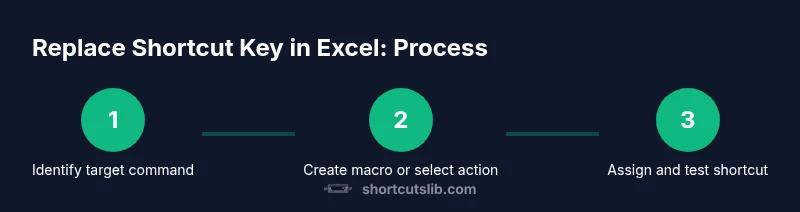
Identify the target command
List the actions you perform most often and decide which one benefits most from a shortcut. If the action already has a shortcut, note whether you want to replace it or repurpose an unused key.
Tip: Prioritize high-frequency actions that streamline your daily workflow. - 2
Create a macro or identify an existing one
If the action isn’t a single built-in command, record or write a macro that performs the desired task. Save the macro so you can reference it in the next step.
Tip: Keep macros focused and well-commented for future maintenance. - 3
Open the Macro Options screen
In the Developer tab (or through the Macro dialog with Alt+F8), select the macro you want to map and open its options to assign a shortcut key.
Tip: Choose a shortcut that is easy to remember and unlikely to clash with common system keys. - 4
Assign a keyboard shortcut
In the macro Options, set a new shortcut using a unique combination. Confirm there are no conflicts with existing shortcuts in this workbook.
Tip: Prefer a combination that won’t be overwritten by future Excel updates. - 5
Save to Global scope
If available, save the mapping in Personal Macro Workbook to persist across files. Otherwise, save in a template you reuse.
Tip: Personal Macro Workbook is your friend for cross-file persistence. - 6
Test in a sample workbook
Test the new shortcut in various contexts to confirm the macro runs correctly and doesn’t interfere with other commands.
Tip: Test on both small and large datasets to catch edge cases. - 7
Document and share
Create a quick reference note describing the mapping, its purpose, and where it’s stored. Share with teammates to avoid confusion.
Tip: Maintain a changelog and provide a rollback plan in case issues arise.
Questions & Answers
Can I change a built-in Excel keyboard shortcut directly?
Some built-in shortcuts can be overridden by assigning a macro, but many Excel shortcuts are fixed. If a direct override isn’t possible, use a macro with a custom shortcut or repurpose an unused key via the Quick Access Toolbar.
Some built-in shortcuts can be overridden by macros, but many are fixed. If direct override isn’t possible, use a macro with a custom shortcut or an unused key via the Quick Access Toolbar.
What’s the safest way to reassign keys across Windows and Mac?
Create a macro-bound shortcut for Windows and Mac with careful validation. Prefer a key combination that isn’t commonly used by the operating system, and test in both environments.
Create a macro-bound shortcut that works on both Windows and Mac, and test in both environments.
Should I document shortcut changes for teammates?
Yes. Maintain a shared reference that describes each mapping, its purpose, and where the macro or template is stored. This avoids confusion and helps onboarding.
Yes—keep a shared reference that documents each mapping and its location.
How do I reset shortcuts to default if something goes wrong?
If available, use the Reset or Restore defaults option in your macro manager or Excel settings. If not, revert to a clean template or recreate the original mapping from a backup.
Use reset options if available, or revert to a backup template to restore defaults.
Can I apply shortcuts to all workbooks automatically?
Global application is possible with a Personal Macro Workbook that loads with Excel. However, some enterprise environments may restrict this. Always test across typical workbook types.
You can apply globally with a Personal Macro Workbook, but check organizational policies and test broadly.
What if my organization blocks macros?
If macros are blocked, rely on the Quick Access Toolbar or workbook-specific ribbons to mimic shortcuts. Coordinate with IT to enable safe macros or provide approved alternatives.
If macros are blocked, use the Quick Access Toolbar or approved alternatives and consult IT.
Watch Video
Main Points
- Identify high-impact commands to map
- Use macros for flexible actions
- Test thoroughly across workbooks
- Document mappings for teams
- Back up before changing shortcuts