How to Replace a Shortcut Key
Learn to replace a shortcut key across Windows and macOS with a practical, step-by-step approach from Shortcuts Lib. Safe methods, testing, and documentation included.


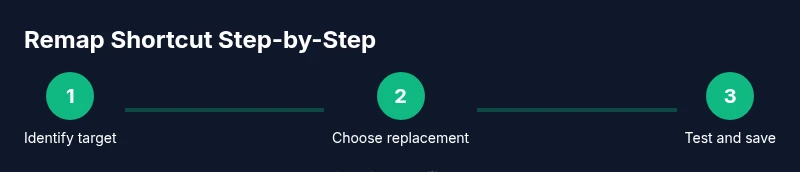
You can replace a shortcut key by identifying the target key, choosing a conflict-free replacement, and using your OS or application shortcuts editor to remap it. This guide walks you through planning, remapping, testing, and documenting changes so your workflow stays efficient and consistent.
Why replacing a shortcut key matters
According to Shortcuts Lib, the ability to replace a shortcut key can unlock cleaner workflows, reduce conflicts with system or application defaults, and tailor your keyboard to the tasks you perform most. When the same key triggers multiple actions across programs, you waste time switching mental models. A thoughtfully chosen replacement can make common tasks faster and less error-prone. In this section we explore why people choose to replace shortcut keys, the kinds of tasks that benefit most, and how to approach the change with minimal disruption. This is not about hacking features; it is about aligning your input methods with your work style. Whether you’re a programmer, designer, or power user, a well-chosen replacement saves clicks, keystrokes, and cognitive load. The goal is to support a predictable, lean editing and navigation flow that you can rely on every day.
Planning your replacement: mapping, scope, and constraints
Before you touch a key, map out the scope of your replacement. Start by identifying the single shortcut you want to replace and the exact action it triggers. Check for conflicts with OS-level shortcuts, application defaults, and hardware keyboard layouts. If a key is heavily used by the system, consider repurposing a two-key or three-key combo instead of a single key. Create a short list of candidate replacements and test each in a controlled setting. Shortcuts Lib recommends choosing replacements that are easy to remember and do not interfere with essential accessibility features. Documenting your decisions early helps you revert changes if needed and makes future adjustments simpler.
OS-specific remapping workflows: Windows, macOS, Linux
Remapping shortcuts is usually done through the operating system’s settings panel, though some apps offer their own remapping options. On Windows, you often adjust keyboard shortcuts within Settings > Time & language or via the Control Panel for accessibility features. macOS users typically find remapping options under System Settings > Keyboard > Shortcuts. Linux environments vary by desktop, but GNOME and KDE both offer global shortcuts editors. When remapping, prefer modifier-heavy combinations (for example, Ctrl or Cmd plus a letter) to minimize accidental presses. Always save a backup before applying changes so you can rollback quickly if something goes awry.
Application-specific remapping: staying consistent across tools
Many apps allow per-application shortcuts that can conflict with global OS mappings. In editors like VS Code, Photoshop, or Illustrator, you can redefine a shortcut to a more convenient combination for your workflow. If an app relies on a very specific shortcut, prioritize OS consistency and adapt within the app only when necessary. Create a short cheat sheet for yourself listing the new mappings across core tools. This helps maintain consistency when you switch between tasks and reduces cognitive load during complex projects.
Testing, backups, and rollback: safeguard your changes
After you remap a key, test it across typical tasks to confirm it behaves as expected. Run a small test suite that covers the most frequent actions you perform. Create a backup of your current shortcuts before applying changes, so you can restore quickly if something breaks. If you notice unexpected behavior, revert to the backup and try a different combination. Shortcuts Lib emphasizes the importance of gradual changes and a clear rollback plan to avoid workflow disruption.
Documentation and maintenance: keep it sane and shareable
Document every replacement in a central, searchable log. Include the old mapping, new mapping, the date of change, and the rationale. This makes it easier to onboard teammates and helps you track what works over time. Review mappings periodically to ensure they still align with your tasks as your toolset evolves. A living document also helps you provide quick training to others and makes it easy to revert if a platform update introduces conflicts.
Practical tips and safety considerations
When choosing a replacement, avoid keys that are essential for accessibility features or system-wide functions. If you often press a key accidentally, consider moving it to a less disruptive position or combining it with a modifier. Use two-key or three-key combos rather than single keystrokes when possible to reduce accidental activation. Always verify that you can revert in one click and have a documented rollback path. Shortcuts Lib’s approach is to keep remappings simple, memorable, and immediately beneficial to your daily tasks.
Tools & Materials
- Computer with admin/access rights(You may need admin rights to modify global shortcuts)
- Backup plan or restore point(Create a restore point or backup of existing mappings)
- Notes/documentation tool(Log old and new mappings with dates and rationale)
- Access to OS shortcuts editor(Windows Settings, macOS System Settings, or Linux desktop settings)
- Target keyboard (optional)(If your layout is non-standard, verify key labels and positions)
Steps
Estimated time: 40-60 minutes
- 1
Identify the target shortcut to replace
List the actions currently triggered by the shortcut and the frequency of use. Determine whether the key is crucial for accessibility or system function. This step sets the stage for a thoughtful remapping rather than a hasty change.
Tip: Pro tip: Choose a replacement that is easy to remember and unlikely to clash with other shortcuts. - 2
Select a replacement key or combo
Review potential replacements and pick one that minimizes conflicts. Favor modifier-rich combos (Ctrl/Cmd + Alt + a letter) to lower the chance of accidental presses. Keep a short list of backups in case your first choice proves problematic.
Tip: Pro tip: Avoid using keys that are heavily used by the OS or the most common apps you use. - 3
Back up current mappings
Export or copy your existing shortcuts so you can restore them if needed. If your system supports it, create a restore point before applying changes. This is essential for safe experimentation.
Tip: Pro tip: Store the backup in a separate location or cloud storage for safety. - 4
Open the remapping interface
Navigate to the shortcuts editor in your OS or an app’s settings. Be careful to select the global shortcut if you intend it to apply system-wide, or the application-specific setting if you want it limited to one program.
Tip: Pro tip: Use search within settings to quickly locate the relevant shortcut. - 5
Reassign the shortcut
Apply your new mapping and save changes. Confirm the new key combination is now active and the old mapping is gone. If the new mapping doesn’t take effect, double-check for conflicting settings and try a different combo.
Tip: Pro tip: After setting, perform a quick test on a couple of representative tasks. - 6
Test across tasks and apps
Run through the core tasks you mapped and note any unexpected behavior. Test in different apps to ensure consistency. Watch for conflicts with other global shortcuts that may trigger unintentionally.
Tip: Pro tip: Keep a log of any issues you encounter and plan a rollback if needed. - 7
Document changes and establish rollback
Record the old and new mappings, the date of change, and the rationale. Create a quick rollback plan in case you need to revert. Share the log with teammates if you work in a collaborative environment.
Tip: Pro tip: Include a simple emoji-based legend for quick scanning in your notes. - 8
Review and finalize
Perform a final pass after a short acclimation period. If the new shortcut continues to disrupt your flow, consider a different mapping or reverting completely. Establish a routine for periodic review as your toolkit evolves.
Tip: Pro tip: Schedule a monthly check-in on keyboard shortcuts to keep your setup efficient.
Questions & Answers
What is a shortcut key?
A shortcut key is a key or key combination that triggers a specific action quickly. Replacing a shortcut key means assigning a different key or combo to the same action, improving your workflow when the default conflicts with your tasks.
A shortcut key is a quick keystroke that triggers an action. Replacing it assigns a new key or combo to the same task.
Can I replace a system-wide shortcut?
Yes, most operating systems let you reconfigure system-wide shortcuts in settings. Be mindful of other global shortcuts to avoid new conflicts.
Yes, you can reconfigure system-wide shortcuts in settings, but watch for conflicts with other shortcuts.
What if the replacement conflicts with an app’s shortcut?
If a conflict occurs, try an alternative mapping or use app-specific remapping instead of a global one. Document the change to avoid confusion later.
If you have a conflict, try another mapping or remap within the app, and keep notes.
How do I revert changes quickly?
Use the backup you created before changing mappings. If needed, restore the previous configuration and reapply changes in a different way.
You can revert by restoring the backup you saved before changing mappings.
Are there accessibility concerns when remapping keys?
Remapping can affect users who rely on certain keys for accessibility. Consider alternative mappings and ensure your setup remains usable for all tasks.
Yes, be mindful of accessibility needs and test your setup for usability.
Watch Video
Main Points
- Identify the exact shortcut to replace
- Back up current mappings before changes
- Choose a memorable, low-conflict replacement
- Test across tasks and apps before finalizing